Text Counter
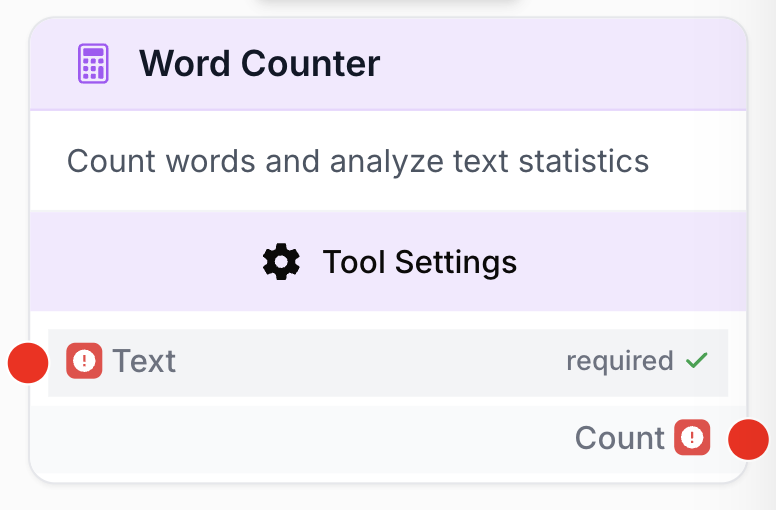
Count words, characters, sentences, and estimate tokens in a text string with selectable metrics.
What’s New — April 2026 — You can now select which metrics to compute. Token count uses the o200k_base tokenizer for accurate estimation. Added error handling options.
What does the Text Counter node do?
The Text Counter node analyzes a text string and returns statistics about its content. You choose which metrics to compute — only the selected ones appear as outputs on the node.
Common use cases:
- Validating content length before publishing (e.g., meta descriptions under 160 characters)
- Checking word count targets for SEO articles
- Estimating token usage before sending text to an LLM
- Counting sentences to assess content readability
Quick setup
Add the node to the canvas
Open the Node Library, go to Tools > Text Processing, then drag and drop the Text Counter node onto your workspace.
Connect the input
Connect the input port to the output of the node that contains the text you want to analyze (e.g., an LLM node, a Text Input, or a Web Scraper).
Select your metrics
Open the node settings. Under Metrics, toggle on the counts you need. By default only Word Count is enabled. You must keep at least one metric active.
Connect the outputs
Each enabled metric creates its own output port on the node. Connect them to the next nodes in your workflow.
Configuration parameters
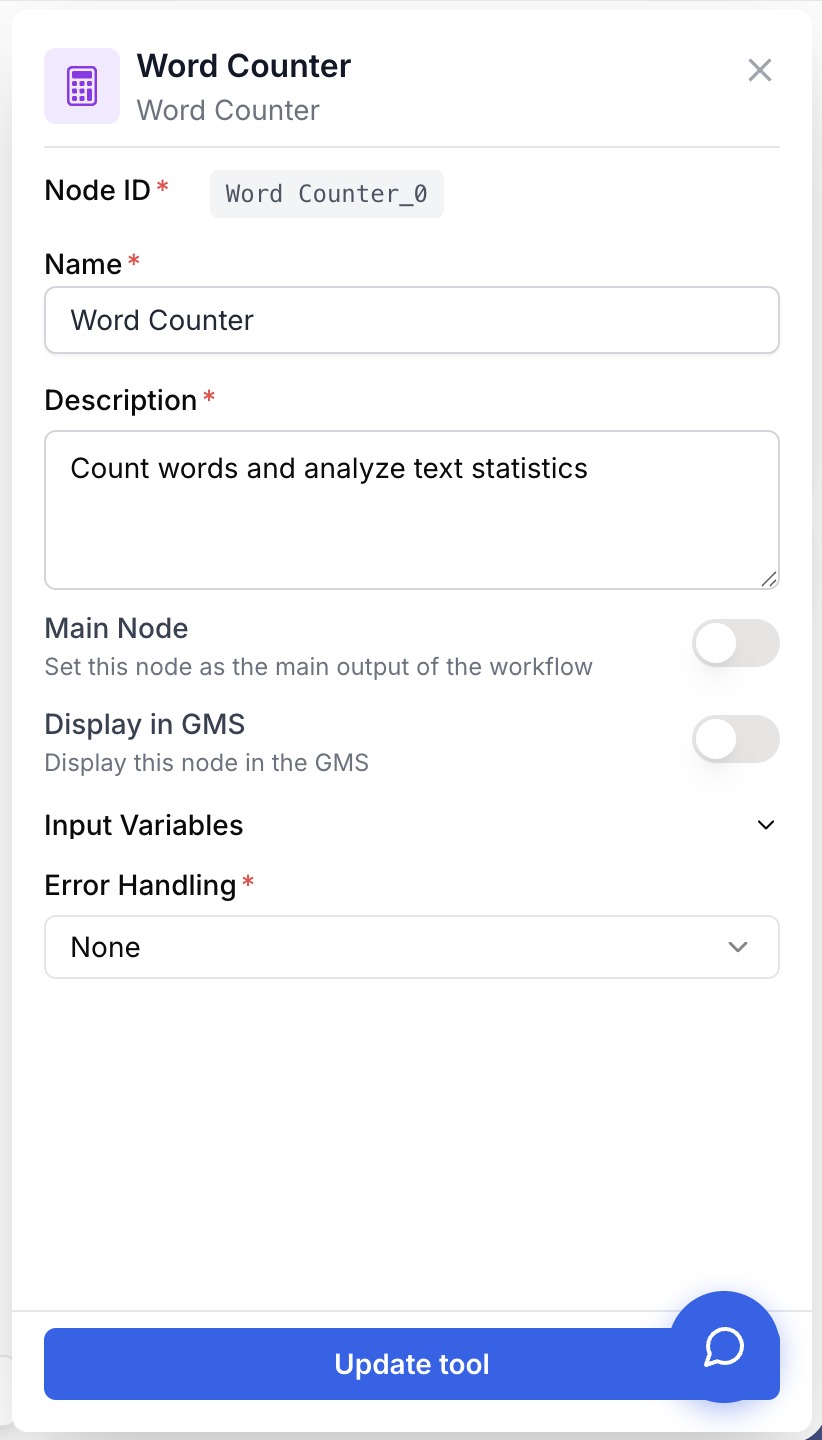
Required fields
Text string required The text to analyze. Connect this to any node that outputs text content.
Metrics
Toggle which statistics the node computes. Only enabled metrics appear as output ports.
Word Count toggle default: Enabled Number of words in the text.
Character Count toggle default: Disabled Total number of characters (excluding line breaks).
Characters (no spaces) toggle default: Disabled Number of characters excluding all whitespace.
Sentence Count toggle default: Disabled Number of sentences, detected by punctuation (., !, ?).
Token Count toggle default: Disabled Estimated token count using the o200k_base tokenizer (used by GPT-4o and similar models). Actual token usage may differ depending on the AI model you use.
Error handling
Error Handling select default: None Controls what happens when the node encounters an error.
- None — The node stops and the workflow run fails.
- Skip & Continue — The node returns
0for all metrics and continues execution.
What does the node output?
When a single metric is enabled, the node outputs its value directly as a string.
When multiple metrics are enabled, each one is available as a separate named output:
Word Count string Number of words found in the text.
Character Count string Total character count (excluding line breaks).
Characters (no spaces) string Character count excluding all whitespace characters.
Sentence Count string Number of sentences detected.
Token Count string Estimated token count using the o200k_base tokenizer.
Usage examples
Example 1: Validate article word count
You want to ensure an LLM-generated article meets a minimum word count before publishing.
Input text: A 1,200-word blog article about SEO strategy.
Metrics enabled: Word Count only.
Output: 1200
Connect this to a Conditional node to check if the count meets your threshold (e.g., >= 1000).
Example 2: Estimate token cost before LLM call
You want to check how many tokens a prompt will use before sending it to an expensive model.
Input text: A long system prompt + user context.
Metrics enabled: Word Count + Token Count.
Outputs:
- Word Count:
850 - Token Count:
1124
Use the token count to decide whether to truncate, summarize, or switch to a cheaper model.
Common issues
The node returns 0 for all metrics
Cause: The input text is empty or only contains whitespace.
Solution: Check the connection to the previous node. Make sure it outputs non-empty text content. You can add a Conditional node before the Text Counter to skip empty inputs.
Token count doesn't match my LLM provider's count
Cause: The Text Counter uses the o200k_base tokenizer (GPT-4o family). Different models use different tokenizers — Claude, Gemini, Mistral, and older GPT models will produce different token counts.
Solution: Use the token count as an estimate. For exact counts, refer to your specific model’s tokenizer documentation.
Best practices
Only enable the metrics you actually need. Disabling Token Count when you don’t need it avoids loading the tokenizer, making the node faster.
Use Skip & Continue error handling when the Text Counter is part of a larger batch workflow — this prevents a single empty input from stopping the entire run.