Google Sheets Reader
Read and filter data from Google Sheets with advanced filtering, sorting, and pagination
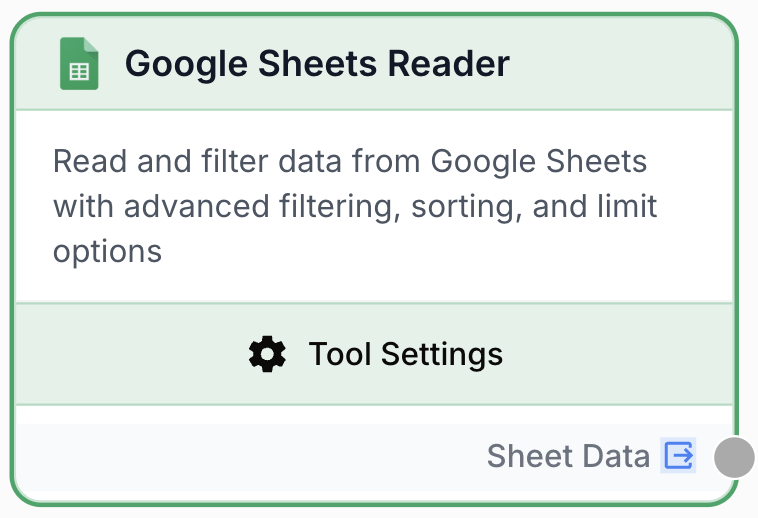
What does this node do?
The Google Sheets Reader node reads data from a Google Sheets spreadsheet and returns it as structured JSON. It supports advanced server-side filtering with 12+ operators, sorting, column range selection, and pagination to efficiently extract exactly the data your workflow needs.
Common use cases:
- Pull product catalogs or inventory data for AI processing
- Filter orders or transactions by date, status, or amount
- Read CRM contact lists for enrichment or outreach workflows
- Extract specific columns and rows from large datasets
Quick setup
Connect your Google account
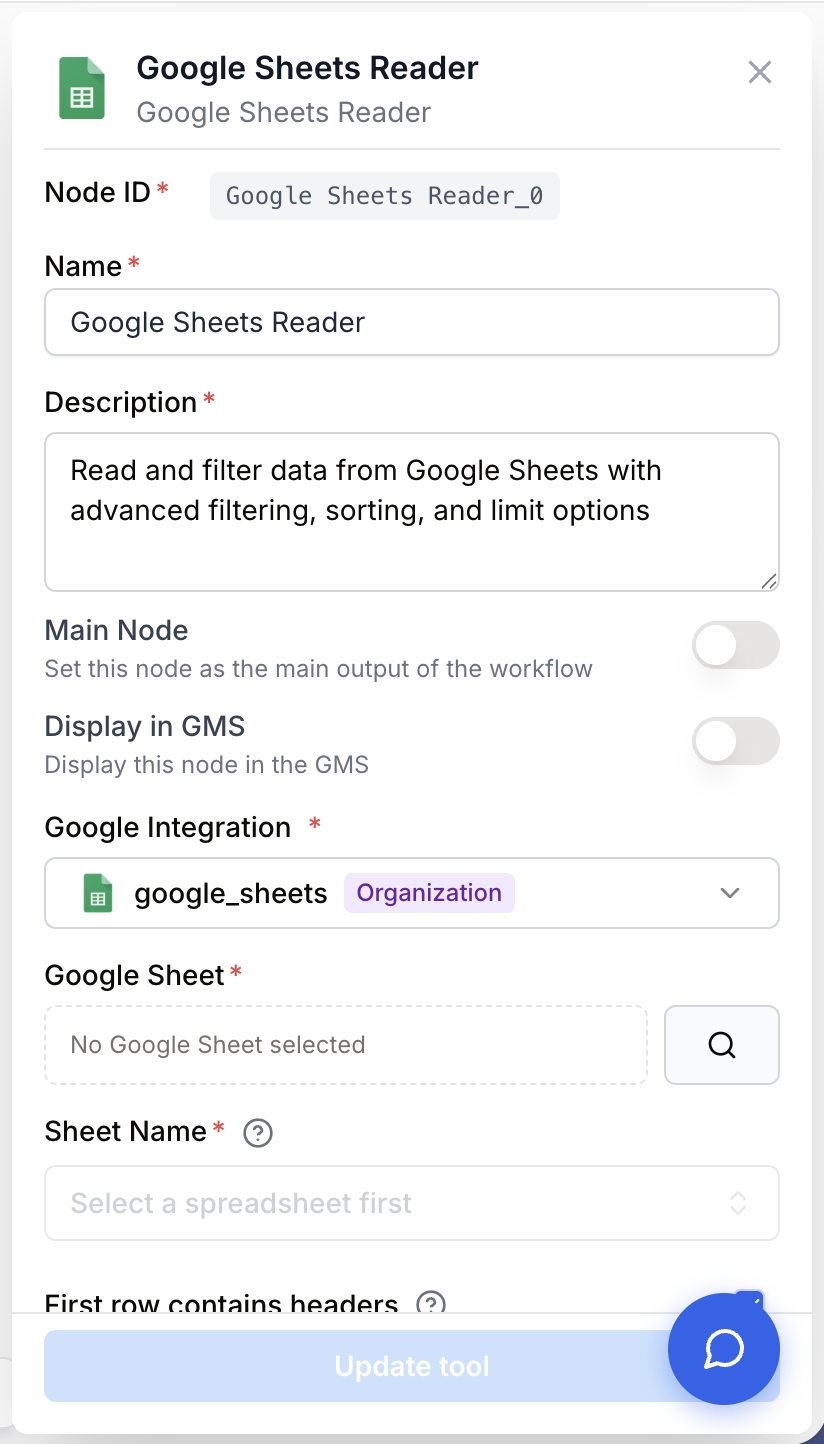
Open the node settings and select your Google Sheets integration from the dropdown. If you haven’t connected Google Sheets yet, go to Settings > Integrations to add your Google account.
Select a spreadsheet
Click the spreadsheet picker button to open the Google Picker. Browse or search your Drive and select a spreadsheet. The spreadsheet ID is populated automatically.
Configure sheet and range
Choose the sheet tab name, set column range, and optionally add filters to narrow down the data returned.
Configuration parameters
Required fields
integration_id integration required Google Sheets integration — Select the Google account to use. The integration must have read access to the target spreadsheet.
spreadsheet_id string required The unique identifier of your Google Sheet, selected via the Google Picker.
How to find it manually:
From the URL: docs.google.com/spreadsheets/d/[SPREADSHEET_ID]/edit
Optional fields
sheet_name string The name of the sheet tab to read from. Defaults to the first sheet if not specified.
Example: Orders, Sheet1, Q1 Data
has_headers boolean default: true Whether the first row contains column headers. When enabled, returned data uses header names as keys. When disabled, data is returned as arrays.
column_range_start string Starting column letter (A-AZ). Limits which columns are read to improve performance on wide spreadsheets.
Example: A
column_range_end string Ending column letter (A-AZ). Used with column_range_start to define the column range.
Example: F
filters json JSON filter configuration to select specific rows. Supports 12+ operators for text, numeric, date, and boolean fields, with AND/OR logic for combining conditions.
Supported operators:
| Category | Operators |
|---|---|
| Text | equals, not_equals, contains, not_contains, starts_with, ends_with |
| Numeric | greater_than, less_than, greater_or_equal, less_or_equal |
| Date | before, after |
| Boolean | is_true, is_false |
| General | is_empty, is_not_empty |
Example with AND logic:
{
  "logic": "AND",
  "conditions": [
    {"column": "Status", "operator": "equals", "value": "Active"},
    {"column": "Amount", "operator": "greater_than", "value": "1000"}
  ]
}
Example with OR logic:
{
  "logic": "OR",
  "conditions": [
    {"column": "Region", "operator": "equals", "value": "Europe"},
    {"column": "Region", "operator": "equals", "value": "Asia"}
  ]
}
sort_column string Column name to sort results by. Must match a header name when has_headers is enabled.
Example: Date, Amount, Name
sort_order string default: asc Sort direction. asc for ascending, desc for descending.
limit number default: 10000 Maximum number of rows to return. Supports {{variables}} for dynamic limits.
Example: 100, {{max_rows}}
Use filters and column ranges to reduce the amount of data returned. This improves performance and reduces token usage when passing data to LLM nodes downstream.
Output
sheet_data string JSON string containing the rows that match your configuration. Each row is an object with column headers as keys (when has_headers is enabled).
With headers:
[
  {"Name": "Widget A", "Price": "29.99", "Stock": "150", "Category": "Electronics"},
  {"Name": "Widget B", "Price": "49.99", "Stock": "75", "Category": "Electronics"}
]
Without headers:
[
  ["Widget A", "29.99", "150", "Electronics"],
  ["Widget B", "49.99", "75", "Electronics"]
]
Access the output: {{GoogleSheetsReader_0.sheet_data}}
Usage examples
Example 1: Pull product data for AI processing
Read a product catalog from Sheets and generate marketing descriptions with an LLM.
Configuration:
- Sheet name:
Products - Column range:
AtoF - Filter:
Stockgreater_than0 - Limit:
50
Workflow:
- Google Sheets Reader — Read active products
- Loop — Iterate over each product
- LLM — Generate a marketing description for each product
- Google Sheets Writer — Write descriptions back
Example 2: Filter orders by date range
Extract recent orders for daily reporting.
Configuration:
- Sheet name:
Orders - Filters:
Order_Dateafter2024-01-01ANDStatusequalsCompleted - Sort column:
Order_Date - Sort order:
desc - Limit:
100
Workflow:
- Google Sheets Reader — Read recent completed orders
- LLM — Summarize daily order trends
- Email Sender — Send the summary report
Best practices
- Use filters to reduce data volume. Reading entire spreadsheets wastes resources. Apply filters server-side to fetch only relevant rows, especially when feeding data to LLM nodes.
- Set a proper column range. If your spreadsheet has 26 columns but you only need 6, set
column_range_starttoAandcolumn_range_endtoF. This reduces payload size significantly. - Keep headers enabled. Named keys make data easier to reference in downstream nodes with
{{GoogleSheetsReader_0.sheet_data}}and are more readable for LLM prompts. - Use sorting to get the most relevant data first. Combined with a limit, sorting ensures you get the newest or highest-priority rows.
Common issues
No data returned (empty result)
Cause: Filters may be too restrictive, the sheet name may be incorrect, or the spreadsheet may be empty.
Solution:
- Verify the sheet tab name matches exactly (case-sensitive)
- Temporarily remove filters to check if data is accessible
- Confirm the spreadsheet contains data in the specified column range
- Check that the integration has read access to the spreadsheet
Column names don't match in filters
Cause: Filter column names must match the header row exactly, including spaces and capitalization.
Solution:
- Open the spreadsheet and verify the exact header text
- Ensure
has_headersis set totrue - Check for leading/trailing spaces in header cells