Static Video
The Static Video node embeds fixed videos in your workflow, providing constant video URLs to downstream nodes without requiring user input at runtime.
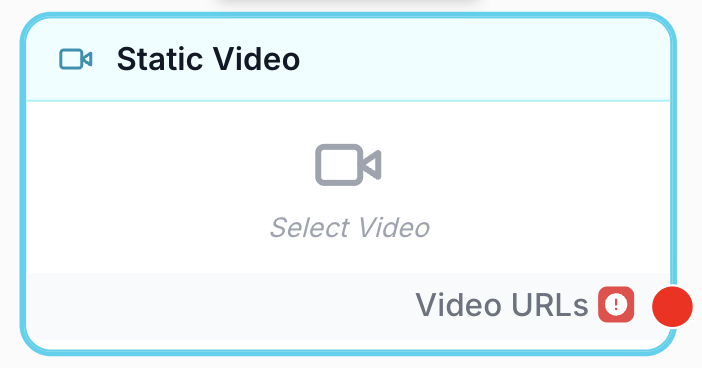
What does the Static Video node do?
The Static Video node lets you embed fixed video files directly into your workflow. You upload videos once in the node settings, and their URLs are provided to downstream nodes every time the workflow runs — no user input required at runtime.
Common use cases:
- Providing source videos to a video processing pipeline (merging, frame extraction, aspect ratio changes)
- Embedding reference videos for AI analysis with an Image to Video or video-related node
- Supplying a batch of videos to process through a Loop node
- Including fixed video assets in automated content workflows
Quick setup
Add the node to the canvas
Open the Node Library, go to Inputs > Static, then drag and drop the Static Video node onto your workspace.
Upload your videos
Open the node settings and click the upload area to select video files from your computer. You can upload up to 10 videos. All standard video formats are supported.
Manage your videos
Uploaded videos appear as a thumbnail grid. Click on a video to select it, then click the delete button to remove it. The node auto-saves after each upload or deletion.
Connect the output
Connect the output port to the next node in your workflow. The node outputs a JSON array of video URLs.
Configuration parameters
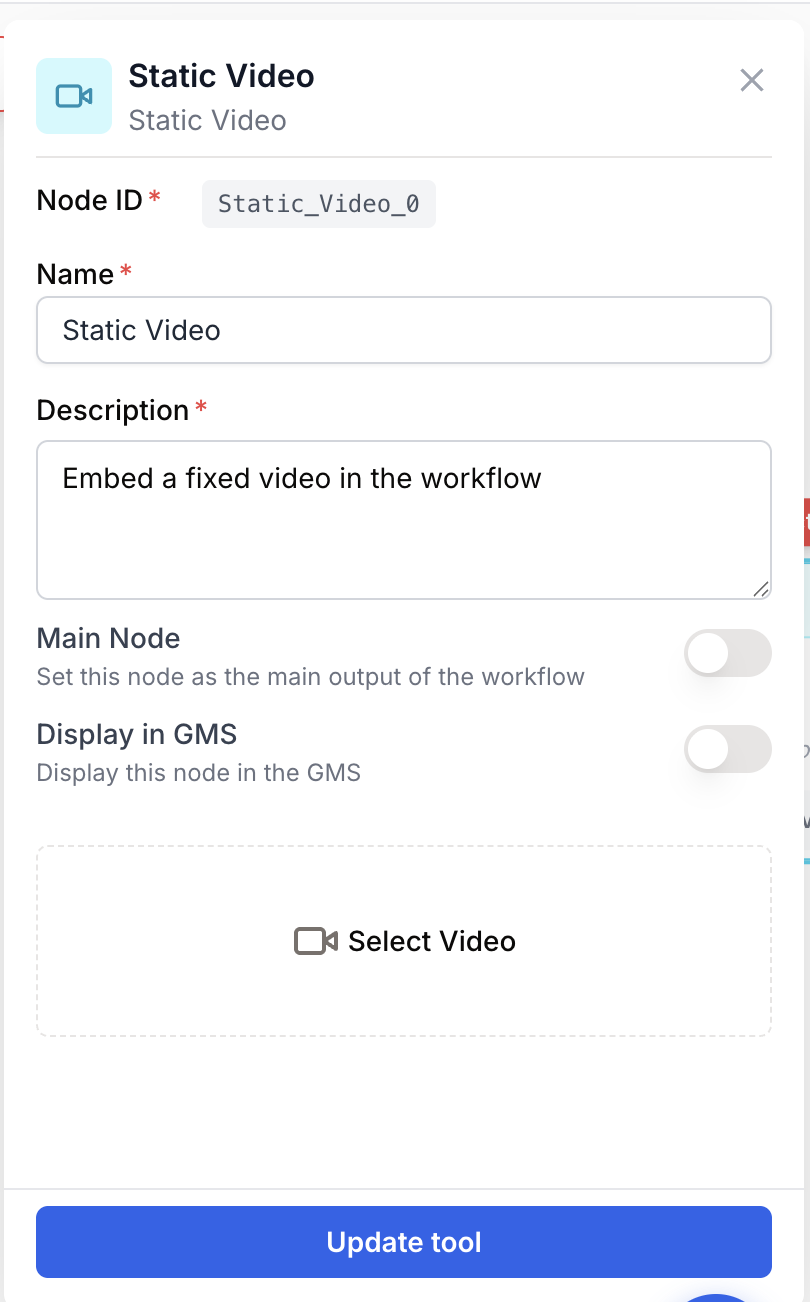
Required fields
Name string required default: Static Video Node name — A label to identify this node on the canvas. Use a descriptive name like “Source Videos” or “Training Clips” to clarify what videos are embedded.
Description string required default: Embed fixed videos in the workflow Node description — A short description of what these videos are used for in the workflow.
Video upload
Videos file required Video files — Upload up to 10 video files. All standard video formats are accepted. At least one video is required. Videos are stored as workflow assets and their URLs are output as a JSON array.
Changes are auto-saved — every time you upload or remove a video, the node configuration is updated automatically.
What does the node output?
The node outputs a JSON array of video URLs as a string. Each URL points to the uploaded video file.
[
  "https://cdn.dng.ai/265254943289683032/intro.mp4",
  "https://cdn.dng.ai/265254943289683032/demo.mov"
]
Video URLs json A JSON array containing the URLs of all uploaded videos, in the order they were added.
Usage examples
Example 1: Merge multiple video clips
You have several short clips and want to combine them into a single video.
Workflow:
- Static Video — Upload all the clips to merge
- Video Merger — Combine them into one video
Example 2: Extract frames from reference videos
You want to extract key frames from a set of videos for further image processing.
Workflow:
- Static Video — Upload your reference videos
- Loop — Iterate over each video URL
- Extract Video Frame — Pull a frame from each video
- Image to Text — Analyze each frame with AI
Example 3: Batch process videos with consistent settings
Apply the same transformation (e.g., aspect ratio change) to a set of videos.
Workflow:
- Static Video — Upload all videos to process
- Loop — Iterate over each video
- Change Aspect Ratio — Apply the same settings to each one
Best practices
Use Static Video instead of the File input when the videos should never change between runs. This keeps your workflow self-contained.
Name your node descriptively. Instead of “Static Video”, rename it to “Source Clips” or “Training Videos” so its purpose is clear on the canvas.
Maximum 10 videos per node. If you need more, use multiple Static Video nodes and combine their outputs with a Merge node.
Video file sizes can be large. Keep in mind that uploading many large videos will increase storage usage and may slow down the upload process.
Common issues
My video doesn't appear after upload
Cause: The file format may not be supported, or the upload failed.
Solution: Try a standard format like MP4 or MOV. Check your network connection and try uploading again.
The node shows a validation error about missing videos
Cause: At least one video is required for the node to be valid.
Solution: Upload at least one video file. The node cannot run without any videos.
The downstream node doesn't receive the video URLs
Cause: The output port isn’t connected, or the downstream node expects a different format.
Solution: Make sure the output is connected. The node outputs a JSON array of URL strings. If the downstream node expects a single URL, use a JSON Path Extractor to extract the first element.
How does it fit into a workflow?
Static Video is typically used at the beginning of a video processing pipeline:
graph LR
    Static[Static Video] --> Loop[Loop node]
    Loop --> Process[Video Merger / Extract Frame]
    Process --> Output[Result]