Short Text
The Short Text node is a workflow entry point that captures a single-line text value (or a list of them) and exposes it as a variable for downstream nodes.
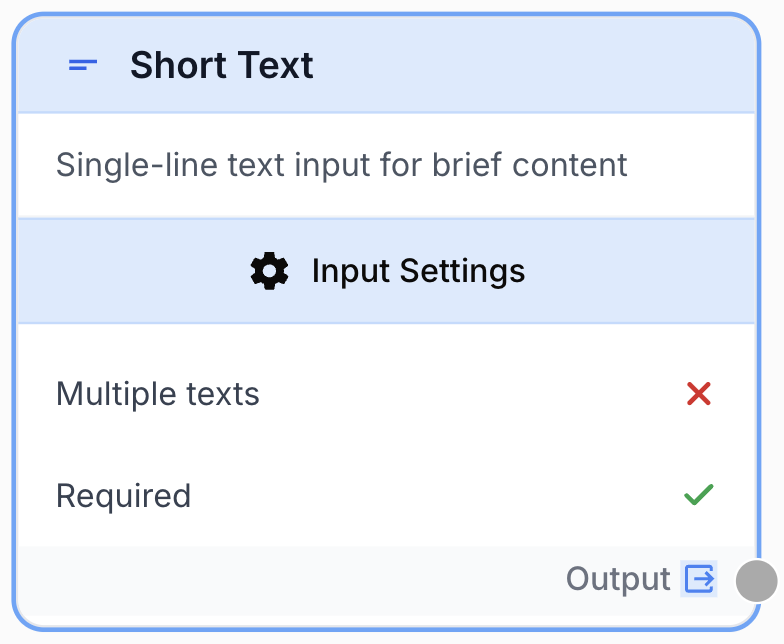
What does the Short Text node do?
The Short Text node is an input node that captures a single-line text value entered by the user when the workflow runs. The value is exposed as a variable that downstream nodes can reference. With the Multiple texts option enabled, the node accepts a list of strings instead of a single value, which is useful for batch processing or loops.
Common use cases:
- Capturing a keyword to drive an SEO research workflow.
- Collecting a recipient email address before sending an automated message.
- Defining a country, language, or any short parameter that personalizes downstream content.
Quick setup
Follow these steps to add and configure the Short Text node in your workflow:
Add the node to the canvas
Open the Node Library, go to the Input tab, then drag and drop the Short Text node onto your workspace.
Name the variable
Open the node settings and set the Name field. This identifier is what you reference downstream (for example, keyword).
Configure the input behavior
Choose whether the field is Required, optionally enable Multiple texts for a list input, and set a Default Value if you want a pre-filled value at run time.
Connect the output
Connect the output port (on the right of the node) to the next node and reference the variable using the {{Name}} syntax.
Configuration parameters
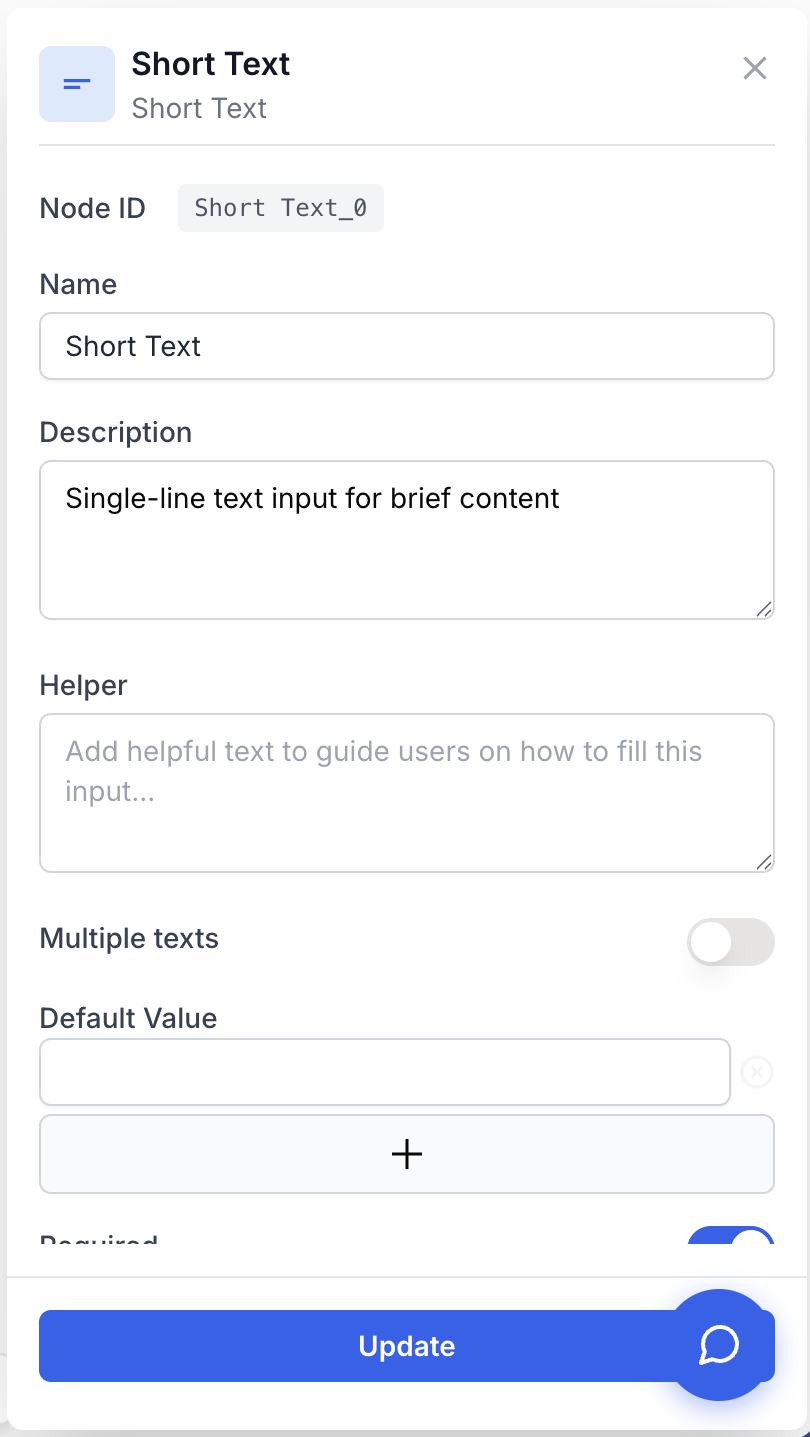
Required fields
Name string required default: Short Text Variable name — The identifier used to reference this input downstream (e.g. {{keyword}}). Use a clear, snake_case-friendly name.
Required boolean required default: true Required field — When enabled, the workflow refuses to run until the user provides a value. Disable to allow empty input.
Optional fields
Description string Node description — Free-form text that documents what this input is for. Shown in the node card.
Multiple texts boolean default: false List input — When enabled, the field accepts several short text values and outputs an array. Use this to feed a Loop node or any node that iterates over a list.
Default Value string | string[] Pre-filled value — Value displayed in the input field at run time. Accepts a single string when Multiple texts is off, or a list of strings when on.
Keep the Name field short and descriptive. It is the exact token you will type as {{Name}} in every downstream prompt or parameter, so it pays to pick one you can remember.
What does the node output?
The Short Text node exposes the user-entered value as a variable. The output type is a single string by default, or an array of strings when Multiple texts is enabled.
output string | string[] The text typed by the user at run time. Returns a list of strings when Multiple texts is on, otherwise a single string.
Accessing the variable
Reference the value in any downstream node by wrapping the Name field in double curly braces:
{{keyword}}If you named your node keyword, the LLM prompt Write an article about {{keyword}} will receive the user-typed value at execution time.
Usage examples
Example 1: SEO keyword input
You want to launch an SEO research workflow keyed off a single search term.
Configuration:
- Name:
keyword - Description: “Target keyword for the SEO analysis”
- Required:
true - Multiple texts:
false
Downstream usage: A Google Search node reads {{keyword}} to fetch SERP data, and an LLM node uses the same variable in its prompt to draft an outline.
Example 2: Batch of recipient emails
You want to send the same report to several recipients without duplicating the workflow.
Configuration:
- Name:
recipient_emails - Required:
true - Multiple texts:
true - Default Value:
["alice@example.com", "bob@example.com"]
Downstream usage: A Loop node iterates over {{recipient_emails}} and an Email Sender node uses the current item as its To field on each iteration.
Common issues
My downstream node receives an array instead of a string
Cause: The Multiple texts option is enabled, so the node outputs string[] rather than a single value.
Solution: Either disable Multiple texts if you only need one value, or wrap the downstream nodes in a Loop so each iteration consumes one item.
The workflow refuses to start because the field is empty
Cause: Required is true and no value (and no default) was provided at run time.
Solution: Either type a value at run time, set a Default Value, or toggle Required off if the input is genuinely optional.
My multi-line content gets truncated
Cause: Short Text is designed for single-line content. Line breaks and long paragraphs are not preserved.
Solution: Use the Text input node (multi-line / textarea) for paragraphs and longer free-form content.
Best practices
Place inputs on the left of the canvas. Group all input nodes (Short Text, URL, Date, etc.) vertically on the left edge so the workflow reads naturally from left to right and required parameters are immediately visible.
Pick variable names that will survive renames. Once {{my_var}} is referenced across many downstream nodes, renaming the input is not automatic — every reference has to be updated by hand.
How does it fit into a workflow?
Short Text typically sits at the very start of a workflow, feeding its value into search, scraping, or LLM steps:
graph LR
    Input[Short Text: keyword] --> Search[Google Search]
    Input --> Semrush[SEMrush Domain Keywords]
    Search --> LLM[LLM]
    Semrush --> LLM
    LLM --> Docs[Google Docs Writer]