Tag Extractor
The Tag Extractor node pulls the content found inside specific HTML or XML tags from text or AI outputs.
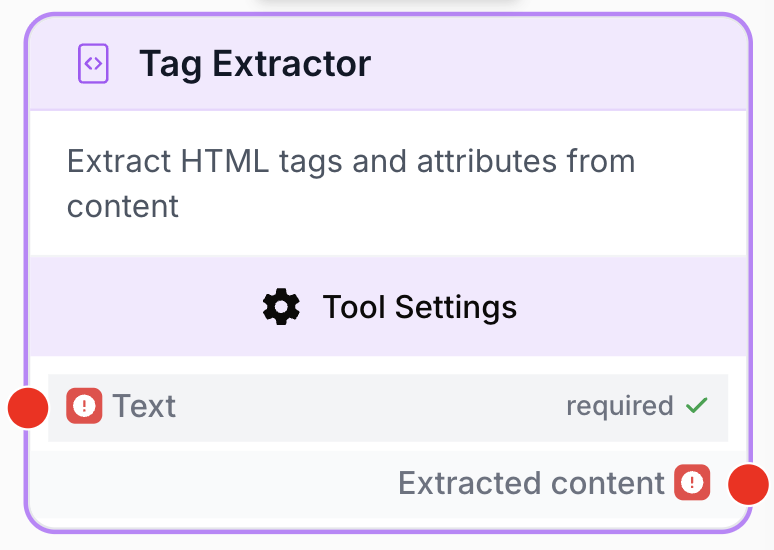
What does the Tag Extractor node do?
The Tag Extractor node analyzes an input text and extracts the content found inside a specific HTML or XML tag (the part wrapped in < and >). It is the deterministic counterpart to LLM output parsing: instead of trusting the model to return clean JSON, you ask it to wrap each value in a named tag and let this node pull each value out.
Common use cases:
- Pull a labelled value out of an LLM response (e.g.
<score_seo>85/100</score_seo>). - Extract repeated elements from a scraped or cleaned web page (e.g. every
h2,li, orp). - Split a single AI generation into several typed variables (keyword, html-content, score) to feed downstream nodes.
Quick setup
Follow these steps to add and configure the Tag Extractor node in your workflow:
Add the node to the canvas
Open the Node Library, go to Tools > Text Processing, then drag and drop the Tag Extractor node onto your workspace.
Connect the input
Connect the output port of the upstream node that produces the text to parse (an LLM, AI Agent, Web Scraper, HTML to Markdown, etc.) to the Tag Extractor’s Text input.
Set the target tag
Open the node settings and, in the Tag field, enter the exact tag name to extract without angle brackets (type h2, not <h2>).
Choose the response format
In Response Format, pick Text for a single string (multiple matches joined by line breaks) or Array for a list of values you can iterate on.
Choose the error handling
In Error Handling, pick None to fail the workflow when the tag is missing, or Skip & Continue to return an empty value and let the workflow continue.
Configuration parameters
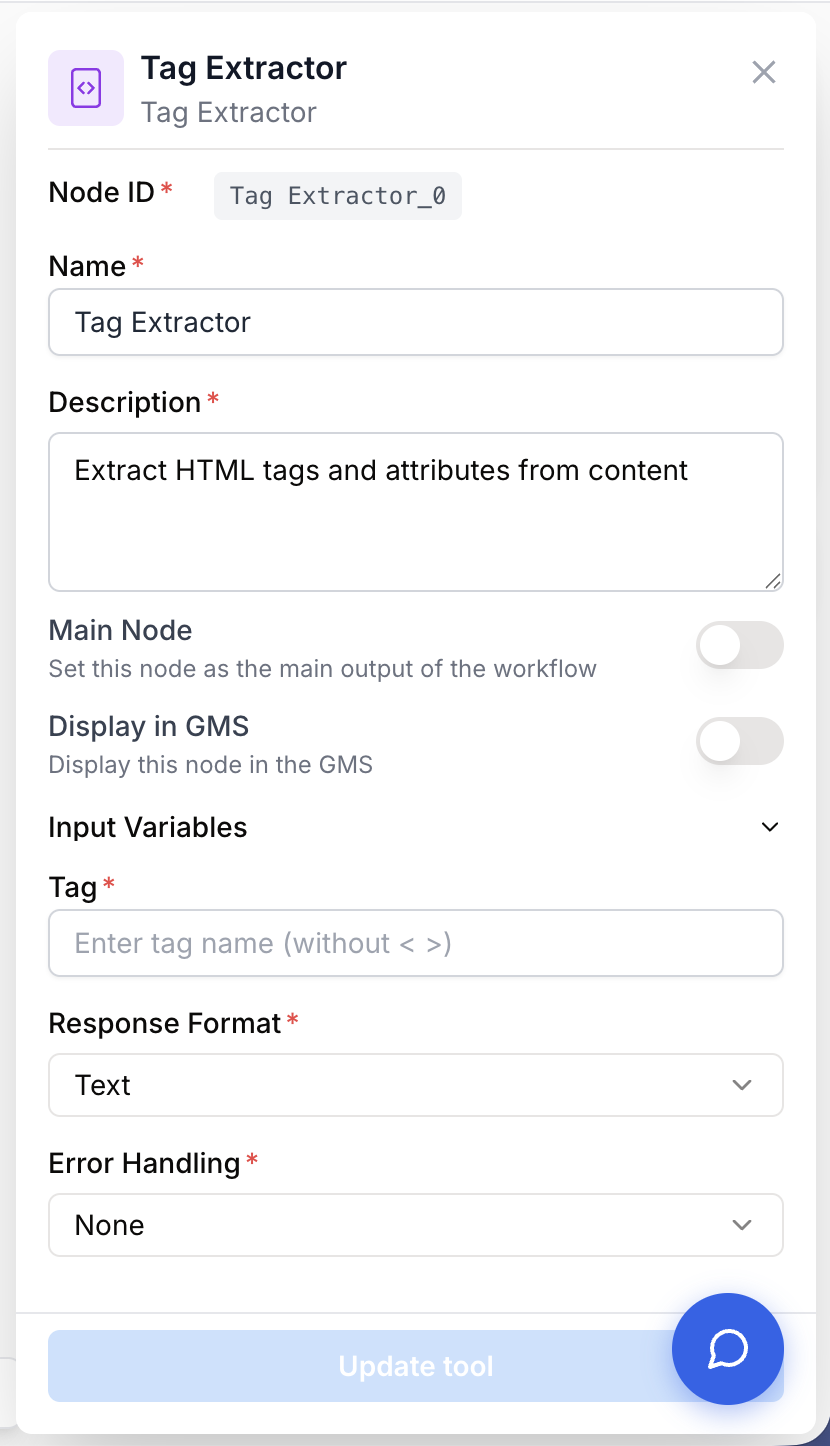
Configuring the node requires defining the tag to target and how the node should react to the data it finds.
Required fields
Name string required default: Tag Extractor Node name — Important for quickly identifying this node’s role (e.g. “Extract h2 list” or “Pull keyword from LLM”) when running and debugging the workflow.
Description string required default: Extract content between specified tags in text Node description — A short phrase describing which tag this node targets and why.
Tag string required Tag name — The exact HTML or XML tag name to target, without angle brackets. To extract <content_html>...</content_html>, type content_html. Dynamic variables are supported, so you can pass the tag name from a previous node.
Response Format string required default: Text Response Format — How the matched contents are returned:
- Text: A single string. When several identical tags are found, their contents are joined with line breaks.
- Array: A JSON list (
["a", "b", "c"]). Use this when you plan to iterate on the results with a Loop node.
Error Handling string required default: None Error Handling — What the node does when no matching tag is found in the input:
- None: The node throws an error and the workflow run fails (default).
- Skip & Continue: The node returns an empty string or empty array and the workflow keeps running.
Optional fields
This node has no optional fields; all four parameters above are required for the node to run.
Use Skip & Continue whenever the tag is not guaranteed to be present (e.g. an LLM occasionally omits a section). It prevents a single missing tag from killing the whole run.
What does the node output?
The Tag Extractor returns the content found between the opening and closing tag. The exact shape depends on the Response Format parameter.
How to use the output
In Draft & Goal, you don’t need to look up a system-generated variable name. To use the result:
- Draw a connection from the Tag Extractor’s output.
- Connect it to the next node’s input.
- In that next node, create and name your own variable (for example,
extracted_h2). The extracted content is injected into it automatically.
Extracted content string | array The content found inside the target tag. A plain string when Response Format is Text (multiple matches separated by line breaks), or a JSON array of strings when Response Format is Array. Returns an empty value when no match is found and Error Handling is set to Skip & Continue.
Usage examples
Example 1: Splitting a single LLM output into typed variables
You ask an LLM to write an SEO article and return several values in one go, each wrapped in a tag:
Write an SEO article. You MUST wrap your response with these exact tags:
<keyword>The main keyword here</keyword>
<html-content>The article HTML here</html-content>
<score-copywriting>Your self-assessment score out of 100 here</score-copywriting>
Place three Tag Extractor nodes after the LLM:
- Tag Extractor #1:
Tag=keyword,Response Format=Text→ feeds a SEMrush node. - Tag Extractor #2:
Tag=html-content,Response Format=Text→ feeds the WordPress Post Create node. - Tag Extractor #3:
Tag=score-copywriting,Response Format=Text→ feeds a Google Sheets writer.
Example 2: Iterating over every h2 of a scraped page
Web Scraper returns the page HTML, HTML to Markdown strips attributes, then Tag Extractor pulls every h2:
Configuration:
Tag=h2Response Format=ArrayError Handling=Skip & Continue
Output (Array):
[
  "How to optimize your SEO in 2026",
  "Why technical SEO still matters",
  "Top 5 ranking factors this year"
]
You then connect this array to a Loop node to process each heading individually.
Common issues
The node finds no tag and the workflow stops
Cause: The upstream LLM didn’t output the tag exactly as requested — extra spaces, different capitalization, or it dropped the tag entirely.
Solution: Tighten the LLM prompt (e.g. “You must use the exact format <score>...</score> with no extra characters and no change in capitalization.”). For non-critical tags, set Error Handling to Skip & Continue so the run survives.
I can't extract a tag from a scraped HTML page
Cause: The page uses tags with attributes (e.g. <h1 id="main-title" class="header">). The Tag Extractor only matches simple opening tags like <h1> and ignores attribute-laden ones.
Solution: Insert an HTML Cleaner or HTML to Markdown node before the Tag Extractor to strip attributes, then extract.
All my results are joined on one line
Cause: Several identical tags matched, but Response Format is set to Text, which only joins them with line breaks.
Solution: Switch Response Format to Array. You’ll get a clean list you can hand to a Loop or any downstream node that accepts an array.
The output is empty even though my input clearly contains the tag
Cause: The Tag field still contains the angle brackets (e.g. <h2> instead of h2), so the node looks for a literal <<h2>> in the text.
Solution: In the Tag field, type the tag name only — never include < or >.
Best practices and pitfalls
Pair Tag Extractor with strict LLM prompts. The more rigid the tag contract you give the model (“use these exact tags, no others”), the more reliable the extraction step downstream.
Tags with attributes are not supported. Complex HTML like <div class="card"> or <h2 id="title"> will not match. Pre-clean the input with an HTML Cleaner or HTML to Markdown node, or stick to plain custom tags (e.g. <keyword>, <summary>) when prompting an LLM.
How does it fit into a workflow?
The Tag Extractor sits between content generation (LLM, scraping) and structured downstream tools (CMS, SEO, lists, loops). Two common patterns:
graph LR
    A[LLM outputs text + tags] --> B[Tag Extractor: keyword]
    A --> C[Tag Extractor: html-content]
    B --> D[SEO / Analytics tool]
    C --> E[WordPress Post Create]
graph LR
A[Web Scraper] --> B[HTML to Markdown]
B --> C[Tag Extractor: h2
<br/>Array format]
C --> D[Loop: process each h2]Related nodes
Generate text wrapped in named tags so the Tag Extractor can pull each value reliably.
Fetch raw page HTML, then extract specific elements with a Tag Extractor downstream.
Strip HTML attributes before extraction so simple tags become matchable.
Iterate over each item when Tag Extractor is set to the Array response format.
Use this instead when the upstream payload is real JSON rather than tagged text.
Send the content of an <html-content> tag straight into a WordPress post.