Google Drive
The Google Drive input node lets users pick files from their Google Drive at runtime, exposing the selection as an array to downstream nodes.
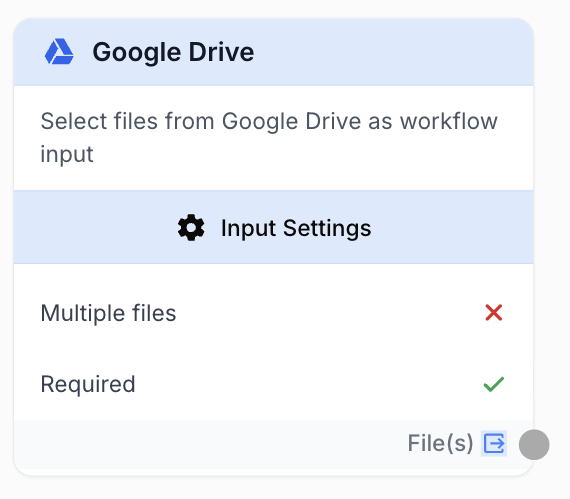
What does the Google Drive node do?
The Google Drive input node creates a runtime file picker so the person who runs the workflow can choose which Google Drive files to process. Unlike the Google Drive Reader (which pre-selects files at design time), this node defers selection until execution and outputs the chosen files as an array typed according to the fileType filter.
Common use cases:
- Build self-service workflows where end users pick their own Drive content at run time.
- Let users supply videos, images, or documents to AI nodes (Video to Text, Image to Text, Data Analyzer) without editing the workflow.
- Share a single workflow across a team where each member processes their own files.
- Drive batch loops by enabling multi-selection and feeding the array into a Loop node.
Google Drive Input vs Google Drive Reader. This node is a runtime input — files are picked when the workflow runs. The Google Drive Reader is a design-time selection — files are bound by the workflow author in the editor. Use this node when each run needs a different file set.
Quick setup
Follow these steps to add and configure the Google Drive input node in your workflow:
Add the node to the canvas
Open the Node Library, go to Input/Output, then drag and drop the Google Drive node onto your workspace.
Connect a Google Drive integration
In the node settings, select an authorized Google Drive integration. Without an active integration the runtime picker cannot list files.
Configure the file type filter
Set File type to restrict the picker to a specific category (all, video, image, audio, document, spreadsheet). The choice also drives the semantic output type so downstream nodes can validate the connection.
Toggle multi-selection and requirement
Enable Multiple files if downstream logic iterates over an array. Toggle Required off when the workflow should accept an empty selection.
Connect the output
Connect the output port to the next node and name the receiving variable in that node — the selected files will be injected as an array.
Configuration parameters
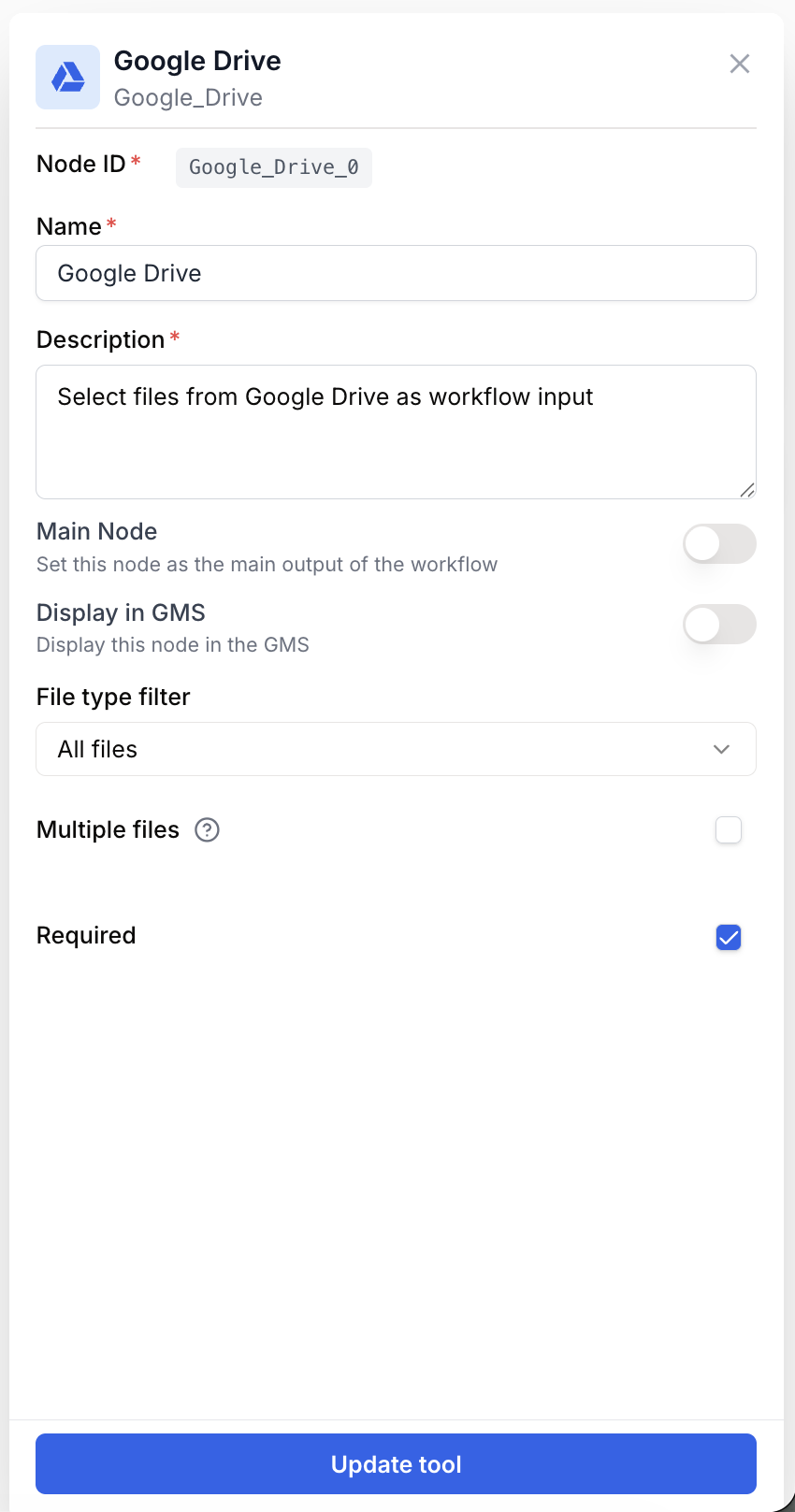
Configuring the node requires picking an integration and matching the file type filter to what downstream nodes expect.
Required fields
Name string required default: Google Drive Node name — Useful to identify the role of this picker (e.g. “User videos” or “Source spreadsheet”) when running and debugging the workflow.
Description string required default: Select files from Google Drive as workflow input Node description — A short phrase describing which files the user should pick.
integration_id integration required Google Drive integration — The Google Drive account used to browse and load files at runtime. The integration must be authorized in Settings > Integrations; otherwise the picker stays empty.
Optional fields
fileType select default: all File type filter — Restricts which files the picker shows. Allowed values:
| Value | Description |
|---|---|
all | All file types |
video | Video files only |
image | Image files only |
audio | Audio files only |
document | Documents only |
spreadsheet | Spreadsheets only |
When fileType is video or image, the node exposes a typed output (video/image) so downstream nodes (Video to Text, Image to Text, Video Merger…) accept the connection without coercion.
multiLines boolean default: false Multiple files — When enabled, the picker supports multi-selection and the output is an array of files. Leave disabled if the workflow consumes a single file.
required boolean default: true Required — When enabled, the user must pick at least one file before the workflow can run. Disable to allow optional input.
Match fileType to the downstream node’s expected input. Selecting video upstream of a Video to Text node guarantees the connection is type-safe and prevents runtime errors caused by mismatched MIME types.
What does the node output?
The node outputs an array of selected files. The element type follows the fileType setting: video and image produce typed references; everything else produces generic file references.
How to use the output
In Draft & Goal you don’t look up a system-generated variable. To use the result:
- Draw a connection from the Google Drive node’s output port.
- Connect it to the next node’s input.
- In that next node, create and name your own variable (for example,
user_files). The selected files will be injected automatically.
output array Array of file references picked by the user. Each element contains at least id, name, mimeType, and url. Even when multiLines is false, the field is still an array (length 1).
[
  {
    "id": "1aBcDeFgHiJkLmNoPqRs",
    "name": "product-demo.mp4",
    "mimeType": "video/mp4",
    "url": "https://drive.google.com/..."
  }
]
Usage examples
Example 1: User-selected video for AI description
Let users pick their own video to generate a description on demand.
Configuration:
fileType=videomultiLines=falserequired=true
Workflow:
- Google Drive — User selects a video at runtime.
- Video to Text — AI generates a description of the selected video.
- LLM — Refines the description for a specific channel or audience.
Example 2: Batch image processing from Drive
Allow the user to pick multiple images and analyze each one in a loop.
Configuration:
fileType=imagemultiLines=truerequired=true
Workflow:
- Google Drive — User picks several images.
- Loop — Iterates over the array.
- Image to Text — Analyzes each image inside the loop.
- Join List — Combines all descriptions into a single output.
Common issues
The file picker doesn't show any files
Cause: The Google Drive integration has lost its authorization, or no files in the connected account match the selected fileType.
Solution: Open Settings > Integrations and verify the Google Drive connection is active; reconnect it if needed. If fileType is set, confirm that matching files exist in the account being browsed.
Downstream nodes fail with a type mismatch
Cause: The downstream node expects a specific media type (e.g. video) but the picker is set to all and the user selected a different file type.
Solution: Set fileType to match the downstream node’s expected input — video for Video to Text, image for Image to Text — so the typed output blocks incompatible selections at design time.
The workflow runs without any file selected
Cause: required is set to false, so the runtime accepts an empty array.
Solution: Enable required if at least one file must be picked. If the field must stay optional, guard downstream nodes with a Conditional node that checks the array length.
Best practices and pitfalls
Pair multiLines: true with a Loop node when the workflow is built to process several files. The typed output array threads naturally through the loop and keeps downstream nodes simple.
Don’t leave fileType on all when downstream nodes expect a specific media type. A user picking a PDF for a Video to Text node will only fail at runtime — set the filter so the mismatch is impossible from the start.
How does it fit into a workflow?
The Google Drive input node is the entry point of a runtime-driven workflow: the user provides the source data, the rest of the graph processes it.
graph LR
    Drive[Google Drive
<br/>runtime picker] --> Loop[Loop]
    Loop --> AI[Image/Video to Text]
    AI --> LLM[LLM refines output]
    LLM --> Out[Final result]
Related nodes
Pre-select Drive files at design time when the workflow author knows which files to process.
Let users upload files directly instead of picking from Drive.
Iterate over the array of selected files when multiLines is enabled.
Typical downstream consumer when fileType is set to video.
Typical downstream consumer when fileType is set to image.