Google Sheets Writer
Write data to existing or new Google Sheets with append, update, and upsert modes
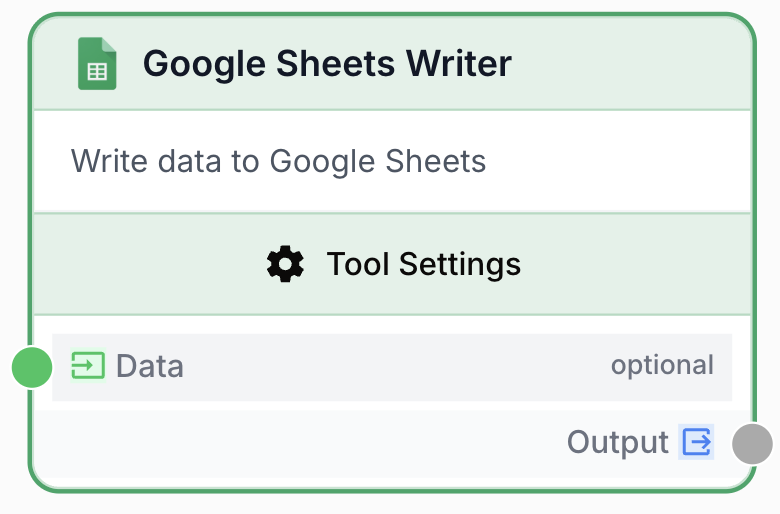
What does this node do?
The Google Sheets Writer node (v3.0) writes data to Google Sheets spreadsheets. It supports three write modes — append, update, and upsert — giving you full control over how data lands in your sheets. You can write to an existing spreadsheet or create a new one on the fly.
Common use cases:
- Log workflow results to a tracking spreadsheet
- Update CRM entries based on enriched data
- Create new report spreadsheets with dynamic titles
- Sync processed data back to Sheets for team access
Quick setup
Connect your Google account
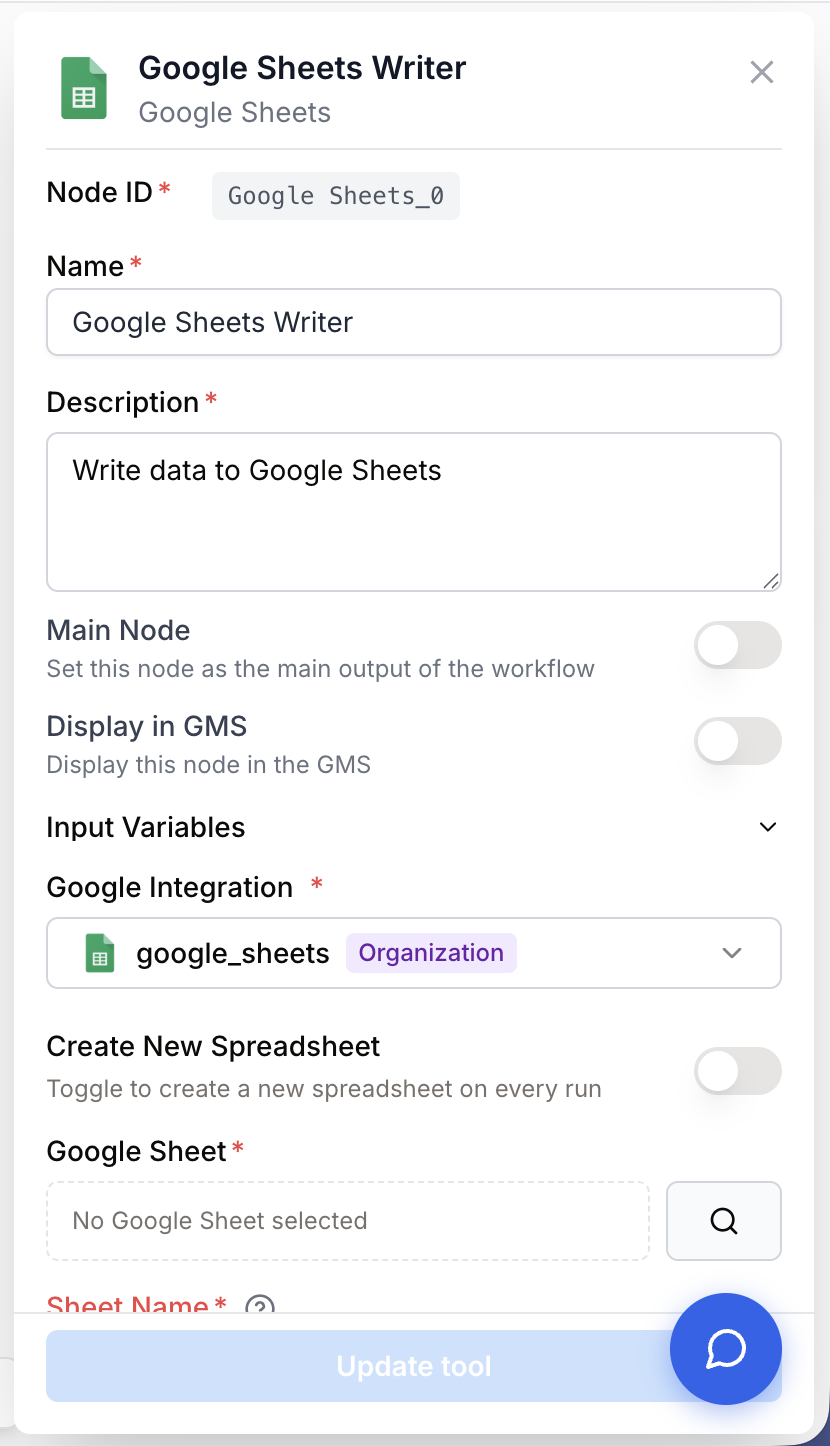
Open the node settings and select your Google Sheets integration from the dropdown. If you haven’t connected Google Sheets yet, go to Settings > Integrations to add your Google account.
Choose a target spreadsheet
Click the spreadsheet picker to select an existing spreadsheet, or enable Create new spreadsheet to generate one when the workflow runs.
Select a write mode
Choose append to add rows, update to modify existing rows, or upsert to do both. For update and upsert, specify which columns to match on.
Connect data input
Connect the upstream node that provides the data to write. The node accepts JSON arrays of objects, 2D arrays, 1D arrays, or single objects.
Input
data string The data to write, as a JSON string. Supports multiple formats:
JSON array of objects (most common):
[
  {"Name": "Alice", "Score": 95, "Status": "Pass"},
  {"Name": "Bob", "Score": 82, "Status": "Pass"}
]
2D array:
[
  ["Alice", 95, "Pass"],
  ["Bob", 82, "Pass"]
]
Single object:
{"Name": "Alice", "Score": 95, "Status": "Pass"}1D array (single row):
["Alice", 95, "Pass"]Configuration parameters
Required fields
integration_id integration required Google Sheets integration — Select the Google account to use. The integration must have write access to the target spreadsheet.
write_mode string required How data should be written to the sheet.
| Mode | Behavior |
|---|---|
append | Add new rows at the end of the sheet |
update | Find existing rows by match columns and update them |
upsert | Update matching rows, append non-matching rows |
Spreadsheet selection
google_sheet_id string The ID of an existing spreadsheet, selected via the Google Picker. Required when create_new is disabled.
sheet_name string The sheet tab name to write to. Defaults to the first sheet if not specified.
Update and upsert settings
match_columns array Column names used to match existing rows for update and upsert modes. The node finds rows where all match column values are equal, then updates the remaining columns.
Example: ["Email"] — match rows by email address
Example: ["Product_ID", "Region"] — match by composite key
Match columns are required for update and upsert modes. Without them, the node cannot identify which rows to update. The column names must match the spreadsheet headers exactly.
Create new spreadsheet
create_new boolean default: false When enabled, creates a new spreadsheet instead of writing to an existing one.
spreadsheet_title string Title for the new spreadsheet. Required when create_new is enabled.
Example: SEO Audit Results - January 2024
use_dynamic_title boolean default: false When enabled, the spreadsheet_title field supports {{variables}} for dynamic naming.
Example: {{client_name}} - Report {{date}}
folder_id string Google Drive folder ID where the new spreadsheet should be created. If not specified, the spreadsheet is created in the root of your Drive.
Output
output string Confirmation message with details about the write operation.
Append mode:
{
  "status": "success",
  "rows_appended": 25,
  "spreadsheet_id": "1BxiMVs..."
}
Update mode:
{
  "status": "success",
  "rows_updated": 12,
  "spreadsheet_id": "1BxiMVs..."
}
Upsert mode:
{
  "status": "success",
  "rows_updated": 8,
  "rows_appended": 3,
  "spreadsheet_id": "1BxiMVs..."
}
Create new:
{
  "status": "success",
  "spreadsheet_id": "1New...",
  "spreadsheet_url": "https://docs.google.com/spreadsheets/d/1New.../edit",
  "rows_written": 25
}
Access the output: {{GoogleSheetsWriter_0.output}}
Write modes explained
Append
Adds new rows at the bottom of the sheet. Existing data is never modified. Best for logging, collecting results, or building up datasets over time.
graph LR
    A[Existing rows 1-100] --> B[New rows appended at 101+]
Update
Finds rows that match on the specified match_columns and overwrites the other columns. Rows that don’t match are skipped — no new rows are added. Best for syncing or correcting existing data.
Upsert
Combines update and append: matching rows are updated, non-matching rows are appended as new rows. Best for idempotent writes where running the same workflow twice produces the same result.
Use upsert for idempotent workflows. If your workflow might run multiple times with the same data, upsert prevents duplicate rows while still adding genuinely new entries.
Usage examples
Example 1: Append SEO audit results
Run an SEO audit on a list of URLs and log the results to a spreadsheet.
Configuration:
- Write mode:
append - Sheet name:
Audit Results
Data input:
[
  {"URL": "https://example.com/page1", "Title_Length": 55, "H1_Count": 1, "Score": 92},
  {"URL": "https://example.com/page2", "Title_Length": 72, "H1_Count": 0, "Score": 45}
]
Workflow:
- Google Sheets Reader — Read list of URLs to audit
- Loop — Iterate over each URL
- HTML Cleaner — Fetch and clean page content
- LLM — Analyze SEO factors
- Google Sheets Writer — Append results row by row
Example 2: Upsert product inventory
Update product stock levels, adding new products that don’t exist yet.
Configuration:
- Write mode:
upsert - Match columns:
["SKU"] - Sheet name:
Inventory
Data input:
[
  {"SKU": "WIDGET-001", "Name": "Widget A", "Stock": 150, "Last_Updated": "2024-01-15"},
  {"SKU": "WIDGET-NEW", "Name": "Widget C", "Stock": 50, "Last_Updated": "2024-01-15"}
]
If WIDGET-001 already exists, its row is updated. WIDGET-NEW is appended as a new row.
Best practices
- Use upsert for idempotent writes. Workflows that may run multiple times should use upsert with appropriate match columns to avoid creating duplicate rows.
- Choose specific match columns. Use unique identifiers (email, SKU, URL) as match columns. Matching on non-unique columns may update the wrong rows.
- Send data as JSON arrays of objects. This format maps cleanly to spreadsheet columns and is the most reliable input format.
- Use dynamic titles for reports. Enable
use_dynamic_titlewith variables like{{date}}or{{client_name}}to auto-generate meaningful spreadsheet names.
Common issues
Headers are written as a data row
Cause: The first write to an empty sheet may include headers as a row if the data format doesn’t match the existing sheet structure.
Solution: Ensure the target sheet already has a header row, or send data as JSON objects (not arrays) so the node can create headers automatically on the first write.
Update mode doesn't modify any rows
Cause: The match_columns values in the input data don’t match any existing rows in the sheet.
Solution:
- Verify the match column names match the spreadsheet headers exactly (case-sensitive)
- Check that the values in the match columns exist in the sheet
- Consider using
upsertmode if you want unmatched rows to be appended