Notion Database Reader
The Notion Database Reader node fetches and filters rows from a Notion database, with support for advanced filtering, sorting, and pagination.
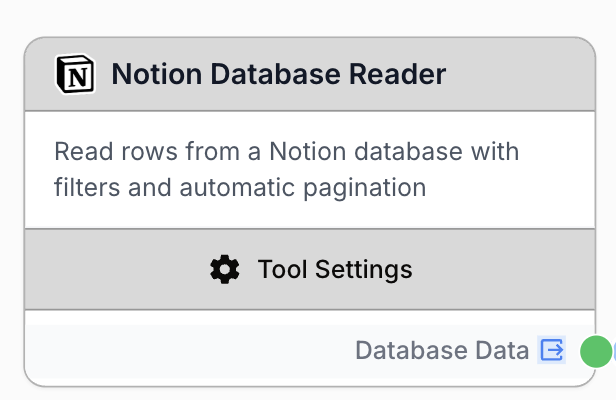
What does the Notion Database Reader node do?
The Notion Database Reader node connects to your Notion workspace and fetches rows from a specific database. It lets you query, filter, and sort data directly from Notion so you can use it in your workflows without manual exports.
Common use cases:
- Pulling a list of articles or content briefs from a Notion editorial calendar to process with AI
- Reading a CRM-style database to enrich contacts or generate personalized emails
- Fetching project tasks filtered by status (e.g., “In Progress”) to build automated reports
- Syncing product catalog data from Notion into other tools via your workflow
Quick setup
Connect your Notion integration
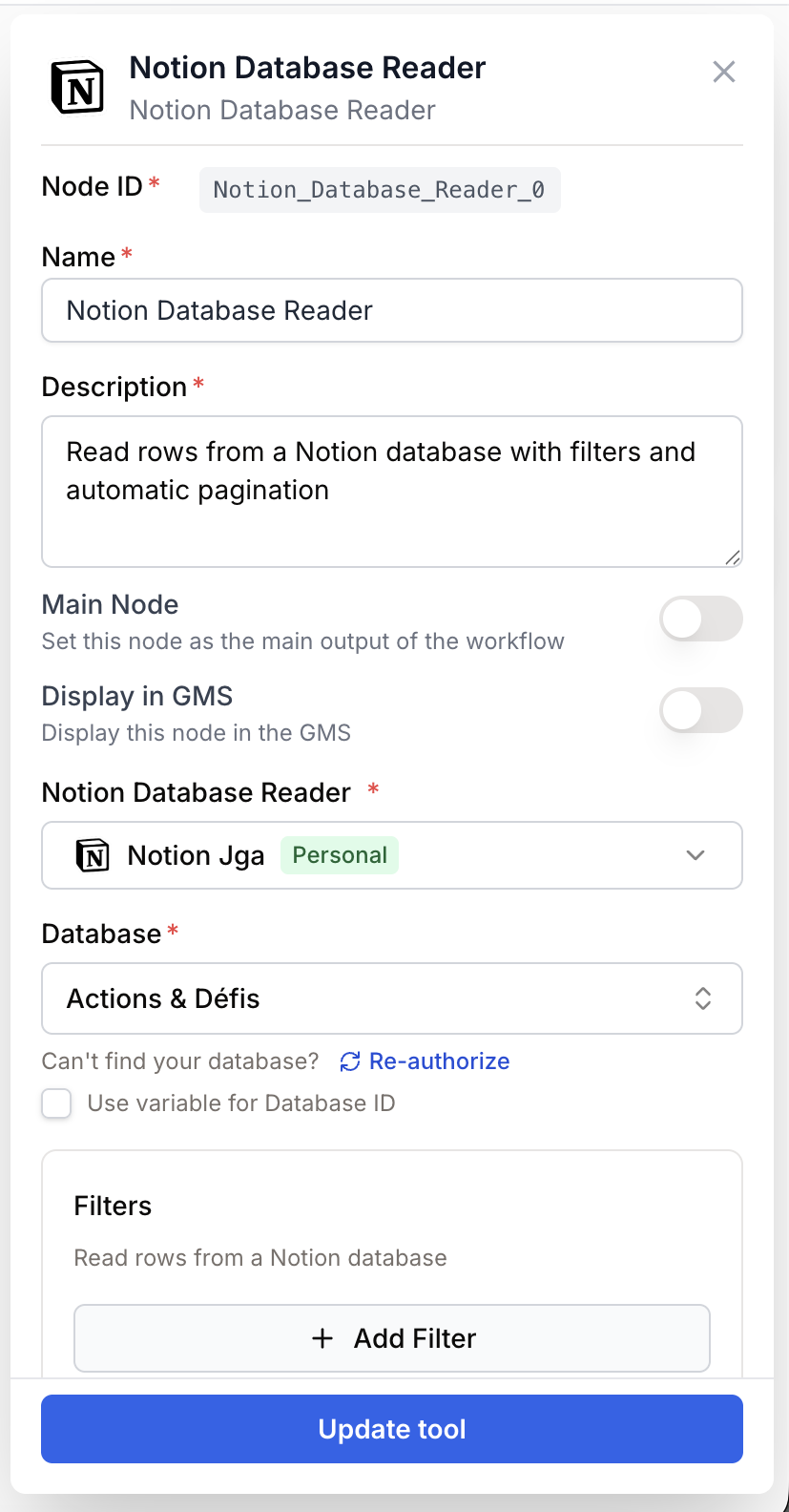
Open the node settings and select your Notion integration from the dropdown. If you haven’t connected Notion yet, go to Settings > Integrations to add your Notion workspace.
Select a database
Once your integration is connected, choose the database you want to read from. The dropdown lists all databases shared with your integration. Make sure the database is shared with your Notion integration in Notion’s settings.
Configure filters and sorting (optional)
Use the visual filter builder to narrow down which rows to fetch. You can also add sort rules to control the order of results. Both are optional — leave them empty to fetch all rows.
Connect the output
Connect the output port to the next node in your workflow. The node outputs the database rows as JSON, ready to be processed by an LLM, a JSON Path Extractor, or any other node.
Configuration parameters
Required fields
Integration integration required Notion integration — Select the Notion workspace connection to use. The integration must have access to the database you want to read.
Database string required Database ID — The Notion database to query. Select it from the dropdown (populated from your integration) or enable “Use Database Variable” to receive the database ID dynamically from an upstream node.
Optional fields
Filter json Filter rules — Define conditions to filter which rows are returned. Use the visual builder to add rules (property, operator, value) or switch to raw JSON for advanced Notion API filters. You can also enable “Use Filter Input” to receive filters dynamically from an upstream node.
Sorts json Sort rules — Define how results are ordered. Use the visual builder to add sort rules by selecting a property and direction (ascending/descending).
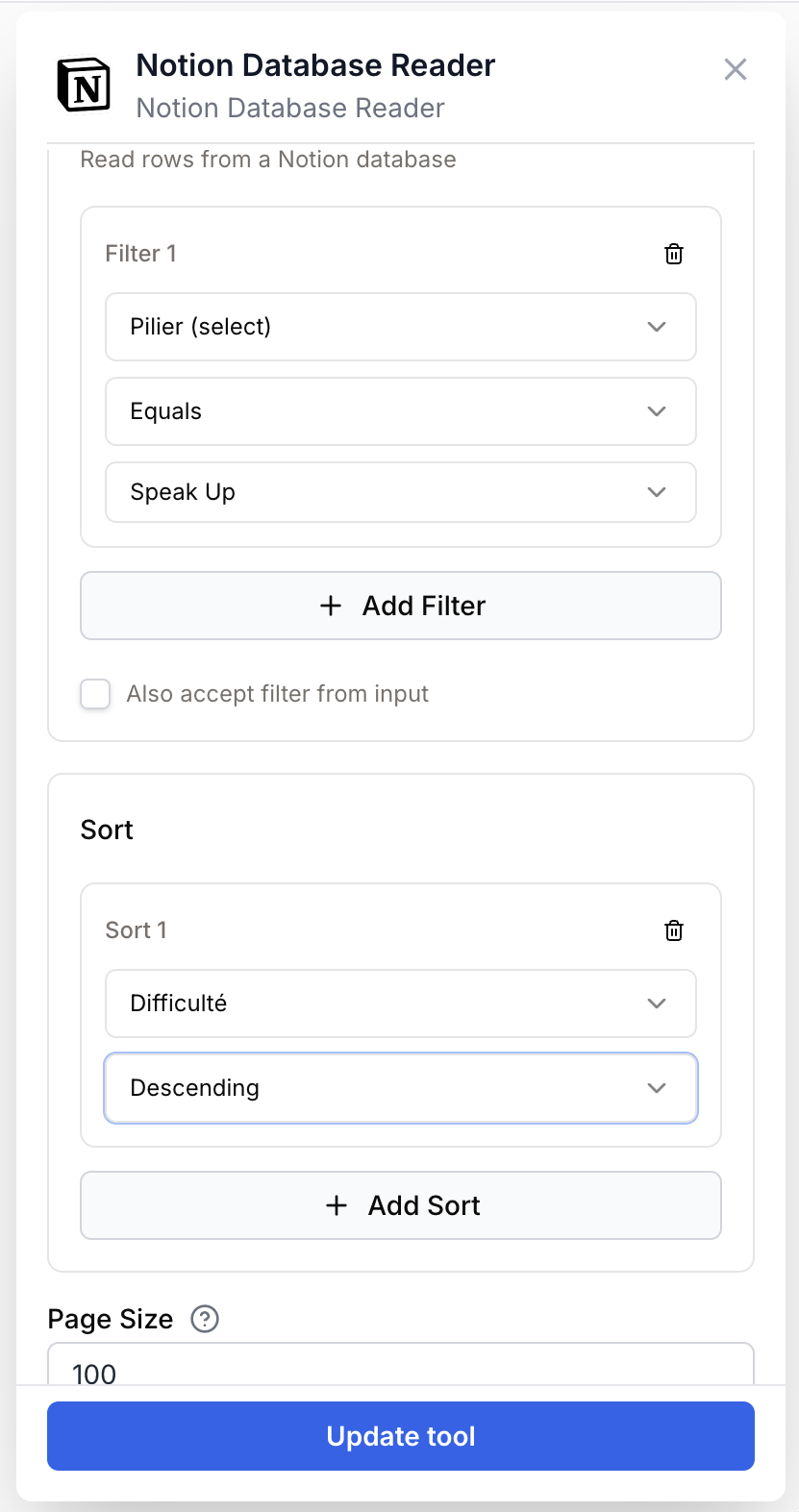
Page Size number default: 100 Results per page — Number of rows fetched per API call (1–100). The default of 100 is recommended for most use cases.
Max Pages number default: 10 Maximum pages — Limits the total number of pages fetched. With the default settings (100 per page × 10 pages), you can fetch up to 1,000 rows. Increase this for larger databases.
Flatten Properties boolean default: true Flatten properties — When enabled, Notion’s complex property objects are converted to simple key-value pairs (e.g., {"Status": "Done"} instead of {"Status": {"type": "status", "status": {"name": "Done"}}}). Recommended for easier data processing downstream.
You can use template variables like {{status}} in your filter values. These are resolved at runtime from your workflow’s input variables, making your filters dynamic.
What does the node output?
The node outputs the database rows as a JSON string. The format depends on the Flatten Properties setting.
With Flatten Properties enabled (default):
[
  {
    "Name": "Blog post about SEO",
    "Status": "In Progress",
    "Author": "Alice",
    "Due Date": "2025-04-15"
  },
  {
    "Name": "Product launch announcement",
    "Status": "Done",
    "Author": "Bob",
    "Due Date": "2025-04-10"
  }
]
With Flatten Properties disabled:
[
  {
    "properties": {
      "Name": { "type": "title", "title": [{ "plain_text": "Blog post about SEO" }] },
      "Status": { "type": "status", "status": { "name": "In Progress" } }
    }
  }
]
database_data string A JSON string containing the array of database rows. Each row includes the properties of the Notion page, either flattened or in Notion’s native format.
Usage examples
Example 1: Fetch articles by status for AI processing
You have a Notion content calendar and want to generate SEO meta descriptions for all articles marked as “Ready for Review”.
Configuration:
- Database: Content Calendar
- Filter: Status
equals“Ready for Review” - Flatten Properties: Enabled
Output:
[
  { "Title": "10 SEO Tips for 2025", "Status": "Ready for Review", "Category": "SEO" },
  { "Title": "Email Marketing Guide", "Status": "Ready for Review", "Category": "Marketing" }
]
Connect the output to a Loop node, then an LLM node to generate meta descriptions for each article.
Example 2: Dynamic filtering with workflow variables
You want to build a reusable workflow where the user specifies which status to filter by at runtime.
Configuration:
- Database: Project Tracker
- Filter: Status
equals{{target_status}} - Sorts: Due Date, ascending
At runtime, if the user inputs target_status = "In Progress", only matching rows are returned, sorted by due date.
Example 3: Fetch and merge data from multiple databases
Use two Notion Database Reader nodes with different databases, then combine results with a Merge node for cross-referencing.
Best practices
Always enable Flatten Properties unless you specifically need Notion’s raw property format. Flattened data is much easier to work with in LLM prompts and JSON extractors.
Use the visual filter builder for simple queries. Switch to raw JSON only when you need compound filters (AND/OR combinations) that the visual builder doesn’t support.
Share your database with the integration. In Notion, go to your database page, click the ”…” menu, then “Connections”, and add your Draft & Goal integration. Without this, the database won’t appear in the dropdown.
Large databases can be slow. If your database has thousands of rows, use filters to reduce the result set. Fetching everything and filtering later wastes API calls and processing time.
Common issues
My database doesn't appear in the dropdown
Cause: The database hasn’t been shared with your Notion integration.
Solution: In Notion, open your database, click the ”…” menu, then “Connections”, and add your Draft & Goal integration. Then refresh the database list in the node settings.
The node returns empty results even though my database has data
Cause: Your filter rules may be too restrictive, or the property names in the filter don’t match the actual Notion property names.
Solution: Try removing all filters first to confirm the node can access the data. Then add filters back one at a time. Make sure property names match exactly (case-sensitive).
I get an error about authorization or permissions
Cause: Your Notion integration token may have expired or been revoked.
Solution: Go to Settings > Integrations, find your Notion integration, and reconnect it. You may need to reauthorize access in Notion.
The output format is complex and hard to use
Cause: The Flatten Properties option is disabled.
Solution: Enable Flatten Properties in the node settings. This converts Notion’s nested property objects into simple key-value pairs that are much easier to work with.
How does it fit into a workflow?
The Notion Database Reader is typically used at the beginning of a workflow to pull data that will be processed, enriched, or transformed by subsequent nodes.
graph LR
    Notion[Notion Database Reader] --> Loop[Loop node]
    Loop --> LLM[LLM node processes each row]
    LLM --> Output[Write results back]
Related nodes
Iterate over each row returned by the Notion Database Reader to process them individually.
Extract specific fields from the database output when you need only certain properties.
Use an AI model to analyze, summarize, or transform the data fetched from Notion.
Combine data from multiple Notion databases or other sources into a single dataset.