Diff Checker
The Diff Checker node compares two text inputs and displays the differences between them during workflow execution.
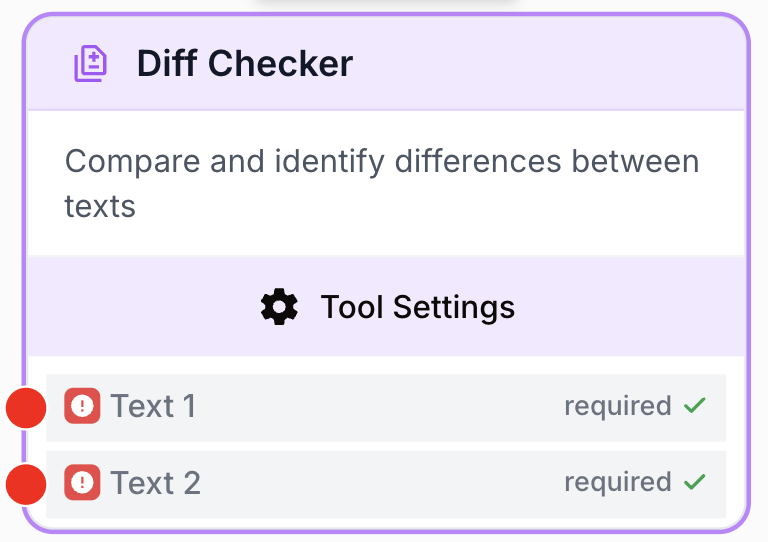
What does the Diff Checker node do?
The Diff Checker node compares two text inputs and highlights the differences between them. It is a simple yet powerful tool for verifying that content has been modified as expected, or for detecting unintended changes in your workflow data.
Common use cases:
- Compare original content vs. edited content to review what changed.
- Verify LLM output against a source text to ensure accuracy.
- Track changes between two versions of a text throughout your workflow.
Quick setup
Add the node to the canvas
Open the Node Library, go to Data Transformation, then drag and drop the Diff Checker node onto your workspace.
Connect the two text inputs
Connect text_1 and text_2 input ports to the outputs of the two nodes whose content you want to compare (for example, an original text and an LLM-rewritten version).
Run the workflow
Execute the workflow. The Diff Checker node will output the comparison result showing what was added, removed, or left unchanged between the two inputs.
Configuration
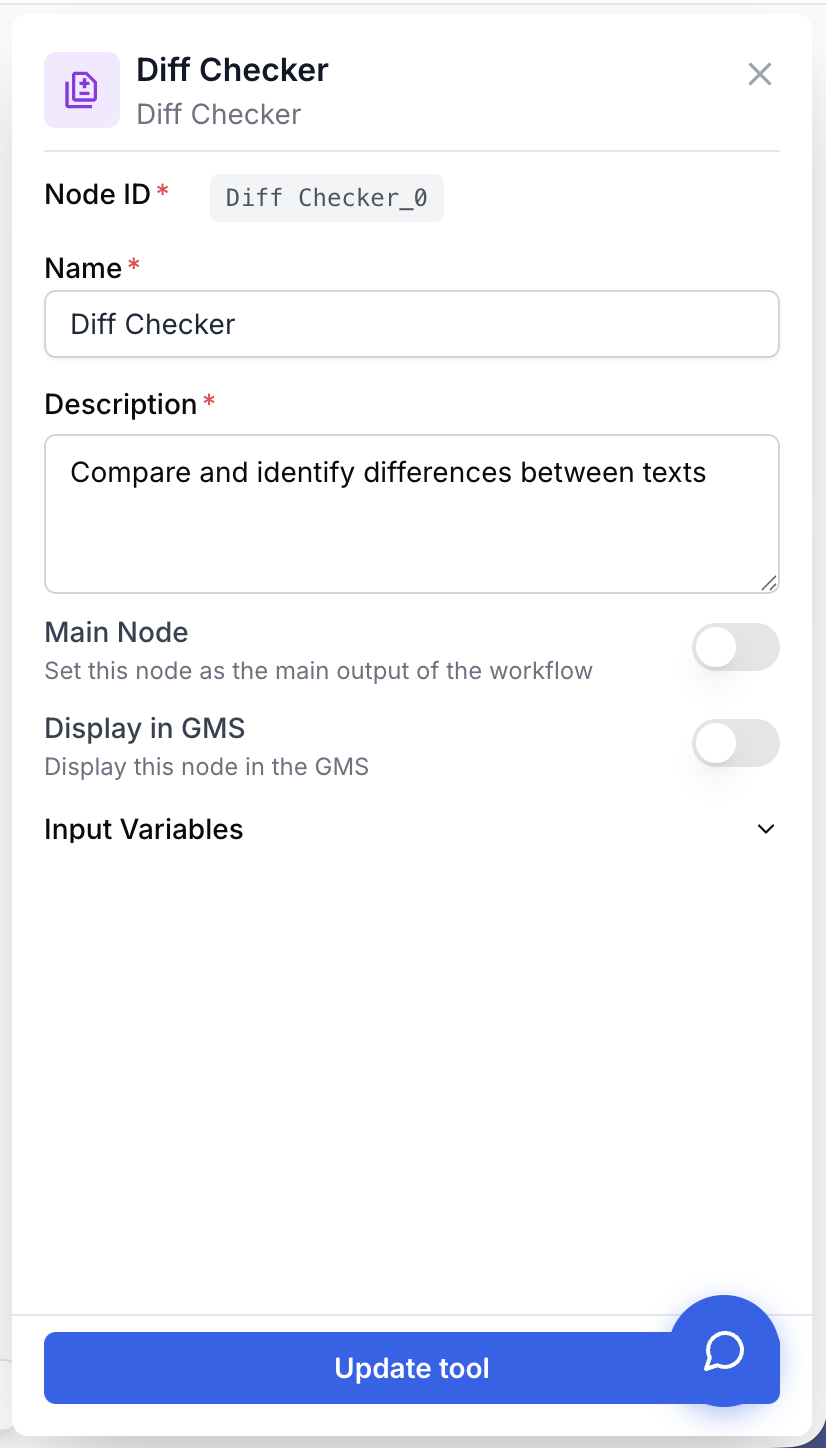
The Diff Checker node has no custom parameters. It only requires its two text inputs to be connected.
Inputs
text_1 string required First text — The original or reference text to compare from.
text_2 string required Second text — The modified or target text to compare against.
What does the node output?
The node outputs a diff result as text, showing the additions, deletions, and unchanged portions between the two inputs.
Text string The diff result highlighting differences between text_1 and text_2, with additions, deletions, and unchanged text clearly indicated.
Usage examples
Example 1: Compare an article before and after LLM editing
You have an original article and want an LLM to improve it. Place the Diff Checker after the LLM node to see exactly what was changed.
- text_1: The original article from a Static Text or Text Input node.
- text_2: The rewritten article from the LLM node.
- Output: A diff showing every sentence that was added, removed, or rephrased by the LLM.
Example 2: Verify data consistency between API calls
You fetch data from an API at two different points in your workflow and want to confirm nothing changed unexpectedly.
- text_1: The response from the first API Connector call.
- text_2: The response from the second API Connector call.
- Output: A diff confirming the data is identical, or highlighting any discrepancies.
Best practices
Use the Diff Checker as a quality control step after any node that transforms text. This helps you verify that modifications are intentional and correct before passing data downstream.
Place a Diff Checker right after an LLM node to review the changes it made to your content. This is especially useful during workflow development to fine-tune your prompts.
Common issues
One or both inputs are not connected
Cause: The node requires both text_1 and text_2 to be connected. If either input is missing, the node cannot perform a comparison.
Solution: Make sure both input ports are connected to nodes that produce text output. Verify the connections in your workflow canvas.
The diff shows everything as changed
Cause: The two texts may have different formatting (extra whitespace, line breaks, or encoding differences) even though the visible content looks similar.
Solution: Add a Find and Replace node before the Diff Checker to normalize whitespace or remove invisible characters from both inputs before comparing them.