Code Block
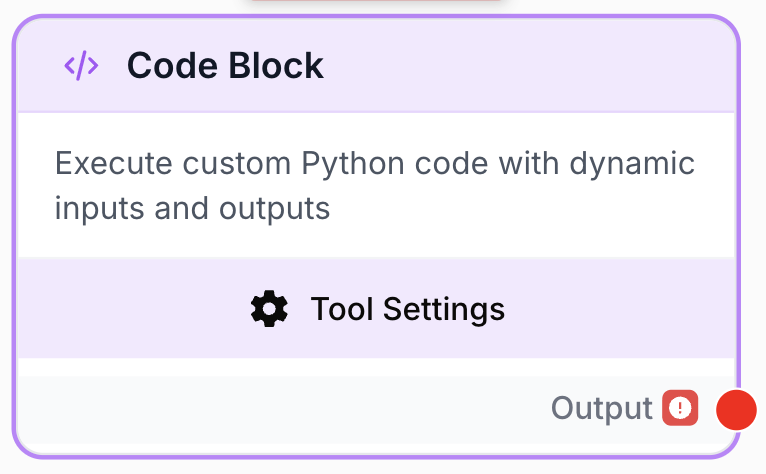
The Code Block node lets you write and execute custom Python code within your workflow, with dynamic inputs/outputs, 94+ packages, and a built-in test environment.
What’s New — May 2026 — File inputs in the test panel now support an Upload sub-mode: when a file input is wired to a variable (no Static_File asset upstream), you can upload an ephemeral test file directly from the editor instead of having to wire one in.
What does the Code Block node do?
The Code Block node lets you write and execute custom Python code directly in your workflow. When the built-in nodes don’t cover your specific use case, Code Block gives you full programming flexibility with access to 94+ Python packages.
Common use cases:
- Transforming data in ways that standard nodes can’t handle (custom parsing, reformatting, calculations)
- Running data analysis or statistical computations using NumPy, Pandas, or SciPy
- Scraping or processing web content with BeautifulSoup and Requests
- Applying custom business logic, scoring algorithms, or validation rules to workflow data
Quick setup
Add the node to the canvas
Open the Node Library, go to Tools > Advanced, then drag and drop the Code Block node onto your workspace.
Define your inputs
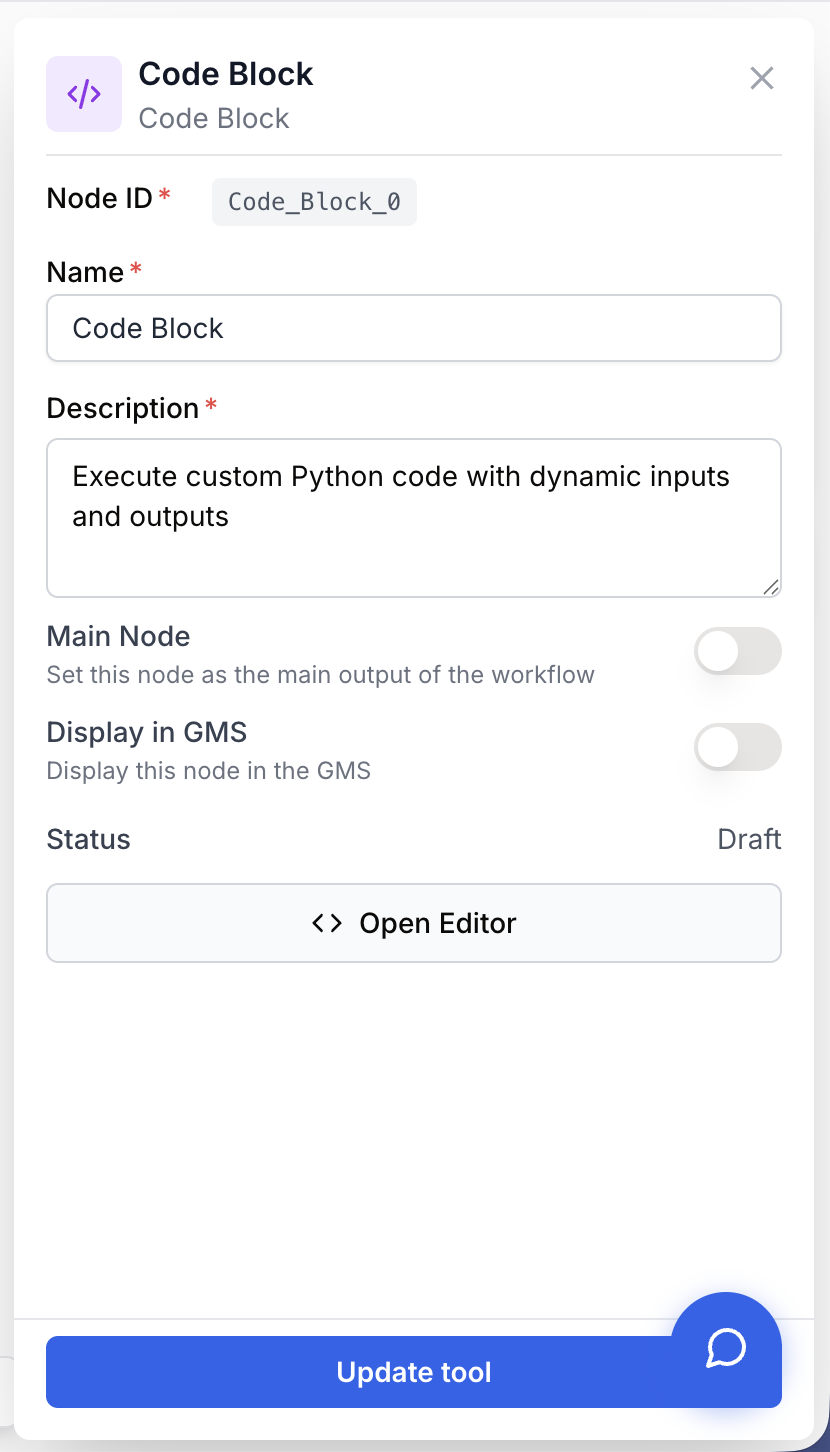
Open the node settings and click Open Code Editor. In the editor, add the inputs your code needs using the Inputs section on the left. Each input has a name (Python identifier format) and can be marked as required or optional.
Write your code
Write your Python code in the editor. The function signature (def run(...)) and return statement are auto-generated — you only write the body. Your inputs are available as function parameters.
Define your outputs
Add output names in the Outputs section. These become the values your code returns to downstream nodes. Single outputs return the value directly; multiple outputs return a dictionary.
Test your code
Use the built-in Test panel on the right side of the editor. Provide test values for your inputs and click Run Test to see the output, stdout, stderr, and execution time.
Connect to your workflow
Connect upstream nodes to provide input data, and connect the output to downstream nodes that will use your results.
Configuration parameters
Code Editor
Code python required Python code — The custom code to execute. You write the function body only — the function signature and return statement are auto-generated based on your inputs and outputs. The code runs in a sandboxed Python environment with access to 94+ packages.
Inputs dynamic required Input parameters — Define up to 10 input variables your code receives from upstream nodes. Each input has:
- Name: Must be a valid Python identifier (lowercase, letters/numbers/underscores, starts with a letter)
- Required/Optional: Required inputs must be provided; optional inputs default to
None
Outputs dynamic required Output variables — Define up to 5 output variables your code returns to downstream nodes. Names follow the same Python identifier rules. If you define a single output, its value is returned directly. If you define multiple outputs, they’re returned as a dictionary.
Timeout number default: 60 Timeout (seconds) — Maximum execution time for your code (1–300 seconds). If the code takes longer, it’s terminated and an error is returned.
Don’t write return statements in the code body. The return is auto-generated from your output definitions. If you define outputs result and count, the generated return is: return {"result": result, "count": count}.
Available Python packages
The Code Block environment includes 94+ pre-installed packages. Here are the main packages you can use directly:
| Package | Version | Category |
|---|---|---|
aiohttp | 3.13.3 | HTTP / Async |
beautifulsoup4 | 4.14.3 | Web Scraping |
bokeh | 3.8.2 | Visualization |
gensim | 4.4.0 | NLP |
imageio | 2.37.3 | Image I/O |
joblib | 1.5.3 | Parallelism |
librosa | 0.11.0 | Audio |
matplotlib | 3.10.8 | Visualization |
nltk | 3.9.3 | NLP |
numpy | 2.4.3 | Data Science |
opencv-python | 4.13.0.92 | Image/Video |
openpyxl | 3.1.5 | Excel Files |
pandas | 3.0.1 | Data Science |
plotly | 6.6.0 | Visualization |
pytest | 9.0.2 | Testing |
python-docx | 1.2.0 | Word Documents |
pytz | 2026.1 | Timezones |
requests | 2.32.5 | HTTP |
scikit-image | 0.26.0 | Image Processing |
scikit-learn | 1.8.0 | Machine Learning |
scipy | 1.17.1 | Scientific Computing |
seaborn | 0.13.2 | Visualization |
soundfile | 0.13.1 | Audio I/O |
spacy | 3.8.11 | NLP |
textblob | 0.19.0 | NLP |
urllib3 | 2.6.3 | HTTP |
xlrd | 2.0.2 | Excel Files |
View all 94+ packages (including dependencies)
| Package | Version |
|---|---|
aiohappyeyeballs | 2.6.1 |
aiohttp | 3.13.3 |
aiosignal | 1.4.0 |
annotated-doc | 0.0.4 |
annotated-types | 0.7.0 |
attrs | 25.4.0 |
audioread | 3.1.0 |
beautifulsoup4 | 4.14.3 |
blis | 1.3.3 |
bokeh | 3.8.2 |
catalogue | 2.0.10 |
certifi | 2026.2.25 |
cffi | 2.0.0 |
charset-normalizer | 3.4.5 |
click | 8.3.1 |
cloudpathlib | 0.23.0 |
confection | 0.1.5 |
contourpy | 1.3.3 |
cycler | 0.12.1 |
cymem | 2.0.13 |
decorator | 5.2.1 |
et-xmlfile | 2.0.0 |
fonttools | 4.62.0 |
frozenlist | 1.8.0 |
gensim | 4.4.0 |
idna | 3.11 |
imageio | 2.37.3 |
iniconfig | 2.3.0 |
jinja2 | 3.1.6 |
joblib | 1.5.3 |
kiwisolver | 1.5.0 |
lazy-loader | 0.5 |
librosa | 0.11.0 |
llvmlite | 0.46.0 |
lxml | 6.0.2 |
markdown-it-py | 4.0.0 |
markupsafe | 3.0.3 |
matplotlib | 3.10.8 |
mdurl | 0.1.2 |
msgpack | 1.1.2 |
multidict | 6.7.1 |
murmurhash | 1.0.15 |
narwhals | 2.17.0 |
networkx | 3.6.1 |
nltk | 3.9.3 |
numba | 0.64.0 |
numpy | 2.4.3 |
opencv-python | 4.13.0.92 |
openpyxl | 3.1.5 |
packaging | 26.0 |
pandas | 3.0.1 |
pillow | 12.1.1 |
platformdirs | 4.9.4 |
plotly | 6.6.0 |
pluggy | 1.6.0 |
pooch | 1.9.0 |
preshed | 3.0.12 |
propcache | 0.4.1 |
pycparser | 3.0 |
pydantic | 2.12.5 |
pydantic-core | 2.41.5 |
pygments | 2.19.2 |
pyparsing | 3.3.2 |
pytest | 9.0.2 |
python-dateutil | 2.9.0 |
python-docx | 1.2.0 |
pytz | 2026.1 |
pyyaml | 6.0.3 |
regex | 2026.2.28 |
requests | 2.32.5 |
rich | 14.3.3 |
scikit-image | 0.26.0 |
scikit-learn | 1.8.0 |
scipy | 1.17.1 |
seaborn | 0.13.2 |
shellingham | 1.5.4 |
six | 1.17.0 |
smart-open | 7.5.1 |
soundfile | 0.13.1 |
soupsieve | 2.8.3 |
soxr | 1.0.0 |
spacy | 3.8.11 |
spacy-legacy | 3.0.12 |
spacy-loggers | 1.0.5 |
srsly | 2.5.2 |
textblob | 0.19.0 |
thinc | 8.3.10 |
threadpoolctl | 3.6.0 |
tifffile | 2026.3.3 |
tornado | 6.5.4 |
tqdm | 4.67.3 |
typer | 0.24.1 |
typing-extensions | 4.15.0 |
urllib3 | 2.6.3 |
wasabi | 1.1.3 |
weasel | 0.4.3 |
wrapt | 2.1.2 |
xlrd | 2.0.2 |
xyzservices | 2025.11.0 |
yarl | 1.23.0 |
What does the node output?
The output format depends on how many outputs you define:
Single output (e.g., result):
"The processed value"The value is returned directly to the connected downstream node.
Multiple outputs (e.g., summary and score):
{
  "summary": "The article covers SEO best practices...",
  "score": 85
}
Each output becomes a separate connection point on the node.
(dynamic) varies The output type depends on what your Python code returns. It can be a string, number, list, dictionary, or any JSON-serializable value.
Testing with file inputs
When a Code Block input has type file, the Test panel exposes a Node / Upload sub-toggle so you can supply test data in two ways:
- Node — point at a
Static_Fileasset already published by an upstream node in the same workflow. Use this when there’s a stable file you want to test against repeatedly. - Upload — drag-and-drop an ephemeral test file from your machine. Useful when the file input is wired to a variable (the actual file is provided by the runner at workflow execution time, so there’s no Static_File to point at).
Uploaded test files are ephemeral and intended only for testing inside the editor. Don’t treat them as durable storage; for files that must persist, publish a Static_File asset upstream and use the Node sub-mode instead.
Usage examples
Example 1: Calculate readability score
You want to compute a custom readability score for article content that no built-in node provides.
Inputs: text (required)
Outputs: score, level
Code:
words = text.split()
sentences = text.count('.') + text.count('!') + text.count('?')
if sentences == 0:
    sentences = 1
avg_words_per_sentence = len(words) / sentences
score = max(0, min(100, 100 - (avg_words_per_sentence - 15) * 5))
level = "Easy" if score > 70 else "Medium" if score > 40 else "Hard"
Example 2: Parse and restructure JSON data
You receive complex JSON from an API and need to extract and reshape specific fields.
Inputs: raw_data (required)
Outputs: cleaned
Code:
import json
data = json.loads(raw_data)
cleaned = json.dumps([
    {"name": item["full_name"], "email": item["contact"]["email"]}
    for item in data["results"]
    if item.get("active", False)
])
Example 3: Analyze an image with OpenCV
Extract dominant colors from a product image.
Inputs: image_url (required)
Outputs: colors
Code:
import requests
import numpy as np
import cv2
from collections import Counter

response = requests.get(image_url)
img_array = np.frombuffer(response.content, np.uint8)
img = cv2.imdecode(img_array, cv2.IMREAD_COLOR)
img_rgb = cv2.cvtColor(img, cv2.COLOR_BGR2RGB)
pixels = img_rgb.reshape(-1, 3)
rounded = (pixels // 32 * 32).tolist()
most_common = Counter(map(tuple, rounded)).most_common(5)
colors = [{"rgb": list(c), "frequency": f} for c, f in most_common]
Best practices
Always test before deploying. Use the built-in test panel to verify your code works with real data before running it in a workflow. This saves execution credits and debugging time.
Keep your code focused. Each Code Block should do one thing well. If your code grows beyond 50 lines, consider splitting it into multiple Code Block nodes for clarity and reusability.
Use meaningful input/output names. Names like text and score are much clearer than x and y when reading the workflow canvas and connecting nodes.
Don’t write return statements. The return is auto-generated. Writing your own return will cause a validation error and prevent saving or testing.
Watch your timeout. Complex operations (large data processing, multiple API calls) can exceed the default 60-second timeout. Increase it in the settings if needed, up to 300 seconds max.
Don’t store secrets in code. Avoid hardcoding API keys or passwords. Use workflow variables or integration credentials instead.
Common issues
My code runs in the test panel but fails in the workflow
Cause: The test panel uses static test values, but the workflow passes different data types or formats.
Solution: Check the actual data coming from upstream nodes. Use type() and print() in test mode to verify. Input values from other nodes are often strings — you may need json.loads() to parse JSON data.
I get a timeout error
Cause: Your code takes longer than the configured timeout.
Solution: Increase the timeout in the settings (up to 300 seconds). If the code is inherently slow, optimize it: reduce data size, avoid unnecessary loops, or use vectorized operations with NumPy/Pandas.
I can't save or test — the button is disabled
Cause: Your code body contains a return statement, which is not allowed (the return is auto-generated).
Solution: Remove any return statements from your code. Instead, assign values to your output variable names and they’ll be returned automatically.
A package I need is not available
Cause: The sandboxed environment has a fixed set of 94+ packages.
Solution: Click “View available packages” to see the full list. If your package isn’t available, try an alternative (e.g., use requests instead of httpx). For very specific needs, consider using the API Connector node instead.
My output is empty or None
Cause: The output variable was not assigned a value in all code paths.
Solution: Make sure your output variables are assigned in every branch of your code (including error cases). Use print() statements in the test panel to debug the execution flow.
My uploaded test file is no longer available
Cause: Uploaded test files are temporary and may be removed automatically after a period of inactivity.
Solution: Re-upload the file via the Upload sub-mode. If you need the file to persist, publish it as a Static_File asset upstream and switch to the Node sub-mode.
Node / Upload sub-toggle doesn't appear
Cause: The input type isn’t file — the sub-toggle is only shown for file inputs.
Solution: Confirm the input’s type in the Inputs section. If you intended a file input but defined it as string, change the type.
How does it fit into a workflow?
Code Block is a versatile node that can be placed anywhere in a workflow for custom data processing:
graph LR
    Input[Data Source] --> Code[Code Block: Custom Logic]
    Code --> Next[LLM / Output / Next Step]
Related nodes
For calling external APIs without writing code. Use Code Block when you need custom processing logic.
For simple JSON field extraction. Use Code Block when you need complex transformations.
For simple text replacements. Use Code Block when you need regex or complex text processing.
For AI-powered text processing. Combine with Code Block for pre/post-processing of LLM inputs/outputs.