Notion Database Updater
The Notion Database Updater node updates existing pages in a Notion database, allowing you to modify properties on specific rows by page ID.
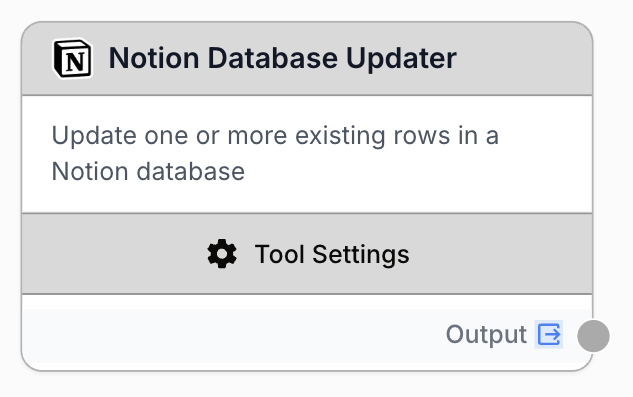
What does the Notion Database Updater node do?
The Notion Database Updater node connects to your Notion workspace and updates the properties of an existing page. Unlike the Database Writer (which creates new pages), this node modifies pages that already exist by targeting them with their page ID.
Common use cases:
- Updating the status of articles in a Notion editorial calendar after AI processing (e.g., setting “Status” to “Reviewed”)
- Writing back enriched data to existing CRM entries after running them through an LLM
- Marking tasks as completed in a Notion project tracker after a workflow finishes
- Batch-updating pages inside a Loop after reading them with the Notion Database Reader
Quick setup
Connect your Notion integration
Open the node settings and select your Notion integration from the dropdown. If you haven’t connected Notion yet, go to Settings > Integrations to add your Notion workspace.
Provide the page ID
Enter the page ID of the Notion page you want to update. You can paste it directly, use a template variable like {{pageId}}, or enable “Use Page ID Variable” to receive it dynamically from an upstream node (typically from a Notion Database Reader inside a Loop).
Define the properties to update
In the Properties textarea, write a JSON object with the property names and their new values. Only include the properties you want to change — other properties will remain untouched. You can also enable “Use Properties Variable” to receive the JSON from an upstream node.
Connect the output
Connect the output port to the next node. The node returns the updated page data as JSON.
Configuration parameters
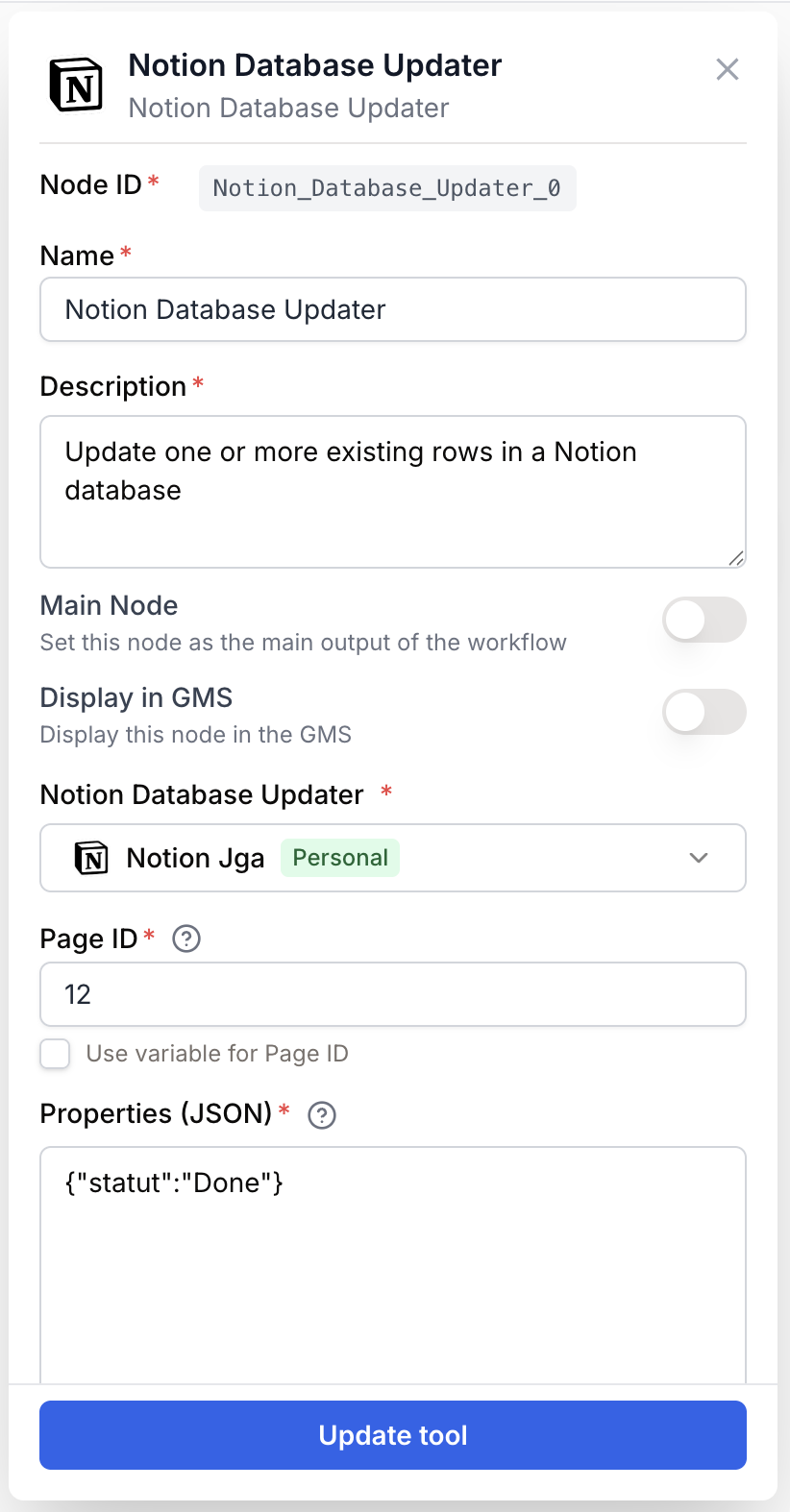
Required fields
Integration integration required Notion integration — Select the Notion workspace connection to use. The integration must have access to the page you want to update.
Page ID string required Page ID — The unique identifier of the Notion page to update. You can find it in the page URL (the 32-character string at the end). Supports template variables like {{pageId}}. Enable “Use Page ID Variable” to receive it dynamically from an upstream node.
Properties json required Properties — A JSON object defining which properties to update and their new values. Only the specified properties are modified; all others remain unchanged.
You only need to include the properties you want to change. For example, to update just the status: {"Status": "Done"}. All other properties on the page will stay as they are.
Use template variables like {{new_status}} in your properties JSON. These are resolved at runtime from upstream nodes, making your updates dynamic.
What does the node output?
The node outputs a JSON string containing the Notion API response with the updated page details.
{
  "id": "a1b2c3d4-e5f6-7890-abcd-ef1234567890",
  "url": "https://www.notion.so/My-Page-a1b2c3d4e5f6",
  "last_edited_time": "2025-04-09T14:30:00.000Z",
  "properties": {
    "Status": "Done",
    "Priority": "High"
  }
}
output string A JSON string containing the Notion API response with the updated page details, including its ID, URL, and modified properties.
Usage examples
Example 1: Update article status after AI review
You have a Notion content calendar and want to automatically mark articles as “Reviewed” after an LLM checks them.
Workflow:
- Notion Database Reader fetches articles with status “Pending Review”
- Loop iterates over each article
- LLM reviews the content
- Notion Database Updater updates the status
Configuration:
- Page ID:
{{pageId}}(from the Loop, extracted from the Reader output) - Properties:
{
  "Status": "Reviewed",
  "Review Notes": "{{review_summary}}"
}
Example 2: Batch-update scores from an SEO audit
After running an SEO audit, write the scores back to your Notion tracking database.
Workflow:
- Notion Database Reader fetches all URLs to audit
- Loop iterates over each URL
- Web Scraper + LLM analyze each page
- Notion Database Updater writes the score back
Configuration:
- Page ID:
{{page_id}}(from the Reader output) - Properties:
{
  "SEO Score": "{{seo_score}}",
  "Last Audit": "{{audit_date}}",
  "Status": "Audited"
}
Example 3: Mark tasks as completed
A simple workflow that marks specific tasks as done.
Configuration:
- Page ID: Hardcoded or from a variable
- Properties:
{
  "Status": "Completed",
  "Completed Date": "2025-04-09"
}
Best practices
Combine with the Database Reader for read-modify-write workflows. Read pages with the Reader, process them, then update them with the Updater. The Reader output includes page IDs you can pass directly to the Updater.
Only send the properties you want to change. There’s no need to include all page properties — unspecified properties remain untouched. This keeps your configuration clean and reduces the risk of accidentally overwriting data.
Property names are case-sensitive. Make sure the property names in your JSON match exactly with the property names in your Notion database. A mismatch will cause the value to be silently ignored.
The page must be accessible by your integration. The page (or its parent database) must be shared with your Draft & Goal Notion integration. If you can read a database but can’t update its pages, check the integration permissions in Notion.
Common issues
The node runs but no properties are updated
Cause: The property names in your JSON don’t match the actual Notion property names (case-sensitive).
Solution: Double-check the exact property names in your Notion database. Use the Notion Database Reader to fetch a page first and inspect the property names in the output.
I get an error about a missing page ID
Cause: The page ID field is empty or the template variable wasn’t resolved.
Solution: Make sure the page ID is provided either as a static value, a template variable that resolves at runtime, or via the dynamic input checkbox. If using a variable, verify the upstream node provides it.
I get an error about authorization or permissions
Cause: Your Notion integration token may have expired, or the page isn’t shared with the integration.
Solution: Go to Settings > Integrations, find your Notion integration, and reconnect it. Also verify in Notion that the page’s parent database is shared with your integration via “Connections”.
Template variables like {{pageId}} are not being replaced
Cause: The variable name doesn’t match any input from the upstream node.
Solution: Verify that the variable name inside {{...}} matches exactly with the output variable from the upstream node. Check the connection between nodes.
How does it fit into a workflow?
The Notion Database Updater is typically used at the end of a read-modify-write pattern:
graph LR
    Reader[Notion Database Reader] --> Loop[Loop node]
    Loop --> Process[LLM / Transform]
    Process --> Updater[Notion Database Updater]
Related nodes
Read pages from a Notion database to get page IDs and data before updating them.
Create new pages in a Notion database instead of updating existing ones.
Iterate over pages from the Database Reader and update each one individually.
Process or enrich page data with AI before writing updates back to Notion.