YourText.Guru Score
The YourText.Guru Score node analyzes a piece of content against a YourText.Guru guide and returns its SEO (SOSEO) and over-optimization (DSEO) scores.
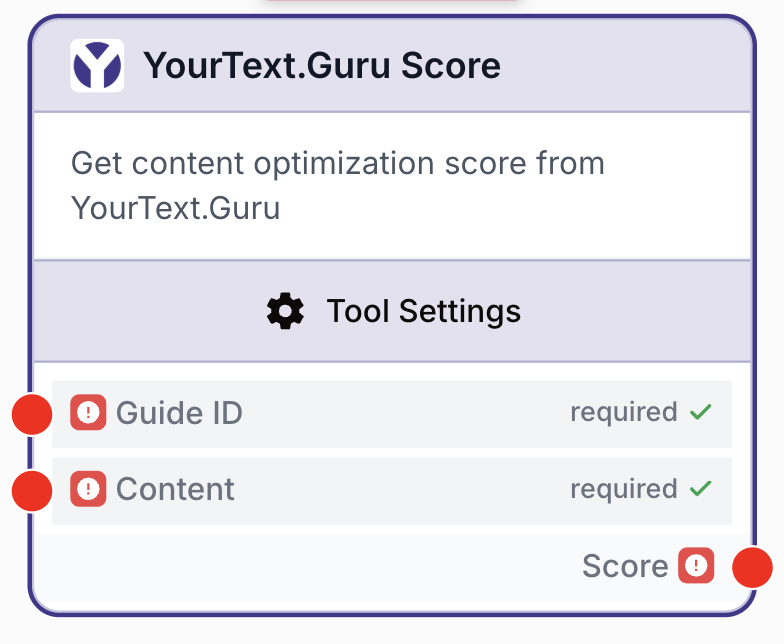
What does the YourText.Guru Score node do?
The YourText.Guru Score node calls the YourText.Guru guides/{guideId}/check endpoint to evaluate a piece of content against an existing guide. It returns the SEO score (SOSEO), the over-optimization score (DSEO), the target ranges recommended by YourText.Guru, and a per-term analysis of how well each guide term is covered in the text.
Common use cases:
- Auditing an article generated by an LLM before publishing it on a CMS.
- Iterating on a draft until SOSEO reaches the target range while DSEO stays low.
- Scoring several content variants in batch to pick the best version.
Quick setup
Connect a YourText.Guru integration
Open the node settings and select an existing YourText.Guru Integration, or create one from the Integrations page using your YourText.Guru API key.
Add the node to the canvas
Open the Node Library, go to Integrations > SEO Tools > YourText.Guru, then drag and drop the YourText.Guru Score node onto your workflow.
Provide the guide ID and the content
Connect the input ports Guide ID and Content to upstream nodes (for example, a Text Input holding the guide ID and an LLM producing the article).
Connect the output
Connect the Score output to the next node (LLM, JSON Path Extractor, Sheets Writer) and create a variable name there to consume the JSON payload.
Configuration parameters
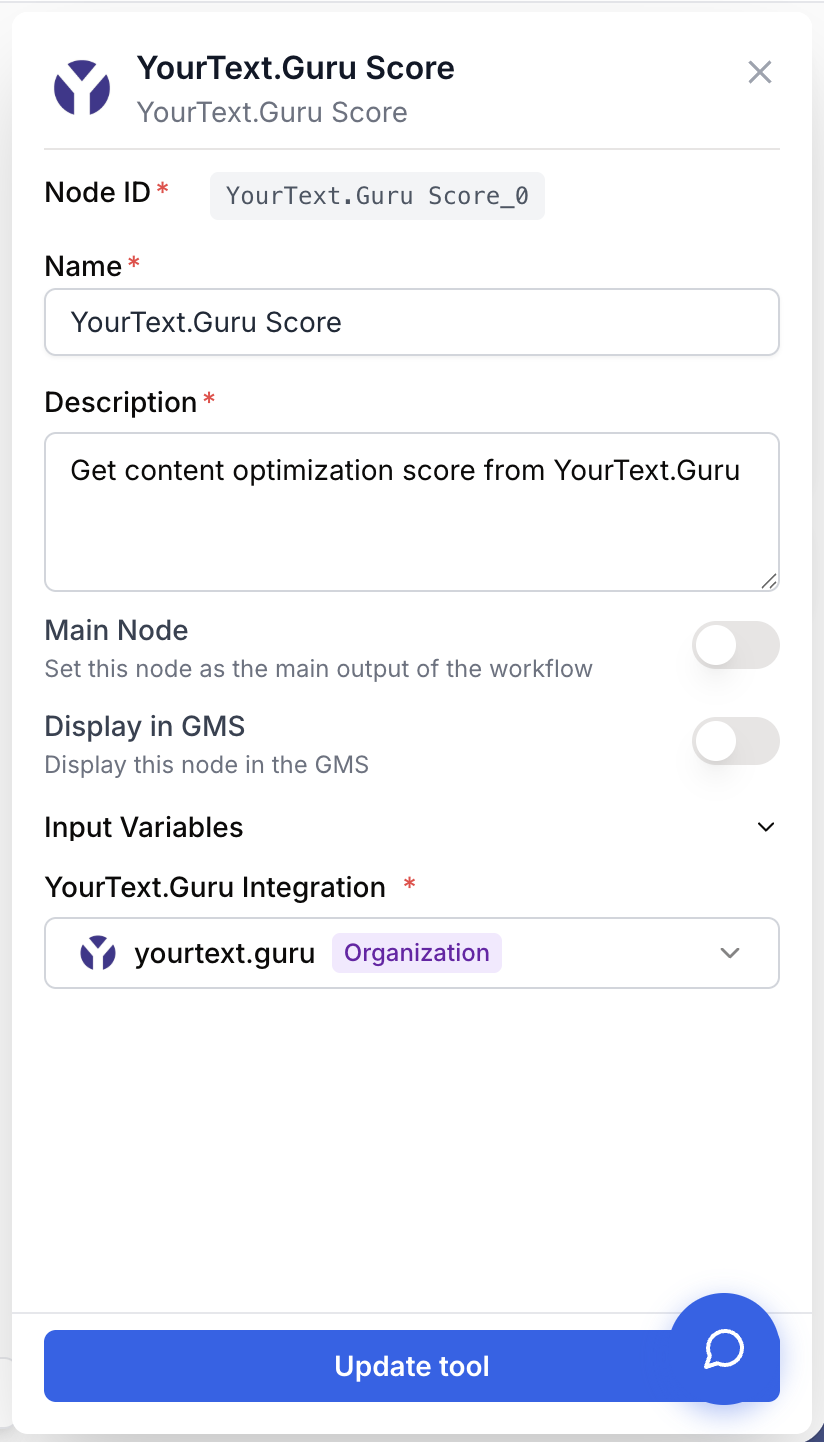
Configure how the node authenticates and what it scores.
Required fields
Name string required default: YourText.Guru Score Node name — Used to identify this node in the canvas and in run logs (for example, Score article v3).
Description string required default: Analyze SEO Score and Danger with YourText.Guru Node description — Short phrase describing the role of this specific instance.
Guide ID string required YourText.Guru guide identifier — The ID of the guide to score against. Must come from a guide previously created on YourText.Guru (typically returned by the YourText.Guru Keywords node).
Content string required Text to score — The full article or text block to evaluate. Plain text is expected; HTML is accepted but counts as part of the content.
YourText.Guru Integration integration required YourText.Guru account — The integration that holds the YourText.Guru API key used for the request. Required to authenticate the call.
Reuse the same Guide ID across several scoring nodes to compare different drafts of the same article without consuming an extra guide credit.
What does the node output?
The node returns a JSON string with the SOSEO and DSEO scores, the target ranges recommended by the guide, and a per-term breakdown.
How to use the output
- Draw a connection from the
Scoreoutput port to the next node. - In that node, create a variable name (for example,
score_json). - Use a JSON Path Extractor or an LLM downstream to read fields like
score,danger, oranalyze.
Score string JSON string containing score (SOSEO), danger (DSEO), target_soseo_min, target_soseo_max, target_dseo_min, target_dseo_max, and analyze (per-term coverage object returned by the guide).
Usage examples
Example 1: Score an LLM-generated article
Score an article produced by an LLM against an existing guide and route it to a follow-up node only when SOSEO is high enough.
Configuration:
Guide ID=123456Content= output of an upstream LLM nodeYourText.Guru Integration= your YourText.Guru account
Generated output:
{
  "score": 78,
  "danger": 12,
  "target_soseo_min": 70,
  "target_soseo_max": 85,
  "target_dseo_min": 0,
  "target_dseo_max": 25,
  "analyze": {
    "content strategy": 3,
    "audience": 2,
    "keyword research": 1
  }
}
Example 2: Iterate on a draft until the target range is reached
Use a Conditional node downstream to loop back to the LLM whenever score falls below target_soseo_min or danger exceeds target_dseo_max.
Configuration:
Guide ID=123456Content= the current draft- Downstream Conditional reads
score_json.scoreandscore_json.dangerand decides whether to regenerate.
This pattern lets you optimize content iteratively without manual review.
Common issues
YourText.Guru Score : Integration not configured
Cause: No YourText.Guru integration is selected on the node.
Solution: Open the node settings and pick a valid integration in the YourText.Guru Integration field, or create one from the Integrations page using your YourText.Guru API key.
YourText.Guru Score : No guide ID
Cause: The Guide ID input is empty.
Solution: Connect an upstream node that produces the guide ID (for example, the YourText.Guru Keywords node) or paste a valid guide ID.
YourText.Guru Score : No content
Cause: The Content input is empty.
Solution: Connect an upstream node that produces the text to score (LLM, Text Input, HTML to Markdown).
YourText.Guru Score : Not enough tokens on your Text Guru account
Cause: The YourText.Guru account linked to the integration has run out of credits (HTTP 550).
Solution: Top up your YourText.Guru account or switch to an integration with available credits.
YourText.Guru Score : Invalid metadata. Reconnect the YourText.Guru integration
Cause: The integration record exists but the API key is missing or no longer valid.
Solution: Open the Integrations page and reconnect the YourText.Guru integration with a fresh API key.
Best practices and pitfalls
Pair this node with YourText.Guru Keywords in the same workflow: the Keywords node creates the guide and exposes its ID, the Score node consumes it.
Each call to this node consumes a YourText.Guru credit. Avoid placing it inside a tight loop without an exit condition; cache the result when possible.
How does it fit into a workflow?
YourText.Guru Score typically sits between a content-generating node and a decision or storage node.
graph LR
    Kw[YourText.Guru Keywords] --> LLM[LLM writes article]
    LLM --> Score[YourText.Guru Score]
    Score --> Cond[Conditional checks score]
    Cond --> Sheets[Sheets Writer]
Related nodes
Generate the guide and the keyword set used as input for the Score node.
Produce the article text to score, then loop back if the score is too low.
Pull score, danger, or per-term values from the Score JSON output.
Branch the workflow depending on whether the score meets the target range.