Google Discover
The Google Discover node fetches performance data for your content surfaced in the Google Discover feed — clicks, impressions, CTR and position broken down by page, country or date.
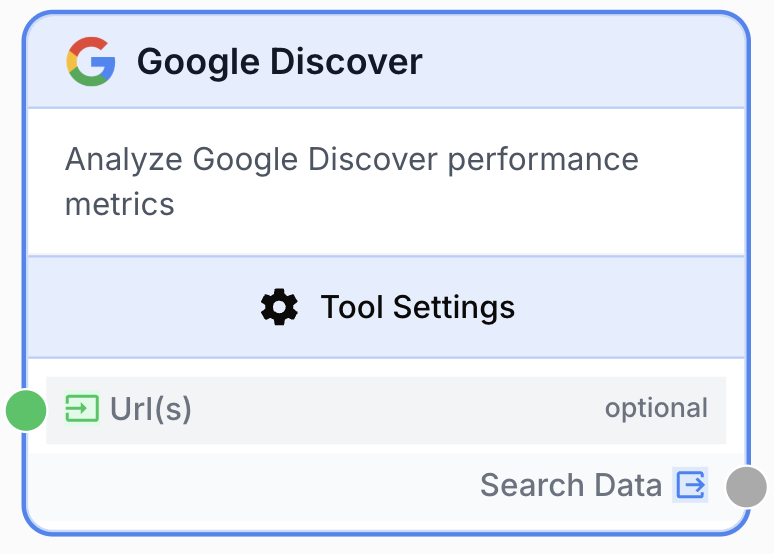
What does the Google Discover node do?
The Google Discover node connects to the Google Search Console API and pulls performance data for the URLs of a verified property that surfaced in the Google Discover feed. You choose the date range, the dimensions (page, country, date) and an optional sort, and the node returns the matching rows as JSON ready to be processed downstream.
Common use cases:
- Tracking Discover traffic over time and feeding the data into a dashboard or report
- Identifying viral pages by sorting on clicks or impressions and pushing the top URLs to an LLM for analysis
- Running Discover audits across many properties in batch by externalizing the integration and Site URL via upstream inputs
- Comparing Discover performance per country to spot geographic opportunities
Quick setup
Connect a Google Search Console integration
Open Settings > Integrations, add a Google integration and grant access to the Search Console properties you want to query. The same integration powers Search Console and Discover.
Add the Google Discover node
Open the Node Library, go to Integrations > Google > Discover and drag the Google Discover node onto the canvas.
Pick the property and date range
In the node settings, select the Google integration, then choose a verified property (domain or URL-prefix) from the Site URL (Property) dropdown. Select a predefined Date Range or pick Personalized to set explicit start and end dates.
Choose dimensions and sort
Pick one or more Dimensions (page, country, date) and, optionally, a Sort column and Sort order. Set a Row limit between 1 and 25,000.
Connect the output
Connect the Search Data output to the next node — typically a Loop, a JSON Path Extractor or an LLM that consumes the Discover rows.
Configuration parameters
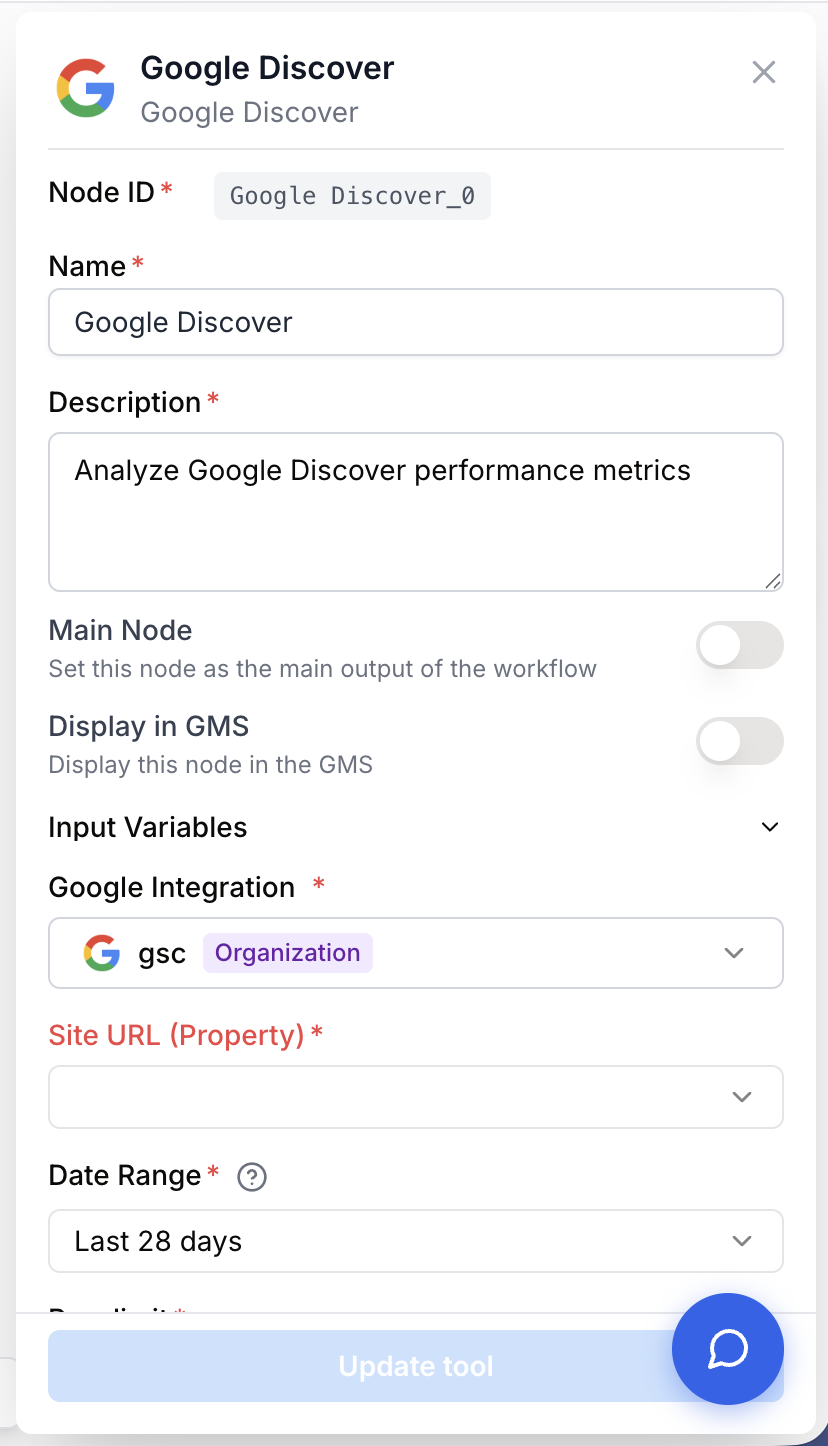
Required fields
integration_id integration required Google Integration — Google Search Console integration used to authenticate the API call. Pick one inline, or enable Use a variable for integration to receive it from an upstream integration_id input (batch flows).
site_url string required Site URL (Property) — Verified GSC property to query. Either a domain property (sc-domain:example.com) or a URL-prefix property (https://example.com/). Pick one from the dropdown, or enable Use variable to receive site_url from an upstream input.
date_range string required default: last_28_days Date Range — Predefined window. One of: last_available_day, last_7_days, last_28_days, last_3_months, last_6_months, last_12_months, last_16_months, personalized. GSC data lags by about 2 days.
dimensions array required default: page Dimensions — One or more of page, country, date. Each row in the output is grouped by the chosen dimensions.
row_limit number required default: 1000 Row limit — Maximum number of rows returned (1 to 25,000).
Optional fields
start_date string Start date — YYYY-MM-DD. Required when Date Range is personalized. Can be externalized via the Use variable for start date toggle (resolves {{startDate}} from the workflow input).
end_date string End date — YYYY-MM-DD. Required when Date Range is personalized. Can be externalized via the Use variable for end date toggle (resolves {{endDate}} from the workflow input).
sort_column string default: clicks Sort column — One of clicks, impressions, ctr, position. Leave empty for no sort.
sort_order string default: desc Sort order — desc (descending) or asc (ascending).
use_site_url_variable boolean default: false Use variable (Site URL) — Externalizes Site URL: the value comes from an upstream input handle ({{siteUrl}}). Auto-forced ON when Use a variable for integration is enabled.
use_integration_variable boolean default: false Use a variable for integration — Externalizes the Google integration ({{integrationId}}). Forces Use variable on Site URL because GSC properties cannot be loaded without a concrete integration.
url string Url(s) — Optional list of URLs passed as a free input on the node, used by the upstream tool API to scope the query.
Pair the Use a variable for integration and Use variable (Site URL) toggles with a Google Search Property input node to drive the same Discover query across many properties in a batch run.
What does the node output?
The node outputs a single string named Search Data containing a JSON-encoded payload from the Search Console API.
{
  "rows": [
    {
      "keys": ["/blog/trending-article", "fr"],
      "clicks": 5000,
      "impressions": 150000,
      "ctr": 0.0333,
      "position": 1.0
    },
    {
      "keys": ["/news/breaking-story", "us"],
      "clicks": 3200,
      "impressions": 98000,
      "ctr": 0.0327,
      "position": 1.2
    }
  ]
}
search_data string JSON-encoded string with a rows array. Each row contains a keys array (one entry per chosen dimension, in the order selected) plus clicks, impressions, ctr and position.
Usage examples
Example 1: Top Discover pages of the last 28 days
Pull the 100 top-performing Discover pages of the last 4 weeks for an editorial team to review.
Configuration:
- Google Integration: Production GSC account
- Site URL (Property):
sc-domain:example.com - Date Range:
last_28_days - Dimensions:
page - Sort column:
clicks/ Sort order:desc - Row limit:
100
Connect the Search Data output to a JSON Path Extractor ($.rows[*].keys[0]) to get a clean list of URLs, then pipe it into an LLM for content suggestions.
Example 2: Batch Discover audit across many properties
Run the same Discover report against every GSC property in your account.
Configuration:
- Use a variable for integration: ON (auto-forces Use variable on Site URL)
- Date Range:
last_3_months - Dimensions:
page,country - Sort column:
impressions - Row limit:
5000
Wire a Google Search Property input node into the Discover node, then put the workflow into batch mode to iterate over every property.
Example 3: Custom window with workflow variables
Drive the date window from the workflow input so the same workflow can be re-run for any custom range.
Configuration:
- Date Range:
personalized - Use variable for start date: ON
- Use variable for end date: ON
- Dimensions:
date
At runtime, startDate and endDate are resolved from the workflow input variables, and the node returns one row per day in the window.
Common issues
Missing Google Search Console Integration
Cause: No integration_id was resolved at runtime — typically because Use a variable for integration is ON but the upstream input did not deliver a value.
Solution: Verify the upstream Google Search Property input node is connected to the integration_id handle of the Discover node, and that it emits a non-empty value. Otherwise turn the toggle off and pick an integration inline.
Start date and end date are required when using personalized date range
Cause: Date Range is set to personalized but start_date or end_date is empty.
Solution: Either fill both fields, enable the Use variable toggles for them and feed startDate / endDate from the workflow input, or switch to a predefined date range.
The output is empty even though the property has Discover traffic
Cause: The Date Range covers days that GSC has not yet processed (Discover data lags by about 2 days), or the property has no Discover impressions in that window.
Solution: Use last_28_days first to confirm you receive rows, then narrow down. For personalized ranges, keep the end date at least 2 days in the past.
No properties appear in the Site URL dropdown
Cause: The selected Google integration does not have any verified Search Console property, or its token has been revoked.
Solution: Open Settings > Integrations, reconnect the Google account and confirm in Google Search Console that the account owns at least one verified property.
Best practices
Sort by clicks for editorial reviews, by impressions for SEO opportunity hunting. Clicks surface what readers already engage with; impressions surface what Discover already shows but is not yet clicked enough.
Use the page dimension alone for top-N reports. Adding country or date multiplies row count quickly and may push you against the 25,000 row limit on large properties.
Discover data lags by ~2 days. The last_available_day preset already accounts for this. With personalized, do not set an end date closer than 2 days in the past or rows will be missing.
Externalizing the integration forces Site URL variable mode. The settings panel cannot list GSC properties without a concrete integration, so the Use variable toggle on Site URL is locked ON whenever Use a variable for integration is enabled.
Related nodes
Runtime / batch selector for the GSC property to feed into this node via the Site URL and Integration variables.
Same data shape, but for organic Search performance instead of the Discover feed.
Extract specific fields from the Search Data JSON, such as the page URLs or the clicks values.
Generate insights, summaries or content recommendations from the Discover performance data.