HTML Cleaner
The HTML Cleaner node strips unwanted tags and attributes from raw HTML to output a lighter, sanitized version ready for further processing.
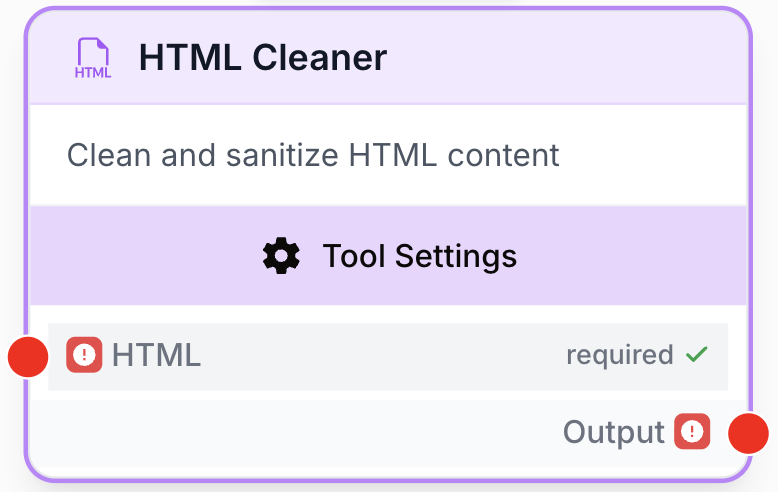
What does the HTML Cleaner node do?
The HTML Cleaner node takes raw HTML content and removes structural or technical tags you don’t need, such as <script>, <style>, <meta>, <header>, <footer>, <nav>, <iframe>, <img>, <svg>, and <video>. It can also strip every HTML attribute (classes, ids, inline styles, data attributes) to drastically reduce noise. The output can be returned as plain text or as a slimmed-down HTML string.
It is typically placed right after a Web Scraper or any node returning raw HTML, before sending the content to an LLM, an HTML to Markdown converter, or a database.
Common use cases:
- Cleaning a scraped web page before feeding it to an LLM, to cut tokens and remove ads, navigation menus, or third-party scripts.
- Preparing HTML for conversion to Markdown by removing tags that would otherwise break or pollute the conversion.
- Sanitizing user-generated or third-party HTML before storing it or rendering it elsewhere.
Quick setup
Follow these steps to add and configure the HTML Cleaner node in your workflow:
Add the node to the canvas
Open the Node Library, go to Tools > Data Transformation, then drag and drop the HTML Cleaner node onto your workspace.
Connect the input
Connect the input port (on the left of the node) to the output of the previous node providing the raw HTML (typically a Web Scraper, an HTTP Request, or a Text Input containing HTML).
Choose what to remove
Open the node settings. Toggle on the tags you want to strip (all switches are enabled by default) and decide whether attributes should be removed too.
Pick the output format
In the Output dropdown, select Text to get plain text only, or HTML to keep the remaining HTML markup.
Connect the output
Connect the output port (on the right of the node) to the next node and create a variable name there to receive the cleaned content.
Configuration parameters
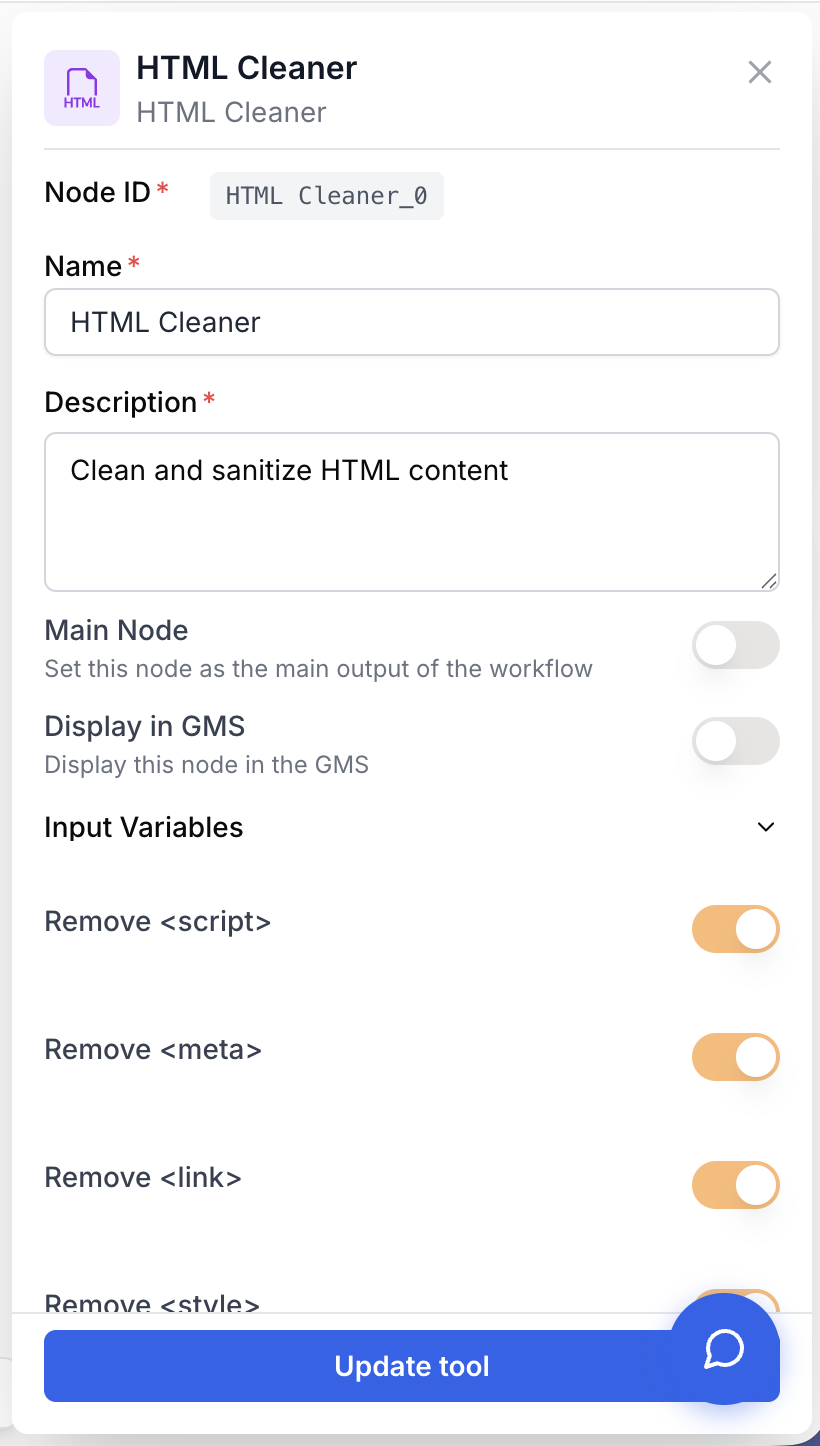
Configuring the node is mostly about choosing which HTML elements to remove and in what format you want the result.
Required fields
Name string required default: HTML Cleaner Node name — Identifies this node in the workflow (e.g. “Clean scraped article”) for easier debugging when you have several cleaners in a row.
Description string required default: Clean HTML content by removing unwanted tags Node description — A short phrase describing what this cleaner instance is meant to do.
HTML string required HTML input — The raw HTML string to clean. The node validates that the input starts with < and ends with >; otherwise it raises HtmlTextExtractorTool : Input is not valid HTML.
Optional fields
Remove <script> boolean default: true Remove all <script> tags and their content (inline JS, tracking pixels, third-party loaders).
Remove <meta> boolean default: true Remove <meta> tags (charset, viewport, OpenGraph, SEO descriptions).
Remove <link> boolean default: true Remove <link> tags (stylesheets, favicons, preloads).
Remove <style> boolean default: true Remove <style> blocks and their CSS rules.
Remove <no_script> boolean default: true Remove <noscript> blocks (fallback content shown when JavaScript is disabled).
Remove <head> boolean default: true Remove the entire <head> section of the document.
Remove <img> <svg> boolean default: true Remove every <img> and <svg> element. Useful when you don’t want image-related noise in your text output.
Remove <video> boolean default: true Remove <video> tags and their sources.
Remove <iframe> boolean default: true Remove <iframe> tags (embedded content, third-party widgets, video players).
Remove <header> boolean default: true Remove the page <header> block (logo, top navigation).
Remove <nav> boolean default: true Remove <nav> blocks (menus, breadcrumbs).
Remove <footer> boolean default: true Remove the page <footer> block (legal, contact info, secondary links).
Remove attributes boolean default: true Strip every HTML attribute (class, id, style, data-*, onclick, etc.) from the remaining tags. Greatly reduces token count when sending the result to an LLM.
Output enum default: Text Format of the cleaned content:
- Text — returns the textual content only (tags stripped).
- HTML — returns the cleaned HTML string with the surviving tags kept.
Keep all the toggles on by default. Turn one off only when you specifically need that tag downstream (for example, keep <img> if you plan to extract image URLs in the next step).
What does the node output?
The node outputs a single string containing the cleaned content. Its shape depends on the Output parameter you selected.
Output string The cleaned content. With Text, the visible text only, with all tags removed. With HTML, the remaining HTML markup after the selected tags and attributes have been stripped.
How to use the output
In Draft & Goal, no need to look up a system-generated variable name. To use the result:
- Draw a connection from the HTML Cleaner node’s output.
- Connect it to the next node’s input.
- In that next node, create and name your own variable (for example,
cleaned_htmlorarticle_text). The cleaned content is injected into it automatically.
Usage examples
Example 1: Cleaning a scraped article before sending it to an LLM
You scrape a blog post and want the LLM to summarize it without paying tokens for navigation, ads, and CSS noise.
Configuration:
- All
Remove <...>toggles: enabled Remove attributes: enabledOutput:Text
Pattern: Web Scraper → HTML Cleaner → LLM (summarize). Token usage of the LLM step typically drops by 50% to 90% compared to feeding the raw page.
Example 2: Keeping a clean HTML structure for Markdown conversion
You want to convert the article body to Markdown but keep paragraphs, headings, and links.
Configuration:
Remove <script>,Remove <style>,Remove <meta>,Remove <link>,Remove <head>,Remove <header>,Remove <nav>,Remove <footer>,Remove <iframe>,Remove <video>,Remove <no_script>: enabledRemove <img> <svg>: disabled (you want image references in Markdown)Remove attributes: enabledOutput:HTML
The output keeps <h1>, <h2>, <p>, <a>, <img>, <ul>, etc., but strips classes and inline styles, which is the ideal input for the HTML to Markdown node.
Common issues
The node fails with `HtmlTextExtractorTool : Input is not valid HTML`
Cause: The input string does not start with < or does not end with >. The node performs a strict check before running.
Solution: Make sure the upstream node truly outputs HTML. If it returns JSON or wraps the HTML in quotes or whitespace, add a Find and Replace or a small extraction step first. Trailing or leading whitespace is already trimmed by the node, but anything else around the HTML will fail.
The output is empty or almost empty
Cause: Too many toggles are enabled and the meaningful content was inside one of the removed blocks (often <header> for editorial sites that wrap titles in <header>).
Solution: Turn off Remove <header> (or any other tag whose content you actually need) and re-run. Inspect the raw HTML once with the toggles disabled to identify the structure.
The output still contains JavaScript-looking text
Cause: The script content is not wrapped in a <script> tag — for example, JSON-LD inside <script type="application/ld+json"> is removed, but text dumped into a <div> will not be.
Solution: Combine HTML Cleaner with a Find and Replace node downstream to remove the remaining patterns, or pre-process with a more selective scraper.
Best practices and pitfalls
When the next step is an LLM, always enable Remove attributes. CSS classes and data-* attributes consume a surprising amount of tokens for zero semantic value.
Don’t blindly remove <header> and <nav> on documentation sites or wikis: they sometimes carry the article title or the table of contents you actually want to keep.
Choose Output: Text when the destination is an LLM that only needs to read the content. Choose Output: HTML when the destination needs structure (headings, links, lists), typically before an HTML to Markdown step.
graph LR
    Scraper[Web Scraper] --> Cleaner[HTML Cleaner]
    Cleaner --> Markdown[HTML to Markdown]
    Markdown --> LLM[LLM summarizer]
    Cleaner -.text mode.-> LLM
Related nodes
The most common upstream node: scrape a page, then pipe the raw HTML into HTML Cleaner.
Place this node right after HTML Cleaner (in HTML mode) to obtain clean Markdown ready for LLMs.
Use to remove residual patterns the HTML Cleaner leaves behind (cookie banners text, repeated phrases).
The typical downstream consumer of the cleaned content for summarization, extraction, or rewriting.