HubSpot Update Company
The HubSpot Update Company node updates a company's properties in HubSpot CRM using the HubSpot API, with company ID and properties JSON sourced from settings or upstream nodes.
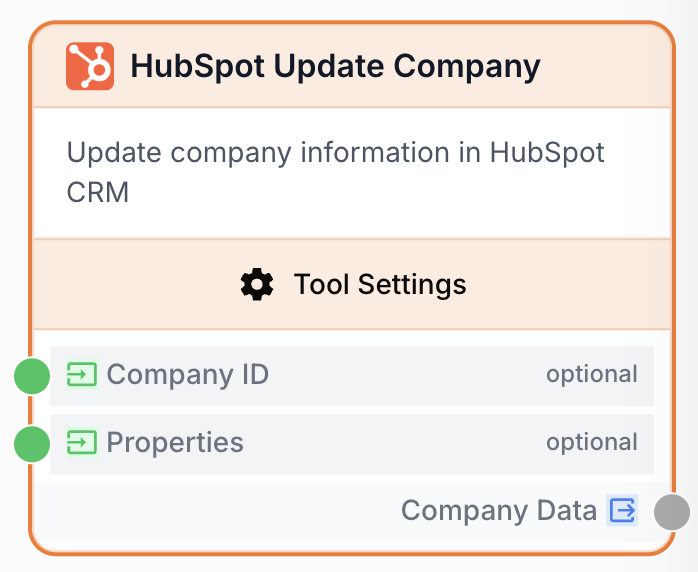
What does the HubSpot Update Company node do?
The HubSpot Update Company node updates one or more properties on an existing company record in your HubSpot CRM. You provide the company ID and a JSON object describing which properties to change, and the node calls the HubSpot API to apply the update.
Common use cases:
- Enriching company records with data scraped from the company’s website (industry, employee count, tech stack)
- Setting lead score or lifecycle stage based on an LLM analysis of recent activity
- Writing back AI-generated notes or summaries onto the company timeline
- Syncing fields from another source (Notion, Sheets, BigQuery) into HubSpot on a schedule
Quick setup
Add the node to the canvas
Open the Node Library, go to Integrations > HubSpot, then drag the HubSpot Update Company node onto the canvas.
Connect your HubSpot integration
Open the node settings and pick your HubSpot Integration in the dropdown. If none exists, add one in Settings > Integrations. The integration must have write access to companies.
Provide the company ID
Set the Company ID in the settings, or wire an upstream node (such as HubSpot Get Company or HubSpot List Companies) into the company_id input port. Input takes priority over the static parameter.
Provide the properties JSON
Set Properties JSON to the object of fields to update, for example {"industry": "SaaS"}. You can also send the JSON dynamically through the properties input port from an LLM or any upstream node.
Connect the output
Wire the output port to the next node. The node returns the updated company payload as a JSON string under the company_data output, ready for downstream parsing or logging.
Configuration parameters
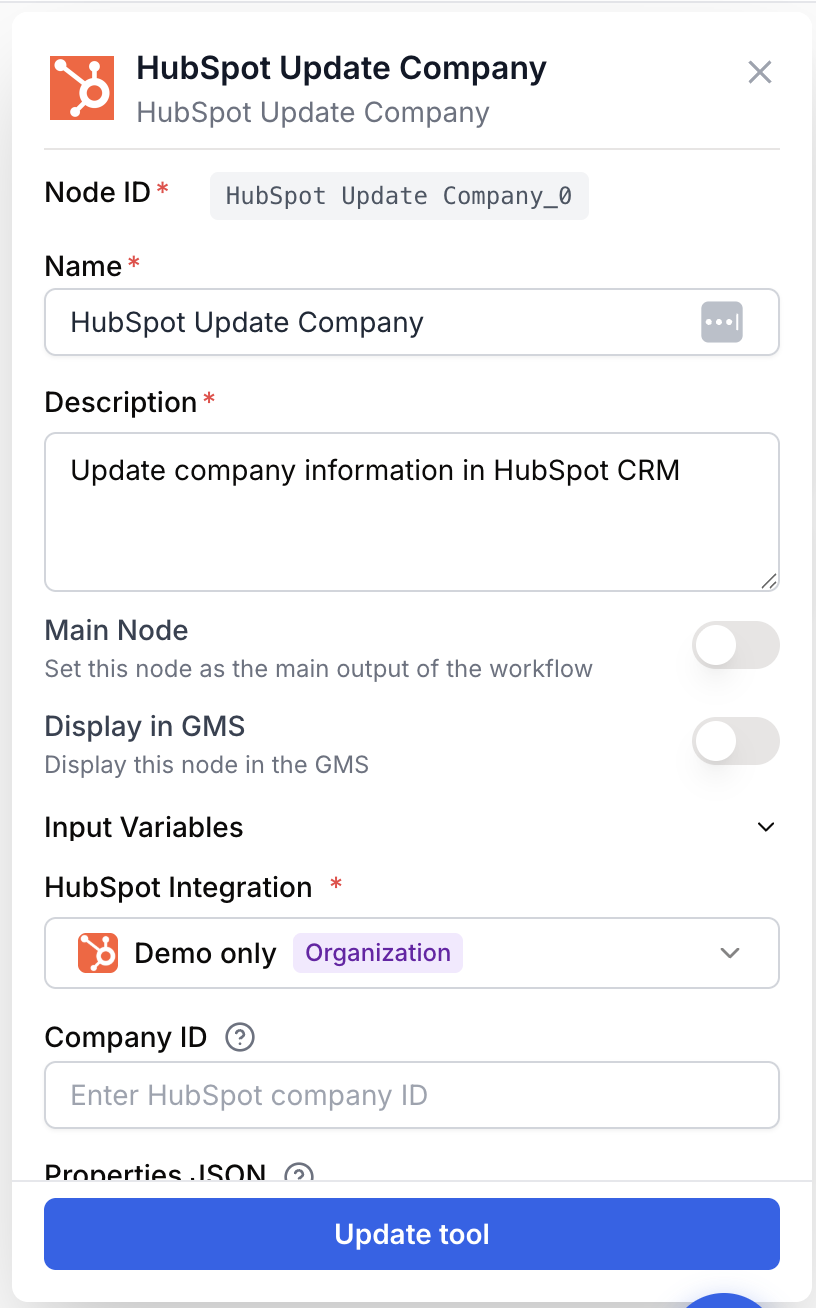
Required fields
integration_id integration required HubSpot Integration — Selects the HubSpot account to call. The integration must be authorized in Settings > Integrations before it appears in the dropdown.
company_id string required Company ID — The HubSpot internal ID of the company to update (for example 12345678901). Required at runtime: pass it through the company_id input port or set it directly in the settings.
properties textarea required Properties JSON — A JSON object whose keys are HubSpot company property names and whose values are the new values. Required at runtime: pass it through the properties input port or set it directly in the settings.
{
  "name": "New Company Name",
  "domain": "example.com",
  "industry": "Technology"
}
Optional fields
Name string default: HubSpot Update Company Node name — Display label on the canvas. Useful when several update nodes coexist (for example Enrich industry vs Set lifecycle stage).
Description string Node description — Short note shown in the node header to clarify intent during debugging.
Both Company ID and Properties JSON can be supplied through input ports. The runner uses the input value when present and falls back to the static parameter otherwise — so a single node template can be reused across many companies.
What does the node output?
The node returns the HubSpot API response for the updated company as a JSON string on the company_data output. The string contains the company ID and the properties HubSpot recorded after the patch.
{
  "id": "12345678901",
  "properties": {
    "name": "New Company Name",
    "domain": "example.com",
    "industry": "Technology",
    "hs_lastmodifieddate": "2025-04-15T10:32:11.000Z"
  },
  "createdAt": "2024-01-12T09:01:44.000Z",
  "updatedAt": "2025-04-15T10:32:11.000Z",
  "archived": false
}
company_data string A JSON string with the updated HubSpot company object, including id, the merged properties map, and timestamps. Parse it with a JSON Path Extractor to read individual fields downstream.
Usage examples
Example 1: Enrich a company with scraped website data
You start from a HubSpot company, scrape its website, ask an LLM to extract structured firmographics, and write them back to HubSpot.
Configuration:
- Company ID: wired from a HubSpot Get Company node
- Properties JSON: wired from an LLM node returning JSON
Properties JSON sent (from the LLM):
{
  "industry": "SaaS",
  "numberofemployees": "120",
  "description": "AI-driven workflow automation for SEO teams."
}
After the run, the three fields appear on the company record in HubSpot.
Example 2: Update lifecycle stage from a static value
You qualify a company manually and want to bump its lifecycle stage in one click.
Configuration:
- Company ID:
12345678901 - Properties JSON:
{
  "lifecyclestage": "marketingqualifiedlead",
  "hs_lead_status": "OPEN_DEAL"
}
No input wiring needed — the node uses the static parameters and runs once per execution.
Example 3: Loop over a list of companies to standardize a field
Combine HubSpot List Companies with a Loop node, then feed each company ID into HubSpot Update Company with a fixed properties payload to mass-correct a field across the CRM.
Common issues
The node fails with `Company ID is required`
Cause: Neither the company_id input port nor the Company ID parameter resolved to a non-empty value at runtime.
Solution: Confirm the upstream node actually sends a string into company_id, or hard-code the ID in the settings. Empty strings count as missing.
The node fails with `Properties JSON is required`
Cause: The properties input or Properties JSON parameter is empty.
Solution: Provide a non-empty JSON object. To clear a HubSpot field, send the property with an empty string value, for example {"description": ""} — do not omit the key.
HubSpot returns an error about an invalid property name
Cause: The JSON keys must match HubSpot internal property names, which differ from labels (for example numberofemployees, not Number of employees).
Solution: Look up the internal name in HubSpot under Settings > Properties, or fetch a sample with HubSpot Get Company and copy the keys from its properties payload.
HubSpot returns an authorization or scope error
Cause: The connected HubSpot integration lacks the crm.objects.companies.write scope, or the OAuth token has been revoked.
Solution: Reconnect the HubSpot account in Settings > Integrations and re-authorize with company write permissions.
The Properties JSON is rejected as malformed
Cause: The textarea value is not valid JSON — common culprits are unescaped quotes, trailing commas, or single quotes.
Solution: Validate the payload with any JSON linter before running. When the JSON comes from an LLM, place a Find and Replace node in front to strip Markdown fences such as ```json.
Best practices
Update only the fields you actually changed. HubSpot merges the payload, so sending a minimal JSON keeps the audit log readable and avoids overwriting fields that other tools maintain.
Validate the LLM output before writing. When the properties JSON is generated by an LLM, run it through a Find and Replace to strip code fences and a JSON Path Extractor to confirm the structure before sending it to HubSpot.
Mind HubSpot rate limits. When updating in a loop, throttle the workflow or batch updates: the standard HubSpot API allows roughly 100 requests per 10 seconds per integration, beyond which calls return 429 errors.
Test on a sandbox first. This node writes to the live CRM and there is no automatic undo. Run new automations against a HubSpot sandbox or a single test company before scaling.
How does it fit into a workflow?
HubSpot Update Company sits at the end of an enrichment pipeline, persisting the result of upstream scraping or AI processing back into the CRM.
graph LR
    Get[HubSpot Get Company] --> Scrape[Web Scraper]
    Scrape --> LLM[LLM extracts firmographics]
    LLM --> Update[HubSpot Update Company]
Related nodes
Fetch a company before updating it to read existing properties or confirm the ID.
Iterate over many companies to apply the same update across the CRM.
Generate the properties JSON from unstructured text such as scraped websites or call notes.
Read fields out of the returned company_data JSON for use in downstream nodes.