Merge Lists
The Merge Lists node combines multiple arrays into a single flat list, either from one JSON array of arrays or from separate input handles.
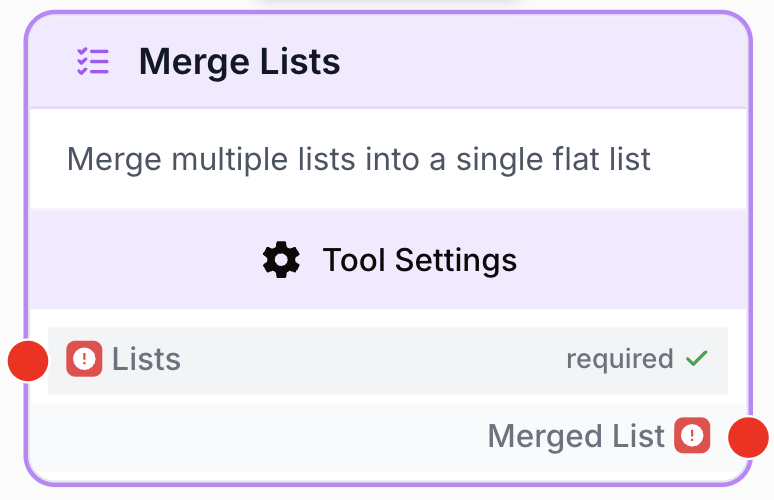
What does the Merge Lists node do?
The Merge Lists node concatenates multiple arrays into a single flat list. It runs in two modes: a single-input mode that flattens one JSON array of arrays, and a multi-input mode that exposes between 2 and 10 separate input handles (list_1, list_2, …) so you can wire one list per source node.
Common use cases:
- Combining results from parallel API calls (Semrush + Majestic, two HubSpot queries, etc.) into one list before deduplication or scoring.
- Flattening paginated results collected by a Loop node into a single array for downstream writes.
- Aggregating rows from multiple Google Sheets or Notion databases prior to LLM analysis.
- Merging branches of a workflow that fan out earlier and need to converge before processing.
Quick setup
Follow these steps to add and configure the Merge Lists node in your workflow:
Add the node to the canvas
Open the Node Library, go to Tools > List Operations, then drag and drop the Merge Lists node onto your workspace.
Choose the input mode
Open the node settings. Toggle Multiple Inputs off to receive one JSON array of arrays on a single lists handle. Toggle it on to expose separate list_1, list_2, … handles (set Number of Lists between 2 and 10).
Connect your sources
In single-input mode, wire the upstream node that emits the array of arrays to the lists handle. In multi-input mode, wire each source node to its own numbered handle.
Connect the output
Wire the merged_list output to the next node. Reference the result downstream as {{Merge_Lists_0.merged_list}}.
Configuration parameters
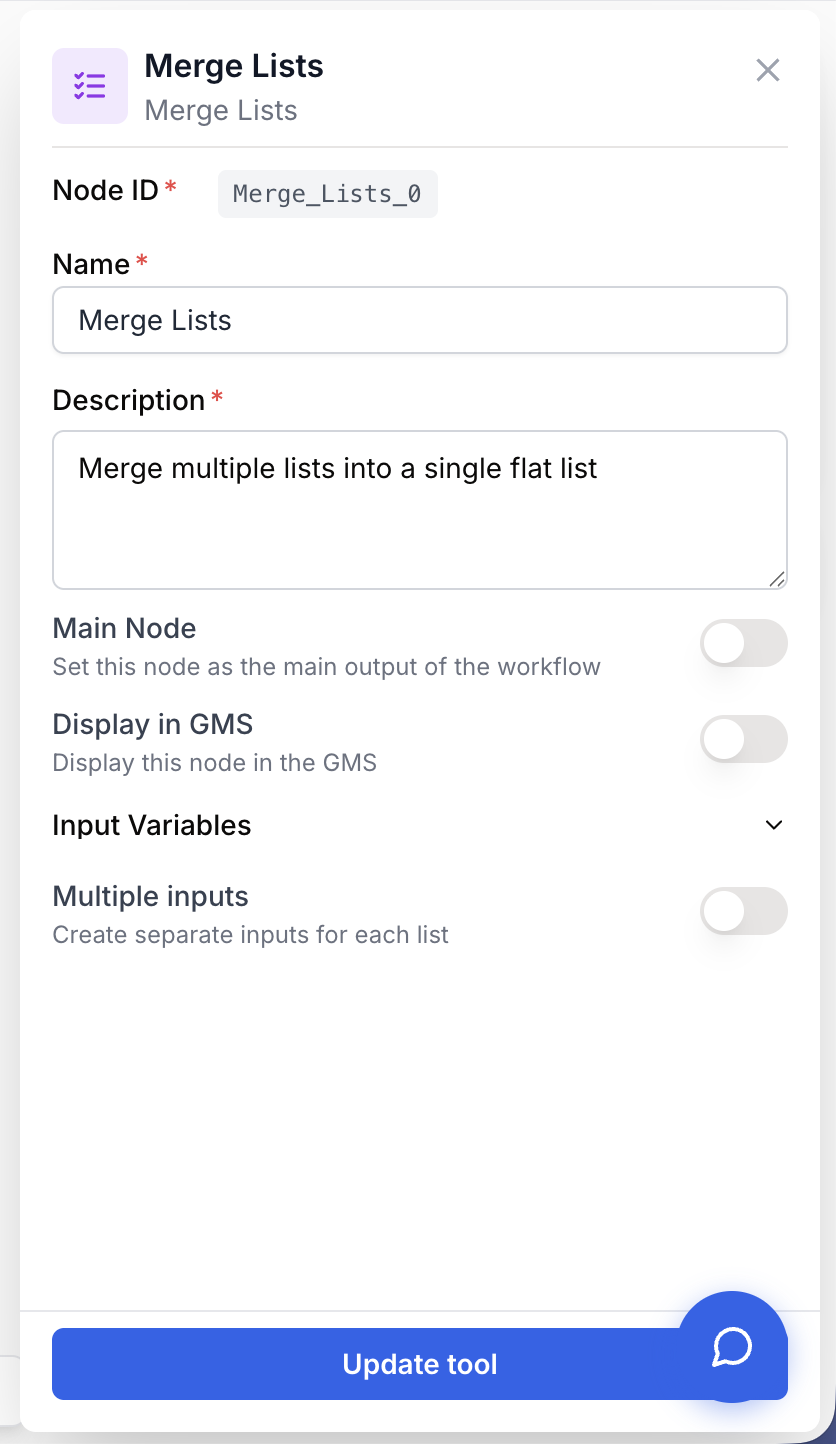
The node has a single parameter that drives the input layout.
Required fields
Name string required default: Merge Lists Node name — Identifies this node when running and debugging the workflow (e.g. “Merge Semrush + Majestic”).
Description string required default: Merge multiple lists into a single flat list Node description — Short phrase describing what this Merge Lists instance combines.
Optional fields
list_count number default: 0 Number of lists — Drives the input layout. Set to 0 for single-input mode (one lists handle). Set to a value between 2 and 10 for multi-input mode (one handle per list: list_1 through list_N). Values of 1 or > 10 are rejected at runtime.
lists json required Lists input (single-input mode) — A JSON array of arrays to flatten. Each item that is itself an array is concatenated into the output; string items are parsed as JSON arrays; other scalars are appended as-is.
Example:
[
  ["apple", "banana"],
  ["cherry", "date"],
  ["elderberry"]
]
list_1...list_N json required Numbered list inputs (multi-input mode) — One handle per source list, exposed when list_count >= 2. Each handle accepts a JSON array (or a JSON string parsable as an array). All N lists are concatenated in order: list_1 first, then list_2, …, then list_N.
Use multi-input mode when sources are known at design time (clearer wiring, one handle per source). Use single-input mode when the number of lists is dynamic, e.g. the output of a Loop node.
What does the node output?
The node outputs a single flat JSON array containing every item from every input list, preserved in input order.
merged_list json The flattened list. In multi-input mode, items from list_1 come first, followed by list_2, and so on through list_N. In single-input mode, items are concatenated in the order of the outer array.
How to use the output
Reference the merged result in any downstream node using the templating syntax:
{{Merge_Lists_0.merged_list}}Replace the suffix index (_0) with the matching node instance number on your canvas.
Usage examples
Example 1: Merging keyword lists from Semrush and Majestic (multi-input)
Goal: Combine keyword data from two SEO tools into a single list before deduplication and analysis.
Configuration:
- Multiple Inputs: On
- Number of Lists:
2 list_1:{{Semrush_0.keywords}}list_2:{{Majestic_0.keywords}}
graph LR
    A[Semrush Keywords] --> C[Merge Lists]
    B[Majestic Keywords] --> C
    C --> D[Remove Duplicates]
    D --> E[LLM Analysis]
Result: A unified keyword list ready for downstream deduplication or scoring.
Example 2: Flattening paginated Loop results (single-input)
Goal: Merge paginated API results collected inside a Loop node into one array before writing to BigQuery.
Configuration:
- Multiple Inputs: Off (
list_count = 0) lists:{{Loop_0.results}}— an array of arrays, one per page
graph LR
    A[Loop over pages] --> B[API Connector]
    B --> C[Loop results]
    C --> D[Merge Lists]
    D --> E[BigQuery Writer]
Each iteration of the loop returns a page of records as an array. Merge Lists flattens the array of arrays into one list ready for the writer.
Example 3: Combining rows from three Google Sheets (multi-input)
Goal: Aggregate rows from three regional spreadsheets before processing.
Configuration:
- Multiple Inputs: On
- Number of Lists:
3 list_1:{{Google_Sheets_Reader_0.data}}list_2:{{Google_Sheets_Reader_1.data}}list_3:{{Google_Sheets_Reader_2.data}}
Output: A single array containing all rows from US, EU, and APAC sheets, in that order.
Common issues
Input is not a valid JSON list
Cause: A handle received a string that does not parse as a JSON array, or a value of an unsupported type (object, number, …).
Solution: Verify that the upstream node emits a JSON array. If it produces a string, ensure it is a valid JSON array literal (e.g. ["a","b"]). For arbitrary data, insert a JSON Path Extractor or a Code Block to reshape it into an array first.
list_count must be 0 or between 2 and 10
Cause: The runtime received list_count = 1 or list_count > 10. The toggle UI prevents this, but the value can be set wrong if edited manually or via API.
Solution: Set Number of Lists to 0 (single-input mode) or to a value between 2 and 10 (multi-input mode). The current upper bound is 10 handles.
A list_N input is missing from inputs
Cause: Number of Lists is set to N, but one of the list_1…list_N handles is not connected on the canvas.
Solution: Either connect every numbered handle to an upstream source, or lower Number of Lists to match the number of connected handles.
Output is not flat / nested arrays remain
Cause: Merge Lists concatenates only one level. If a source list itself contains arrays, those nested arrays are kept as items.
Solution: Either pre-flatten each source with a dedicated step, or chain a second Merge Lists node in single-input mode on the result.
Best practices and pitfalls
Pair Merge Lists with a Remove Duplicates node downstream when sources are likely to overlap (e.g. two SEO providers returning the same keywords). Merge Lists itself never deduplicates.
Order matters. Items are concatenated in input order: list_1, then list_2, …, then list_N (multi-input), or in the order of the outer array (single-input). If a downstream node depends on a specific ordering, sort explicitly after merging rather than relying on input wiring.
Related nodes
Build a list from scratch to feed into Merge Lists.
Filter the merged list against a condition before downstream use.
Deduplicate items after merging overlapping sources.
Iterate over the merged list, or feed Loop output into Merge Lists in single-input mode.
Count items in the merged result.
Extract a sub-range from the merged list.