Google Docs Writer
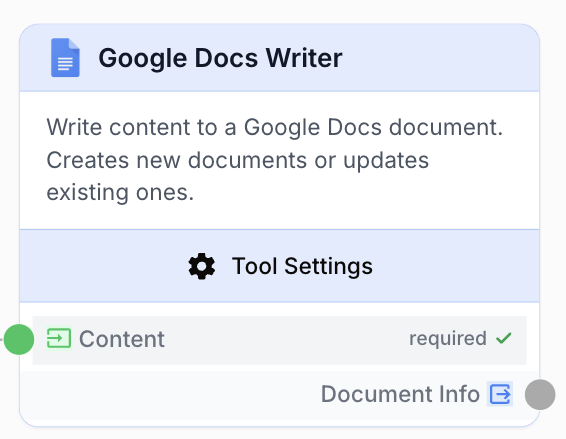
The Google Docs Writer node creates new Google Docs or updates existing ones with plain text, markdown, or HTML content, with support for tabs, folders, and replace or append modes.
What does the Google Docs Writer node do?
The Google Docs Writer node writes content into Google Docs. It either creates a brand-new document in a chosen Drive folder or updates an existing document, with the option to target a specific tab, create a new tab on the fly, replace the body, or append to it. Plain text, markdown, and HTML inputs are all supported.
Common use cases:
- Save AI-generated content (articles, reports, summaries) directly to Google Docs
- Build daily or weekly logs by appending new entries to a recurring document
- Generate per-run reports inside a structured Drive folder hierarchy
- Write each batch of workflow output into a fresh tab of the same document
Quick setup
Connect your Google integration
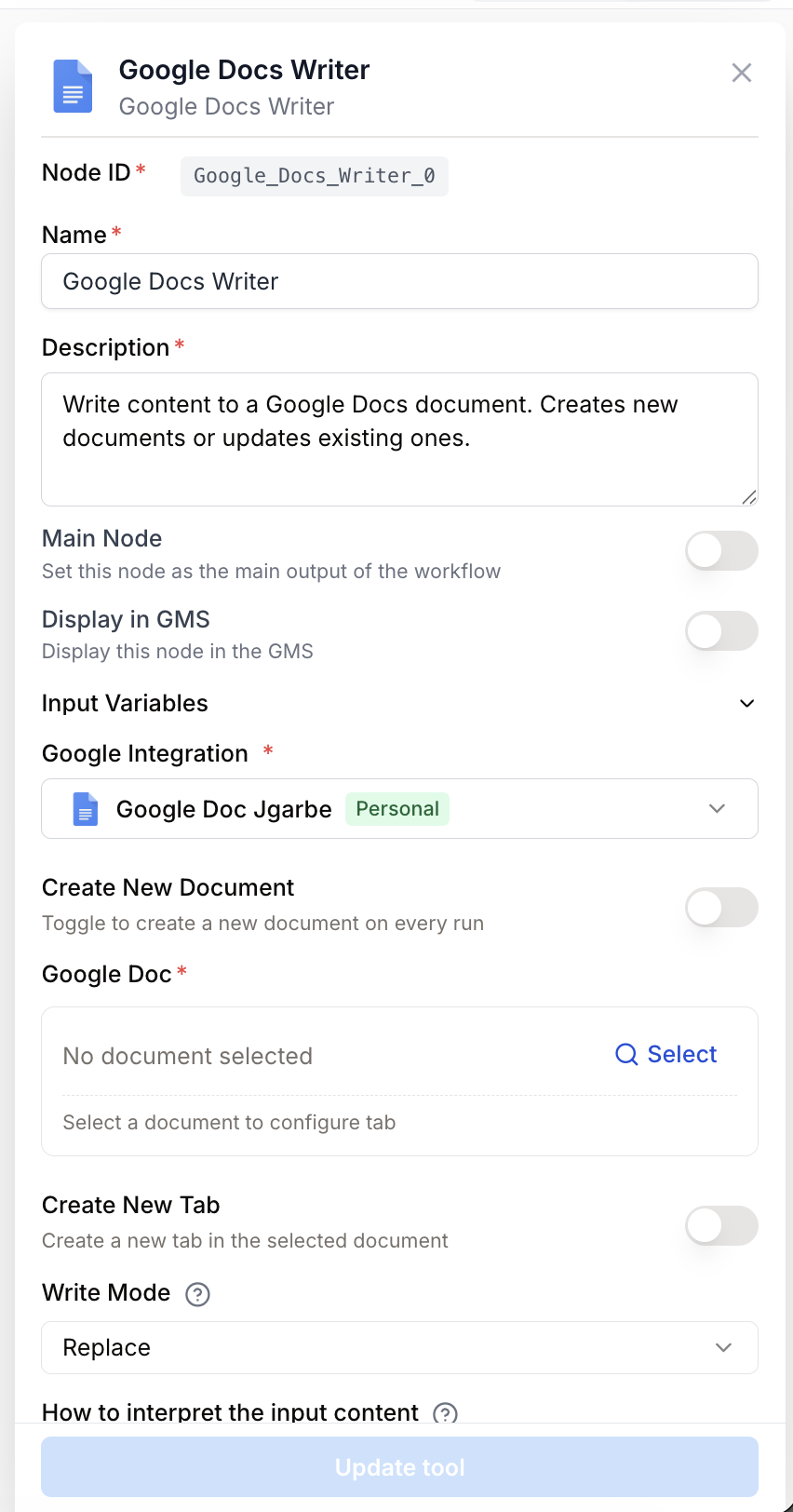
Open the node settings and pick a Google integration with the google_docs scope. If none exists yet, head to Settings > Integrations > Google and authorize a workspace account.
Choose between create and update
Toggle Create New Document on to spawn a new Doc on every run, or off to write into an existing Doc. The remaining fields adapt to your choice.
Pick the target document or destination
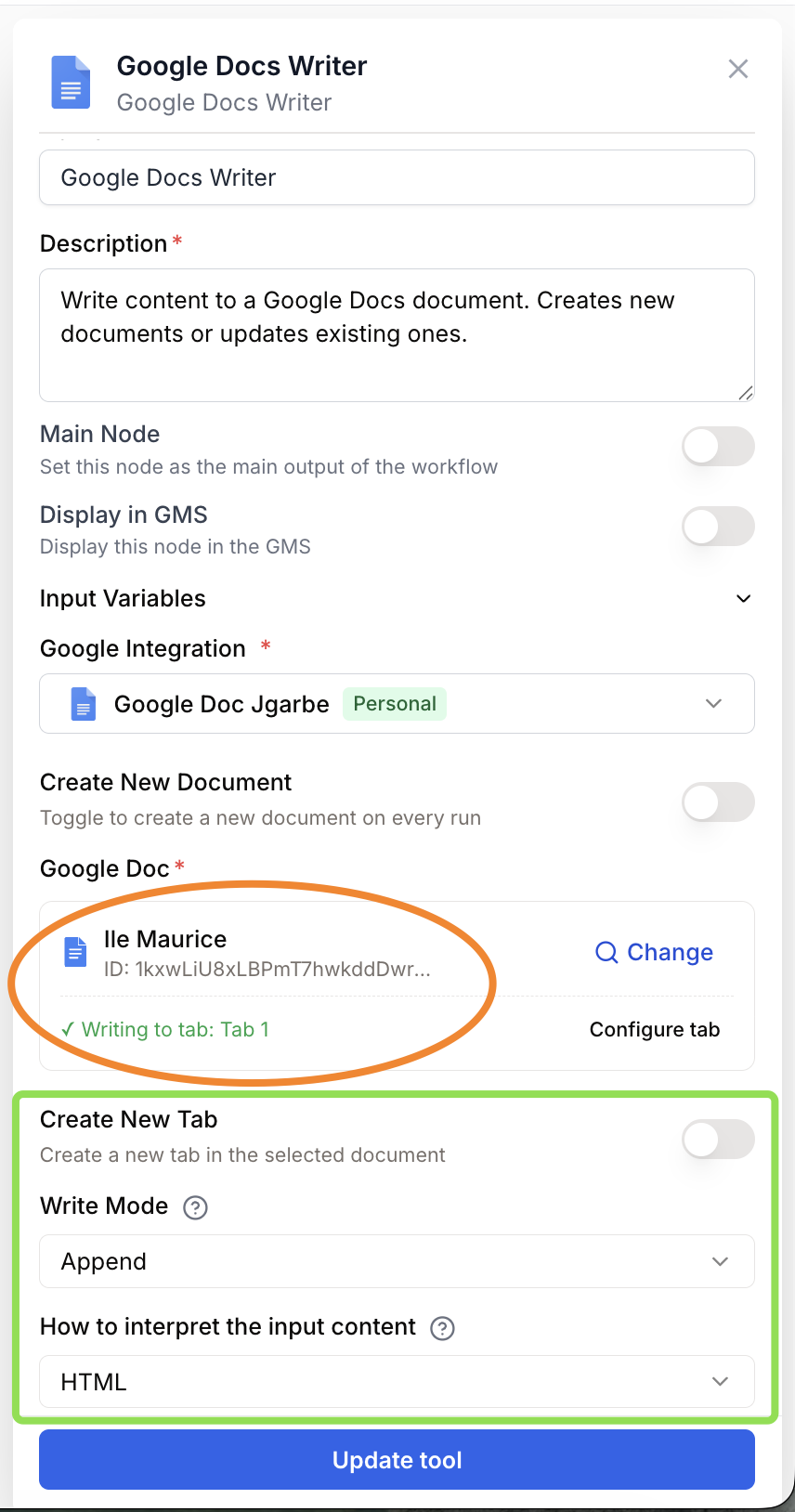
When updating: use the Google Drive Picker to select the Doc, then optionally configure a tab (existing or new). When creating: provide a Document Title and pick a destination folder via the Picker.
Configure write mode and input type
Choose Replace to overwrite or Append to add at the end of the Doc/tab. Set Input Type to markdown or html if your content carries formatting; otherwise leave it as plain_text.
Connect the content input
Wire any upstream node that produces a string (LLM, Merge With Template, Text Input…) into the content input.
Configuration parameters
Required fields
content string required Content — The text to write. Connect this input to an upstream node output. JSON inputs are auto-stringified to plain text.
integration_id integration required Google integration — The google_docs integration used to authenticate with Google. Select one of your configured Google accounts.
Optional fields
create_new boolean default: false Create New Document — When true, a new Doc is created on every run. When false, an existing Doc is updated.
document_title string Document Title — Title of the Doc to create. Required when create_new is true. Supports template variables (e.g. {{documentTitle}}).
folder_id string Folder ID — Drive folder where the new Doc is created. Picked via the Google Drive Picker. Used only when create_new is true. Defaults to My Drive root if empty.
folder_name string Folder Name — Display name of the destination folder. Auto-filled when a folder is picked.
document_id string Document ID — ID of the existing Doc to update. Required when create_new is false. Picked via the Google Drive Picker.
document_name string Document Name — Display name of the selected Doc. Auto-filled by the Picker.
create_tab boolean default: false Create New Tab — When true, a new tab is added to the existing Doc and the content is written into it. Requires tab_name. Ignored when create_new is true.
tab_id string Tab ID — Specific tab to write to inside the existing Doc. Leave empty to write to the main body. Ignored when create_tab is true.
tab_name string Tab Name — Display name of the target tab. Required when create_tab is true; supports template variables (e.g. {{tabName}}). Auto-filled when an existing tab is picked.
input_type select default: plain_text Input Type — How the content string is interpreted before writing.
| Value | Description |
|---|---|
plain_text | Treated as raw text |
markdown | Parsed as markdown and converted to native Google Docs formatting (headings, lists, links, bold/italic) |
html | Parsed as HTML and converted to Google Docs formatting |
write_mode select default: replace Write Mode — How the content is applied to the document or tab.
| Value | Description |
|---|---|
replace | Overwrites all existing content in the Doc or tab |
append | Adds the new content at the end of the existing content |
What does the node output?
document_info string A JSON string containing the document_id, title, and url of the Doc that was created or updated. Reference it downstream as {{Google_Docs_Writer_0.document_info}}.
{
  "document_id": "1aBcDeFgHiJkLmNoPqRsTuVwXyZ",
  "title": "Q1 Marketing Report",
  "url": "https://docs.google.com/document/d/1aBcDeFgHiJkLmNoPqRsTuVwXyZ/edit"
}
Usage examples
Example 1: Save an LLM-generated article as a new Doc
Generate a blog post with an LLM and store it in a dedicated Drive folder, preserving markdown formatting.
Configuration:
- Create New Document: enabled
- Document Title:
{{article_title}} - Folder:
Content / Drafts - Input Type:
markdown - Write Mode:
replace(irrelevant here, new doc)
Flow:
- Text Input (topic) -> LLM -> Google Docs Writer (
content= LLM output)
The output document_info.url can be sent to Slack or email via downstream nodes.
Example 2: Append a daily summary to an existing Doc
Aggregate metrics every morning and append a dated section at the end of a running journal.
Configuration:
- Create New Document: disabled
- Document:
2025 Ops Journal(picked via Drive Picker) - Tab ID: empty (main body) or pick a
Dailytab - Input Type:
markdown - Write Mode:
append
Flow:
- Google Sheets Reader -> LLM (summarize) -> Merge With Template -> Google Docs Writer
Example 3: Write each loop iteration into a new tab
For a batch of clients, create one tab per client inside a single shared Doc.
Configuration:
- Create New Document: disabled
- Document:
Client Reports 2025 - Create New Tab: enabled
- Tab Name:
{{client_name}} - Input Type:
markdown
Wrapped inside a Loop node, each iteration produces a fresh tab named after the current client.
Common issues
Document is not created or updated
Cause: The Google integration lacks write access or the google_docs scope.
Solution: Reconnect the integration in Settings > Integrations > Google and ensure the authenticated account has edit permission on the target Doc or destination folder.
Markdown or HTML formatting appears as raw text in the Doc
Cause: input_type is set to plain_text.
Solution: Set input_type to markdown or html to match the content shape. Mismatched types are written verbatim.
Error: Missing required parameter: document_id
Cause: create_new is false but no Doc was picked.
Solution: Open the Picker and select a Doc, or toggle Create New Document on and provide a document_title instead.
Error: Missing required parameter: tab_name
Cause: create_tab is true but tab_name is empty (after template resolution).
Solution: Provide a static tab_name or wire an upstream variable that resolves to a non-empty string at runtime.
New Doc lands in My Drive root instead of the chosen folder
Cause: folder_id was not selected, or the integration cannot access the picked folder.
Solution: Re-pick the folder via the Drive Picker. Confirm the integration account has at least Editor access to that folder.
Best practices
Use markdown for AI-generated content. Setting input_type to markdown preserves headings, lists, links, and bold/italic from LLM outputs and produces a clean Doc instead of a wall of # characters.
Append + tabs for recurring jobs. Combine write_mode = append with a per-run tab (create_tab = true, tab_name = {{run_date}}) to keep history searchable inside a single Doc rather than scattering many docs across Drive.
Replace mode wipes the target. With write_mode = replace, the entire Doc body (or selected tab) is overwritten with no built-in undo on the workflow side. Use append, or write into a new tab, when in doubt.
Template variables must resolve before runtime. {{documentTitle}} and {{tabName}} are validated as non-empty after substitution; if the upstream variable is empty the node fails. Add a default value or a Conditional guard upstream.