Notion Database Writer
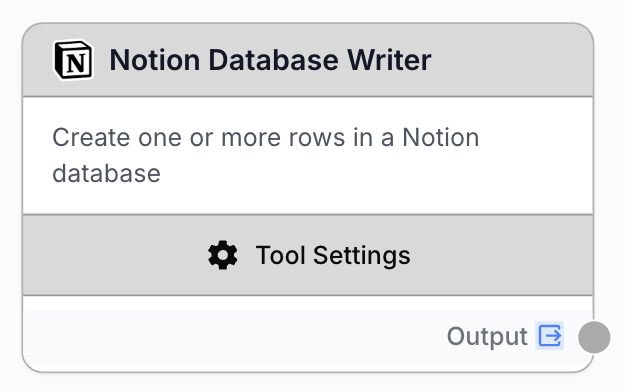
The Notion Database Writer node creates new rows (pages) in a Notion database, with support for dynamic properties, visual form builder, and batch creation.
What does the Notion Database Writer node do?
The Notion Database Writer node connects to your Notion workspace and creates new pages (rows) in a specific database. It lets you push data from your workflow directly into Notion, making it easy to automate content creation and data entry.
Common use cases:
- Writing AI-generated content briefs or article drafts into a Notion editorial calendar
- Creating CRM entries from enriched lead data processed in your workflow
- Logging workflow results (reports, audits, analyses) into a Notion tracking database
- Batch-creating pages from a list of items processed through a Loop node
Quick setup
Connect your Notion integration
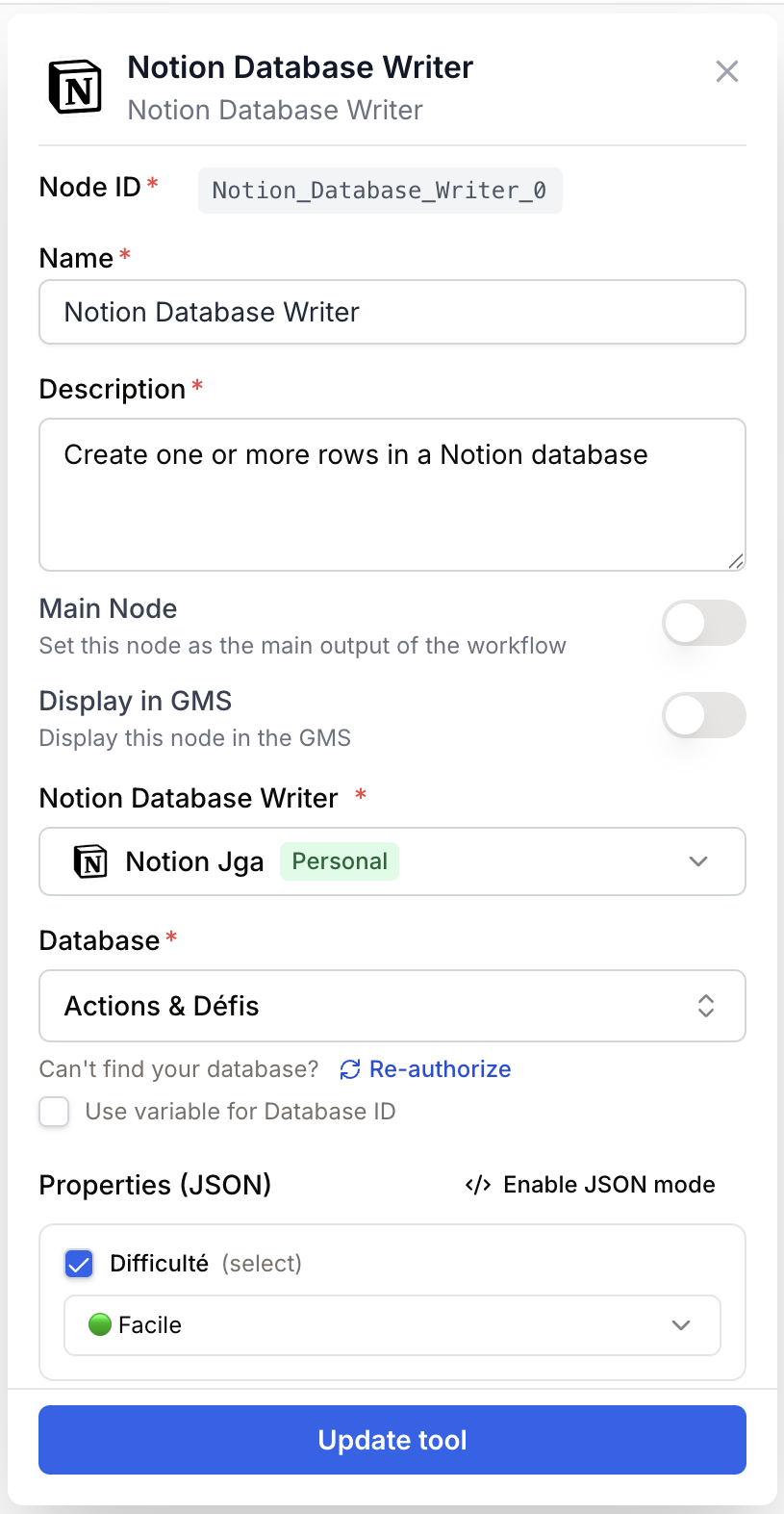
Open the node settings and select your Notion integration from the dropdown. If you haven’t connected Notion yet, go to Settings > Integrations to add your Notion workspace.
Select a database
Once your integration is connected, choose the database you want to write to. The dropdown lists all databases shared with your integration. Make sure the database is shared with your Notion integration in Notion’s settings.
Define the properties
Use the visual properties builder to fill in the fields for the new page. The builder automatically loads your database schema and shows the available properties. You can also switch to JSON mode for advanced control.
Connect the inputs
Connect upstream nodes to provide the data you want to write. You can use template variables like {{title}} in property values to inject data dynamically.
Configuration parameters
Required fields
Integration integration required Notion integration — Select the Notion workspace connection to use. The integration must have access to the database you want to write to.
Database string required Database ID — The Notion database where new pages will be created. Select it from the dropdown or enable “Use Database Variable” to receive the database ID dynamically from an upstream node.
Properties json required Properties — A JSON object (or array of objects) defining the page properties to create. Use the visual builder to fill in fields based on your database schema, or switch to JSON mode to write raw JSON. You can also enable “Use Properties Variable” to receive the entire properties payload from an upstream node.
Use the visual builder (form mode) when your database schema is simple. Switch to JSON mode when you need to construct complex property values or use template variables like {{title}} in multiple fields.
What does the node output?
The node outputs a JSON string containing the result of the creation operation from the Notion API. This typically includes the ID and URL of the newly created page(s).
{
  "id": "a1b2c3d4-e5f6-7890-abcd-ef1234567890",
  "url": "https://www.notion.so/My-New-Page-a1b2c3d4e5f6",
  "created_time": "2025-04-09T10:30:00.000Z",
  "properties": {
    "Title": "My New Page",
    "Status": "Draft"
  }
}
output string A JSON string containing the Notion API response with the created page details, including its ID, URL, and properties.
Usage examples
Example 1: Write AI-generated content to a Notion calendar
You have a workflow that generates article briefs with an LLM and want to save them directly to your Notion content calendar.
Workflow:
- Text Input provides the topic
- LLM generates a title, outline, and target keyword
- Notion Database Writer creates the entry
Properties configuration (JSON mode):
{
  "Title": "{{article_title}}",
  "Status": "Draft",
  "Outline": "{{article_outline}}",
  "Target Keyword": "{{keyword}}"
}
Example 2: Batch-create pages from a loop
You have a list of leads and want to create a Notion page for each one.
Workflow:
- Notion Database Reader fetches raw leads
- Loop iterates over each lead
- Inside the loop, LLM enriches the lead data
- Notion Database Writer creates a page per lead
Enable “Use Properties Variable” and connect the Loop’s output to the properties input, so each iteration writes a different page.
Example 3: Log workflow results
After running an SEO audit workflow, write the results to a Notion reporting database.
Properties configuration (visual builder):
- Title:
SEO Audit — {{domain}} - Date:
{{run_date}} - Score:
{{seo_score}} - Status:
Completed
Best practices
Use the visual builder first to discover your database properties and their expected types. Switch to JSON mode only when you need template variables or complex values.
Test with a single page before running batch operations inside a Loop. This helps catch property mapping issues early without creating dozens of incorrect entries.
Share your database with the integration. In Notion, go to your database page, click the ”…” menu, then “Connections”, and add your Draft & Goal integration. Without this, the database won’t appear in the dropdown.
Property names are case-sensitive. Make sure the property names in your JSON match exactly with the property names in your Notion database. A mismatch like “title” vs “Title” will cause the value to be silently ignored.
Common issues
My database doesn't appear in the dropdown
Cause: The database hasn’t been shared with your Notion integration.
Solution: In Notion, open your database, click the ”…” menu → “Connections” → add your Draft & Goal integration. Then refresh the database list in the node settings.
The node runs successfully but the created page has empty properties
Cause: The property names in your JSON don’t match the actual Notion database property names (they are case-sensitive).
Solution: Use the visual builder to see the exact property names from your database schema. If using JSON mode, double-check that each key matches exactly.
I get a validation error about missing properties
Cause: One or more property values are empty in the visual builder.
Solution: Fill in all the property fields or remove the ones you don’t need. The node validates that no property value is left blank before submitting.
I get an error about authorization or permissions
Cause: Your Notion integration token may have expired or been revoked.
Solution: Go to Settings > Integrations, find your Notion integration, and reconnect it. You may need to reauthorize access in Notion.
Template variables like {{title}} are not being replaced
Cause: The variable name doesn’t match any input variable in the workflow.
Solution: Make sure the variable name inside {{...}} matches exactly with the variable coming from the upstream node. Check the connection and variable naming.
How does it fit into a workflow?
The Notion Database Writer is typically used at the end of a workflow to save processed data back to Notion.
graph LR
    Input[Data Source] --> Process[LLM / Transform]
    Process --> Writer[Notion Database Writer]
For batch operations:
graph LR
    Reader[Data Source] --> Loop[Loop node]
    Loop --> LLM[Process each item]
    LLM --> Writer[Notion Database Writer]
Related nodes
Read data from a Notion database to use as input, or combine with the Writer for read-modify-write workflows.
Iterate over a list of items and create a Notion page for each one using the Database Writer inside the loop.
Generate or transform content with AI before writing it to Notion.
Extract specific fields from upstream data to map into Notion properties.