Join List
The Join List node combines two lists of objects on matching properties, similar to a SQL JOIN, supporting inner, left, right, and full outer joins.
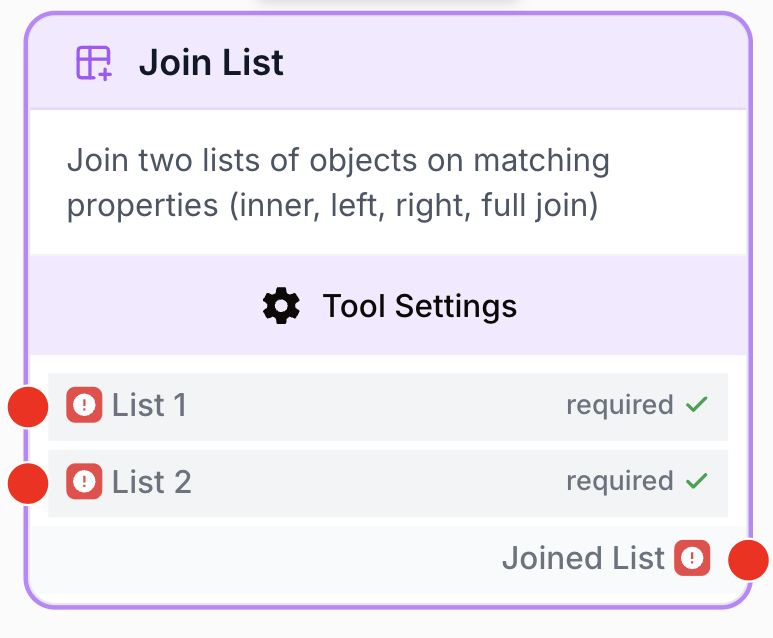
What does the Join List node do?
The Join List node merges two lists of objects by matching them on one or more shared properties, much like a JOIN clause in SQL. It is the right tool when you have two related datasets coming from different sources and need a single, enriched list as output.
Common use cases:
- Enriching a CRM contact list with analytics data by matching on
emailoruser_id. - Combining a keyword list from one SEO tool with ranking data from another, on the
keywordproperty. - Cross-referencing a product catalog with inventory data on a shared
sku. - Building a consolidated report from two Notion databases that share a key.
Quick setup
Follow these steps to add and configure the Join List node in your workflow:
Add the node to the canvas
Open the Node Library, go to Tools > List Operations, then drag and drop the Join List node onto your workspace.
Connect both list inputs
Wire the output of one node (a list of objects) into the List 1 input, and a second list-producing node into the List 2 input. Both inputs are required.
Configure the join conditions
Open the node settings. In the Join Conditions section, define one row per matching property — for each row, enter the key name from list 1 (List 1 property) and the corresponding key name from list 2 (List 2 property). Click + Add for additional conditions; multiple conditions are combined with AND.
Choose the join type
Pick Inner Join, Left Join, Right Join, or Full Outer Join depending on which unmatched items should remain in the output.
Connect the output
Connect the output port to the next node and reference the merged data via the joined_list output.
Configuration parameters
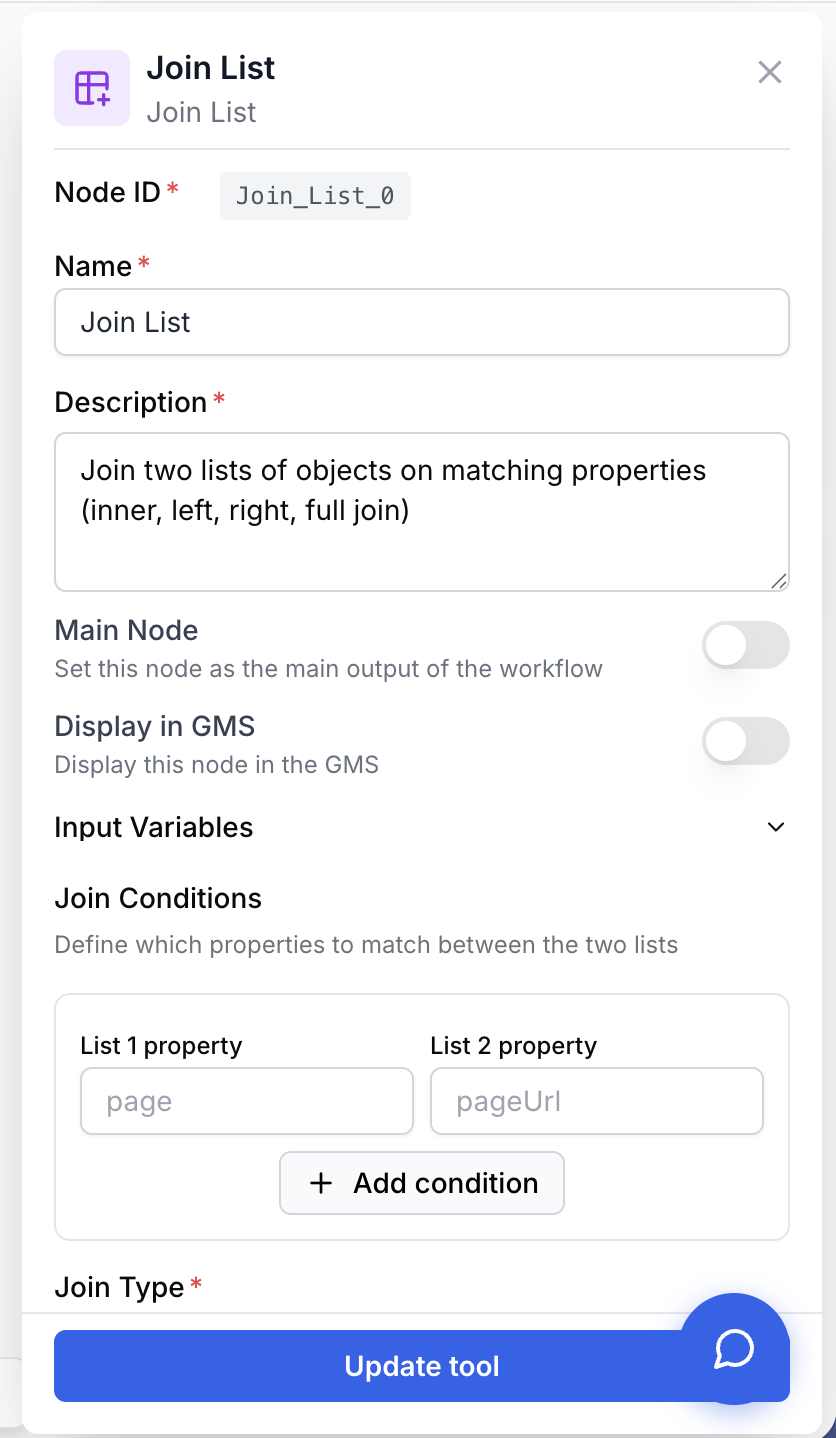
Configuring the node requires telling it which keys to match on and how to handle items that have no match in the other list.
Required fields
Name string required default: Join List Node name — Important for identifying this node when running and debugging the workflow (e.g. “Match contacts with orders”).
Description string required default: Join two lists of objects on matching properties (inner, left, right, full join) Node description — A short phrase describing what this specific join does in your pipeline.
List 1 json required First input list — A list of objects passed in via the list_1 input port. Accepts a JSON array directly, or a JSON-encoded string of an array.
List 2 json required Second input list — A list of objects passed in via the list_2 input port. Same format rules as List 1.
Optional fields
Join Conditions json default: [{"list1_property": "", "list2_property": ""}] Match keys — One or more pairs of property names. Each pair links a key in List 1 to a key in List 2. When several pairs are defined, all of them must match for two objects to join (logical AND).
Example:
[
  { "list1_property": "keyword", "list2_property": "keyword" },
  { "list1_property": "country", "list2_property": "country_code" }
]
Join Type select default: inner Join behaviour — Controls which unmatched rows are kept:
- Inner Join (
inner) — only items that have a match in both lists. - Left Join (
left) — every item fromList 1, with matching data fromList 2attached, ornullwhere there is no match. - Right Join (
right) — every item fromList 2, with matching data fromList 1attached, ornullwhere there is no match. - Full Outer Join (
full) — every item from both lists, withnullon the side that has no match.
Property names are case-sensitive and must match the keys in your input objects exactly. If the data comes from an API or scraper, inspect the raw output of the upstream node first to read the actual key names.
What does the node output?
The node returns a single output, joined_list: a JSON array of merged objects. Each merged object contains all properties from the matched object in List 1 plus all properties from the matched object in List 2. With left, right, or full joins, properties from the missing side are set to null.
joined_list json The combined list of objects. For example:
[
  { "keyword": "seo tools", "volume": 12000, "rank": 3 },
  { "keyword": "keyword research", "volume": 8500, "rank": 7 }
]
Reference it downstream as {{JoinList_0.joined_list}}.
Usage examples
Example 1: Inner join — keywords with rankings
Goal: keep only the keywords that exist in both a Semrush export and a Search Console export, with volume and rank merged on each row.
graph LR
    A[Semrush: keywords + volume] --> C[Join List]
    B[Search Console: keywords + rank] --> C
    C --> D[LLM: analyse top keywords]
Configuration:
Join Conditions:[{"list1_property": "keyword", "list2_property": "keyword"}]Join Type:Inner Join
Result: only the keywords found in both sources, each enriched with volume and rank.
Example 2: Left join — contacts with their orders
Goal: list every contact from HubSpot, attaching order data when it exists, and leaving the order fields null for contacts without orders (so the next step can flag them).
graph LR
    A[HubSpot: contacts] --> C[Join List]
    B[Sheets: orders] --> C
    C --> D[Filter List: no orders]
    C --> E[LLM: order summary]
Configuration:
Join Conditions:[{"list1_property": "email", "list2_property": "customer_email"}]Join Type:Left Join
Result: every HubSpot contact appears once. Contacts with matching orders carry the order fields; contacts without orders carry null on the order side.
Example 3: Full outer join — complete product view across two systems
Goal: see every product across a Notion catalog and a Sheets inventory, whether it exists in one system, the other, or both.
graph LR
    A[Notion: product catalog] --> C[Join List]
    B[Sheets: inventory] --> C
    C --> D[Loop]
    D --> E[LLM: generate report]
Configuration:
Join Conditions:[{"list1_property": "sku", "list2_property": "product_sku"}]Join Type:Full Outer Join
Result: every product from either source appears once. Products in both sources carry combined data; products in a single source carry null on the missing side.
Common issues
The joined list is empty
Cause: No object pairs satisfied the join conditions. Most often, the property names entered in Join Conditions do not match the actual keys in the input objects (a typo or a casing difference is enough).
Solution: Inspect the raw output of the upstream nodes and copy the key names exactly. Remember that matching is case-sensitive (Email ≠ email).
Error: 'Join List node: List 1 is not a valid JSON list' (or List 2)
Cause: The data piped into list_1 or list_2 is a string that does not parse as a JSON array.
Solution: Make sure the upstream node really emits an array of objects. If it emits a JSON string wrapped in extra characters (Markdown fences, prose), insert a Find and Replace or JSON Path Extractor node first to clean it up.
Unexpected duplicates in the output
Cause: Several objects in one list match the same object in the other list. The node emits one merged row per match, exactly like a SQL join.
Solution: This is the expected behaviour. Add a Remove Duplicates or Filter List node after the join if you need a unique result set.
Missing fields where I expected null
Cause: When using left, right, or full, properties from the side with no match are returned as null. Downstream nodes that expect a string may misbehave.
Solution: Add a Conditional or Filter List right after Join List to branch on null, or coerce null to a default value before consuming the data.
Best practices
Pick the join type that matches your intent: inner to keep only intersections, left when the first list is your master record and you want to enrich it, full when you need a complete view of both sources side by side.
Watch out for many-to-many joins: if both lists have multiple objects sharing the same key, the output size is the product, not the sum. Deduplicate or aggregate upstream when this is not what you want.
Related nodes
Concatenate two lists end-to-end without matching on a key.
Drop rows that have null values after a left, right, or full join.
Clean up many-to-many duplicates produced by a join.
Extract a clean array from a noisy upstream payload before feeding it to Join List.