Merge With Template
Combine static text and dynamic variables to create structured prompts, JSON objects, or format complex data.
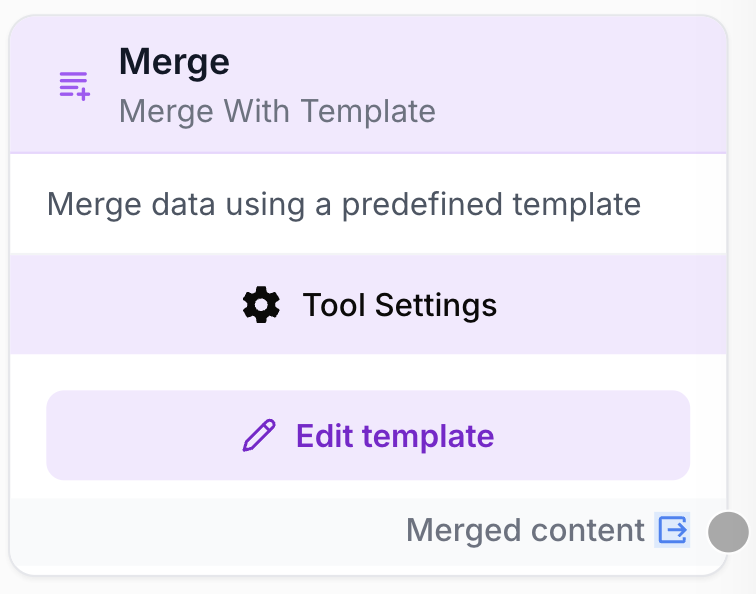
What is the Merge With Template node for?
The Merge With Template node (or Merge with Template) acts as a templating engine within Draft & Goal. It lets you combine fixed text with dynamic variables (from previous steps) to produce a single, structured output.
Main use cases:
- Prepare and structure a complex prompt for an LLM.
- Build a properly formatted JSON object to send data to external tools (e.g. Google Sheets).
- Define reusable global “sub-prompts” (e.g. a persona, editorial guidelines) used in multiple places in your workflow.
- Concatenate several text inputs into one coherent block.
Quick setup
Here’s how to add and configure the Merge With Template node in your workspace. You’ll find it in the node library under Tools.
Add the node
Drag and drop the Merge (or Merge with Template) node from the library onto your workspace.
Edit the template
Click the pencil icon (Edit template) on the node card. A window opens where you write your content.
Insert variables
Write your text and insert dynamic variables using double curly braces, e.g. {{myVariable}}.
Connect inputs
Once the template is saved, the node will show the variables you created as input fields. Connect the outputs from your previous nodes to these inputs.
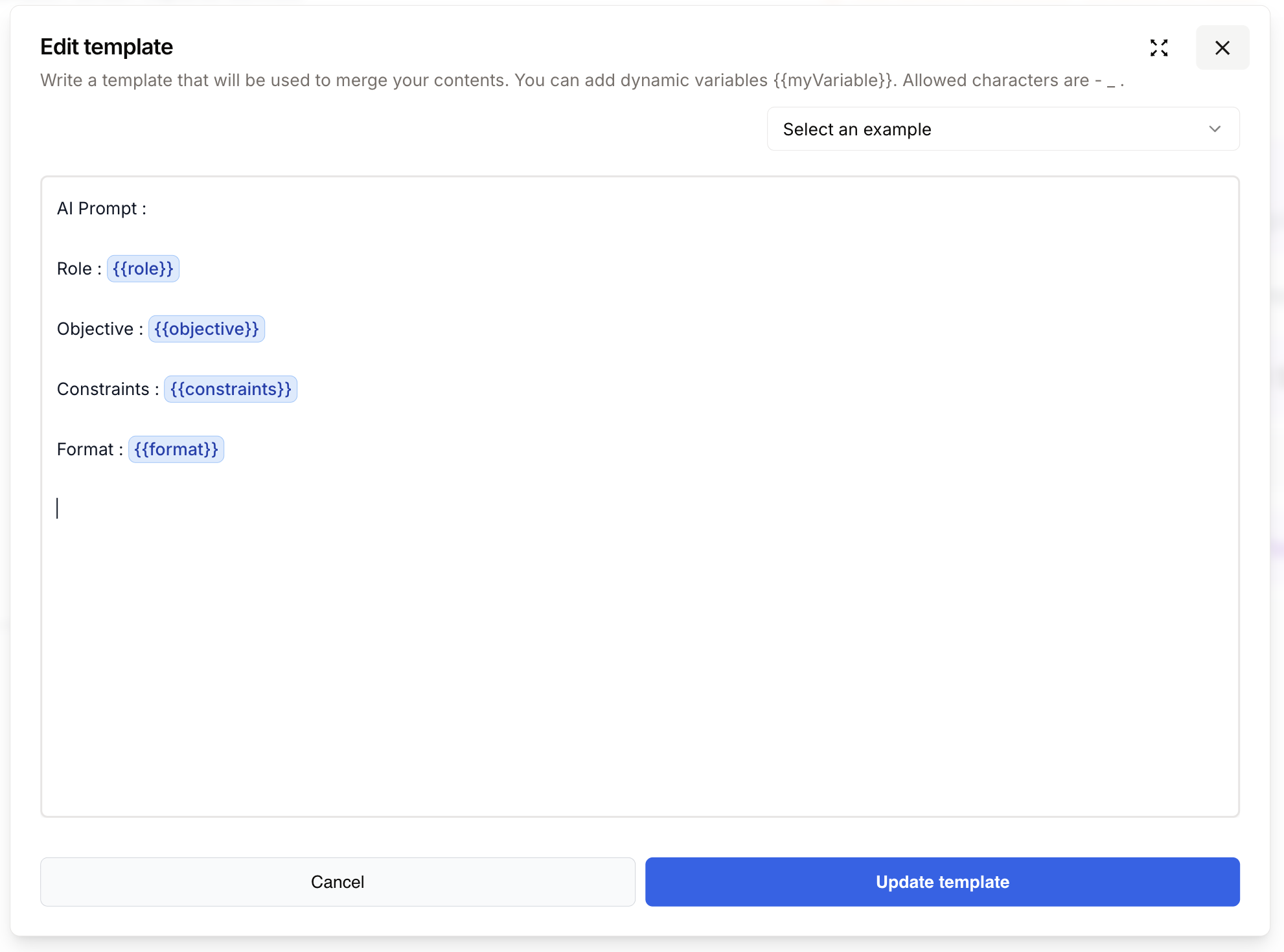
Need inspiration or help formatting complex JSON? Use the Select an example dropdown at the top right of the edit window to load pre-configured templates (e.g. JSON for Google Sheets, multi-line text, etc.).
Configuration fields
The Merge With Template node is designed to be both simple and highly flexible.
Main fields
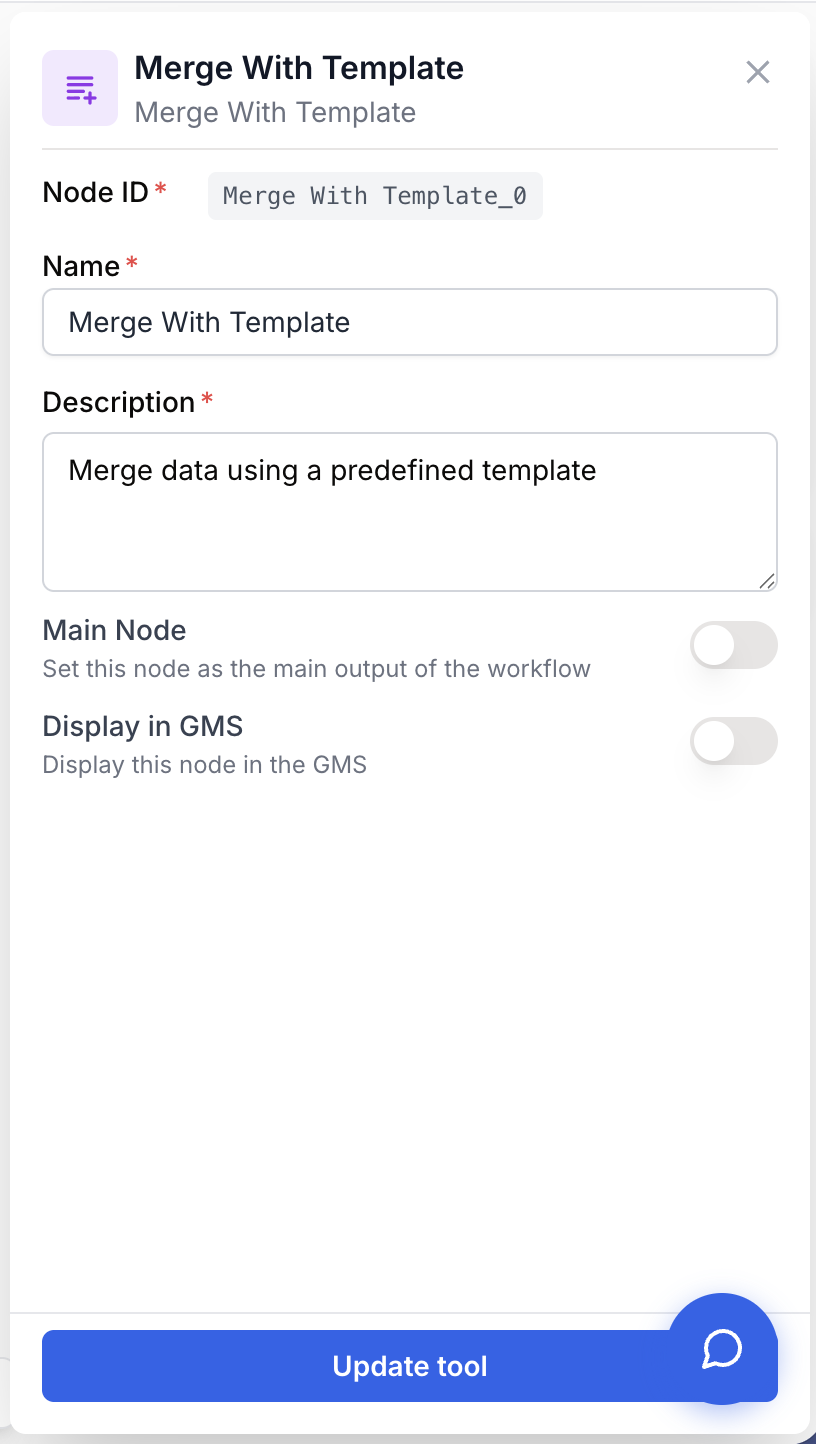
Name string required The name of your node. You should rename this field (e.g. “Merge - SEO Prompt” instead of “Merge”) so you can easily tell what it does when running the workflow.
Description string required A short description of what this merge is for. Especially useful when collaborating or when you need to remember the intended structure.
Template parameters
Template Editor text/code required Accessed via the Edit template button, this is the plain-text area where you write your structure (text, Markdown, HTML, or JSON) and place your {{variables}}.
Input Variables dynamic required These fields appear dynamically on the node card based on the {{}} placeholders you defined in your template. You must connect incoming data to them.
What does the node output?
The Merge With Template node returns exactly the text and format you defined, with variables replaced by their actual values. The format is unchanged: a template written in HTML outputs HTML, a JSON template stays valid JSON (as long as the injected variables don’t break the syntax).
Merged content string required The final text from combining your fixed template with the evaluated dynamic data.
Draft & Goal behavior: You don’t need to remember the Merge With Template node’s ID to use its output. Just connect the Merge’s output to the next node’s input and map that connection to the variable you want in that node.
Example usage
The Merge With Template node fits many scenarios. One of the most common is preparing a full prompt for an AI.
In the Edit template window, write the following structure with your target variables:
AI Prompt :

Role : {{role}}

Objective : {{objective}}

Constraints : {{constraints}}

Format : {{format}}
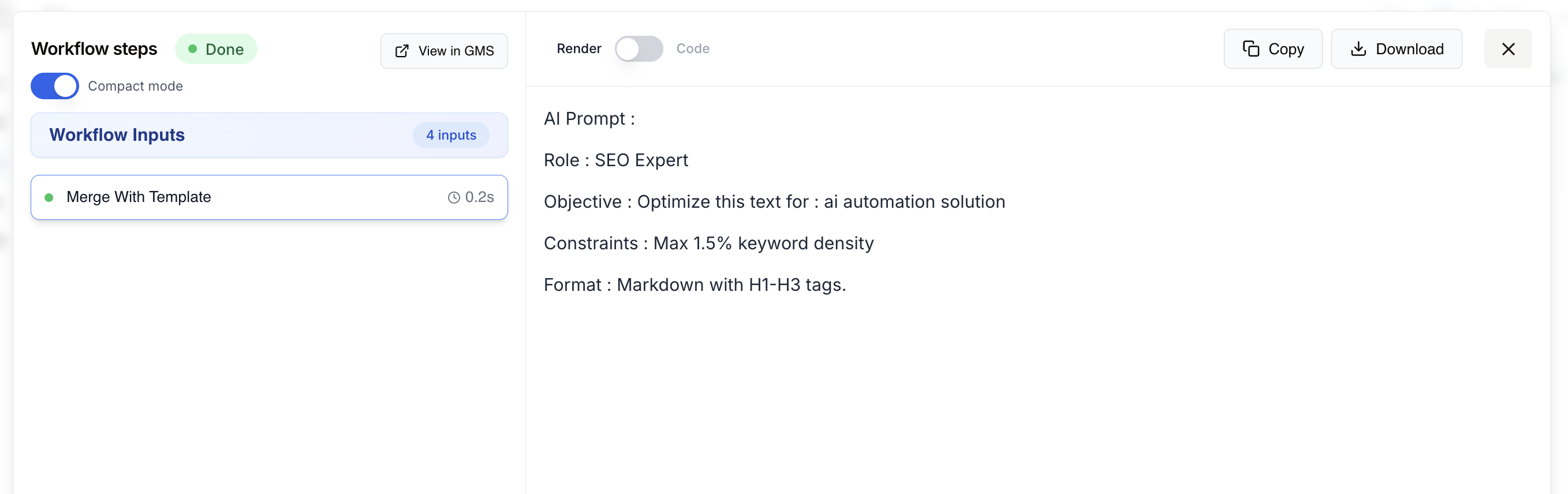
After execution, variables are replaced by values from the previous nodes:
AI Prompt :

Role : SEO Expert

Objective : Optimize this text for : ai automation solution

Constraints : Max 1.5% keyword density

Format : Markdown with H1-H3 tags.
Best practices and pitfalls
To keep workflows readable and reliable, follow these guidelines:
- Use it often: Whenever you need to combine multiple pieces of data, the Merge With Template node is the most reliable and flexible option.
- Store global information: Use a Merge With Template node at the start of your workflow to hold a “pre-prompt” or global instructions, and connect it to all AI agents that need it.
- Use the built-in templates: For complex JSON (e.g. for Google Sheets), start from the examples in the Select an example menu.
- Don’t leave the default name: Keeping the name “Merge” makes it hard to tell which output is which when debugging a run.
- Don’t forget quotes in JSON: If you’re formatting a JSON object, make sure variables that contain text are wrapped in quotes:
"{{myVariable}}".
Common issues and solutions
JSON format error in the next node
Issue: You’re using Merge to format JSON (e.g. to send to Google Sheets), but the destination node reports a parsing error.
Solution: Check the syntax in the template editor.
- Make sure your
{{variables}}are in the right place. - JSON quotes and braces must be correct.
- If the content injected via a variable contains unescaped quotes or invisible line breaks, it can break the JSON structure.
Variables are not replaced
Issue: The final text shows {{myVariable}} literally instead of the expected data.
Solution: Check that you’ve connected an input to the field on the Merge card. If the input is empty or not connected, the system can’t inject the data.
Confusion when reading execution logs
Issue: You have several “Merge” nodes in the logs and can’t tell which one holds which information.
Solution:
How it fits in a workflow
The Merge With Template node is a “pivot” node that often sits between data extraction/generation and the final action.
Typical pattern (workflow with proofreading): Here, the same pre-prompt is shared with both the writer and the proofreader so that the initial constraints are followed from start to finish.
graph LR
    Input[Text Input] --> Merge1[Merge : Global pre-prompt]
    Merge1 --> LLM1[LLM : Writer]
    LLM1 --> Merge2[Merge : Proofreading prompt]
    Merge1 --> Merge2
    Merge2 --> LLM2[LLM : Editor / Proofreading]
    LLM2 --> Output[Final result]
Related nodes
The Merge With Template node is rarely used alone. It sets things up for AI or data-integration nodes.
Generate high-quality text using the content structured by your Merge node as the input prompt.
Send properly formatted JSON from your Merge straight to your spreadsheet cells.
Manually enter base variables that will feed your dynamic template.
Give your autonomous agents solid context and clear instructions with a preparatory merge.