Google Slides Reader
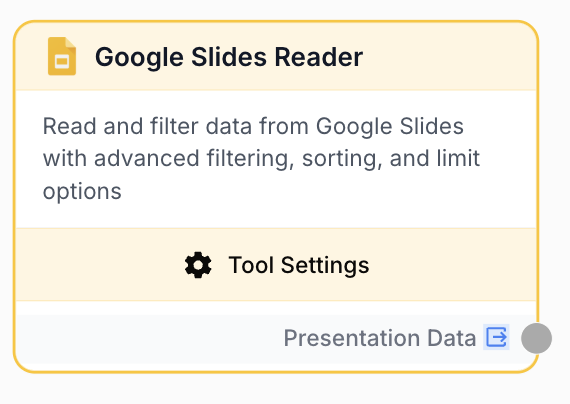
Read content and metadata from one or multiple Google Slides presentations.
What does the Google Slides Reader node do?
The Google Slides Reader node reads content and metadata from one or multiple Google Slides presentations. It supports multi-presentation selection, per-presentation slide filtering, and outputs data in JSON or plain text format.
Common use cases:
- Extracting content from presentations for AI analysis or summarization
- Reading slide data for content repurposing across different formats
Quick setup
Connect your Google account
Open the node settings and select your Google Slides integration from the dropdown. If you haven’t connected Google Slides yet, go to Settings > Integrations to add your Google account with the google_slides scope.
Add the Google Slides Reader node
Find it in Integrations > Google > Slides Reader
Select presentations
Click the Picker button to browse and select one or more Google Slides presentations. Selected presentations appear in a list.
Configure output and slide selection
Choose your preferred output format (JSON or plain text) and optionally select specific slides per presentation instead of reading all slides.
Configuration parameters
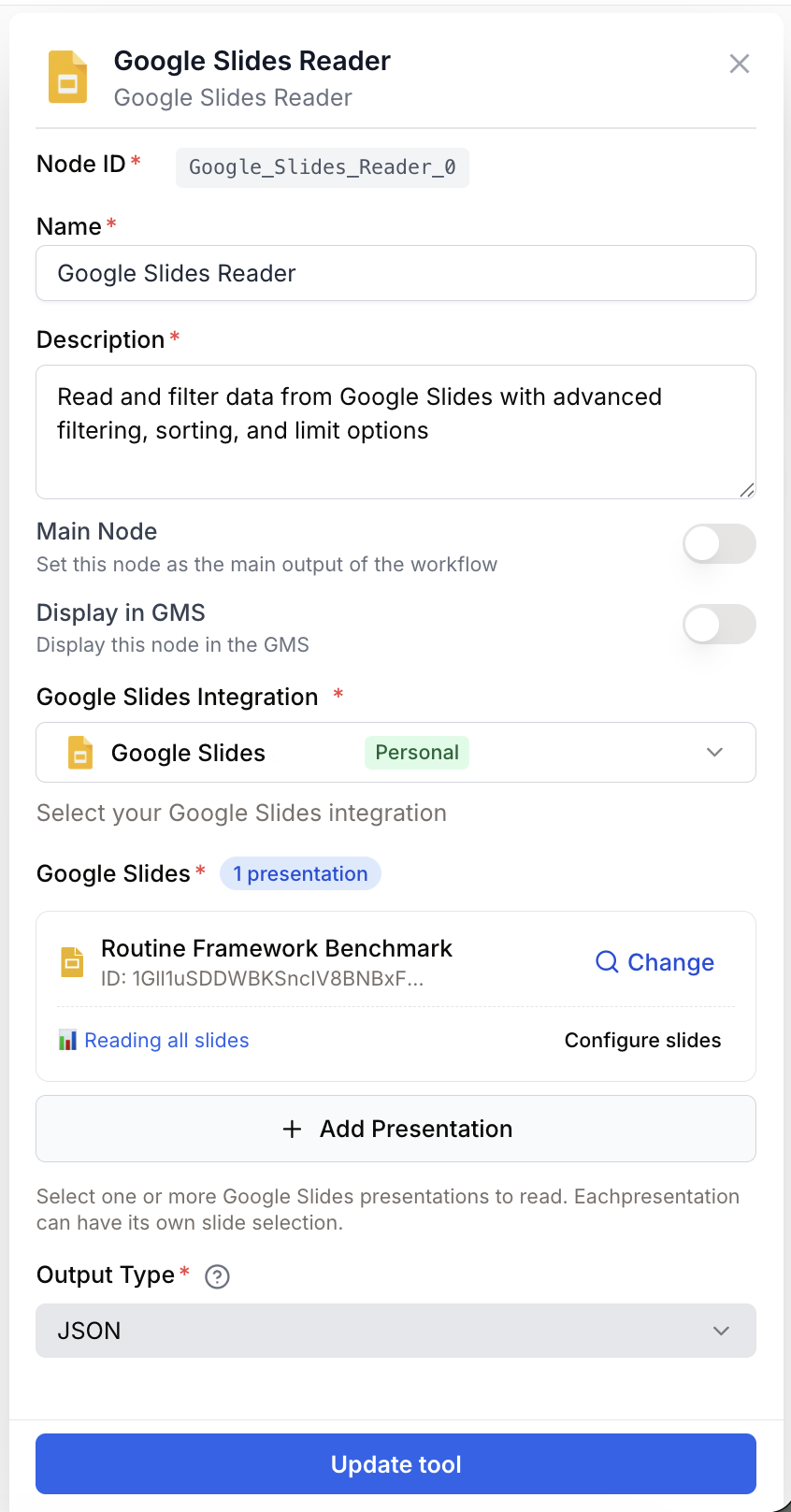
integration_id integration required Google Slides integration — Select the Google account to use. The integration must have the google_slides scope to access your presentations.
presentation_ids string[] required Presentations — Select one or more Google Slides presentations using the Picker. Each presentation is identified by its Google Slides ID.
output_type enum default: json Output format — Choose between json (structured data with metadata) or plain_text (slide content as readable text). Defaults to json.
read_all_slides boolean default: true Read all slides — When enabled, reads every slide in the selected presentations. Disable to select specific slides per presentation.
selected_slides object Slide selection — When read_all_slides is disabled, a per-presentation slide selection modal lets you pick exactly which slides to read from each presentation.
You can select multiple presentations in the Picker. Each presentation’s slides will be read independently and returned in the output.
What does the node output?
The node outputs a string containing the slide content and metadata. The format depends on the output_type setting.
JSON output (output_type: json):
{
  "presentations": [
    {
      "presentation_id": "1abc...",
      "title": "Q1 Report",
      "slides": [
        {
          "slide_index": 0,
          "slide_id": "g1234",
          "content": "Slide text content...",
          "speaker_notes": "Notes for this slide...",
          "elements": [...]
        }
      ]
    }
  ]
}
Plain text output (output_type: plain_text):
--- Presentation: Q1 Report ---

Slide 1:
Slide text content...

Speaker Notes:
Notes for this slide...

---

Slide 2:
...
presentation_data string Slide content and metadata for all selected presentations. Format is JSON or plain text depending on the output_type setting.
Usage examples
Example 1: Summarize presentation content with AI
You have a set of internal presentations and want to generate executive summaries automatically.
Workflow:
- Google Slides Reader — Select the presentations, set output to
plain_text - LLM — Summarize the slide content into key takeaways
- Email Sender — Send the summary to stakeholders
graph LR
    A[Slides Reader] --> B[LLM Summarize]
    B --> C[Email Sender]
Example 2: Repurpose slide content into blog posts
Extract content from presentations and transform it into written articles.
Workflow:
- Google Slides Reader — Read the presentation in
jsonformat - LLM — Transform structured slide data into a blog post draft
- Google Docs Writer — Create a new Google Doc with the article
graph LR
    A[Slides Reader] --> B[LLM Transform]
    B --> C[Docs Writer]
Best practices
Use plain_text output for LLM input. When feeding slide content to an LLM node, plain text is more token-efficient and easier for the model to process than JSON with metadata.
Select specific slides for large presentations. If a presentation has many slides but you only need a few, disable read_all_slides and pick the relevant ones. This reduces output size and processing time.
Common issues
The node returns empty content for some slides
Cause: Slides that contain only images, charts, or embedded objects without text will not produce text content. The reader extracts text elements from slides.
Solution: If you need to process visual content, consider using the Google Slides Reader to identify which slides have content, then use other methods for image-heavy slides.
The Picker does not show my presentations
Cause: The Google integration may not have the google_slides scope, or the presentations may be in a shared drive the integration cannot access.
Solution: Go to Settings > Integrations and verify your Google account has the Slides permission. Try reconnecting the integration if needed. Ensure the presentations are accessible with the connected account.