Majestic Index Info
The Majestic Index Info node retrieves core SEO authority metrics (Trust Flow, Citation Flow, backlinks, referring domains) for one or several URLs through the Majestic API.
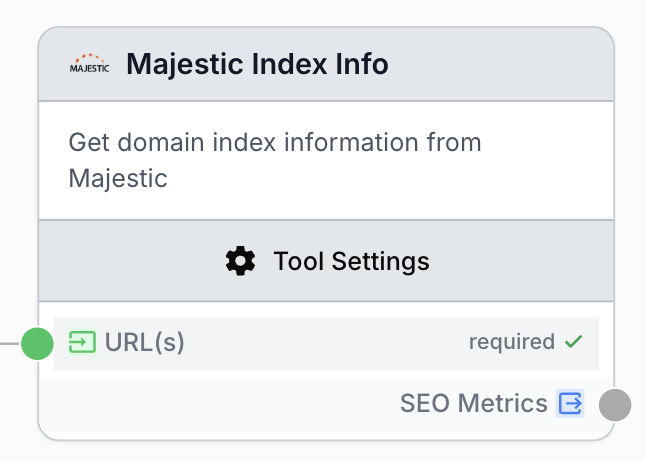
What does the Majestic Index Info node do?
The Majestic Index Info node queries the Majestic SEO API to retrieve the main authority metrics for one or several URLs: Trust Flow, Citation Flow, total backlinks, referring domains, referring IPs, referring subnets, plus the Topical Trust Flow breakdown by theme. It is the fastest way to assess how strong a page or domain is from a link-building perspective inside a Draft & Goal workflow.
Common use cases:
- Auditing a list of URLs to compare authority before launching an SEO campaign.
- Enriching an internal report with up-to-date Majestic metrics for client domains.
- Filtering a backlink prospect list to keep only domains above a Trust Flow threshold.
- Tracking thematic relevance of a site through its Topical Trust Flow categories.
Quick setup
Follow these steps to add and configure the Majestic Index Info node in your workflow:
Connect your Majestic account
In the Draft & Goal sidebar, open Integrations and connect your Majestic API key. Without this integration the node will fail to authenticate.
Add the node to the canvas
Open the Node Library, go to Integrations > SEO Tools > Majestic, then drag the Majestic Index Info node onto your workspace.
Provide the URLs
Either type your URLs directly in the URL(s) field (one per line) or connect the input port to an upstream node that produces a list of URLs (Text Input, Google Sheets Reader, Filter List, etc.).
Choose the Majestic index and topics
Select Fresh Index for data from the last 90 days or Historic Index for the full history, then set how many Topical Trust Flow categories you want returned (0 to 100).
Connect the output
Connect the SEO Metrics output to the next node (LLM, JSON Path Extractor, Google Sheets Writer…) and name the receiving variable to use the JSON payload downstream.
Configuration parameters
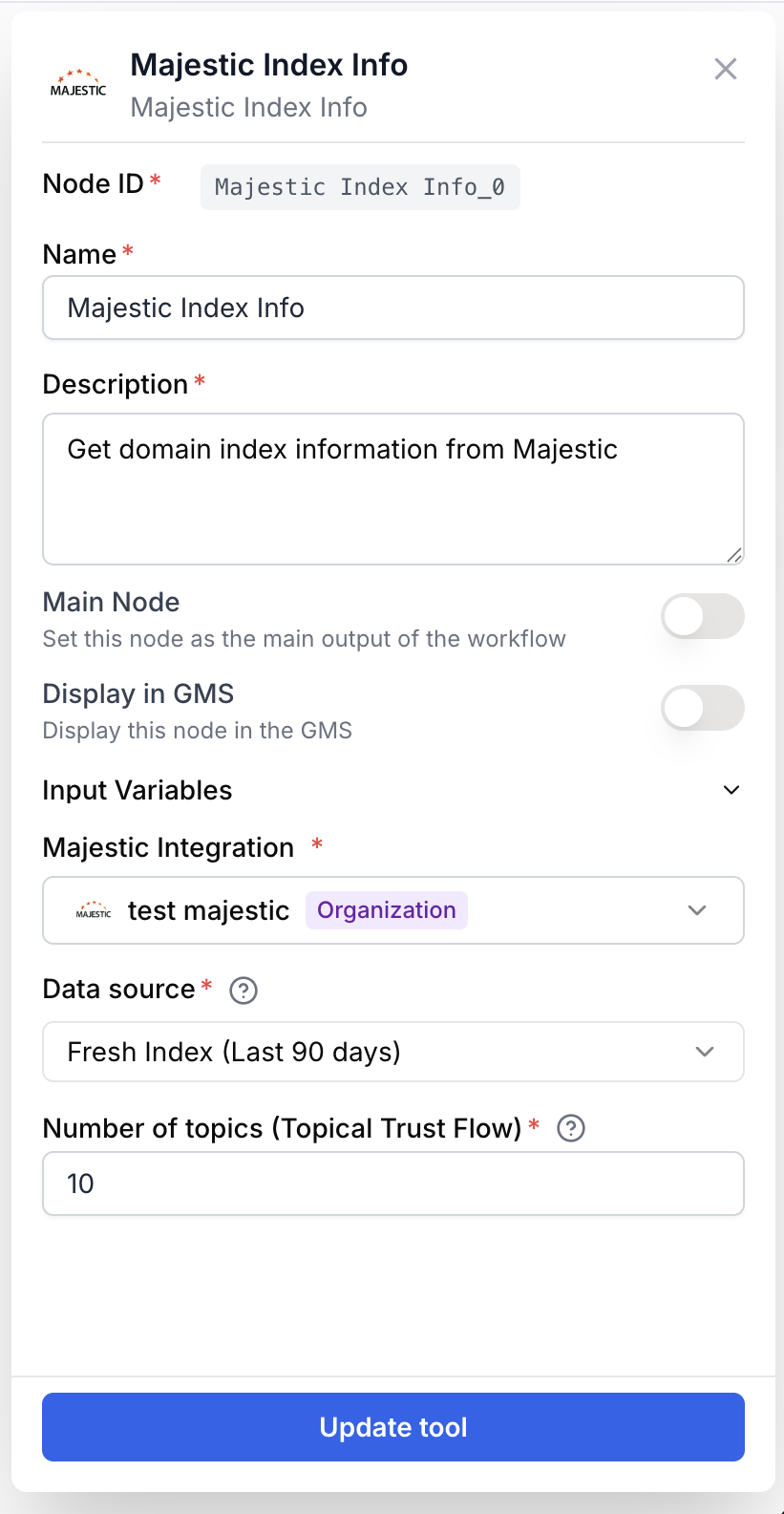
The node has one mandatory input plus three configuration parameters that drive the Majestic API call.
Required fields
Name string required default: Majestic Index Info Node name — Useful to quickly identify this node when several Majestic calls coexist (for example Index Info — competitors vs Index Info — own domain).
Description string required default: Retrieves main SEO metrics for a URL: Trust Flow, Citation Flow, backlinks, referring domains/IPs/subnets and Topical Trust Flow via Majestic API. Node description — Short text shown on the canvas to remind you what this specific call covers.
URL(s) string[] required URL(s) to analyze — One URL per line, or a list provided through the input port. The node accepts plain strings, JSON arrays and nested lists; duplicates are removed automatically.
Majestic Integration integration required Majestic account — The integration that holds your Majestic API key. The node refuses to run if no integration is selected.
Optional fields
Data source enum default: Fresh Index Majestic index used for the lookup. Choose Fresh Index (Last 90 days) for the most recent crawl data or Historic Index (All data) for the complete archive. Fresh Index is updated daily, Historic Index is wider but slower to refresh.
Number of topics (Topical Trust Flow) number default: 10 Number of thematic categories to retrieve in the Topical Trust Flow breakdown. Accepts a value between 0 and 100. Set to 0 if you only need raw authority metrics.
Run the node in Fresh Index mode for ongoing monitoring, then switch to Historic Index when you need the full link history (for example before buying a domain).
What does the node output?
The SEO Metrics output contains a JSON string with one entry per URL submitted. Each entry exposes the Trust Flow / Citation Flow couple, raw backlink counts and the requested Topical Trust Flow categories. Connect the output to a JSON Path Extractor or directly to an LLM to turn the data into a readable report.
How to use the output
- Draw a connection from the SEO Metrics output of the Majestic Index Info node.
- Drop it on the input of the next node.
- In that next node, create and name your own variable (for instance
majestic_metrics). The JSON payload is injected automatically.
seo_metrics string JSON string holding the Majestic response for every submitted URL.
[
  {
    "url": "https://example.com",
    "trust_flow": 45,
    "citation_flow": 52,
    "external_backlinks": 25000,
    "referring_domains": 1500,
    "referring_ips": 1200,
    "referring_subnets": 980,
    "topical_trust_flow": [
      { "topic": "Business/Marketing and Advertising", "value": 38 },
      { "topic": "Computers/Internet/Web Design and Development", "value": 27 }
    ]
  }
]
Usage examples
Example 1: Qualify a list of backlink prospects
You start from a Google Sheet of candidate domains and want to keep only the ones with a Trust Flow above 25.
Workflow:
- Google Sheets Reader loads the column
domainsinto a list. - Majestic Index Info receives that list on its URL(s) input, with Data source = Fresh Index and Number of topics = 5.
- A JSON Path Extractor reads
$[*].trust_flowfrom the output. - A Filter List keeps only the rows where
trust_flow >= 25.
Example 2: Build a competitor authority report with an LLM
You want a written summary that compares your domain to two competitors.
Workflow:
- A Text Input lists the three URLs (your domain plus two competitors), one per line.
- Majestic Index Info is configured with Historic Index and Number of topics = 10 to get a full thematic breakdown.
- The SEO Metrics output is plugged into an LLM node whose prompt asks for a comparative analysis using the JSON variable
majestic_metrics.
Common issues
The node fails with `Majestic: API key not configured`
Cause: No Majestic integration is attached to the node, or the integration has been deleted.
Solution: Open the node settings, select a valid Majestic Integration, and make sure the API key in the integrations page is still active on the Majestic side.
The node returns an error mentioning `URLs are required`
Cause: The URL(s) field is empty and the input port did not receive any value, or the upstream node sent an empty list.
Solution: Type at least one URL in the field, or check that the upstream node actually outputs a non-empty list (for example by previewing its output before running the workflow).
Topical Trust Flow values look incomplete
Cause: The Number of topics parameter is set too low, so Majestic only returns a few categories.
Solution: Increase the value (up to 100). Keep in mind that a high number of topics slightly increases the API response time.
Best practices and pitfalls
Cache the result downstream when you re-run the same workflow on the same URLs: Majestic API calls consume credits, so storing the JSON output (Google Sheets Writer, Notion Database Writer) avoids unnecessary new requests.
Mind the credits: every URL counts as one request on the Majestic API. Trim and deduplicate your list (for example with a Remove Duplicates node) before plugging it into Majestic Index Info, especially when looping.
How does it fit into a workflow?
Majestic Index Info typically sits between a list-producing node and an analysis or storage node. A common SEO-audit pattern looks like this:
graph LR
    Sheets[Google Sheets Reader<br/>list of URLs] --> Majestic[Majestic Index Info]
    Majestic --> Extractor[JSON Path Extractor]
    Extractor --> Filter[Filter List<br/>Trust Flow >= 25]
    Filter --> Writer[Google Sheets Writer<br/>qualified prospects]
Related nodes
Inspect the anchor text distribution of the same URLs after qualifying them with Index Info.
Drill down into the actual backlinks pointing to the URLs returned by Index Info.
List the strongest pages of a domain to complement the site-level authority from Index Info.
Pick specific fields (Trust Flow, Citation Flow, topics) from the JSON returned by Majestic Index Info.