API Connector
The API Connector node sends HTTP requests to any external API and returns the response so the rest of your workflow can consume it.
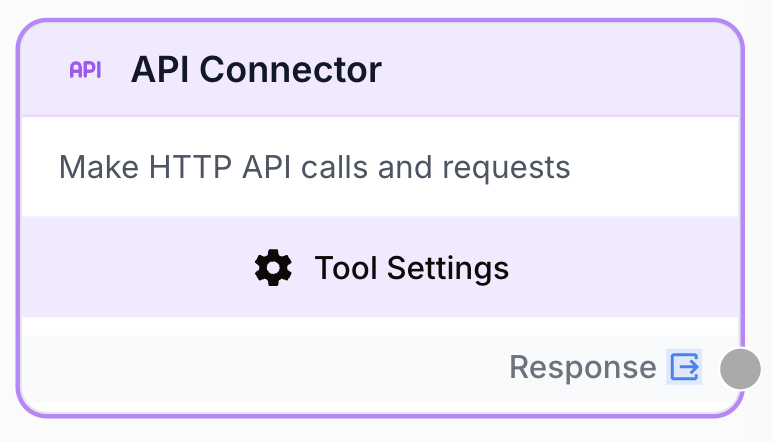
What does the API Connector node do?
The API Connector node executes an HTTP request to any URL (GET, POST, PUT, PATCH, DELETE) and exposes the full response (body, headers, status code) to downstream nodes. It is the universal escape hatch when a dedicated integration node does not exist for the service you want to call.
Common use cases:
- Pulling data from a third-party REST API that has no native node (CRM, internal microservice, public dataset).
- Pushing workflow output to a webhook (Slack, Zapier, custom listener) when an LLM step finishes.
- Triggering server-side actions on your own backend with a templated payload that depends on previous nodes.
Quick setup
Follow these steps to add and configure the API Connector node in your workflow:
Add the node to the canvas
Open the Node Library, go to Tools > Advanced, then drag and drop the API Connector node onto your workspace.
Set method and URL
In the node settings, pick the HTTP Method (GET, POST, PUT, PATCH, DELETE) and fill the Url field with the target endpoint. The URL accepts {{variable}} templates referencing connected inputs.
Add authorization and headers
If the endpoint needs auth, add key/value pairs in the Authorization block (kept confidential and merged into headers at runtime). Add any extra static headers in Headers.
Set body parameters
Choose a Content Type (JSON, Form Data, Raw, None) and fill the Parameters key/value list with the payload. Values that look like valid JSON are parsed as objects automatically.
Connect the output
Connect the output port to the next node and create a variable (for example api_response) on that node. The full HTTP response is injected into it.
Configuration parameters
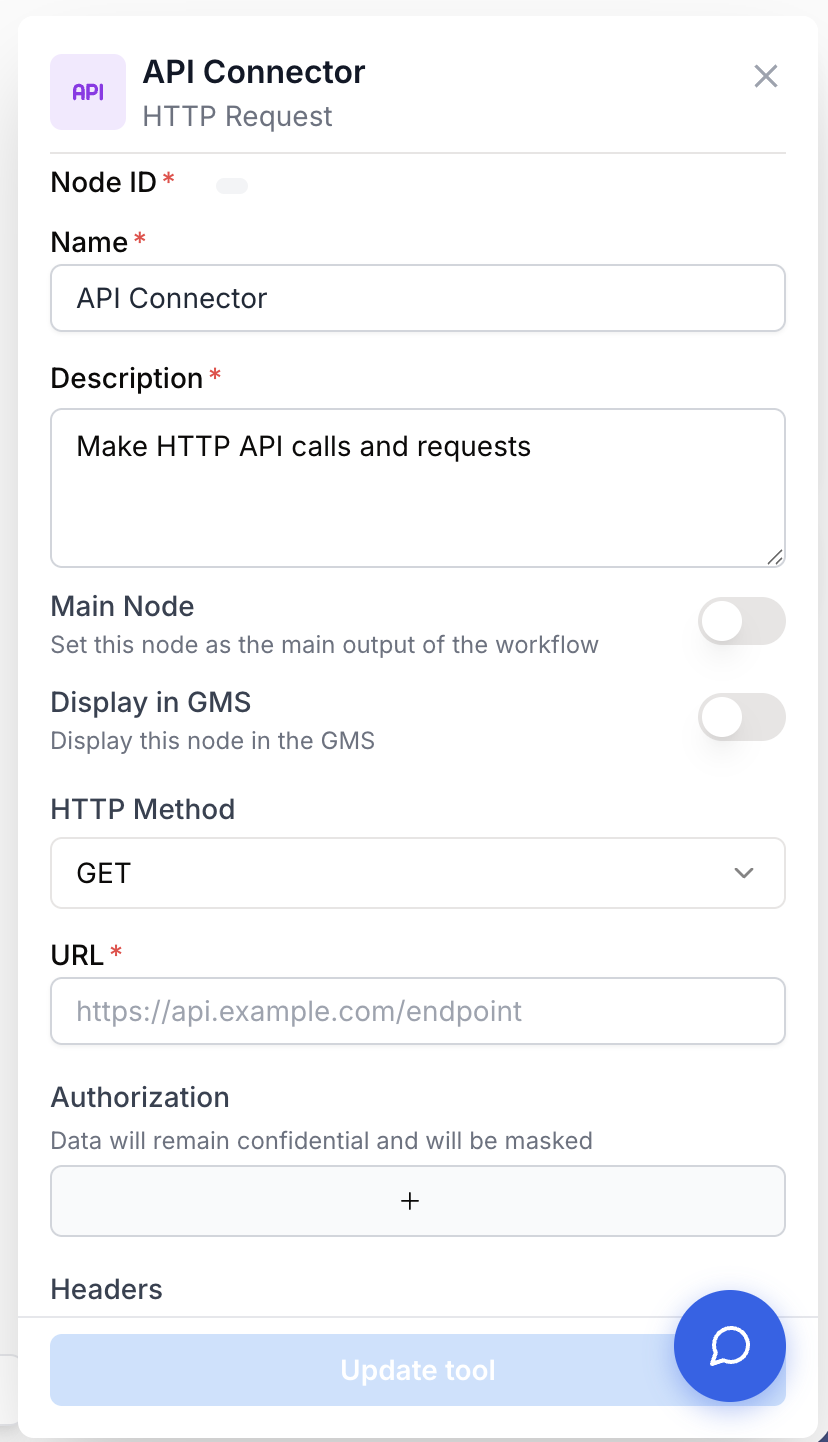
Required fields
Name string required default: API Connector Node name — Important for quickly identifying this node’s role (e.g. “Push lead to CRM”) when running and debugging the workflow.
Description string required default: Execute HTTP Request to any api Node description — Short phrase describing what the request does.
Method string required default: GET HTTP method — One of GET, POST, PUT, PATCH, DELETE. Picks the verb sent to the server.
Url string required Target URL — The full endpoint to call (e.g. https://api.example.com/v1/users). Supports {{variable}} templating with the values of any connected input. The node fails with Missing url on HTTPRequest Tool if this field is empty.
Optional fields
Authorization key/value list default: Empty Authorization headers — Key/value pairs merged into the request headers at runtime (e.g. key Authorization, value Bearer {{token}}). Stored as confidential so the value is masked in the UI and not echoed in logs.
Headers key/value list default: Empty Custom headers — Extra HTTP headers added to the request (e.g. X-Api-Key, Accept-Language). Templated with input values.
Content Type string default: JSON Body encoding — One of JSON, Form Data, Raw, None. Selecting JSON sets Content-Type: application/json; selecting Raw sets Content-Type: text/plain. An explicit Content-Type in Headers overrides this setting.
Parameters key/value list default: Empty Request body / query parameters — Key/value pairs sent as the request body (POST/PUT/PATCH) or query string. Each value is templated then parsed: if it is a valid JSON string, it becomes the corresponding object/array; otherwise it stays a string.
Use {{variable_name}} anywhere in Url, Headers, Authorization, or Parameters to inject values produced by upstream nodes. This is how you chain API calls — for example, a first call returns an id, a second call hits /items/{{id}}.
What does the node output?
The node returns the raw HTTP response in JSON format. Connect the output port to the next node and create a variable to receive it.
body string | object | blob Content of the API response. Parsed JSON when the server returns application/json, raw string for text responses, blob for binary payloads.
headers object Response headers as a key/value object (e.g. Content-Type, X-RateLimit-Remaining).
status_code number HTTP status code returned by the server (e.g. 200, 404, 500). Useful for branching with a Conditional node.
Usage examples
Example 1: GET request with bearer token
Fetch a user record from a private REST API.
Configuration:
Method:GETUrl:https://api.example.com/v1/users/{{user_id}}Authorization: keyAuthorization, valueBearer {{api_token}}Content Type:JSONParameters: (empty)
Output (in api_response):
{
  "body": { "id": "u_42", "email": "alice@example.com", "plan": "pro" },
  "headers": { "content-type": "application/json" },
  "status_code": 200
}
Example 2: POST a JSON payload to a webhook
Send a structured summary produced by an upstream LLM to a Slack incoming webhook.
Configuration:
Method:POSTUrl:https://hooks.slack.com/services/T000/B000/XXXHeaders: (empty)Content Type:JSONParameters:- key
text, value{{summary}} - key
channel, value#alerts
- key
The runner serializes the parameters as {"text": "...", "channel": "#alerts"} and posts it. Slack returns status_code: 200 with body ok.
Common issues
The node fails with `Missing url on HTTPRequest Tool`
Cause: The Url field is empty, or its template references a variable that resolved to an empty string.
Solution: Fill the Url field with a literal URL or check that every {{variable}} it uses comes from a connected upstream node that produces a non-empty value.
The server returns 401 / 403 even though the token works in Postman
Cause: The Authorization value is missing the Bearer prefix, or the variable holding the token has trailing whitespace, or you put the token in Headers without the right key.
Solution: Put the credential in the Authorization block with key Authorization and value Bearer {{token}}. Trim the token at the source. Inspect the executed run to confirm the merged header reaches the server.
My JSON body arrives as a quoted string instead of an object
Cause: The value in Parameters is a JSON-looking string but contains a syntax error (single quotes, trailing comma), so the runner falls back to sending it as a string.
Solution: Validate the JSON on the upstream side (an LLM node often produces malformed JSON — clean it with a Find and Replace or a JSON Path Extractor first). Keys and values must be wrapped in double quotes.
Status code 200 but the next node sees an empty body
Cause: The server returned a non-JSON body (HTML error page, plain text) and the downstream node expects an object.
Solution: Read status_code and headers.content-type first with a Conditional node, then route accordingly. For text responses, consume body as a string.
Best practices and pitfalls
Always store secrets (API tokens, keys) in the Authorization block rather than in Headers or Url. Values in Authorization are flagged confidential, masked in the UI, and excluded from logs.
Beware of rate limits and retries. The node does not auto-retry on 429 or 5xx. Add a Conditional branch on status_code if you need to retry, back off, or fail the workflow gracefully — silently looping a failed call burns quota.
How does it fit into a workflow?
The API Connector typically sits at the boundary of the workflow — either pulling data in at the start or pushing results out at the end.
graph LR
    Input[Text Input] --> LLM[LLM node generates payload]
    LLM --> API[API Connector
<br/>POST /webhook]
    API --> Cond[Conditional on status_code]
    Cond --> Done[End]
Related nodes
Pull a specific field out of body after the API Connector returns a JSON response.
Branch on status_code to handle success, retryable errors, and hard failures separately.
Generate the JSON payload sent in Parameters, or summarize the response body returned by the API Connector.
Clean LLM output (stray backticks, prefixes) before injecting it as a {{variable}} into the request body.