HubSpot Get Company
The HubSpot Get Company node retrieves detailed information for one or more companies in HubSpot by ID, with configurable properties and associated objects.
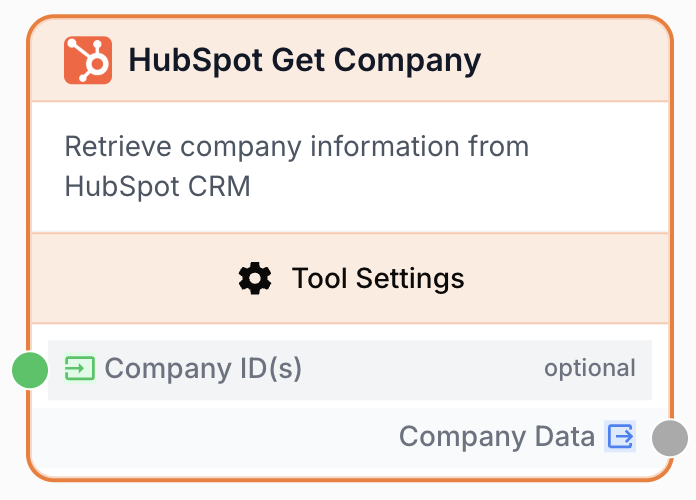
What does the HubSpot Get Company node do?
The HubSpot Get Company node fetches detailed information for one or more companies in your HubSpot CRM by their company ID. You choose which company properties to return and which associated objects (contacts, deals, tickets, etc.) to include alongside the company record.
Common use cases:
- Enriching a workflow with full company details (industry, revenue, employee count) starting from a company ID
- Pulling a company plus its associated deals or contacts to build account briefs or sales summaries
- Resolving a list of company IDs returned by an upstream node into structured records for an LLM or report
- Looking up a single account before sending a personalized outreach email
Quick setup
Connect your HubSpot integration
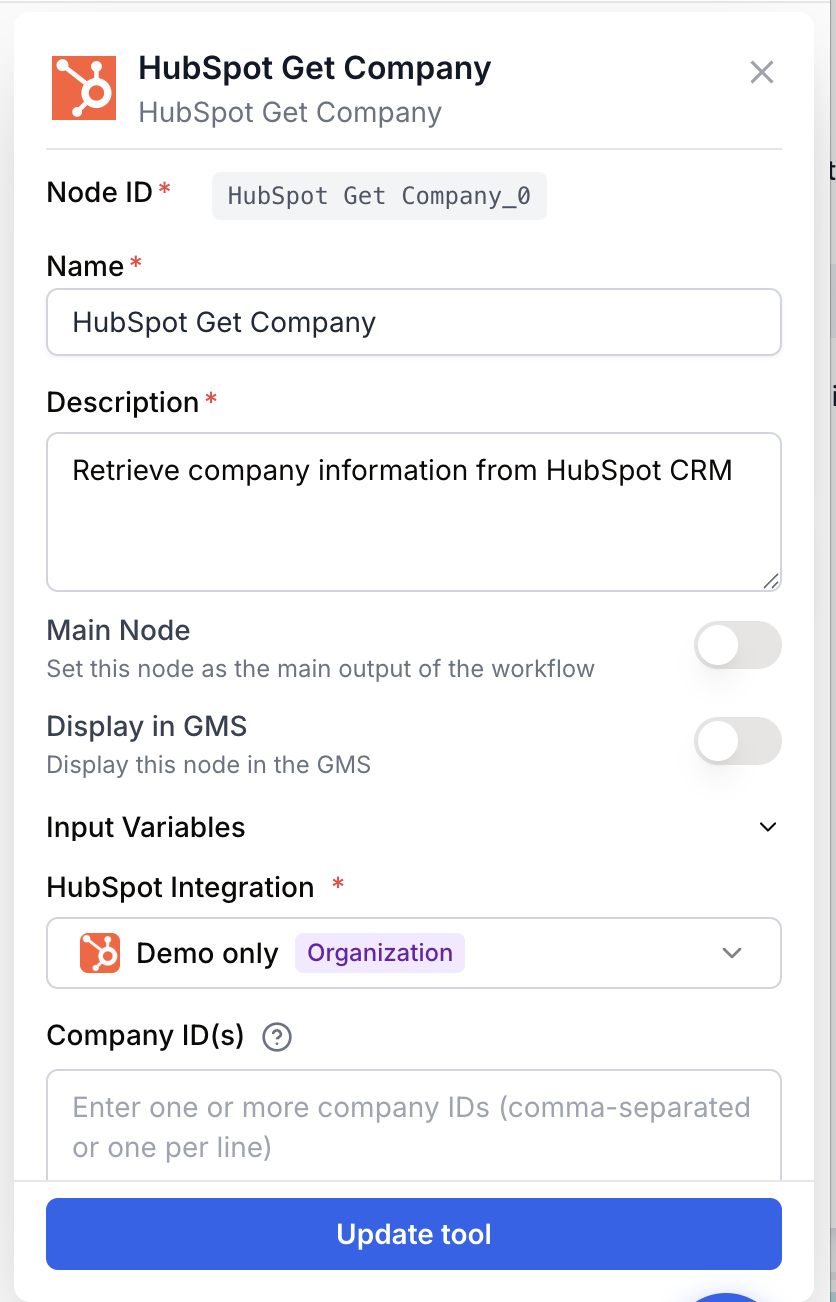
Open the node settings and select your HubSpot integration in the integration field. If you have not connected HubSpot yet, go to Settings > Integrations and add your HubSpot account.
Provide the company ID(s)
Enter one or more HubSpot company IDs in the Company ID(s) field, comma-separated or one per line. You can also feed the IDs dynamically from an upstream node by connecting to the company_ids input port.
Pick the properties to return
In Properties, select which company fields to fetch (Name, Domain, Industry, Annual Revenue, etc.). The default is name, domain, industry. Properties not selected are not included in the output.
Pick associations (optional)
In Associations, select related HubSpot objects to return with each company (Contacts, Deals, Tickets, Notes, Calls, etc.). Leave empty if you only need company fields.
Connect the output
Connect the output port to the next node. The node returns a JSON string under company_data containing the requested companies and associations.
Configuration parameters
Required fields
integration_id integration required HubSpot integration — The HubSpot account connection to query. The integration must have CRM read scopes for companies (and for any associated objects you request).
company_ids string required Company ID(s) — One or more HubSpot company IDs, provided either via the textarea (comma-separated or one per line) or via the company_ids input port from an upstream node. The node fails if no IDs are supplied.
Optional fields
properties string default: name, domain, industry Properties — Comma-separated list of HubSpot company properties to return. Pick from a built-in list (Name, Domain, Industry, Website, Phone, City, State, Country, Postal Code, Address, Number of Employees, Annual Revenue, Lifecycle Stage, Type, Description, Create Date, Last Modified Date, Owner, Last Activity Date, Associated Contacts) or type custom HubSpot internal property names. Includes a Select All shortcut.
associations string Associations — Comma-separated list of associated HubSpot objects to return for each company. Available values: contacts, deals, tickets, products, quotes, line_items, emails, meetings, notes, tasks, calls. Empty by default.
Map your Properties list to the fields you actually consume downstream. Each extra property adds payload weight; trimming the list keeps LLM prompts and JSON extractors lean.
What does the node output?
The node outputs a JSON string under company_data containing the company record(s) keyed by ID, with the requested properties and any selected associations.
{
  "123456": {
    "id": "123456",
    "properties": {
      "name": "Acme Inc",
      "domain": "acme.com",
      "industry": "Technology",
      "annualrevenue": "5000000",
      "numberofemployees": "75"
    },
    "associations": {
      "contacts": ["301", "302", "303"],
      "deals": ["9001"]
    }
  }
}
company_data string A JSON string containing the company record(s). When multiple IDs are passed, the payload is keyed by company ID. Properties not selected in the configuration are omitted; associations are present only when at least one association type is selected.
Usage examples
Example 1: Enrich a single company before outreach
You have a company ID in a workflow variable and want to draft a tailored intro email.
Configuration:
- HubSpot integration: your CRM connection
- Company ID(s):
123456 - Properties:
name, domain, industry, description, annualrevenue, numberofemployees - Associations: (empty)
Output:
{
  "123456": {
    "id": "123456",
    "properties": {
      "name": "Acme Inc",
      "domain": "acme.com",
      "industry": "Technology",
      "description": "Leading tech company building developer tools",
      "annualrevenue": "5000000",
      "numberofemployees": "75"
    }
  }
}
Pipe company_data into a JSON Path Extractor to pull the description, then into an LLM node to draft the email.
Example 2: Fetch a company plus its open deals
You want to build an account snapshot that lists the company and every deal attached to it.
Configuration:
- Company ID(s):
123456 - Properties:
name, domain, industry, lifecyclestage - Associations:
deals, contacts
The output includes a properties block plus an associations block listing related deal and contact IDs you can resolve in follow-up nodes.
Example 3: Bulk-resolve a list of IDs from an upstream node
Combine with a node that produces multiple HubSpot IDs (for example a list filter or a CSV reader). Connect the upstream output to the company_ids input port and leave the textarea empty. Set Properties to the columns you need, then loop the result for downstream processing.
Common issues
The node fails with Company ID(s) are required
Cause: The company_ids input is empty and the textarea has no value either.
Solution: Either type IDs in the Company ID(s) field or connect an upstream node to the company_ids input port that produces a non-empty value at runtime.
The node fails with HubSpot integration is required
Cause: No HubSpot integration is selected on the node, or the saved integration was deleted from Settings > Integrations.
Solution: Open the node settings and pick a HubSpot integration in the HubSpot Integration field. Reconnect HubSpot in Settings > Integrations if the dropdown is empty.
A property I expect is missing from the output
Cause: The property is not in the Properties list, or its HubSpot internal name does not match what you typed.
Solution: Add the property to the list. For custom properties, use the exact internal name as defined in HubSpot (lowercase, underscores), not the display label.
One ID in a multi-ID call returns nothing
Cause: That specific company was deleted, archived, or is not visible to the integration’s scopes.
Solution: Verify the ID still exists in HubSpot and that your integration has access to the company’s owning unit. Other IDs in the same call still resolve normally.
Best practices
Request only the properties you use. Pulling 20 fields when 5 are enough bloats the JSON, slows downstream LLM nodes, and makes the output harder to read while debugging.
Associations return IDs, not full records. If you need the actual deal or contact data, follow this node with the matching HubSpot fetch node (or another lookup) using the IDs returned in the associations block.
Related nodes
Search or paginate through companies when you do not have IDs yet. Feed its output into Get Company for full detail.
After reading a company, write changes back to HubSpot using the same integration.
Extract specific fields from the company_data JSON for downstream nodes.
Summarize, score, or draft text from the enriched company record.