Haloscan Keywords
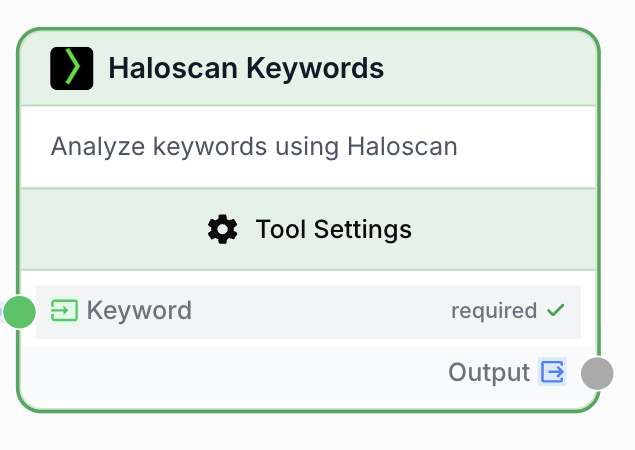
The Haloscan Keywords node analyzes a seed keyword via the Haloscan API and returns related keywords with search volume, competition, CPC, and other SEO metrics.
What does the Haloscan Keywords node do?
The Haloscan Keywords node queries the Haloscan SEO API to expand a seed keyword into a ranked list of related keywords with associated metrics (search volume, competition, CPC, KGR, allintitle). It is built for keyword research, SEO content planning, and topic clustering directly inside a workflow.
Common use cases:
- Generating a keyword cluster from a seed term to brief an LLM article generator.
- Pulling search volume and competition data into a Google Sheet or database for analysis.
- Filtering low-competition long-tail keywords (KGR) before producing content.
Quick setup
Follow these steps to add and configure the Haloscan Keywords node in your workflow.
Add the node to the canvas
Open the Node Library, go to Integrations > SEO Tools > Haloscan, then drag and drop the Haloscan Keywords node onto your workspace.
Connect the Haloscan integration
Open the node settings and select your Haloscan integration in the Haloscan Integration field. If none is available, create one in the integrations panel using your Haloscan API key.
Provide a seed keyword
Connect a node that produces text (such as Text Input or LLM) to the Keyword input port, or set a static value. The seed keyword is required.
Tune ranking and pagination
Set Line Count, Page, Order By, and Order to control how many results you get and how they are sorted. Toggle Exact Match depending on whether you want strict matching or fuzzy matching of the seed keyword.
Connect the output
Connect the output port to the next node and name the receiving variable (e.g. keywords_data) to use the keyword list downstream.
Configuration parameters
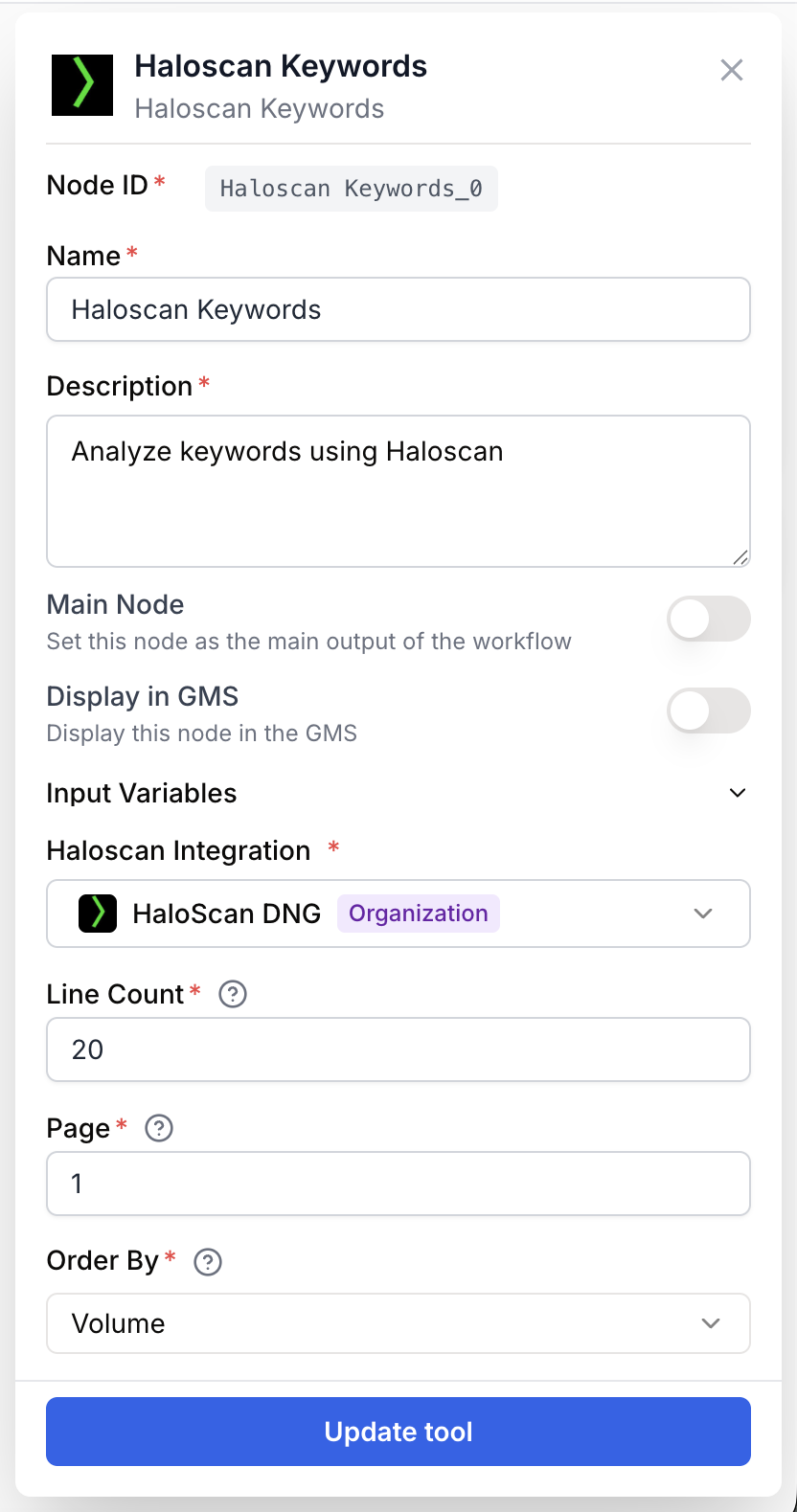
Configuring the node requires a Haloscan integration and at least a seed keyword. The other fields control the size and ordering of the result set.
Required fields
Name string required default: Haloscan Keywords Node name — Useful to quickly identify the node in larger workflows (e.g. Seed expansion FR).
Description string required default: Analyze keyword with Haloscan API to get search volume, competition, and keyword metrics Node description — Short phrase describing the node role inside this workflow.
Haloscan Integration integration required Haloscan integration — Selects the Haloscan account credentials used for the API call. Required.
Keyword string required Seed keyword — The keyword the node will analyze and expand. Connected as an input port; an error is raised if no keyword is provided at runtime.
Optional fields
Line Count number default: 20 Maximum number of keyword results to return. Accepted range: 1 to 1000.
Page number default: 1 Page number for pagination of the result set when combined with Line Count.
Order By select default: volume Field used to sort results. Allowed values: default, keyword, volume, cpc, competition, kgr, allintitle.
Order select default: desc Sort direction. Allowed values: asc (ascending), desc (descending).
Exact Match boolean default: true Exact match — When enabled, the seed keyword is matched strictly. When disabled, accents, punctuation, case, and special characters are ignored when matching the seed keyword.
For broad ideation, set Exact Match to false and Order By to volume. For long-tail content briefs, set Order By to kgr and keep Order to asc to surface the easiest keywords first.
What does the node output?
The node outputs a text payload containing the Haloscan API response. It typically includes the seed keyword and a list of related keywords with their SEO metrics (search volume, competition, CPC, KGR, allintitle).
How to use the output
- Draw a connection from the Haloscan Keywords node output.
- Connect it to the next node input (LLM, JSON Path Extractor, Google Sheets, etc.).
- In that next node, create and name your own variable (for example,
keywords_data). The full response is injected into it automatically.
Output string Serialized response from the Haloscan Keywords API, including the related keywords list and their metrics, sorted according to the Order By and Order parameters.
Example shape of the returned data:
{
  "keyword": "seo tools",
  "results": [
    {
      "keyword": "best seo tools",
      "volume": 14800,
      "cpc": 12.4,
      "competition": 0.78,
      "kgr": 0.21,
      "allintitle": 320
    },
    {
      "keyword": "free seo tools",
      "volume": 12100,
      "cpc": 5.6,
      "competition": 0.55,
      "kgr": 0.34,
      "allintitle": 540
    }
  ],
  "page": 1,
  "line_count": 20
}
Usage examples
Example 1: Build a keyword cluster for an LLM brief
You want an LLM to write an article on seo strategy and need a curated list of related keywords to inject in the prompt.
Configuration:
Keyword:seo strategyLine Count:30Order By:volumeOrder:descExact Match:false
Pipeline: Text Input (seo strategy) -> Haloscan Keywords -> JSON Path Extractor (results[*].keyword) -> LLM (article generation with the keyword list as context).
Example 2: Find low-competition long-tail keywords
You want to surface easy-to-rank keywords for a niche site.
Configuration:
Keyword:electric bike maintenanceLine Count:50Order By:kgrOrder:ascExact Match:true
Outcome: Results are sorted by ascending KGR so the easiest long-tail keywords appear first; pipe them into a Google Sheets or Notion node for editorial planning.
Common issues
The node fails with `Haloscan Keywords: Integration not configured`
Cause: No Haloscan integration is selected on the node.
Solution: Open the node settings and pick a Haloscan integration in the Haloscan Integration field. If the list is empty, create one in the integrations panel with your Haloscan API key.
The node fails with `Haloscan Keywords: No keyword provided`
Cause: The Keyword input is empty at runtime (the upstream node returned no value, or no input was connected).
Solution: Make sure a non-empty string is connected to the Keyword input. Add a fallback (default value or Conditional node) if the upstream source can be empty.
Results look unrelated to the seed keyword
Cause: Exact Match is set to false, so accents, punctuation, and special characters are ignored when matching, which can broaden results.
Solution: Set Exact Match to true to enforce strict matching, or refine the seed keyword to be more specific.
Best practices and pitfalls
Cache results when iterating on prompts. The Haloscan API consumes credits per call; keep Line Count reasonable while developing the workflow and increase it once the pipeline is stable.
Pagination: Line Count and Page work together. Requesting Line Count = 1000 is allowed by the schema but may exceed Haloscan plan limits and slow the workflow. Prefer paginating with smaller pages and a Loop node when fetching very large sets.
How does it fit into a workflow?
Haloscan Keywords typically sits at the start of an SEO research pipeline, feeding cleaned keyword data into extractors, LLMs, or storage nodes.
graph LR
    Seed[Text Input
<br/>seed keyword] --> HK[Haloscan Keywords]
    HK --> JP[JSON Path Extractor]
    JP --> LLM[LLM
<br/>article brief]
    JP --> Sheet[Google Sheets
<br/>keyword list]
Related nodes
Feed Haloscan results into an LLM to draft SEO-optimized briefs or articles.
Extract a specific field (such as results[*].keyword) from the Haloscan response.
Filter the keyword list by volume, KGR, or competition before downstream processing.
Iterate over multiple seed keywords or paginate through large Haloscan result sets.