Video to Text
The Video to Text node uses a vision-capable LLM to analyze a video and produce a text description, transcription, or extracted information based on your prompt.
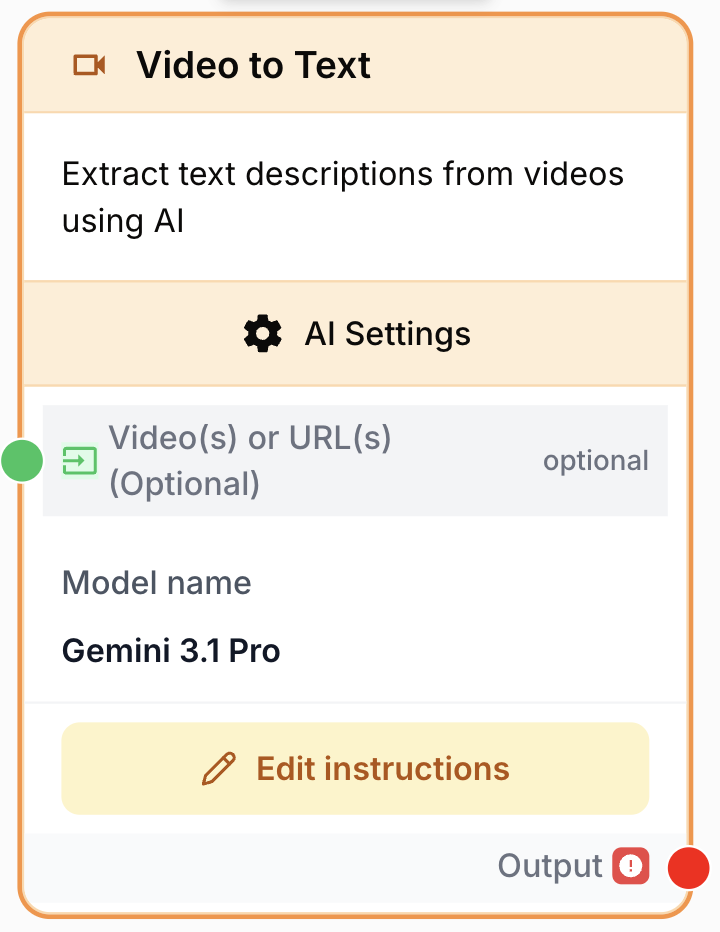
What does the Video to Text node do?
The Video to Text node sends a video to a vision-capable LLM (such as GPT-4o or Gemini) along with a custom prompt, and returns a text response. It can describe scenes, transcribe spoken content, summarize a recording, or extract structured information from the visuals.
Common use cases:
- Generating detailed video descriptions for cataloging or accessibility.
- Transcribing and summarizing webinars, interviews, or meeting recordings.
- Extracting structured information (products shown, on-screen text, timestamps) from a video for downstream nodes.
- Tagging or moderating video content based on visual scenes.
Quick setup
Follow these steps to add and configure the Video to Text node in your workflow:
Add the node to the canvas
Open the Node Library, go to AI > Video, then drag and drop the Video to Text node onto your workspace.
Connect the video source
Connect the input_media port (on the left of the node) to a node that produces a video — for example a Static Video, a Google Drive reader, or any node returning a video file or URL. The input also accepts images, text, strings, URLs, or arrays of these.
Pick a vision-capable model
In the settings, select the LLM Provider (e.g. OpenAI, Google) and then a Model that supports video input (e.g. GPT-4o, Gemini Pro). Only models compatible with this node are listed.
Write the prompt
In the prompt field, describe what the model should produce. You can inject values from previous nodes with the {{variable}} syntax. The prompt field is required.
Connect the output
Connect the output port (on the right) to the next node. Define the receiving variable name in that next node to use the generated text.
Configuration parameters
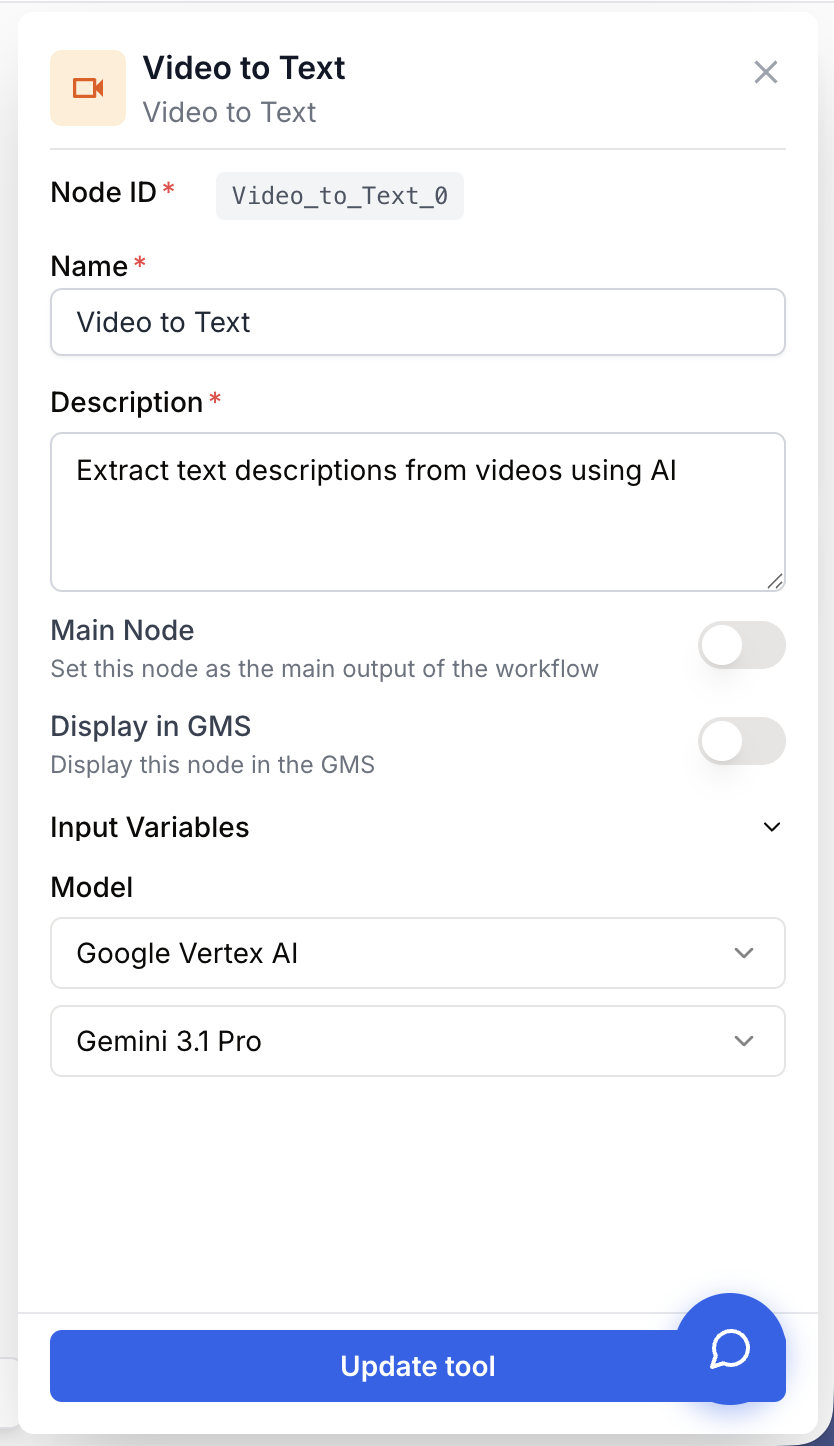
The node configuration combines an input port for the video, the model selection, and a free-form prompt that drives the analysis.
Required fields
Name string required default: Video to Text Node name — Short identifier for this node in the canvas (e.g. “Describe demo video”). Useful for debugging and reading workflow logs.
Description string required default: Extract text descriptions from videos using AI. Node description — A short phrase describing the role of this node in the workflow.
modelName llm required Model — The LLM used for video analysis. Must be a vision/video-capable model (e.g. GPT-4o, Gemini Pro). Only compatible models are shown in the dropdown.
prompt string required Instructions — Free-form instructions describing what the AI should extract, describe, or summarize from the video. Supports {{variable}} placeholders to inject values from upstream nodes. The node fails validation if this field is empty.
Optional fields
input_media media Video input — The video to analyze. Accepts videos, URLs, images, text, strings, or arrays of these. Optional: you can also reference a media variable directly inside the prompt with {{my_video}}.
llmProvider string LLM provider — Provider associated with the selected model (e.g. OpenAI, Google). Set automatically when you pick a model; you usually don’t edit it directly.
In version 2.0 the legacy “Video Files” and “URLs” inputs were merged into a single unified input_media port — connect any video file node or URL node to the same input.
What does the node output?
The node returns a single string containing the LLM response generated from the video and the prompt.
How to use the output
In Draft & Goal you don’t need to look up a system-generated variable name. To use the result:
- Draw a connection from the Video to Text node’s output.
- Connect it to the next node’s input.
- In that next node, create and name your own variable (for example,
video_summary). The generated text is injected into it automatically.
output string The text generated by the LLM in response to your prompt and the input video.
{
  "output": "The video shows a 30-second product demo. A person unboxes a wireless keyboard, connects it via Bluetooth, and types a few sentences to demonstrate the key feel. The packaging is minimal with a white box and the brand logo visible at 0:05."
}
Usage examples
Example 1: Describe a marketing video for a content catalog
Generate a rich description of a promotional video and rewrite it for a specific channel.
Workflow:
- Static Video — provides the video file.
- Video to Text — Prompt:
Describe this video in detail, including the setting, on-screen actions, spoken dialogue, and any visible text or branding. - LLM — rewrites the description for a target audience (e.g. social media caption, product page paragraph).
Example 2: Summarize a recorded presentation
Pull the key points out of a long meeting or webinar recording.
Workflow:
- Google Drive — selects the video file from Drive.
- Video to Text — Prompt:
Summarize the main topics discussed in this video. For each topic, give a 1–2 sentence description and an approximate timestamp. - Notion Database Writer — saves the summary to a Notion database for the team.
Common issues
The node returns an empty or generic response
Cause: The selected model does not actually support video input, or the file format is not recognized by the provider.
Solution: Pick a model explicitly listed as vision/video-capable (e.g. GPT-4o, Gemini Pro). Make sure the input file is in a common format (MP4, MOV, WebM). If you’re passing a URL, check that it is publicly reachable.
The output misses key details or feels too shallow
Cause: The prompt is too vague, or the video is too long for the model to process in detail end-to-end.
Solution: Make the prompt more specific (timestamps, named entities, sections to focus on). For long videos, extract a few key frames first with Extract Video Frame and analyze them with Image to Text, then aggregate the results.
Validation error: 'requires instructions to be configured'
Cause: The prompt field is empty.
Solution: Always fill in the prompt — it is required even when the video clearly suggests what to do. State explicitly what kind of output you expect (description, transcription, list, JSON, etc.).
Best practices and pitfalls
Be explicit about the output shape. If a downstream node expects JSON, ask for JSON in the prompt (e.g. “Return a JSON object with keys summary, topics, timestamps”) and pair this node with JSON Path Extractor to consume it cleanly.
Video analysis is significantly slower and more expensive than text. Test on a short clip before running over a large dataset, and prefer Extract Video Frame + Image to Text when you only need information from a specific moment.
How does it fit into a workflow?
Video to Text is typically the bridge between a video source and any text-based downstream processing.
graph LR
    Source[Static Video / Google Drive] --> V2T[Video to Text
<br/>analyzes video]
    V2T --> Extractor[JSON Path Extractor]
    Extractor --> LLM[LLM
<br/>final formatting]
    LLM --> Writer[Notion / Sheets Writer]
Related nodes
Run the same kind of analysis on a single image — useful for static frames extracted from a video.
Pull specific frames out of a video to analyze them individually with Image to Text.
Generate a video from one or more images — the inverse use case of Video to Text.
Post-process the text returned by Video to Text (rewrite, translate, classify).
Parse structured JSON returned by Video to Text into typed fields.