Semrush Keyword Overview
The Semrush Keyword Overview node retrieves volume, CPC, competition, number of results, and difficulty for one or more keywords through a connected Semrush account.
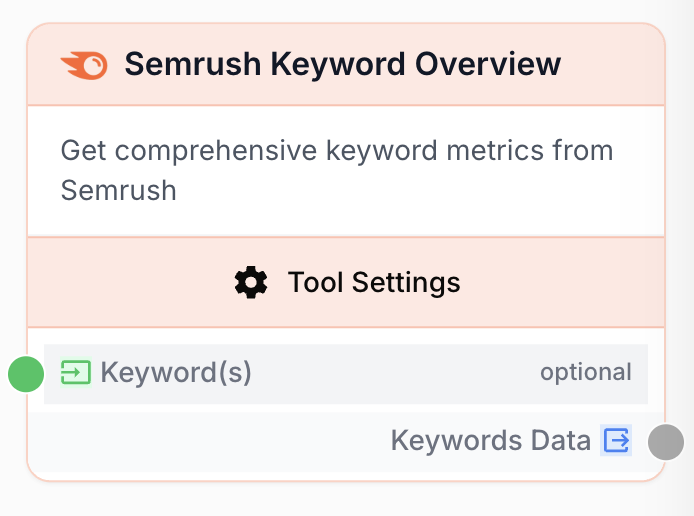
What does the Semrush Keyword Overview node do?
The Semrush Keyword Overview node queries the Semrush API to return key SEO metrics for one or several keywords against a chosen country database. For every keyword you submit, it returns a row containing the columns you selected (volume, CPC, competition, number of results, keyword difficulty).
Common use cases:
- Pre-qualifying a list of keywords generated by an LLM before adding them to a content brief.
- Scoring an existing keyword pool to focus on terms with high volume and acceptable difficulty.
- Comparing the SEO potential of the same keyword across several country databases (FR, US, UK).
Quick setup
Follow these steps to add and configure the Semrush Keyword Overview node in your workflow:
Add the node to the canvas
Open the Node Library, go to Integrations > SEO Tools > Semrush, then drag the Semrush Keyword Overview node onto your workspace.
Connect a Semrush integration
In the node settings, select the Semrush Integration to use. If you have not connected one yet, add it from the Integrations page so the node can authenticate against your Semrush account.
Provide the keywords
Either type one keyword per line in the Keyword(s) field, or connect the input port to an upstream node (LLM, Text Input, JSON Path Extractor) that produces a list of keywords.
Pick the database and columns
Choose the Database (Country) matching the Google domain you want to analyze, then select the Export Columns to include in the response.
Connect the output
Connect the output port to the next node and create a variable (for example, keywords_data) to receive the raw response.
Configuration parameters
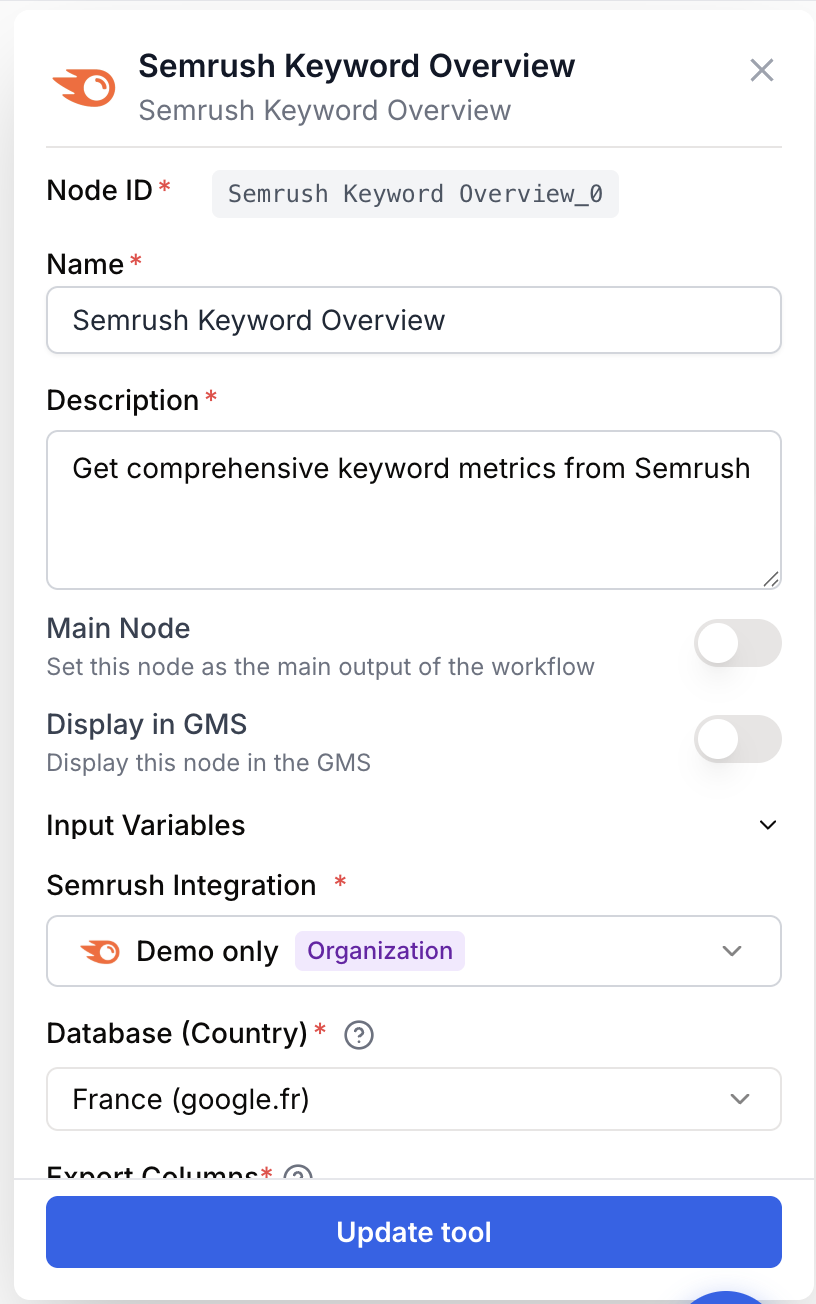
Configuring the node means choosing which Semrush account to use, which keywords to analyze, and which metrics to retrieve.
Required fields
Name string required default: Semrush Keyword Overview Node name — Useful to identify this node in a workflow that contains several Semrush calls (e.g. Semrush FR pre-check).
Description string required default: Retrieves keyword overview information via Semrush, including volume, CPC, competition, and number of results. Node description — A short sentence describing the role of this Semrush call.
Semrush Integration integration required Semrush integration — The connected Semrush account used to authenticate the API call. The node fails with Semrush: API key not configured. Please add integration in settings. if no integration is selected.
Database (Country) string required default: fr Country database — Google database to query. Available values: fr (France), us (United States), uk (United Kingdom), de (Germany), es (Spain), it (Italy), nl (Netherlands), ca (Canada), au (Australia), br (Brazil).
Export Columns string required default: Ph,Nq,Cp,Co,Nr,Kd Columns to export — Comma-separated Semrush column codes. Available codes: Ph (Keyword), Nq (Search Volume), Cp (CPC), Co (Competition), Nr (Number of Results), Kd (Keyword Difficulty).
Optional fields
Keyword(s) multilines Keywords to analyze — One keyword per line, or a JSON array, or a list piped from an upstream node. The node joins them with ; before sending them to Semrush. Required either as a parameter or via the input port: the node throws Keywords are required if both are empty.
Each keyword consumes between 10 and 40 Semrush API units depending on the columns you select. Limit Export Columns to the metrics you actually need to keep credit consumption under control.
What does the node output?
The node outputs a JSON-encoded string containing the rows returned by Semrush. Each row maps the column codes you requested to their values for one keyword.
How to use the output
- Draw a connection from the Keywords Data output port.
- Connect it to the next node and create a variable (for example,
keywords_data). - Use a JSON Path Extractor or an LLM downstream to parse and exploit the metrics.
Keywords Data string JSON string containing the Semrush rows, one per keyword, with the columns selected in Export Columns.
Usage examples
Example 1: Qualifying an LLM-generated keyword list
You ask an LLM to brainstorm 20 keyword ideas around content marketing, then keep only those with enough monthly volume.
Configuration:
- Database (Country):
us - Export Columns:
Ph,Nq,Kd - Keyword(s): connected to the LLM output
Sample output (parsed):
[
  { "Ph": "content marketing", "Nq": 22000, "Kd": 72 },
  { "Ph": "content strategy", "Nq": 9900, "Kd": 65 },
  { "Ph": "content marketing tools", "Nq": 1900, "Kd": 48 }
]
A downstream Filter List node can then keep only the rows where Nq >= 1000 and Kd <= 60.
Example 2: Cross-country comparison for one keyword
You want to know whether seo audit is worth targeting in France and in the United States.
Setup:
- Two Semrush Keyword Overview nodes, one with
Database = fr, one withDatabase = us. - Keyword(s) is the same single value
seo auditin both nodes. - Export Columns:
Ph,Nq,Cp,Co.
A downstream LLM node can read both outputs and recommend which market to prioritize.
Common issues
The node fails with 'Semrush: API key not configured'
Cause: No Semrush integration is selected in the node settings.
Solution: Open Integrations in Draft & Goal, connect a Semrush account, then pick it in the Semrush Integration field of the node.
The node fails with 'Keywords are required'
Cause: Neither the Keyword(s) field nor the input port produced a value at runtime.
Solution: Either type at least one keyword in the field, or make sure the upstream node is connected to the input port and actually emits a non-empty value.
The output looks empty for some keywords
Cause: Semrush has no data for that keyword in the chosen country database (very long-tail or new keyword).
Solution: Re-run the node against another database (for example us instead of fr), or rephrase the keyword.
Best practices and pitfalls
Pair this node with a Filter List node to keep only the keywords that match your volume and difficulty thresholds before passing them to a brief generator.
Watch your Semrush quota. Each keyword can cost up to 40 API units. When iterating on a workflow, test on a short list (3–5 keywords) before running on hundreds.
How does it fit into a workflow?
Semrush Keyword Overview typically sits between keyword generation and content production: it adds SEO metrics so that downstream nodes can prioritize, filter, or enrich the keyword list.
graph LR
    LLM[LLM keyword brainstorm] --> SK[Semrush Keyword Overview]
    SK --> JPE[JSON Path Extractor]
    JPE --> FL[Filter List
<br/>volume + difficulty thresholds]
    FL --> Brief[LLM brief writer]
Related nodes
Get the keywords a whole domain ranks on, instead of querying single keywords.
Same idea, scoped to a single URL of a competitor page.
Parse the JSON string returned by this node into individual variables.
Keep only the keywords that match your volume and difficulty rules.