YouTube Search
The YouTube Search node queries YouTube via SerpAPI and returns the list of search results for a given query, with country and language targeting.
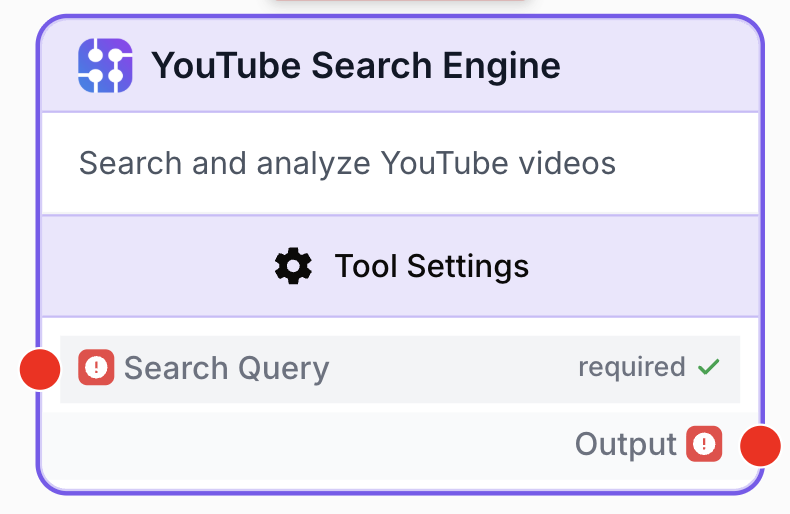
What does the YouTube Search node do?
The YouTube Search node runs a query against the YouTube search engine through the SerpAPI integration and returns the structured list of results (videos, channels, playlists) that YouTube shows for that query. It lets you automate competitive watch, content sourcing, or trend analysis directly inside a Draft & Goal workflow without scraping YouTube manually.
Common use cases:
- Monitoring videos that rank for a target keyword in a given country.
- Building a feed of recent videos around a topic to feed into an LLM for summarization.
- Comparing the YouTube SERP between several locales (for example,
us/envs.fr/fr).
Quick setup
Follow these steps to add and configure the YouTube Search node in your workflow:
Add the node to the canvas
Open the Node Library, go to Integrations > Google Search, then drag and drop the YouTube Search Engine node onto your workspace.
Connect the SerpAPI integration
In the node settings, pick the SerpAPI Integration that holds your API key. If none exists yet, create one from the integrations page first.
Provide the search query
Plug an upstream node (Text Input, LLM, JSON Path Extractor, etc.) into the search_query input, or set it directly. The query is what gets typed into the YouTube search bar.
Set country and language
Choose the country code (gl) and language code (hl) that match the locale you want to simulate. Defaults are us and en.
Connect the output
Connect the JSON output to a downstream node (LLM, JSON Path Extractor, Loop, Filter List…) and name the receiving variable to consume the results.
Configuration parameters
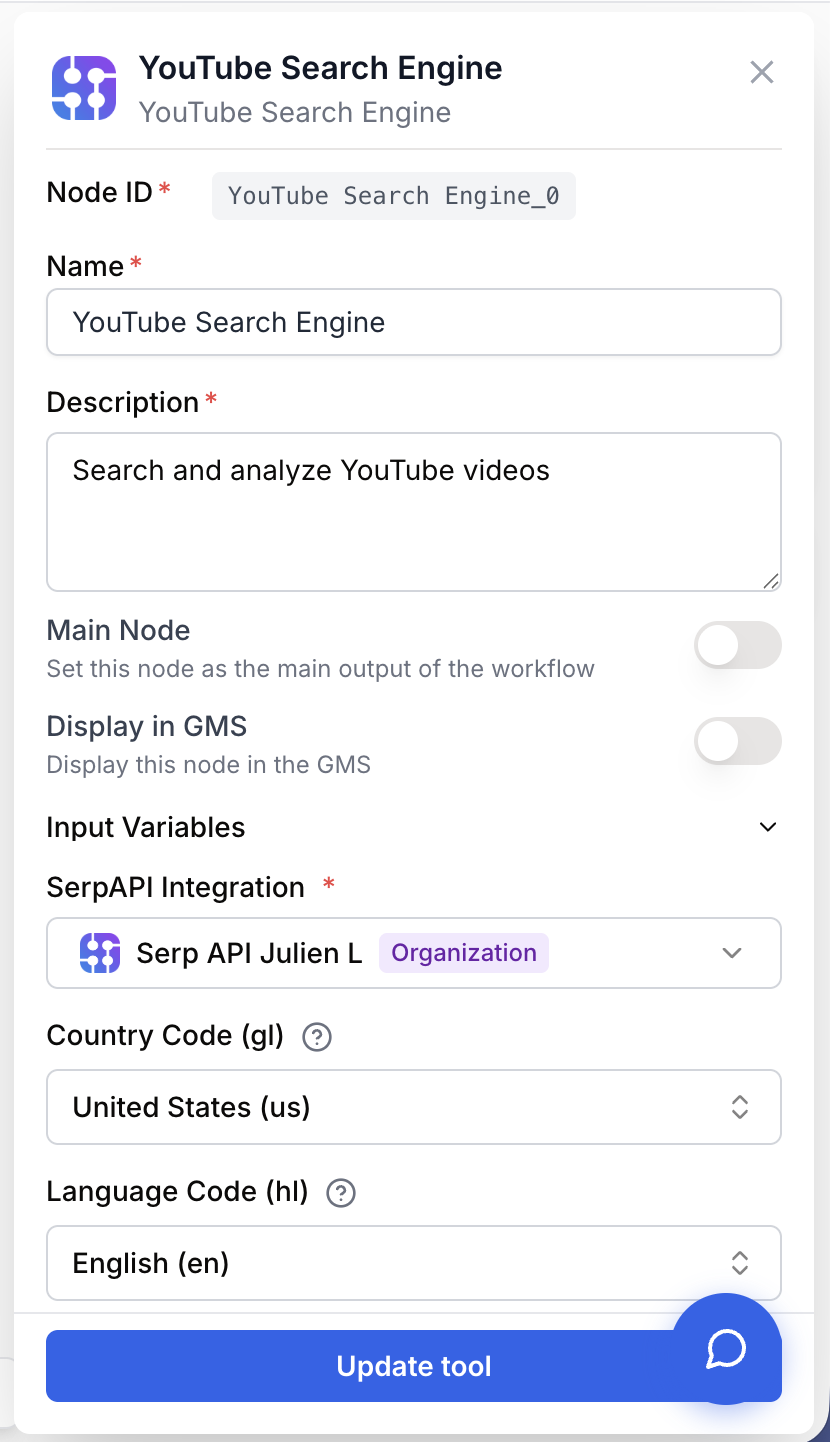
The node needs a SerpAPI integration plus a search query. Country and language refine the SERP locale.
Required fields
Name string required default: YouTube Search Engine Node name — Used to identify this node in the workflow (for example, YouTube SERP - SEO topic). Useful when several YouTube Search nodes coexist in the same workflow.
Description string required default: Search on YouTube using SerpAPI to extract search results Node description — A short sentence describing what this specific node does (target keyword, locale, purpose).
SerpAPI Integration integration required SerpAPI integration — The SerpAPI account used to call the YouTube engine. Set it up once in the integrations page; it stores the API key securely.
search_query string required Search query — The text entered into YouTube search. Connect this input to an upstream node or set a static value. The node fails if the query is empty.
Optional fields
Country Code (gl) string default: us Country code — Two-letter country code (ISO 3166-1 alpha-2) used to localize the YouTube SERP, for example us, fr, gb, de. Picking the right country is critical because YouTube ranks results per country.
Language Code (hl) string default: en Language code — Two-letter language code used for the YouTube interface and result language, for example en, fr, es. Combine with gl to simulate a real user location.
Error Handling string default: None Error handling — Controls what happens when the call fails:
None: the workflow stops on error.Return error: the node returns the error as output, the workflow continues.Retry on error: the node retries before failing.
Always pair a coherent gl and hl (for example, fr/fr, us/en). Mismatched values may return SERPs that do not reflect any real audience.
What does the node output?
The node returns the raw JSON response from SerpAPI for the YouTube engine. It contains the list of video results along with channels, playlists, and search metadata. You typically pass this JSON into a JSON Path Extractor or a Loop to process individual videos.
How to use the output
In Draft & Goal, you do not need to look up a system-generated variable name. To use the result:
- Draw a connection from the YouTube Search node output.
- Connect it to the next node input.
- In that next node, create and name your own variable (for example,
youtube_results). The JSON payload will be injected into it automatically.
Output json Full SerpAPI YouTube response, including video_results (title, link, channel, views, published date, thumbnail), channel_results, playlist_results, and search_metadata.
Usage examples
Example 1: Surface top videos for a keyword in France
You want the top YouTube videos shown to a French-speaking audience for a marketing topic.
Configuration:
search_query=agent IA marketingCountry Code (gl)=frLanguage Code (hl)=fr
How to use the output:
- Plug the YouTube Search output into a JSON Path Extractor.
- Extract the
video_resultsarray. - Send the extracted list into a Loop that, for each item, prompts an LLM to summarize the title and channel.
Example 2: Compare the YouTube SERP across two countries
You want to compare what shows up for the same query in the US and in France to spot content gaps.
Pattern:
- Drop two YouTube Search nodes onto the canvas.
- Both receive the same
search_queryfrom a Text Input (for example,prompt engineering). - Set the first node to
gl=us,hl=en. Set the second togl=fr,hl=fr. - Send both JSON outputs into an LLM node prompted to compare titles, recurring channels, and topic angles.
Common issues
The node fails with SerpAPI integration not configured
Cause: No SerpAPI integration is selected in the node settings.
Solution: Open the node, pick a SerpAPI integration in the SerpAPI Integration field. If the dropdown is empty, create one from the integrations page using your SerpAPI API key.
The node fails with No search query provided
Cause: The search_query input is empty at runtime, either because no upstream node is connected, or because the upstream value is an empty string.
Solution: Verify that the node feeding search_query actually emits text. Add a Conditional or Fail Node upstream to short-circuit empty queries before they reach YouTube Search.
Results look irrelevant or not localized
Cause: gl and hl are inconsistent or set to the default us/en while the audience is elsewhere.
Solution: Set gl to the target country and hl to a language really used in that country. Run a manual SerpAPI test with the same parameters to confirm the SERP matches expectations.
Best practices and pitfalls
Cache or persist YouTube Search results when you reuse the same query several times in a session. Each call consumes a SerpAPI search credit.
Do not embed sensitive data in the query. The search_query is sent as-is to SerpAPI, which forwards it to YouTube. Never include API keys, internal identifiers, or personal data in the query text.
How does it fit into a workflow?
YouTube Search typically sits at the discovery stage of a workflow: it brings external content into the pipeline that downstream nodes then parse, summarize, or filter. Here is a typical pattern for content monitoring:
graph LR
    Input[Text Input keyword] --> YT[YouTube Search]
    YT --> Extractor[JSON Path Extractor video_results]
    Extractor --> Loop[Loop over videos]
    Loop --> LLM[LLM summarizes title and channel]
    LLM --> Output[Sheets Writer]
Related nodes
Run the same kind of SERP query, but on Google instead of YouTube.
Pull the video_results array (or any specific field) out of the YouTube Search JSON.
Iterate over each video in the results to summarize, score, or store them.
Summarize, classify, or rank the YouTube results returned by this node.