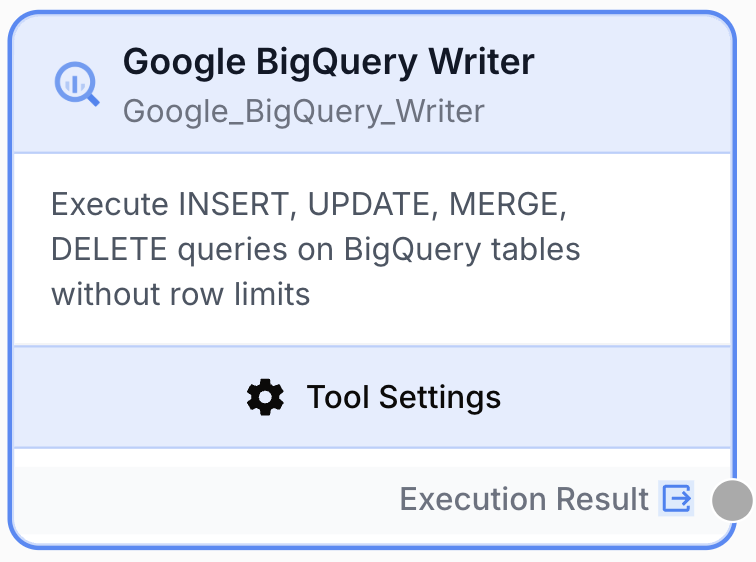
Google BigQuery Writer
The Google BigQuery Writer node executes INSERT, UPDATE, MERGE, and DELETE SQL queries against BigQuery tables to write workflow data into your data warehouse.
What’s New — May 2026 — The Writer now accepts an array of JSON objects as a template variable and expands it into a multi-row INSERT ... VALUES (...), (...), ... in a single statement. Large arrays are auto-chunked (cap of 800,000 bytes per statement and 1,000 rows per statement — BigQuery’s documented soft limit), and each chunk carries a stable idempotency token so a retry from the runner doesn’t double-insert. Wrapping the node in a Loop is no longer necessary for bulk inserts.
What does the Google BigQuery Writer node do?
The Google BigQuery Writer node runs DML (Data Manipulation Language) SQL queries against your BigQuery tables. It supports the four standard write operations — INSERT, UPDATE, MERGE, and DELETE — so you can persist workflow output, sync external data, or keep warehouse tables in sync with upstream sources.
Common use cases:
- Inserting LLM-generated rows (article briefs, classifications, embeddings) into a BigQuery analytics table
- Updating existing records based on enrichment results from API or scraping nodes
- Merging incremental scrape results into a deduplicated catalog table with
MERGE - Deleting stale rows that no longer match an upstream source of truth
Quick setup
Connect your BigQuery integration
Open the node settings and select your BigQuery integration. If none is connected yet, go to Settings > Integrations > Google BigQuery and authenticate with the Google account that owns the target project.
Pick the Google Cloud project
Choose the Google Cloud project containing your dataset from the dropdown. The list is fetched live from the connected account, so only projects you have access to appear.
Choose the query type
Select the Query Type matching the SQL you intend to run: INSERT, UPDATE, MERGE, or DELETE. This must match the verb at the start of your SQL query — the validator rejects mismatches.
Write the SQL query
Enter the BigQuery SQL Query in standard BigQuery SQL. Reference upstream node outputs with {{variable_name}} template syntax — values are interpolated at runtime. Always quote table identifiers with backticks: `project.dataset.table`.
Configuration parameters
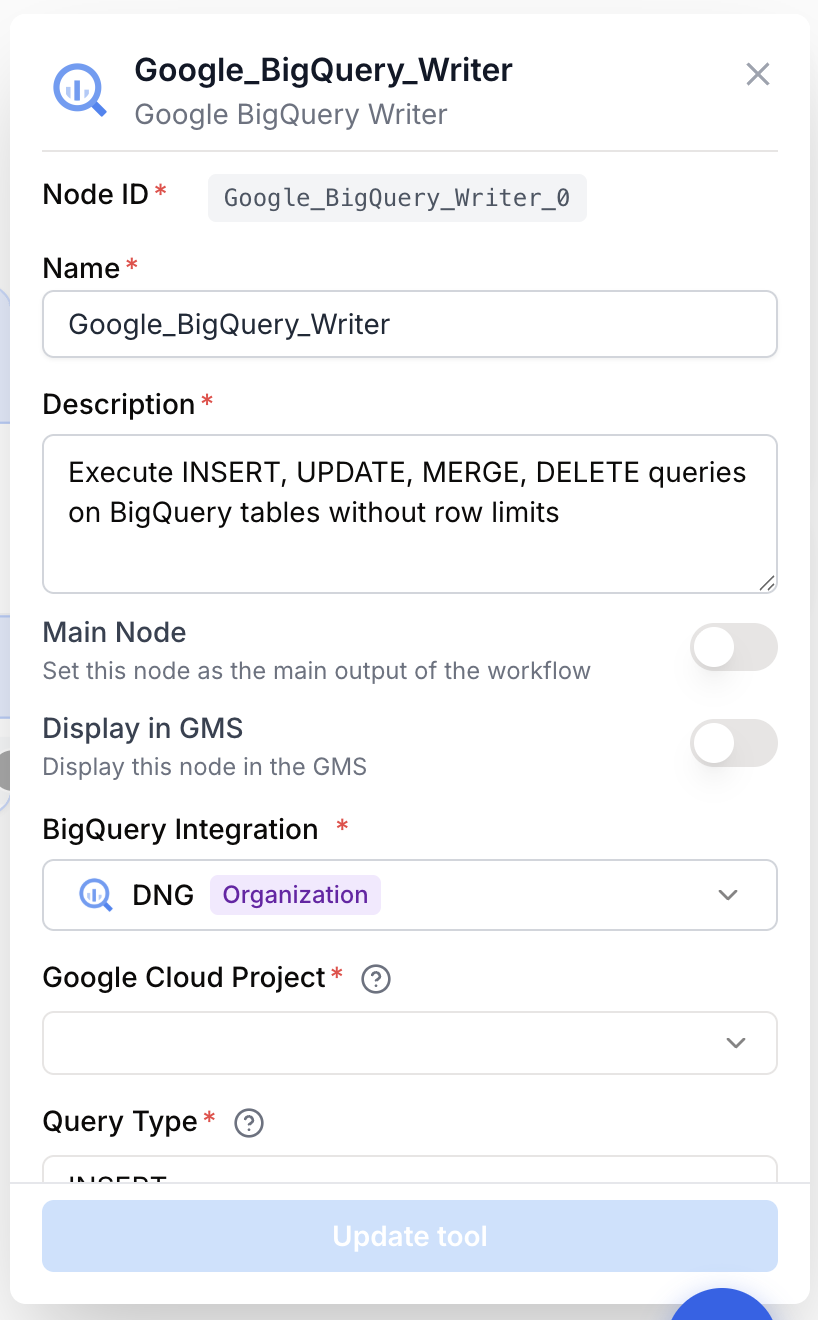
Required fields
integration_id integration required BigQuery integration — The Google account connection used to authenticate against the BigQuery API. The integration must have BigQuery Data Editor (or equivalent) on the target dataset.
google_cloud_project string required Google Cloud project — The GCP project ID hosting the dataset and table you want to write to. Selected from a dropdown populated from the integration; can also be templated with {{project_id}} from an upstream node.
query_type string required default: insert Query Type — The DML operation to perform. One of insert, update, merge, delete. Must match the leading verb of the SQL query.
sql_query string required BigQuery SQL Query — The DML statement to execute. Supports {{variable}} templating for upstream values. Example: INSERT INTO `my_proj.my_dataset.events` (id, label) VALUES ('{{row_id}}', '{{label}}').
Template variables like {{title}}, {{score}}, or {{json_payload}} are replaced with upstream node values before the query is sent to BigQuery. Wrap string values in single quotes inside the SQL itself.
What does the node output?
The node returns a JSON string describing the executed BigQuery job: how many rows were affected, the job ID, and execution metadata. There is no row limit on writes.
{
  "affected_rows": 124,
  "job_id": "bq_job_abc123",
  "query_type": "insert",
  "status": "success"
}
execution_result string A JSON string containing execution information: number of affected rows, BigQuery job ID, query type, and status. Connect this output to a downstream node and bind it to a variable name (for example, bq_result) to inspect or log the write outcome.
Bulk inserts via array input
If an upstream node emits an array of JSON objects (e.g. a Loop’s collected output, a list returned by a Code Block, an aggregated_results from an HTTP node), you can feed it directly to a template variable and the Writer will expand it into a single multi-row INSERT:
INSERT INTO `acme-analytics.events.raw` (id, payload, ts)
VALUES {{rows}}
where {{rows}} is [{ "id": ..., "payload": ..., "ts": ... }, ...]. The Writer detects the array shape, picks the column order from the SQL’s column list, and renders each element as a VALUES (...) tuple.
Auto-chunking — when the rendered SQL would exceed one of the two safety caps, the Writer splits the array into multiple back-to-back statements:
| Cap | Value | Why |
|---|---|---|
| Max bytes per statement | 800,000 | Stays comfortably under BigQuery’s per-request size limit |
| Max rows per statement | 1,000 | BigQuery’s documented soft limit on VALUES tuples |
Idempotency tokens — each chunk carries a stable token derived from the workflow/run identity, so a transparent retry by the runner (NATS redelivery, transient API error) doesn’t double-insert. The token survives chunk boundaries — chunks 1, 2, 3 of the same logical call all reference the same token.
Auto-chunking and idempotency are transparent — your SQL doesn’t change. The output’s affected_rows reports the total across all chunks; job_id is the last chunk’s job (one Job per chunk on the BigQuery side).
Usage examples
Example 1: Insert LLM-classified rows into an analytics table
You have an LLM node that classifies incoming support tickets and you want to persist each result to BigQuery for reporting.
Configuration:
- Query Type:
insert - SQL Query:
INSERT INTO `acme-analytics.support.ticket_classifications`
  (ticket_id, category, urgency, classified_at)
VALUES
  ('{{ticket_id}}', '{{category}}', '{{urgency}}', CURRENT_TIMESTAMP())
Place this node inside a Loop so each ticket from the upstream list produces one inserted row.
Example 2: Merge scraped product data into a catalog
You scrape competitor product pages daily and want to upsert the freshest data into a master catalog without duplicating rows.
Configuration:
- Query Type:
merge - SQL Query:
MERGE `acme-data.catalog.products` AS T
USING (SELECT '{{sku}}' AS sku, '{{title}}' AS title, {{price}} AS price) AS S
ON T.sku = S.sku
WHEN MATCHED THEN UPDATE SET title = S.title, price = S.price, updated_at = CURRENT_TIMESTAMP()
WHEN NOT MATCHED THEN INSERT (sku, title, price, updated_at)
  VALUES (S.sku, S.title, S.price, CURRENT_TIMESTAMP())
Example 3: Delete stale records by ID list
After a reconciliation step yields a list of ticket IDs to drop, run a DELETE to clean the warehouse.
Configuration:
- Query Type:
delete - SQL Query:
DELETE FROM `acme-analytics.support.tickets`
WHERE ticket_id = '{{ticket_id}}'
Example 4: Bulk insert with an array variable
Your upstream pipeline has collected hundreds of LLM-classified rows into a single array. Instead of looping per row, feed the whole array as one template variable:
Configuration:
- Query Type:
insert - SQL Query:
INSERT INTO `acme-analytics.support.ticket_classifications`
  (ticket_id, category, urgency, classified_at)
VALUES {{rows}}
where {{rows}} is [{"ticket_id": "T-1", "category": "billing", "urgency": "high", "classified_at": "2026-05-27T10:00:00Z"}, ...].
The Writer renders the array as a multi-row VALUES block, auto-chunks if it crosses 800 KB or 1,000 rows, and tags each chunk with an idempotency token for safe retries.
Common issues
Validation error: SQL query must start with INSERT, UPDATE, MERGE, or DELETE
Cause: The query begins with a non-DML verb (e.g. SELECT, CREATE) or has leading whitespace/comments before the verb.
Solution: Use the BigQuery Reader node for SELECT queries. For DDL, run it manually or via a separate tool. Make sure the first non-whitespace token of the query is INSERT, UPDATE, MERGE, or DELETE.
BigQuery integration is not configured
Cause: No integration is selected in the node settings, or the previously selected integration has been revoked.
Solution: Open node settings and select a valid BigQuery integration. If you see a revoked-integration prompt, reauthorize from Settings > Integrations.
Google Cloud project ID is missing
Cause: The project dropdown was left empty, or the upstream variable bound to google_cloud_project resolved to an empty string at runtime.
Solution: Pick a project explicitly in the dropdown, or verify that the upstream node producing the project ID emits a non-empty value before this node runs.
Permission denied or 403 from the BigQuery API
Cause: The connected service account or user lacks bigquery.tables.updateData (or equivalent) on the target dataset.
Solution: Grant the BigQuery Data Editor role on the dataset, or a custom role including the missing DML permission, to the principal used by your integration.
"Array input is empty — cannot build a multi-row VALUES clause"
Cause: The template variable bound to a VALUES {{rows}} clause resolved to an empty array at runtime.
Solution: Guard the Writer with a Conditional node upstream that skips execution when the array is empty. Or filter the upstream pipeline to ensure at least one element before the Writer is invoked.
Array element is not a JSON object
Cause: The array contains a scalar (string, number) or a nested array instead of { key: value } objects. The Writer can only render dicts as VALUES (...) tuples — column-to-key mapping requires a flat object.
Solution: Wrap each element so it becomes {"col1": value, ...}. A Code Block upstream is the usual transform.
affected_rows lower than the array length
Cause: Probably benign — auto-chunking ran but a chunk failed and the Writer reports a partial total. Check the runner logs for the failing chunk’s job ID and BigQuery error.
Solution: Investigate the per-chunk error in BigQuery. Idempotency tokens make a manual retry of just the failed chunk safe (no risk of double-inserting committed chunks).
Best practices
Prefer array inputs over Loop for bulk inserts. Feeding an array of JSON to a single Writer call cuts API round-trips dramatically vs. wrapping the node in a Loop (one call per row). Loops remain useful when you need per-row error handling or when the SQL itself varies per row; for pure bulk inserts with a fixed schema, the array path is faster and cheaper.
Validate templates first — run your workflow with a Text Input node feeding sample values to confirm the rendered SQL is syntactically correct before pointing at production tables. Logged execution results make debugging painless.
Escape user-supplied strings. Template values are interpolated as raw text, so quotes inside the value can break the query or open injection paths. Sanitize upstream content (e.g. with a Find and Replace node) before inserting free-form text into a SQL query.
DML on partitioned/clustered tables incurs cost. UPDATE, DELETE, and MERGE rewrite affected partitions. Filter on the partition column whenever possible to limit cost and execution time.
Related nodes
Read rows from BigQuery with a SELECT query — pair it with the Writer to build full ETL workflows.
Iterate over an array of items and run the BigQuery Writer once per element to insert or update many rows.
Generate the rows or values you want to persist, then write them to BigQuery for downstream analytics.
Pull specific fields out of an upstream JSON payload before binding them to your SQL template variables.