HubSpot List Companies
The HubSpot List Companies node fetches companies from your HubSpot CRM with selectable properties and associations, ready to feed downstream workflow nodes.
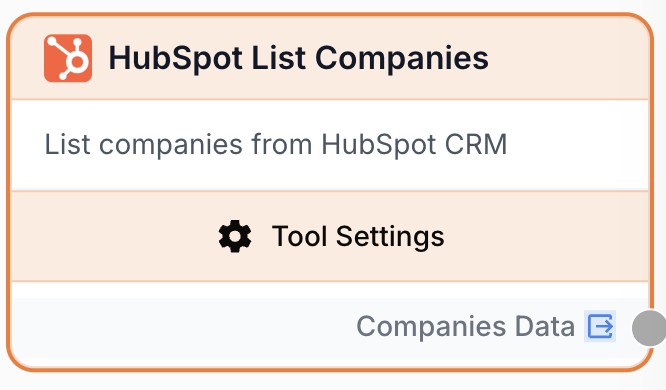
What does the HubSpot List Companies node do?
The HubSpot List Companies node connects to your HubSpot CRM and returns a list of companies as JSON. You choose which company properties to retrieve and which associated records (contacts, deals, tickets, etc.) to include alongside each company.
Common use cases:
- Pulling a batch of companies to enrich them with web research and update them back in HubSpot.
- Exporting a snapshot of your CRM accounts to feed reports, dashboards, or BigQuery.
- Looping through companies to generate personalized outreach with an LLM.
- Building lead-scoring workflows that combine company data with associated deals or contacts.
Quick setup
Add the node to the canvas
Open the Node Library, go to Integrations > HubSpot, then drag and drop the HubSpot List Companies node onto your workspace.
Connect your HubSpot integration
Open the node settings and pick a HubSpot Integration from the dropdown. If none is listed, go to Settings > Integrations and connect your HubSpot account first.
Pick properties and associations
Use the Properties multi-select to choose which company fields you want returned (name, domain, industry, etc.). Optionally use the Associations multi-select to also include linked objects (contacts, deals, tickets, etc.).
Set the row limit
Enter the Row Limit between 1 and 100. The default is 100, which is also the HubSpot API page maximum.
Connect the output
Connect the output port to the next node. The result is a JSON string holding the array of companies, ready for a Loop, JSON Path Extractor, or LLM node.
Configuration parameters
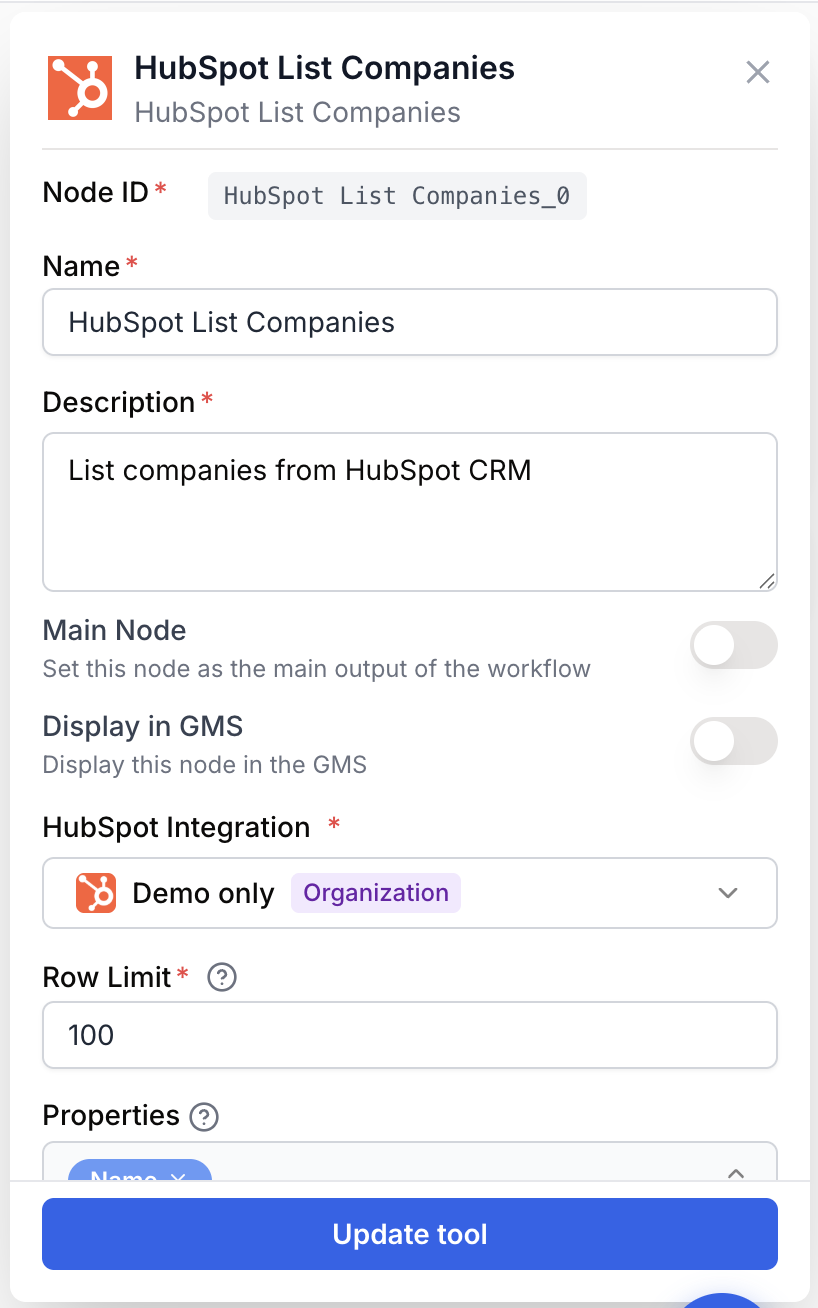
Required fields
integration_id integration required HubSpot Integration — Selects the HubSpot account this node will call. Must already be connected under Settings > Integrations.
limit number required default: 100 Row Limit — Maximum number of companies to return. Must be between 1 and 100. Values outside the range are clamped at runtime.
Optional fields
properties string default: name, domain Properties — Comma-separated list of HubSpot company properties to include in each returned record. Available options include name, domain, industry, website, phone, city, state, country, zip, address, numberofemployees, annualrevenue, lifecyclestage, type, description, createdate, hs_lastmodifieddate, hubspot_owner_id, notes_last_updated, and num_associated_contacts.
associations string Associations — Comma-separated list of associated object types to fetch alongside each company. Supported values: contacts, deals, tickets, products, quotes, line_items, emails, meetings, notes, tasks, calls. Leave empty to skip associations.
Only request the properties and associations you actually consume downstream. Each extra field increases payload size and HubSpot API usage.
What does the node output?
The node outputs a single JSON string holding the array of companies. Each company carries an id, the HubSpot properties you selected, and (when requested) an associations block grouping linked records by type.
Example payload:
[
  {
    "id": "12345678901",
    "properties": {
      "name": "Acme Inc",
      "domain": "acme.com",
      "industry": "TECHNOLOGY",
      "createdate": "2024-08-12T09:14:33Z",
      "hs_lastmodifieddate": "2025-03-04T18:02:11Z"
    },
    "associations": {
      "contacts": { "results": [{ "id": "501", "type": "company_to_contact" }] },
      "deals": { "results": [{ "id": "9001", "type": "company_to_deal" }] }
    }
  },
  {
    "id": "12345678902",
    "properties": {
      "name": "Globex Corp",
      "domain": "globex.com",
      "industry": "RETAIL"
    }
  }
]
companies_data string JSON-encoded array of HubSpot company records. Each item contains the company id, the requested properties, and optional associations grouped by object type.
Usage examples
Example 1: Enrich tech companies with an LLM
You want to enrich every technology company in HubSpot with a one-line summary generated by an LLM, then write the summary back to HubSpot.
Configuration:
- HubSpot Integration: Production HubSpot
- Row Limit:
100 - Properties:
name, domain, industry, description - Associations: (empty)
Workflow:
- HubSpot List Companies returns up to 100 companies.
- A Loop node iterates over each company.
- An LLM node drafts a short company summary from the domain and description.
- A HubSpot Update Company node writes the summary back to a custom property.
Example 2: Export companies and their deals to a JSON Path Extractor
You want a flat list of (company_name, deal_id) pairs to push into a reporting database.
Configuration:
- HubSpot Integration: Production HubSpot
- Row Limit:
50 - Properties:
name, domain, lifecyclestage - Associations:
deals
Connect the output to a JSON Path Extractor with path $[*].associations.deals.results[*].id to pull every deal id, then pair it with $[*].properties.name to build the report rows.
Example 3: Quick CRM audit
To check what data is currently stored in HubSpot, set Row Limit to 10 and Properties to name, domain, industry, numberofemployees, annualrevenue. Connect the output directly to a Paragraph or Text Input preview node to inspect the JSON without calling any external API.
Common issues
The node returns an empty list even though I have companies in HubSpot
Cause: The selected HubSpot integration points to a different portal than the one you expect, or the connected user does not have CRM read scope on companies.
Solution: Open Settings > Integrations, confirm the HubSpot account, and reauthorize it with the crm.objects.companies.read scope. Then refresh the workflow and re-run the node.
I get an error: HubSpot integration is required
Cause: No HubSpot integration is selected in the node settings.
Solution: Open the node settings and pick a HubSpot account in the HubSpot Integration field. If none appears, connect HubSpot under Settings > Integrations first.
A property I configured is missing from the output
Cause: The property internal name is wrong, the property does not exist on the HubSpot portal, or the connected user has no permission to read it.
Solution: Check the property internal name in HubSpot under Settings > Properties. Use the exact internal name (lowercase, underscored) in the Properties field, e.g. numberofemployees, not Number of Employees.
I need more than 100 companies
Cause: The Row Limit is capped at 100 because that is HubSpot’s per-call page maximum.
Solution: Wrap this node in a paginated workflow: use a Loop or scheduling logic to fetch successive batches, or filter by a property such as lifecyclestage to narrow the dataset.
Best practices
Keep the Properties list short and stable across environments. A workflow that always asks for the same fields is easier to debug and to compare across runs.
Requesting many associations (deals, contacts, tickets) on every company can multiply payload size and slow the workflow. Add associations only when a downstream node actually consumes them.
How does it fit into a workflow?
The HubSpot List Companies node is typically the entry point of a CRM-driven workflow: it loads a batch of companies, then downstream nodes loop, transform, or sync them.
graph LR
    HS[HubSpot List Companies] --> Loop[Loop node]
    Loop --> LLM[LLM enriches each company]
    LLM --> Update[HubSpot Update Company]
Related nodes
Fetch a single HubSpot company by id when you do not need a bulk listing.
Write enriched data back to HubSpot after processing the list of companies.
Iterate over each company returned by this node to process them one by one.
Extract specific fields from the companies JSON, such as ids, domains, or association results.