Pick List Item
The Pick List Item node selects a single item from a list based on its position (first, last, random, or a custom index).
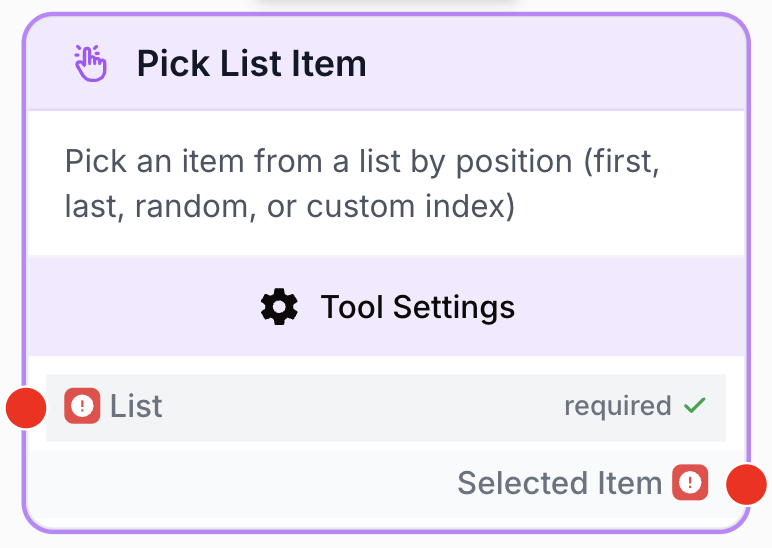
What does the Pick List Item node do?
The Pick List Item node extracts one element from a list (a JSON array) based on its position. You decide whether to grab the first item, the last one, a random one, or one at a specific index. It’s the easiest way to pull a single value out of an upstream node that returns multiple results.
Common use cases:
- Get the top result from an API response that returns an array of records.
- Pick a random prompt variation from a list to power A/B testing of LLM outputs.
- Grab a specific element by index when the upstream list has a known, fixed structure.
Quick setup
Follow these steps to add and configure the Pick List Item node in your workflow:
Add the node to the canvas
Open the Node Library, go to Tools, then drag and drop the Pick List Item node onto your workspace.
Connect the list input
Connect the output of any node that produces a list (for example Create List, Filter List, an API Connector, or an LLM that returns JSON) to the list input port on the left.
Choose the pick mode
Open the node settings and select a Pick Mode: first, last, random, or custom_index. If you choose custom_index, an extra Index field appears.
Connect the output
Connect the selected_item output port (on the right) to the next node. The picked element will be injected into the receiving variable you define on that next node.
Configuration parameters
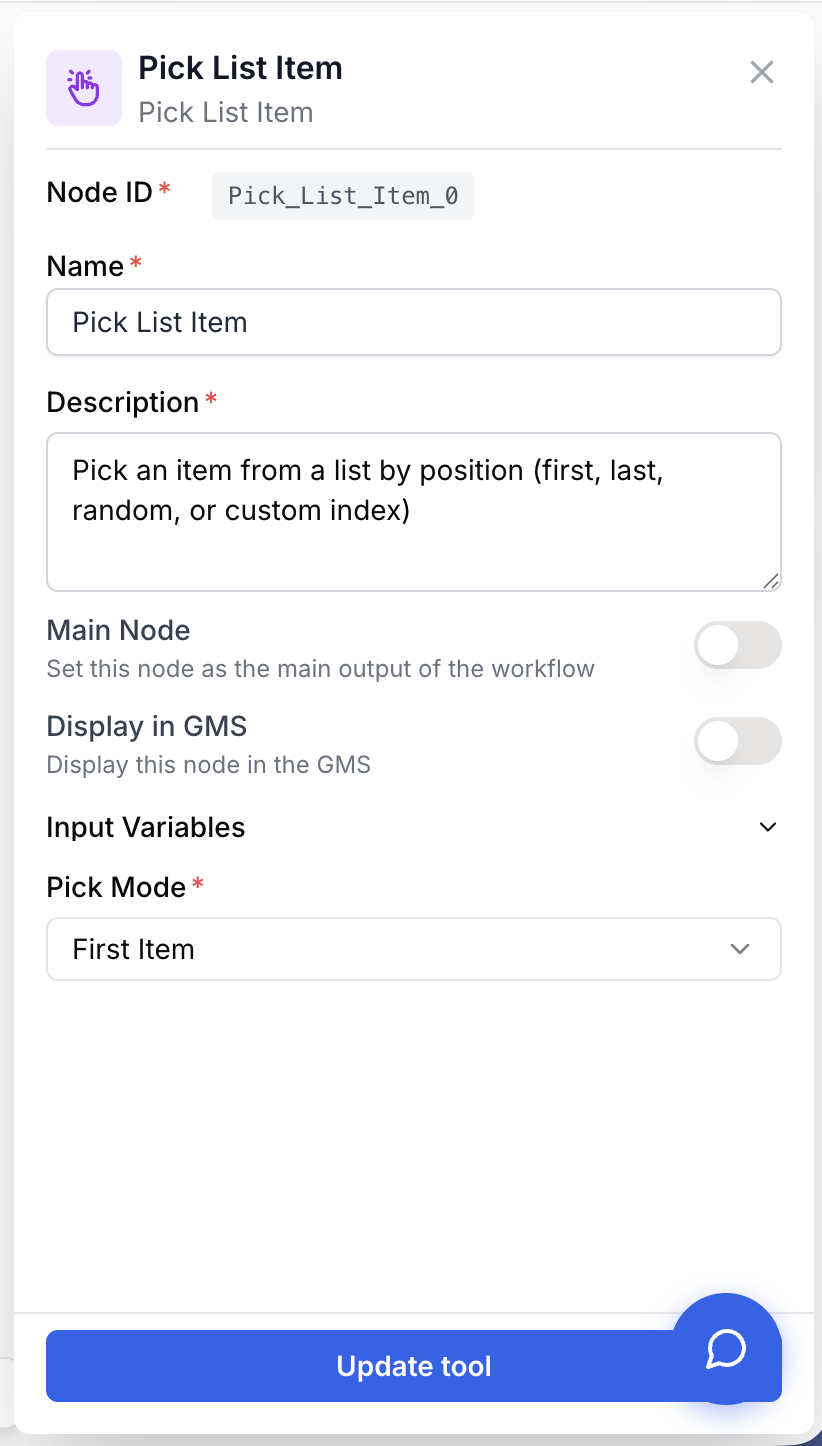
Configuring the node requires telling it which list to read and how to pick from it.
Required fields
Name string required default: Pick List Item Node name — Useful for quickly identifying this node’s role (e.g. “Pick first API result”) when running and debugging the workflow.
Description string required default: Pick an item from a list by position (first, last, random, or custom index) Node description — A short phrase describing what this specific instance picks and why.
list json required Input list — The list to pick from. Must be a valid JSON array such as ["a", "b", "c"] or [{"id": 1}, {"id": 2}]. If a string is received, the node will try to parse it as JSON.
Pick Mode select required default: first How to choose the item. One of:
first— pick the first element of the list.last— pick the last element of the list.random— pick a random element on each execution.custom_index— pick the element at the index defined below.
Optional fields
Index number default: 0 Zero-based index — Only used when Pick Mode is set to custom_index. 0 returns the first item, 1 the second, etc. Ignored for the other pick modes.
Combine Pick List Item with Filter List to first narrow the list down to relevant items, then pick the most relevant one with first. Much cleaner than juggling indexes manually.
What does the node output?
The node outputs a single element extracted from the input list. The element keeps its original type: a string stays a string, an object stays an object, etc.
selected_item string | object | number | array The element picked from the input list according to the chosen Pick Mode. Its type matches the type of the items in the source list.
Example output for a list of strings:
{
  "selected_item": "banana"
}
Usage examples
Example 1: Get the first result from an API
You call an API that returns a list of search results and want to feed only the top one to an LLM for processing.
graph LR
    A[API Connector] --> B[Pick List Item]
    B --> C[LLM]
Configuration:
Pick Mode:first
The API returns the full array; Pick List Item extracts element [0] so the LLM never has to deal with the entire response.
Example 2: Random pick for A/B testing
You maintain a list of prompt variations and want each workflow run to use a random one.
Sample input list:
[
  "Write a short, formal product description.",
  "Write a fun, casual product description.",
  "Write a technical, spec-focused product description."
]
Configuration:
Pick Mode:random
Each execution receives a different variation, allowing you to compare results across runs.
Example 3: Pick a known position with custom_index
The upstream list is always structured the same way and the value you need is always at index 2.
Configuration:
Pick Mode:custom_indexIndex:2
The node returns the third element of the list every time.
Common issues
Index out of range when using custom_index
Cause: The Index value is greater than or equal to the list length (or negative). The node will fail because the position does not exist.
Solution: Use a Count List Items node before the Pick List Item to validate the list length, or switch to first / last if you only need the boundaries.
The input is not recognized as a list
Cause: The upstream node sends a plain string or an object instead of a JSON array. The Pick List Item node tries to parse strings as JSON; if parsing fails, you’ll see “Input is not a valid JSON list”.
Solution: Make sure the upstream node outputs a real array (e.g. ["a", "b", "c"]). If the data comes from an LLM, clean its output with Find and Replace or JSON Path Extractor before piping it into Pick List Item.
`random` produces the same item every time
Cause: Your list contains a single item, or every element is identical. The node picks randomly, but a 1-element list always returns the same value.
Solution: Check the upstream list before the Pick List Item with Count List Items to confirm there is real variety in it.
Best practices and pitfalls
Use first or last whenever possible — they’re deterministic and make your workflow predictable. Reserve custom_index for cases where the source list has a stable, well-known structure.
random makes runs non-reproducible. If you log workflow outputs for QA or analytics, store the picked item alongside the rest of the run data — otherwise debugging differences between two executions becomes very hard.
How does it fit into a workflow?
Pick List Item usually sits right after a list-producing node (API call, filter, scraper) and right before a node that consumes a single value (LLM, condition, writer).
graph LR
    Source[API / Create List / Web Scraper] --> Filter[Filter List]
    Filter --> Pick[Pick List Item
<br/>mode = first]
    Pick --> LLM[LLM
<br/>processes single item]
Related nodes
Build a list from scratch, then pick one item from it.
Check the list length before picking with custom_index to avoid out-of-range errors.
Narrow down the list first, then pick the top match with first.
Iterate over every item of a list instead of picking just one.