Find and Replace
The Find and Replace node searches for and replaces specific characters in text to output reworked content.
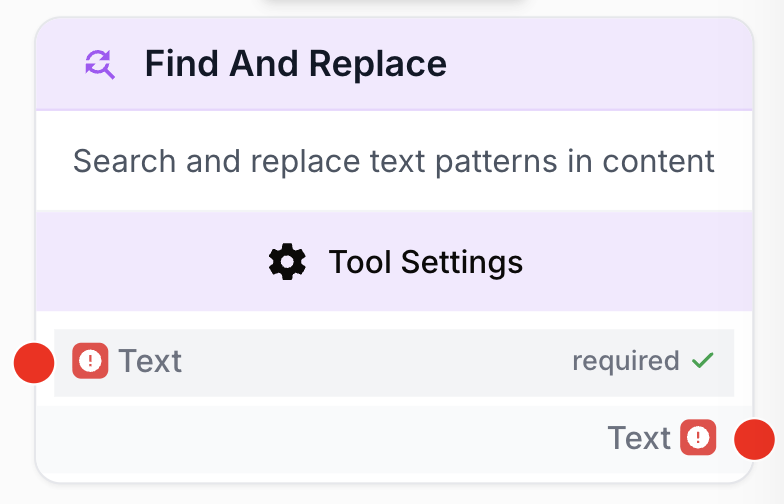
What does the Find and Replace node do?
The Find and Replace node is an essential text-processing tool that lets you search for a specific character string (text or code) and replace it with another. It is especially useful for cleaning, correcting, or formatting content generated by AI models so that your workflow runs correctly without formatting errors.
Common use cases:
- Removing stray Markdown delimiters around code generated by an LLM (such as backticks ```).
- Cleaning special characters or unwanted spaces before inserting data into a database.
- Replacing specific HTML tags (for example, changing
<h2>to<h3>).
Quick setup
Follow these steps to add and configure the Find and Replace node in your workflow:
Add the node to the canvas
Open the Node Library, go to Text > Processing, then drag and drop the Find and Replace node onto your workspace.
Connect the inputs
Connect the input port (on the left of the node) to the output of the previous node that contains the text or code to process (such as an LLM node, a Text Input, or a Web Scraper).
Configure the replacements
Open the node settings. In the Replacements section, click + Add to define the text to find (Find) and the text to replace it with (Replace with).
Connect the output
Connect the output port (on the right of the node) to the next node. Define the receiving variable name in that next node to use the cleaned text.
Configuration parameters
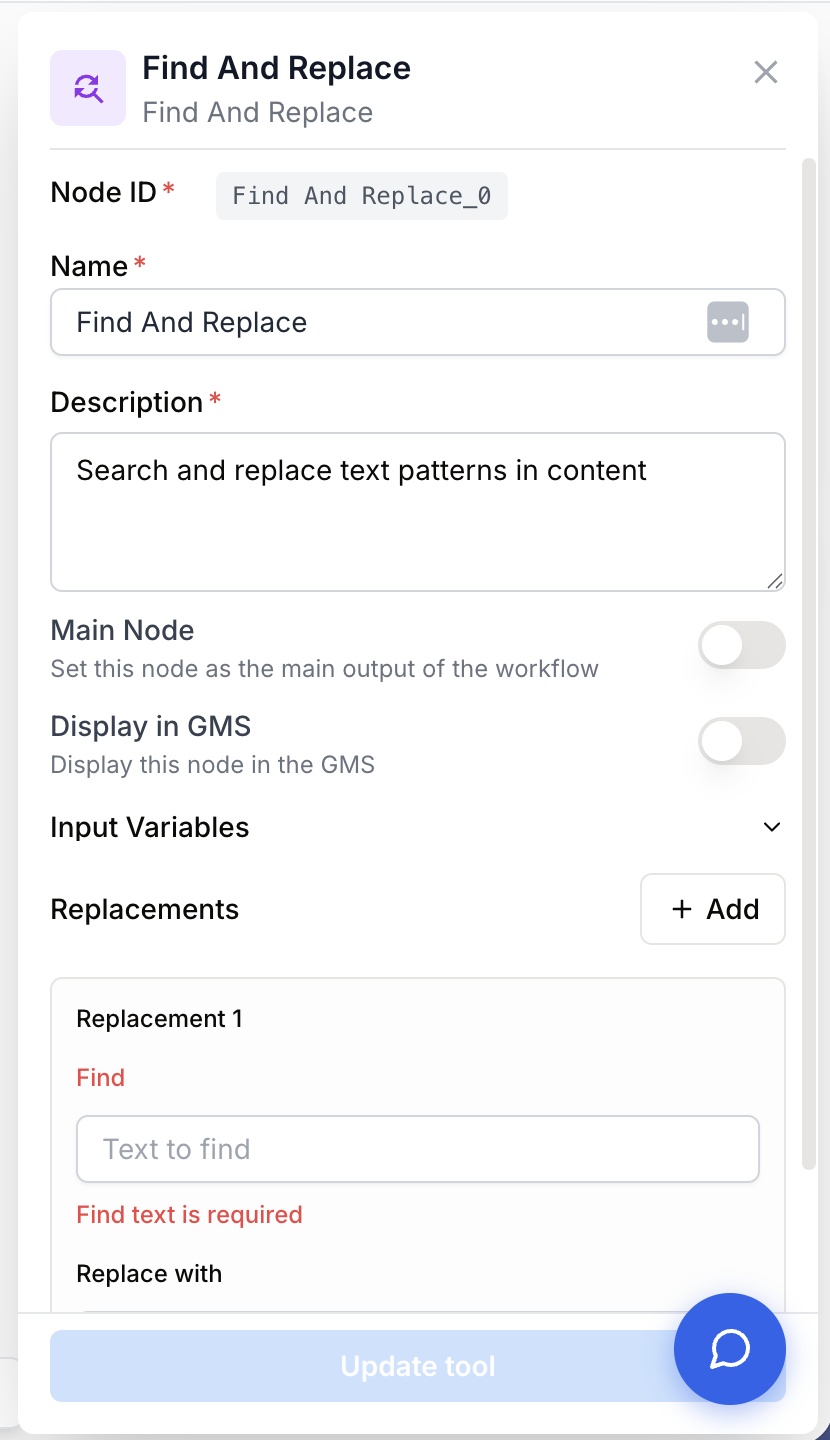
Configuring the node requires clearly defining what you want to target and how you want to transform it.
Required fields
Name string required default: Find And Replace Node name — Very important for quickly identifying this node’s role (e.g. “JSON tag cleanup”) when running and debugging the workflow.
Description string required default: Search and replace text patterns in content Node description — A short phrase describing what kind of replacement this node performs.
Find string required Text to find — The exact character string or code snippet the node should search for in the input text. An error is shown if this field is empty when creating a rule.
Optional fields
Replace with string default: Empty Replacement text — The text that will replace the matched string. Note: This field can be left empty if your goal is to remove the searched text entirely.
Case sensitive boolean default: false Case sensitive — When enabled, the node distinguishes between uppercase and lowercase when searching (e.g. “Text” will not match “text”).
You can add multiple replacements in a single Find and Replace node by clicking the + Add button. This is very useful for cleaning complex code structures (JSON, HTML, PHP) without adding more nodes.
What does the node output?
The node outputs plain text (a string) corresponding to the original content with the replacements applied. It does not apply any changes or formatting other than those explicitly set in the parameters.
How to use the output
In Draft & Goal, you don’t need to look up a complex system-generated variable name. To use the result:
- Draw a connection from the Find and Replace node’s output.
- Connect it to the next node’s input.
- In that next node, create and name your own variable (for example,
cleaned_text). The replaced content will be injected into it automatically.
Text string The full text after all your replacement rules have been applied in sequence.
Usage examples
Example 1: Removing Markdown delimiters from LLM output
When an AI model generates JSON code, it often includes backticks for syntax highlighting, which can prevent data extractors from working.
Input (from an LLM):
```json
{
  "article_title": "How to optimize your SEO in 2024",
  "keyword": "SEO strategy",
  "word_count": 1250,
  "seo_score": 85,
  "seo_risk": "Low (a few broken links detected)"
} ```
Replacement configuration:
- Replacement 1:
Find= ```json |Replace= (leave empty) - Replacement 2:
Find= ``` |Replace= (leave empty)
Generated output:
{
  "article_title": "How to optimize your SEO in 2024",
  "keyword": "SEO strategy",
  "word_count": 1250,
  "seo_score": 85,
  "seo_risk": "Low (a few broken links detected)"
}
Example 2: Changing HTML structure
You want to downgrade the heading hierarchy of generated text before sending it to your CMS.
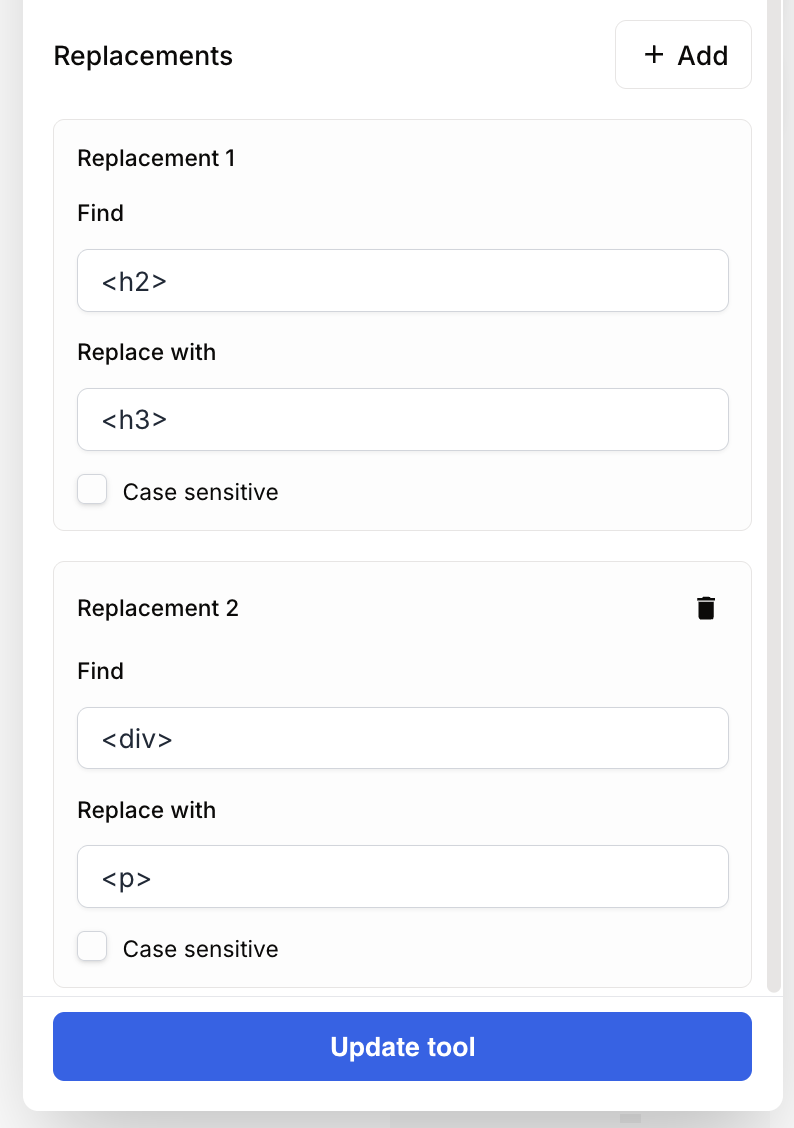
Replacement configuration:
- Rule 1:
Find=<h2>|Replace=<h3> - Rule 2:
Find=<div>|Replace=<p>
Common issues
My original page format is broken after the node runs
Cause: The string you’re searching for isn’t specific enough and was matched in other unwanted places in the text.
Solution: Be very specific in the Find field. Target longer strings or add specific spaces so that only the intended occurrence is replaced.
The node ran but didn’t replace anything, and I didn’t get an error message
Cause: The exact text configured in the Find field wasn’t found in the input. The node runs silently even when there are no matches.
Solution: Check that the input text actually contains the string you’re searching for. Also make sure the Case sensitive option isn’t enabled by mistake if your input text casing may vary.
Best practices and pitfalls
Whenever you notice recurring errors in your workflow (for example, an extractor that always fails on the same character in AI output), identify the blocking words or symbols and add a Find and Replace node to fix the data on the fly.
Watch out for uncontrolled empty replacements: Replacing a single space with an empty field will join all the words in your text. Always test your replacements on a small sample before running a workflow on a large dataset.
How does it fit into a workflow?
Find and Replace typically acts as a “cleanup” or “middleware” step between content generation and its processing or extraction. Here’s a typical integration pattern for extracting structured data from AI output:
graph LR
    Input[Text Input] --> LLM[LLM node generates JSON]
    LLM --> FR[Find and Replace
<br/>cleans Markdown]
    FR --> Extractor[JSON Path Extractor]
    Extractor --> LLM2[Final LLM node]
Related nodes
Generate text or code, then use Find and Replace to format the output correctly.
Place this node right after a Find and Replace to extract reliable data from pre-cleaned JSON.
A specialized alternative if you need to clean complex HTML tags thoroughly.
Convert HTML to clean Markdown before doing character-specific replacements.