Google Slides Writer
Create new presentations from a template with find-and-replace functionality.
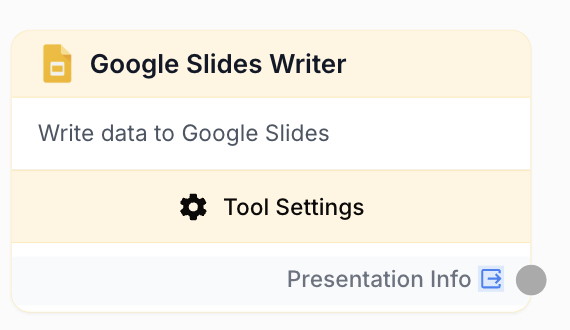
What does the Google Slides Writer node do?
The Google Slides Writer node creates new Google Slides presentations from an existing template. It copies the template and applies find-and-replace operations to substitute placeholder text with static or dynamic values. This is ideal for generating personalized reports, proposals, or client-facing decks at scale.
Common use cases:
- Generating personalized presentations from a master template with client-specific data
- Batch-creating reports or pitch decks in a Loop with dynamic content from upstream nodes
Quick setup
Connect your Google account
Open the node settings and select your Google Slides integration from the dropdown. If you haven’t connected Google Slides yet, go to Settings > Integrations to add your Google account with the google_slides scope.
Add the Google Slides Writer node
Find it in Integrations > Google > Slides Writer
Select a template presentation
Click the Picker button to browse and select a Google Slides presentation to use as the template. The template is copied — the original is never modified.
Configure replacements
Define find-and-replace pairs. Each replacement specifies a placeholder text to find and a value to replace it with. Values can be static or dynamic (fed from upstream node inputs).
Set a destination folder (optional)
Use the folder Picker to choose where the new presentation will be saved in Google Drive.
Configuration parameters
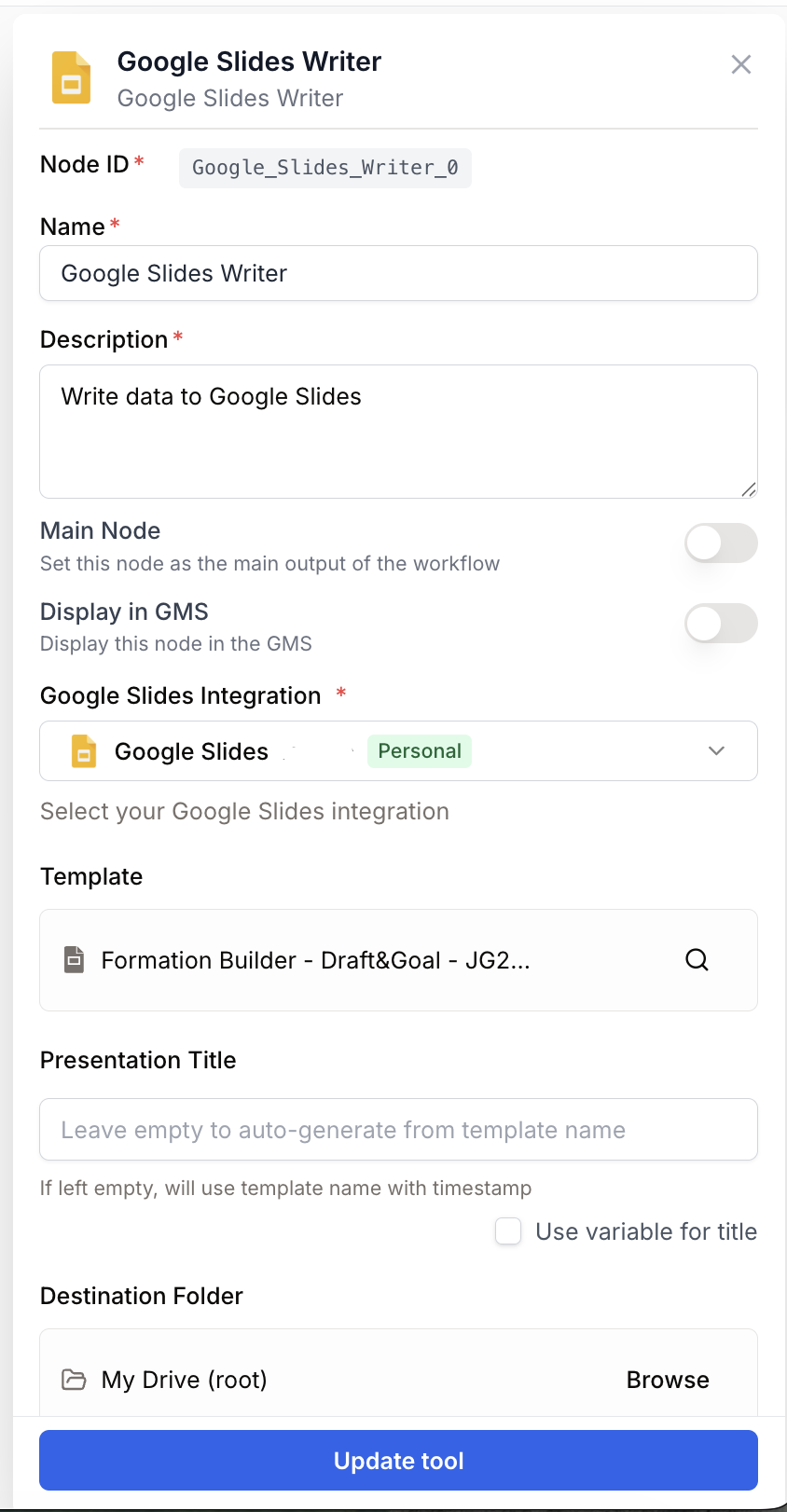
integration_id integration required Google Slides integration — Select the Google account to use. The integration must have the google_slides scope.
template_id string required Template presentation — Select a Google Slides presentation to use as the template via the Picker. The template is duplicated for each execution; the original remains unchanged.
new_presentation_title string New presentation title — Title for the created presentation. Can be a static value or a dynamic value from an input. If left empty, an auto-generated title with a timestamp is used.
use_dynamic_title boolean default: false Use dynamic title — When enabled, creates a dynamic input on the node so the presentation title can be provided by an upstream node.
folder_id string Destination folder — Select a Google Drive folder using the Picker where the new presentation will be saved. If not set, the presentation is created in the root of your Drive.
replacements object[] Replacements — A JSON array of find-and-replace operations applied to the new presentation. Each entry has the following properties:
[
  {
    "find": "{{CLIENT_NAME}}",
    "replace_with": "Acme Corp",
    "case_sensitive": true,
    "is_dynamic": false
  },
  {
    "find": "{{REVENUE}}",
    "replace_with": "",
    "case_sensitive": true,
    "is_dynamic": true
  }
]find— The placeholder text to search for in the templatereplace_with— The static replacement value (ignored whenis_dynamicis true)case_sensitive— Whether the search is case-sensitiveis_dynamic— When true, a dynamic input is automatically created on the node so the replacement value can come from an upstream node
Dynamic replacements automatically create input ports on the node. Connect upstream nodes (LLM, Text Input, etc.) to feed replacement values at runtime. This is the key to generating unique presentations per execution.
What does the node output?
The node outputs a JSON string with information about the created presentation and a summary of replacements performed.
{
  "presentation_id": "1xyz...",
  "title": "Q1 Report - Acme Corp",
  "url": "https://docs.google.com/presentation/d/1xyz.../edit",
  "replacements_summary": {
    "total": 3,
    "successful": 3,
    "failed": 0
  }
}
presentation_info string JSON string containing the new presentation’s ID, title, URL, and a summary of how many replacements were performed.
Usage examples
Example 1: Generate a client report from a template
You have a report template with placeholders and want to generate a personalized version for each client.
Workflow:
- Text Input — Provide the client name
- LLM — Generate the report content sections
- Google Slides Writer — Create the presentation from template, replacing
{{CLIENT_NAME}},{{SUMMARY}}, and{{METRICS}}with dynamic values
graph LR
    A[Text Input] --> B[LLM Generate]
    B --> C[Slides Writer]
Example 2: Batch-create personalized pitch decks in a Loop
You have a list of prospects and want to create a unique pitch deck for each one.
Workflow:
- Google Sheets — Read prospect list (name, company, industry)
- Loop — Iterate over each row
- LLM — Generate a personalized pitch paragraph per prospect
- Google Slides Writer — Create a presentation for each prospect, using dynamic title and replacements
graph LR
    A[Google Sheets] --> B[Loop]
    B --> C[LLM Personalize]
    C --> D[Slides Writer]
Best practices
Use clear placeholder naming in your template. Use a consistent pattern like {{PLACEHOLDER_NAME}} with double curly braces so placeholders are easy to identify and unlikely to match normal text.
Set a destination folder. Organize generated presentations into a specific Drive folder to avoid cluttering your Drive root, especially when batch-creating presentations in a Loop.
The template is never modified. The node always creates a copy first, then applies replacements on the copy. Your original template is safe.
Common issues
Replacements are not applied — placeholder text remains in the new presentation
Cause: The placeholder text in the find field does not exactly match what is in the template. Google Slides may split text across multiple runs (formatting segments), making a single string like {{CLIENT}} appear as {{, CLIENT, }} internally.
Solution: Open the template and retype the placeholder text without applying formatting changes mid-string. Ensure the entire placeholder uses the same font, size, and style. Also verify the case_sensitive setting matches the actual casing in your template.
The presentation is created but saved in the wrong folder
Cause: The folder_id was not set, or the integration does not have write access to the selected folder.
Solution: Verify the destination folder is selected using the Picker. Ensure the Google account connected to the integration has edit access to that folder. If using a shared drive, the integration must have contributor permissions.