YourText.Guru Keywords
The YourText.Guru Keywords node generates a content optimization guide for a target query, returning a Guide ID and the list of important keywords and terms to include for SEO.
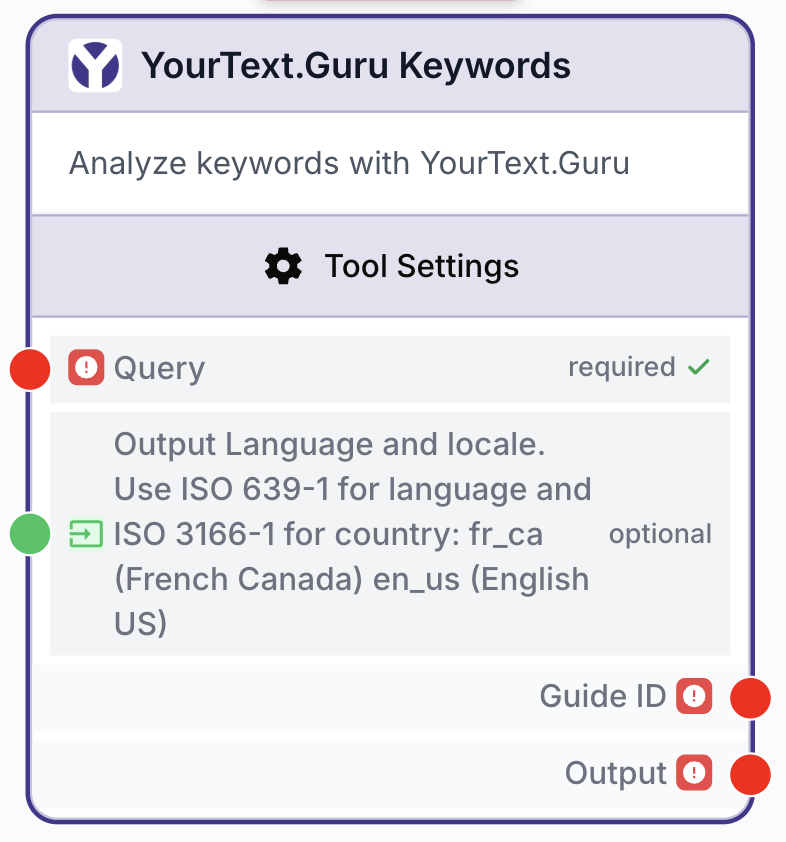
What does the YourText.Guru Keywords node do?
The YourText.Guru Keywords node calls the YourText.Guru API to create a content optimization Guide for a target query (the keyword you want to rank on). It returns the list of important terms, expressions and semantic fields to include in your content, plus a guideId that you can reuse later (typically with the YourText.Guru Score node) to grade the text you generate.
It is the entry point of any SEO-driven writing workflow on YourText.Guru: generate the guide first, then write content guided by these keywords, then score the result.
Common use cases:
- Building an SEO brief automatically before asking an LLM to write an article.
- Extracting the must-have semantic field for a target keyword in a specific country (e.g.
fr_fr,en_us,es_es). - Producing a guide once and reusing its
guideIdto score multiple drafts of the same article.
Quick setup
Add the node to the canvas
Open the Node Library, go to Integrations > SEO Tools > YourText.Guru, then drag and drop the YourText.Guru Keywords node onto your workspace.
Connect the YourText.Guru integration
In the node settings, select your YourText.Guru Integration. If none is available, create one in the integrations panel using your YourText.Guru API key.
Provide the target query
Connect a previous node (typically a Text Input or a column from a list) to the Query input, or type the target keyword directly. This is the keyword the guide will be built for.
Choose the language and locale
Select the Language matching the country you want to optimize for (e.g. French (France) fr_fr, English (US) en_us). You can also override it per execution by passing output_language as input.
Use the outputs downstream
Plug Output (the keywords list) into an LLM prompt, and Guide ID into a YourText.Guru Score node to grade what the LLM produces.
Configuration parameters
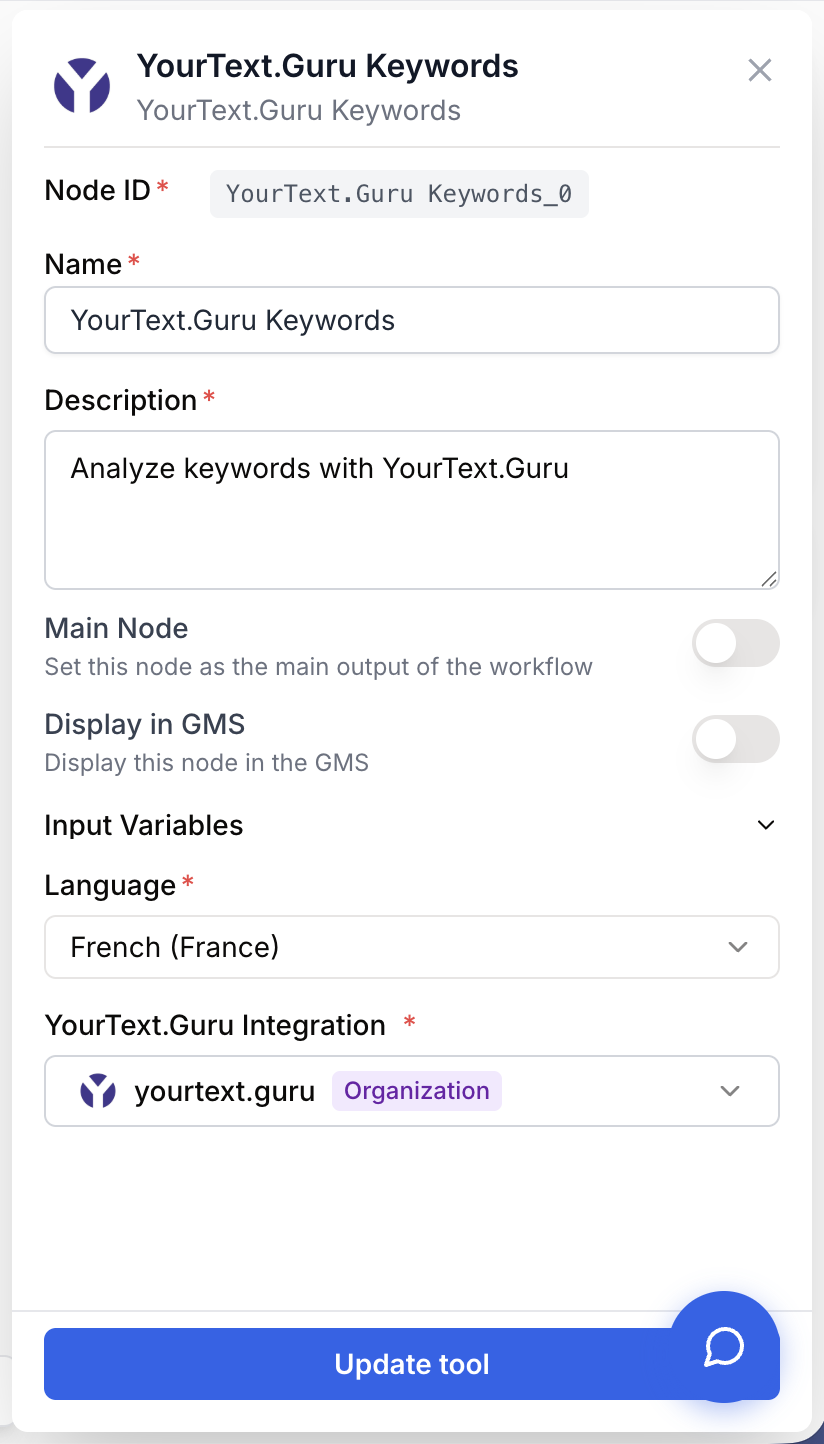
The node needs an integration, a target query and a language. Country-specific locales matter: fr_fr and fr_ca will not return the same semantic field even for the same query.
Required fields
Name string required default: YourText.Guru Keywords Node name — Helps you identify the node when several YourText.Guru calls run in the same workflow (e.g. one per locale).
Description string required default: Create a YourText.Guru Guide Node description — Short text explaining the role of this guide call (e.g. main article guide vs. competitor benchmark).
Query string required Target keyword — The keyword or expression you want to optimize content for. Passed as the input query. The node fails with YourText.Guru Keywords : No query if missing.
Language enum required default: fr_fr Language and locale — Country-localized language used to build the guide. Uses ISO 639-1 + ISO 3166-1, for example fr_fr, fr_ca, en_us, en_gb, es_es, de_de, it_it, nl_nl, pl_pl, pt_br, ro_ro. Set on the node, can be overridden by the output_language input.
YourText.Guru Integration integration required YourText.Guru Integration — The credentials used to call the YourText.Guru API. Without this the node raises YourText.Guru Keywords : Integration not configured.
Optional fields
Output Language string default: value of Language param Per-execution locale — Optional input that overrides the Language parameter for a single run. Use it when iterating over a list of countries with the same node. Format identical to Language (e.g. en_us).
Country matters more than language: fr_fr and fr_be share French but return different competing pages and therefore different priority terms. Match your audience’s country, not just their language.
What does the node output?
The node returns two outputs:
- Guide ID — the YourText.Guru identifier for the guide that was just created. Reuse it with the YourText.Guru Score node to score any draft against this same guide.
- Output — the keywords payload (string) listing the important terms, expressions and questions to cover. Plug it directly into an LLM prompt as context.
How to use the outputs
In Draft & Goal you don’t need to look up generated variable names. To use the result:
- Draw a connection from one of the node outputs.
- Connect it to the next node input.
- Name your own variable in the next node (e.g.
seo_guidefor the keywords,guide_idfor the Guide ID). The values are injected automatically.
Guide ID string Identifier of the YourText.Guru guide that was created. Required as input of the YourText.Guru Score node.
Output string Keywords and terms to include in the content, returned as a string ready to be injected into an LLM prompt.
Usage examples
Example 1: Build an SEO brief, then write the article with an LLM
You want an article optimized for content marketing in the US, written by an LLM with the right semantic field.
Configuration:
- Query:
content marketing - Language:
en_us - YourText.Guru Integration: your account
Workflow:
- Text Input =
content marketing-> Query. - YourText.Guru Keywords -> Output -> LLM prompt as
seo_guide, Guide ID stored asguide_id. - LLM writes the article using
seo_guideas the list of must-have terms.
Example 2: Generate then score in the same workflow
Reuse the guideId to grade the content produced just after.
Workflow:
- YourText.Guru Keywords with Query =
meilleur cafe en grainand Language =fr_fr. - LLM generates a draft from the keywords.
- YourText.Guru Score receives the LLM draft and the Guide ID from step 1, returning the SEO score of the draft against this exact guide.
Common issues
Error: YourText.Guru Keywords : No query
Cause: The query input is empty. The node refuses to call the API without a target keyword.
Solution: Make sure the Query input is connected to a non-empty value, or set a static target keyword in the node.
Error: YourText.Guru Keywords : Integration not configured
Cause: No YourText.Guru integration is selected on the node.
Solution: Open the node settings and pick a YourText.Guru Integration. Create one in the integrations panel if needed using your API key.
Keywords look off-topic or in the wrong language
Cause: The Language parameter does not match your audience country, or output_language overrides it with the wrong value during execution.
Solution: Check both the Language param and the output_language input. Use the country-specific locale (e.g. fr_ca not fr_fr) that matches your target SERP.
The Guide ID returned is empty
Cause: The YourText.Guru API call failed silently or your account has no remaining credits.
Solution: Check your YourText.Guru subscription and quota, then re-run the node. If the issue persists, test the integration credentials directly on YourText.Guru.
Best practices and pitfalls
Generate the guide once and store the Guide ID in a variable, then reuse it across all drafts and rewrites of the same article. Creating a new guide for every iteration wastes API credits and produces slightly different briefs.
Each execution of this node consumes a YourText.Guru credit. Do not put it inside a high-volume loop without batching or caching the Guide ID.
How does it fit into a workflow?
YourText.Guru Keywords is the brief generation step. It feeds the writing step (LLM) and the grading step (YourText.Guru Score).
graph LR
    Input[Text Input: target keyword] --> YTGK[YourText.Guru Keywords]
    YTGK -->|Output| LLM[LLM writes article]
    YTGK -->|Guide ID| Score[YourText.Guru Score]
    LLM --> Score
    Score --> Out[Final scored article]