Filter List
The Filter List node keeps only the items in a list that match one or more conditions combined with AND/OR logic.
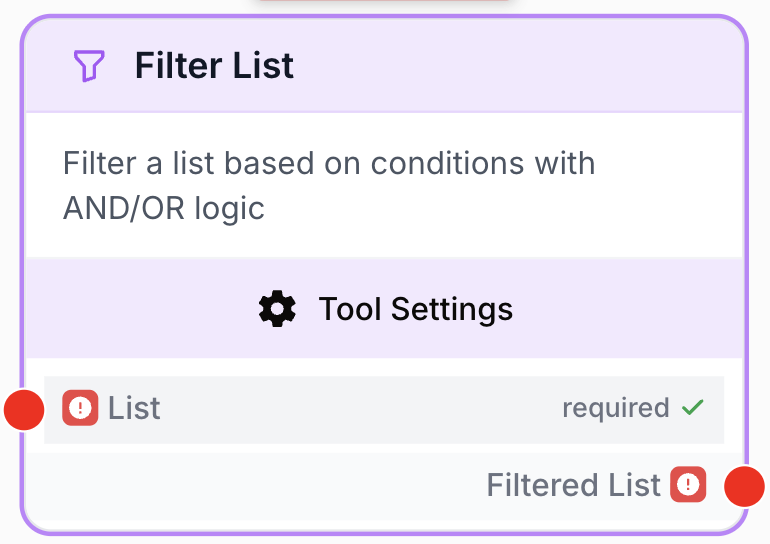
What does the Filter List node do?
The Filter List node filters a list of items based on one or more conditions combined with AND/OR logic. It supports both flat lists of strings and lists of objects, with a wide range of comparison operators and dynamic values resolved from upstream nodes through {{variable}} placeholders.
Common use cases:
- Keep only published articles from a Notion or BigQuery dataset before processing them.
- Remove empty, invalid, or off-topic items from a list returned by a scraper or API.
- Narrow a product catalog to a single category chosen at runtime via a Text Input node.
- Pre-filter URLs from a sitemap so a Web Scraper only crawls the relevant subset.
Quick setup
Follow these steps to add and configure the Filter List node in your workflow:
Add the node to the canvas
Open the Node Library, go to Tools > List operations, then drag and drop the Filter List node onto your workspace.
Connect the list input
Connect the input port (on the left of the node) to the output of any node that produces a list — for example Create List, API Connector, Notion Database Reader, or a Loop aggregator. The input must be a JSON array of strings or objects.
Choose the list mode and conditions
Open the node settings. Set List Type to string for flat lists or object for structured items. Click + Add condition to define each rule (property, operator, value). When you have several conditions, pick AND or OR to combine them.
Connect the output
Connect the filtered_list output (on the right of the node) to the next node. The downstream node can then iterate, count, or transform the surviving items.
Configuration parameters
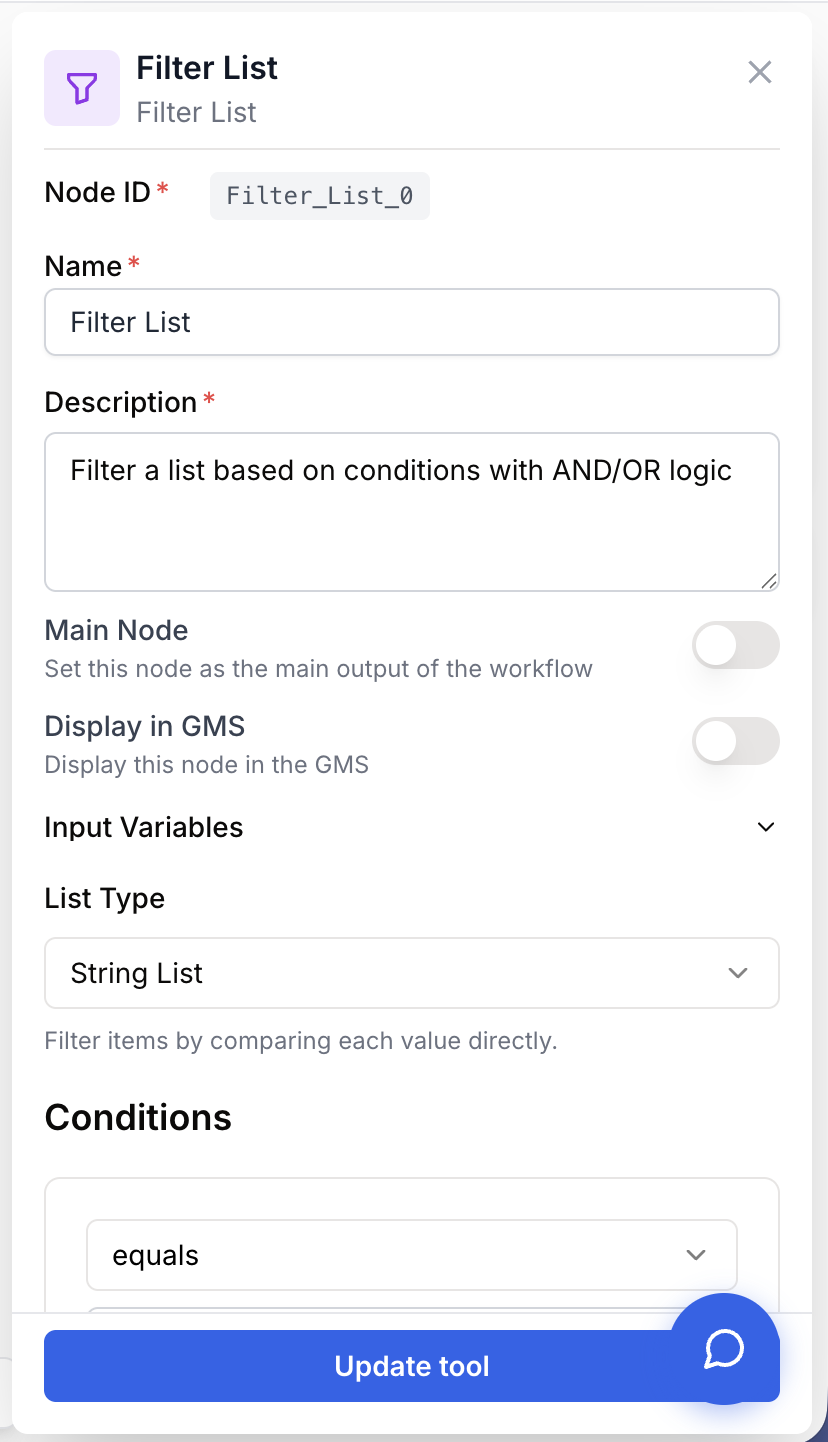
Configuring the node means describing what to keep: the shape of the items, the rules to evaluate, and how those rules combine.
Required fields
Name string required default: Filter List Node name — Used to identify this node when running and debugging the workflow (for example, “Keep published articles only”).
Description string required default: Filter a list based on conditions with AND/OR logic Node description — A short phrase explaining the filter intent.
list json required Input list — The list to filter. Must be a JSON array of strings or objects, connected from an upstream node.
Optional fields
list_type select default: string List type — string for flat lists of values (URLs, names, keywords). object for lists of structured items where you filter on a specific property.
conditions json default: [] An array of filter rules. Each condition is an object with the following fields:
id— unique identifier for the condition (auto-generated in the UI).property— the object property to evaluate (only used whenlist_typeisobject; leave empty instringmode).operator— the comparison operator to apply (see table below).value— the value to compare against. Supports{{variable}}placeholders that resolve at runtime from upstream node outputs.
logical_operator select default: AND How conditions combine — AND keeps an item only if every condition matches. OR keeps an item if at least one condition matches.
Available operators
| Operator | Description |
|---|---|
equals | Exact match |
not_equals | Does not match |
contains | Contains the substring |
not_contains | Does not contain the substring |
starts_with | Starts with the value |
ends_with | Ends with the value |
greater_than | Greater than (numeric comparison) |
less_than | Less than (numeric comparison) |
greater_equal | Greater than or equal to |
less_equal | Less than or equal to |
is_empty | Value is empty or null |
is_not_empty | Value is not empty or null |
in | Value is in a comma-separated list |
not_in | Value is not in a comma-separated list |
The is_empty and is_not_empty operators do not need a value — the Value input disappears from the UI when you select them.
What does the node output?
The node outputs a single JSON array containing only the items from the input list that satisfied the configured conditions. The order of surviving items is preserved.
filtered_list json The subset of input items that matched the filter. Items that did not match are dropped. If no item matches, the array is empty ([]) — the node does not raise an error.
Example payload after filtering a list of articles to keep only the published ones:
{
  "filtered_list": [
    {"title": "Article A", "status": "published"},
    {"title": "Article C", "status": "published"}
  ]
}
Usage examples
Example 1: Filter objects by property
Filter a list of articles to keep only those with status equal to published, then loop over them.
Settings:
list_type:objectconditions:[{"id": "1", "property": "status", "operator": "equals", "value": "published"}]logical_operator:AND
graph LR
    A[Notion Database Reader] --> B[Filter List]
    B --> C[Loop: process articles]
Example 2: Filter strings containing a keyword
Filter a list of URLs from a sitemap to keep only those containing blog, then send them to a Web Scraper.
Settings:
list_type:stringconditions:[{"id": "1", "property": "", "operator": "contains", "value": "blog"}]logical_operator:AND
graph LR
    A[Sitemap Reader] --> B[Filter List]
    B --> C[Web Scraper]
Example 3: Dynamic filter with a runtime variable
Filter a product catalog by a category chosen by the user via a Text Input node. Use {{variable}} syntax in the condition value to reference dynamic data.
Settings:
list_type:objectconditions:[{"id": "1", "property": "category", "operator": "equals", "value": "{{category}}"}]logical_operator:AND
graph LR
    A[Text Input: category] --> B[Filter List]
    D[API Connector: Products] --> B
    B --> C[LLM: summarize]
The {{category}} placeholder is replaced at runtime with the value provided by the upstream node whose output is named category.
Common issues
The output list is empty even though my data looks right
Cause: With AND logic, every condition must match — a single overly strict rule wipes out the whole list. String operators such as equals, contains, and starts_with are also case-sensitive.
Solution: Switch the logical operator to OR temporarily to see which individual conditions match. Then tighten the rules one by one. Double-check the casing of your comparison values.
The filter ignores the property I configured
Cause: list_type is set to string but the input is actually a list of objects (e.g., [{"name": "Alice"}, {"name": "Bob"}]). In string mode the node compares whole items, never their properties.
Solution: Switch List Type to object and set the property field of each condition to the key you want to evaluate (for example, name or status).
I see the literal text {{variable}} in the result instead of a value
Cause: The placeholder did not resolve because the referenced upstream node is not connected, has not produced output yet, or its output name does not match the variable name exactly.
Solution: Confirm the upstream node is wired into the Filter List node and that its output name (case-sensitive) matches the name inside {{ }}. Run the upstream node once before the Filter List runs.
Numeric comparison gives unexpected results
Cause: The values being compared are stored as strings, so greater_than and less_than perform a lexicographic comparison rather than a numeric one (for example, "10" is treated as smaller than "9").
Solution: Make sure the upstream node emits real numbers, not strings. If you cannot change the upstream output, transform the field to a number before filtering.
Best practices
Prefer {{variable}} placeholders over hardcoded filter values whenever the user, an LLM, or an upstream node can supply the criterion. The same workflow then handles many filter targets without duplication.
AND versus OR is rarely interchangeable. Use AND when items must satisfy every condition simultaneously (status is published AND author is Alice). Use OR when an item should match at least one of several alternatives (status is draft OR status is review). Picking the wrong combinator silently empties the output or lets too much through.