Static Text
The Static Text node embeds a fixed text value in your workflow, providing constant content to downstream nodes without requiring user input at runtime.
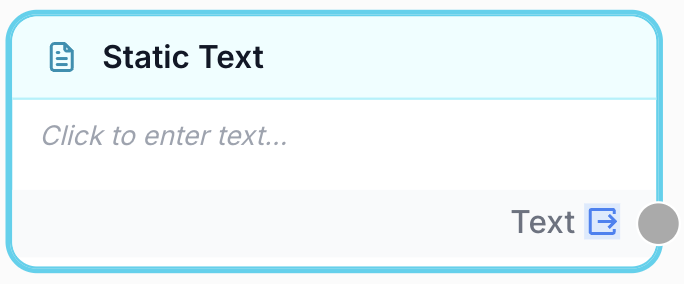
What does the Static Text node do?
The Static Text node lets you embed a fixed text value directly into your workflow. Unlike the Text Input node (which prompts the user for input each time the workflow runs), Static Text provides a constant value that stays the same across all runs.
Common use cases:
- Providing a fixed system prompt or instructions to an LLM node that shouldn’t change between runs
- Embedding a reusable template or boilerplate (email signature, HTML header, standard disclaimer)
- Hardcoding a JSON structure or API payload that remains constant
- Supplying fixed context or formatting instructions to downstream nodes
Quick setup
Add the node to the canvas
Open the Node Library, go to Inputs > Static, then drag and drop the Static Text node onto your workspace.
Enter your text
Open the node settings and type or paste your text content in the Text Content field. This can be plain text, HTML, JSON, or any string value.
Connect the output
Connect the output port to the next node in your workflow. In the receiving node, create a variable name to capture the static text value.
Configuration parameters
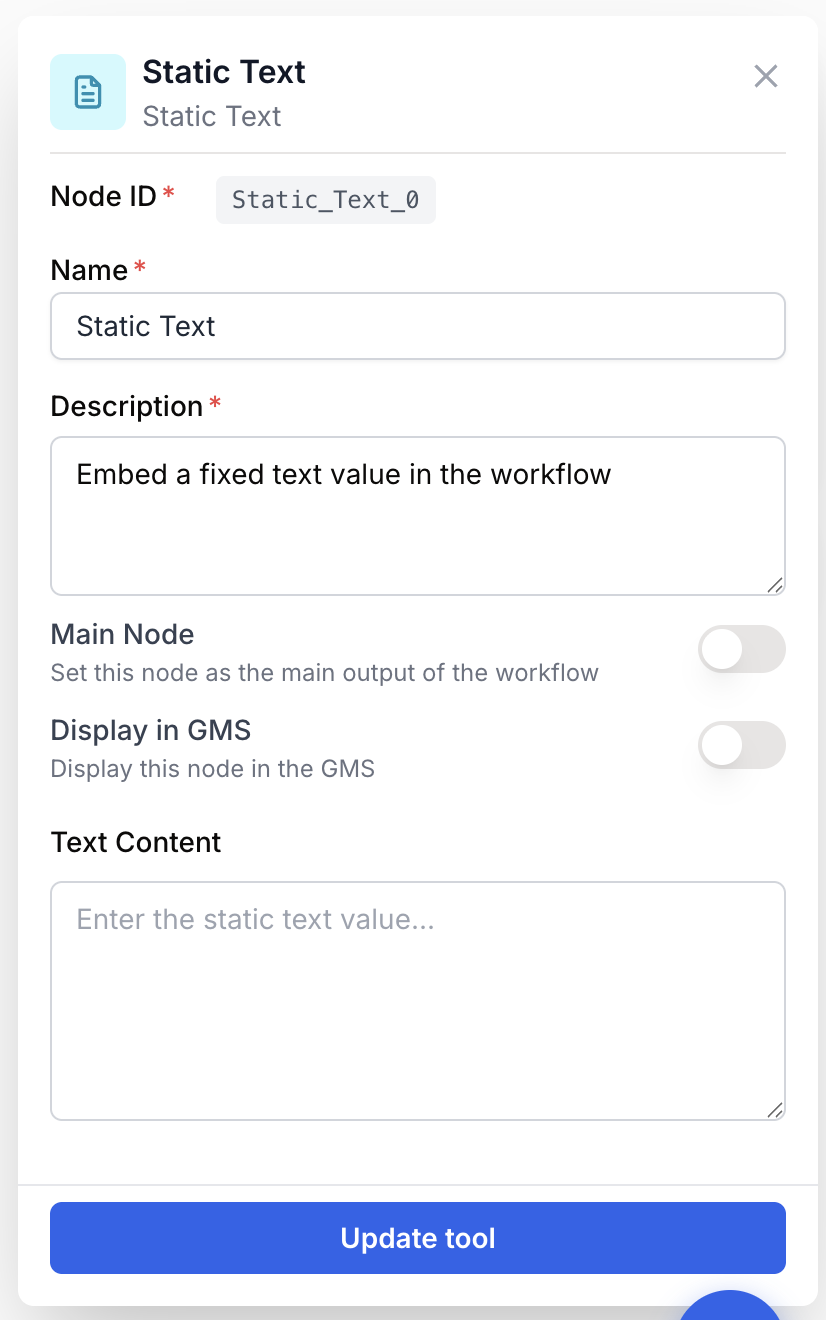
Required fields
Name string required default: Static Text Node name — A label to identify this node on the canvas. Use a descriptive name like “System Prompt” or “Email Template” to make your workflow easier to read.
Description string required default: Embed a fixed text value in the workflow Node description — A short description of what this static text contains or what it’s used for.
Text Content textarea Text content — The fixed text value to output. This can be plain text, structured content (HTML, Markdown), JSON, or any string. The text is passed as-is to connected nodes.
You can paste multi-line content, including entire templates or JSON payloads. The textarea supports any text length and preserves formatting.
What does the node output?
The node outputs the exact text you entered as a string. No transformation or processing is applied — what you type is what downstream nodes receive.
Text string The fixed text value exactly as entered in the configuration.
Usage examples
Example 1: Fixed system prompt for an LLM
You want every run of your workflow to use the same system prompt, without asking the user to provide it.
Static Text content:
You are an expert SEO content writer. Always write in a professional but approachable tone. Include relevant keywords naturally. Structure content with H2 and H3 headings.Connect the output to the System Prompt input of an LLM node.
Example 2: Reusable email template
You have an email template with placeholders that will be filled by a Find and Replace node.
Static Text content:
<h1>Hello {{name}},</h1>
<p>Thank you for your interest in {{product}}.</p>
<p>Best regards,<br/>The Team</p>
Connect to a Find and Replace node to substitute the placeholders with actual values from your data.
Example 3: Fixed JSON structure
You need to provide a constant configuration object to an API Connector node.
Static Text content:
{
  "format": "detailed",
  "language": "en",
  "max_results": 50,
  "include_metadata": true
}
Best practices
Use Static Text instead of Text Input when the value should never change between runs. This avoids prompting users for input they don’t need to provide and keeps your workflow self-contained.
Name your Static Text nodes descriptively. Instead of the default “Static Text”, rename them to “System Prompt”, “Email Template”, or “API Config” so their purpose is clear at a glance on the canvas.
Don’t store sensitive data like API keys or passwords in Static Text nodes. Use credentials and integrations instead — they are encrypted and managed securely.
Common issues
The output text has unexpected formatting or line breaks
Cause: The text was pasted from a rich text editor that added invisible characters.
Solution: Clear the field and retype the text, or paste it from a plain text editor. The Static Text node preserves all whitespace and line breaks exactly as entered.
The downstream node doesn't receive the text
Cause: The output port isn’t connected, or the receiving node’s variable isn’t configured.
Solution: Make sure the Static Text output is connected to the next node’s input port, and that the receiving node has a named variable to capture the value.
How does it fit into a workflow?
Static Text is typically used at the beginning of a workflow to provide fixed context or templates:
graph LR
    Static[Static Text: System Prompt] --> LLM[LLM node]
    Input[Text Input: User Query] --> LLM
    LLM --> Output[Result]
Related nodes
Use Short Text when the value should be provided by the user at runtime, rather than fixed in the workflow.
Use Paragraph for longer user-provided text input at runtime.
A common downstream node — use Static Text to provide fixed system prompts or instructions.
Combine with Static Text templates to replace placeholders with dynamic values.