Google Drive Reader
The Google Drive Reader node downloads files from your Google Drive, making them available as datasources for use in your workflow.
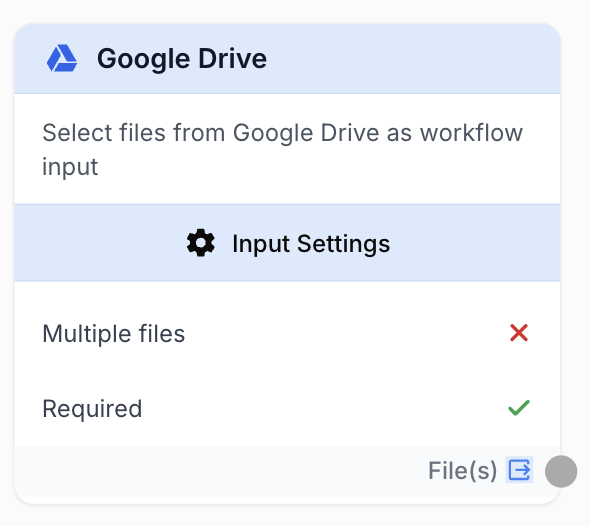
What does the Google Drive Reader node do?
The Google Drive Reader node connects to your Google Drive and downloads one or more files for use in your workflow. Files are selected using the native Google Drive picker and become available as datasources that other nodes can process.
Common use cases:
- Importing images from Google Drive to process with AI nodes (Image to Text, Image to Image, Upscale Image)
- Loading video files from Drive for merging, frame extraction, or aspect ratio changes
- Pulling documents or spreadsheets stored in Drive into a content processing workflow
- Batch-processing multiple files from a shared Drive folder
Quick setup
Connect your Google Drive integration
Open the node settings and select your Google Drive integration from the dropdown. If you haven’t connected Google Drive yet, go to Settings > Integrations to add your Google account.
Select files from Drive
Click the Select files button to open the native Google Drive picker. Browse or search your Drive and select one or more files. Selected files appear in a list with their names and icons.
Review your selection
Check the list of selected files. You can remove individual files by clicking the remove button next to each one. The node shows a file count badge.
Connect the output
Connect the output port to the next node. The node outputs the downloaded file(s) as datasource references. Downstream nodes like Image to Text, Video Merger, or LLM can use these files directly.
Configuration parameters
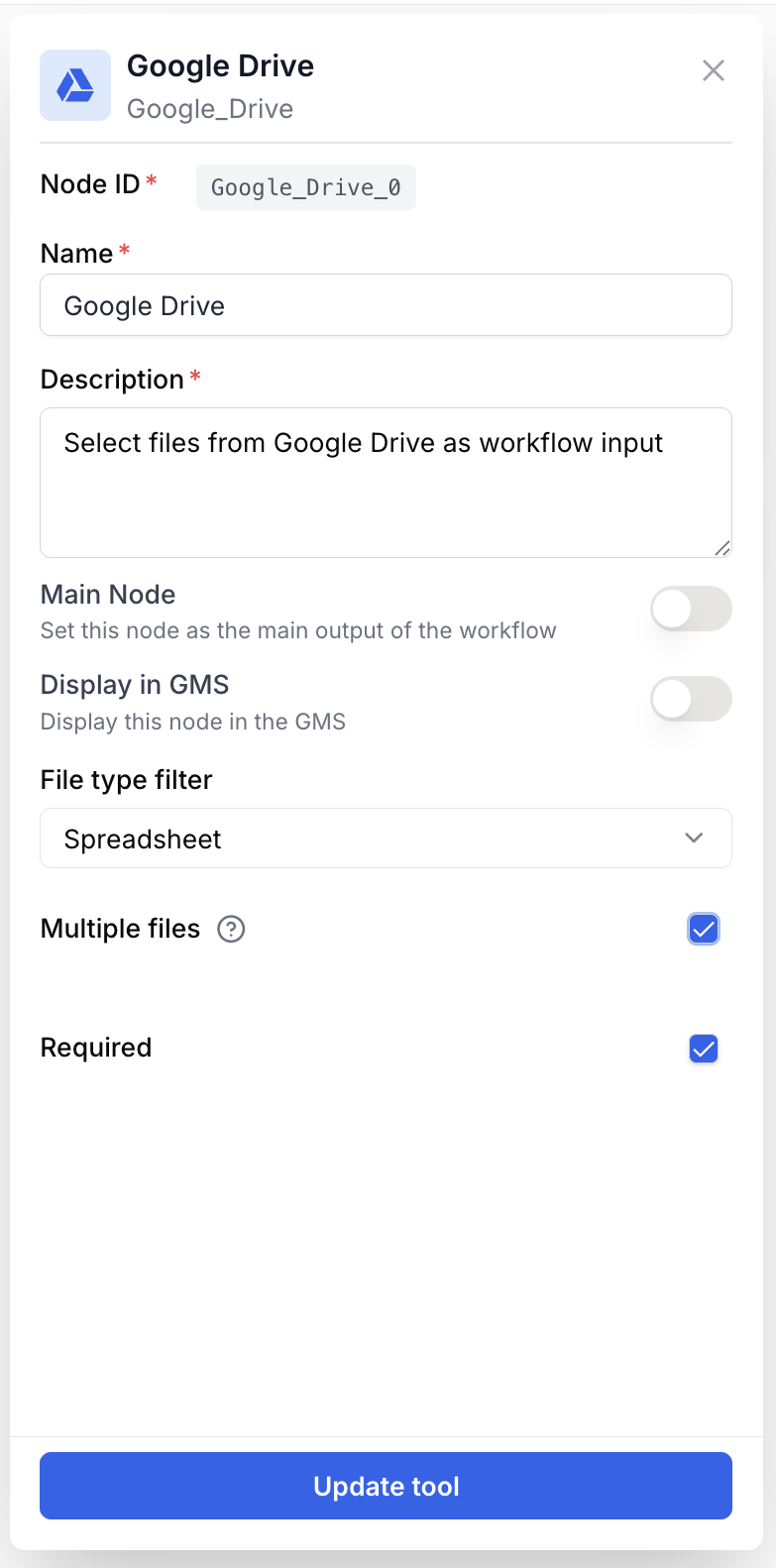
Required fields
Integration integration required Google Drive integration — Select the Google account to use. The integration must have access to the files you want to download.
Files file picker required File selection — Choose one or more files from your Google Drive using the native file picker. You can select multiple files at once. Files are identified by their Google Drive file ID.
You can select multiple files in the Google Drive picker by holding Ctrl (or Cmd on Mac) while clicking. All selected files will be downloaded when the workflow runs.
What does the node output?
The node outputs downloaded files as datasource references. The output type is automatically detected based on the MIME types of the selected files:
- All video files → output type is
video - All image files → output type is
image - Mixed types or documents → output type is
file
Single file: A single datasource ID string that downstream nodes can use to access the file.
Multiple files: A JSON array of datasource IDs:
["datasource_id_1", "datasource_id_2", "datasource_id_3"]File(s) file One or more datasource IDs referencing the downloaded files. The type (video, image, or file) is inferred from the MIME types of the selected files.
Usage examples
Example 1: Process product images from Drive
You store product photos in a Google Drive folder and want to upscale and reformat them.
Workflow:
- Google Drive Reader — Select the product images
- Loop — Iterate over each image
- Upscale Image — Enhance each image with AI
- Change Aspect Ratio — Reformat for your e-commerce platform
Example 2: Merge video clips from Drive
You have multiple video clips stored in Drive and want to combine them.
Workflow:
- Google Drive Reader — Select the video files
- Video Merger — Merge all clips into a single video
Example 3: Analyze documents with AI
Pull documents from Drive and process them with an LLM.
Workflow:
- Google Drive Reader — Select a document
- LLM — Analyze the content, generate a summary, or extract key information
Best practices
Select only the files you need. Each file is downloaded individually when the workflow runs. Selecting many large files increases execution time.
Use with a Loop for batch processing. When selecting multiple files, connect the output to a Loop node to process each file individually with AI or transformation nodes.
Make sure files are accessible. The Google Drive integration must have permission to read the selected files. Files in shared drives or restricted folders may not be accessible.
File type matters for downstream nodes. Video processing nodes (Video Merger, Extract Video Frame) require video files. Image processing nodes require image files. The node automatically infers the output type to help with connection validation.
Common issues
The Google Drive picker doesn't open
Cause: The Google Drive integration may need reauthorization, or pop-ups may be blocked.
Solution: Check that your browser allows pop-ups from Draft & Goal. Go to Settings > Integrations and verify your Google Drive integration is connected. Try reconnecting if needed.
A file fails to download during workflow execution
Cause: The file may have been deleted, moved, or the integration lost access.
Solution: Open the node settings and verify the selected files are still accessible. Re-select files if needed. Check that the Google Drive integration is still authorized.
Downstream nodes reject the connection
Cause: The downstream node expects a specific file type (e.g., video) but the Drive files are a different type.
Solution: Make sure the files you selected match what the downstream node expects. The output type is inferred from MIME types — if you selected a mix of images and documents, the output type will be generic “file” which some nodes may not accept.
I selected multiple files but only one is processed
Cause: The downstream node may only accept a single file input.
Solution: Use a Loop node between the Google Drive Reader and the processing node to iterate over each file individually.
How does it fit into a workflow?
Google Drive Reader is typically used at the beginning of a workflow to bring in external files:
graph LR
    Drive[Google Drive Reader] --> Loop[Loop node]
    Loop --> Process[AI / Transform node]
    Process --> Output[Result]
Related nodes
Read structured data from Google Sheets instead of files.
Read text content from Google Docs documents.
Iterate over multiple downloaded files to process each one individually.
Analyze downloaded images with AI to generate descriptions.
Merge downloaded video files into a single video.