Email Sender
The Email Sender node sends transactional emails directly from your workflow, with support for plain text or HTML content and multiple recipients.
What does the Email Sender node do?
The Email Sender node sends emails from your workflow using DnG’s built-in email service. It supports plain text and HTML content, multiple recipients (To, CC, BCC), and dynamic values injected from previous nodes through variables.
Common use cases:
- Sending an automated report (SEO audit, weekly KPIs, AI-generated summary) to a team or client.
- Notifying a user when an asynchronous workflow finishes (data import, file generation, batch processing).
- Triggering personalized outreach emails with content built by an LLM node upstream.
Quick setup
Follow these steps to add and configure the Email Sender node in your workflow:
Add the node to the canvas
Open the Node Library, go to Tools > Notifications, then drag and drop the Email Sender node onto your workspace.
Connect the upstream nodes
Connect any node whose output you want to inject into the email (such as an LLM node generating the body, a Sheets reader providing the recipient list, or a Text Input setting the subject).
Fill in the email fields
Open the node settings and fill in To Emails, Subject and Content. Optionally set CC Emails, BCC Emails, and switch Content Type to HTML if you want a styled email.
Externalize dynamic fields
For each field that should come from an upstream node, tick Use variable for …. The field becomes a workflow input you can wire from the canvas (for example {{toEmails}}, {{subject}}, {{content}}).
Connect the output
Connect the output port (on the right of the node) to the next node if you want to chain post-send logic (logging, branching on success, etc.).
Configuration parameters
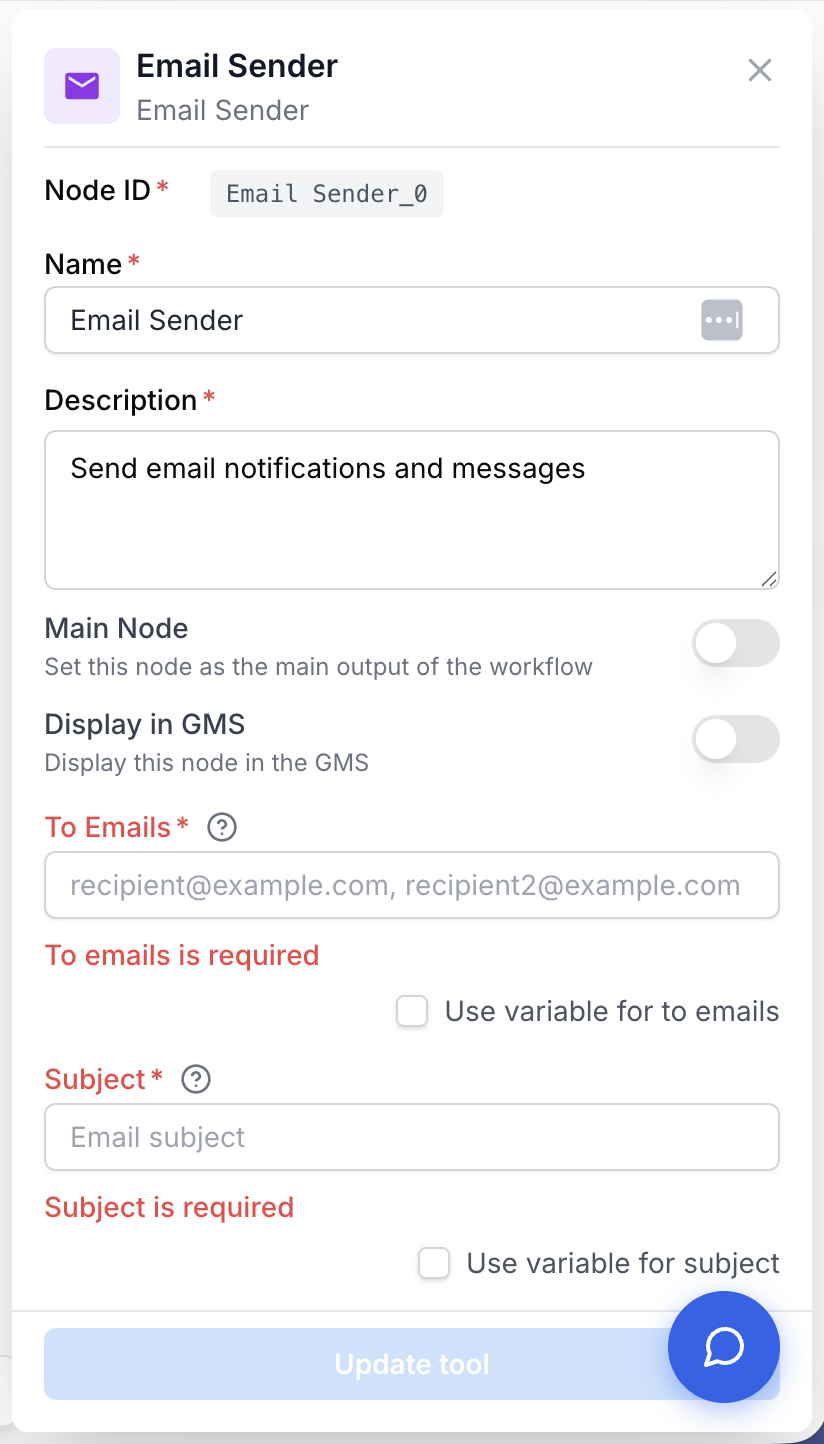
The node separates static fields (typed once in the settings panel) from externalized fields (wired from upstream nodes via variables).
Required fields
Name string required default: Email Sender Node name — Used to identify this node when running and debugging the workflow (e.g. “Send weekly report”).
Description string required default: Send emails using DnG Email Sender with support for HTML and plain text content Node description — A short phrase describing what this email send does in the workflow.
To Emails string required Recipient address(es) — One or more recipient emails. For multiple recipients, separate addresses with commas (e.g. user1@example.com, user2@example.com). Tick Use variable for to emails to receive the list from an upstream node as {{toEmails}}.
Subject string required Email subject line — The subject shown in the recipient’s inbox. Tick Use variable for subject to inject {{subject}} from an upstream node.
Content string required Email body — The body of the message. Can be plain text or raw HTML depending on Content Type. Tick Use variable for content to inject {{content}} from an upstream node (typical when the body is built by an LLM).
Optional fields
CC Emails string Carbon copy recipients — Comma-separated list of CC addresses. Leave empty if not needed. Externalizable as {{ccEmails}}.
BCC Emails string Blind carbon copy recipients — Comma-separated list of BCC addresses. Leave empty if not needed. Externalizable as {{bccEmails}}.
Content Type string default: text/plain MIME type of the body — Choose text/plain to send the content as raw text, or text/html to render it as a styled HTML email.
Externalize only the fields that actually change between runs. Keeping Subject and Content Type static while externalizing To Emails and Content is a clean pattern for “same template, different recipients”.
What does the node output?
The node outputs the result of the email send operation. You can connect it to a downstream node to log the send, branch on success, or trigger follow-up actions.
result string The send confirmation returned by the email service (delivery status / message identifier as a string). The node raises an error if To Emails, Subject, or Content is missing, or if the email service rejects the request.
Usage examples
Example 1: Send an LLM-generated weekly report
Build a report with an LLM upstream and email it to a static recipient.
Configuration:
To Emails=team@mycompany.comSubject=Weekly SEO reportContent= ticked Use variable for content -> wire the LLM output into{{content}}Content Type=text/html(the LLM produced HTML)
Workflow:
- LLM node generates an HTML weekly report.
- Email Sender receives the HTML through
{{content}}and sends it to the team.
Example 2: Notify multiple stakeholders after a batch import
Send a fixed notification to several people once a long-running import finishes.
Configuration:
To Emails=ops@mycompany.com, manager@mycompany.comCC Emails=audit@mycompany.comSubject=Import job finishedContent=The nightly import finished successfully. Check the dashboard for details.Content Type=text/plain
Common issues
Email Sender: No recipient emails provided
Cause: The To Emails field is empty, or the variable wired to it ({{toEmails}}) resolved to an empty string at run time.
Solution: Make sure the upstream node actually outputs a non-empty list of addresses. If you typed the addresses statically, check there is no leading/trailing whitespace that could collapse the value.
Email Sender: No subject provided / No content provided
Cause: Required fields Subject or Content are missing. These two fields are mandatory and the node fails fast if either is empty.
Solution: Either type a static value in the settings, or externalize the field and confirm the upstream node produces a non-empty string before the Email Sender runs.
The HTML email arrives as raw tags instead of being rendered
Cause: Content Type is set to text/plain while the body contains HTML markup.
Solution: Switch Content Type to text/html. Keep in mind that some email clients will still strip parts of complex HTML (scripts, external CSS) — favor inline styles and simple structure.
Some recipients in a comma-separated list are silently skipped
Cause: A malformed address in the list (extra comma, typo, missing @) is dropped by the recipient parser.
Solution: Trim and validate addresses upstream. The node already strips whitespace and ignores empty entries, but invalid addresses are passed through to the email service which may reject them silently.
Best practices and pitfalls
Always test the Email Sender on your own address first. Externalize To Emails and run the workflow once with {{toEmails}} set to your inbox to confirm the rendered subject, body, and Content Type before sending to real recipients.
Be careful with BCC and large recipient lists. The node accepts a comma-separated string in a single send, which can trigger spam filters or rate limits if the list is long. For large mailings, drive Email Sender from a Loop node and send one message per recipient instead.
How does it fit into a workflow?
Email Sender typically sits at the end of a workflow, after the content has been built and validated.
graph LR
    Trigger[Trigger / Schedule] --> Data[Data source: Sheets / API]
    Data --> LLM[LLM node builds the body]
    LLM --> ES[Email Sender
<br/>sends the report]
    ES --> Log[Log / Slack notification]
Related nodes
Generate the email body, then pipe it into Email Sender via {{content}}.
Clean Markdown delimiters or stray tags from an LLM output before sending the email.
Convert HTML to clean Markdown if you prefer to send a plain-text email from rich source content.
Read a list of recipients from a Google Sheet and feed it into {{toEmails}}.