Diff Checker
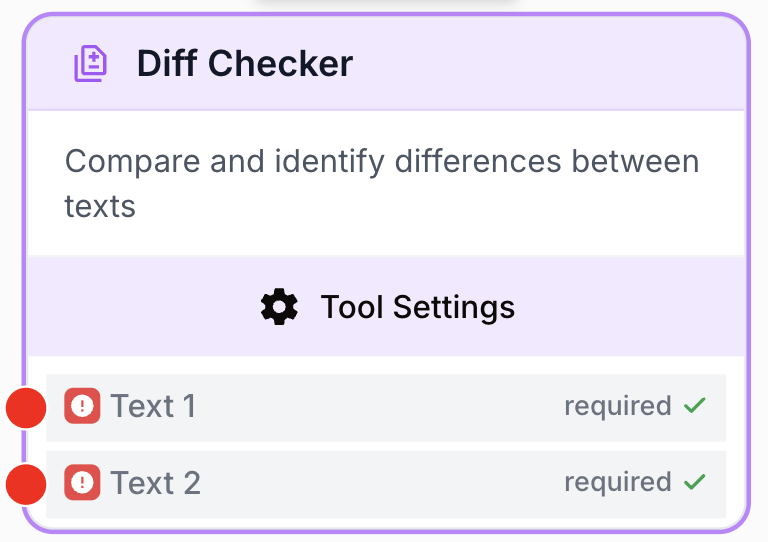
The Diff Checker node compares two text inputs and displays the differences between them during workflow execution.
What does the Diff Checker node do?
The Diff Checker node compares two text inputs and displays the differences between them during workflow execution. It is a quick visual control tool to confirm that a transformation, rewrite, or fetch produced the expected result, without having to inspect the full content manually.
Common use cases:
- Compare an original article with an LLM-rewritten version to review what was changed.
- Verify that two API calls or two scraping runs return identical data.
- Audit text normalization (Find and Replace, HTML Cleaner) by checking before/after output.
Quick setup
Follow these steps to add and configure the Diff Checker node in your workflow:
Add the node to the canvas
Open the Node Library, go to Tools > Data Transformation, then drag and drop the Diff Checker node onto your workspace.
Connect the two text inputs
Connect the text_1 input port to the output of the first text-producing node (the original or reference content) and the text_2 input port to the output of the second text-producing node (the modified or compared content).
Run the workflow
Execute the workflow. The Diff Checker node renders the comparison result during the run, highlighting what was added, removed, or kept identical between the two inputs.
Configuration parameters
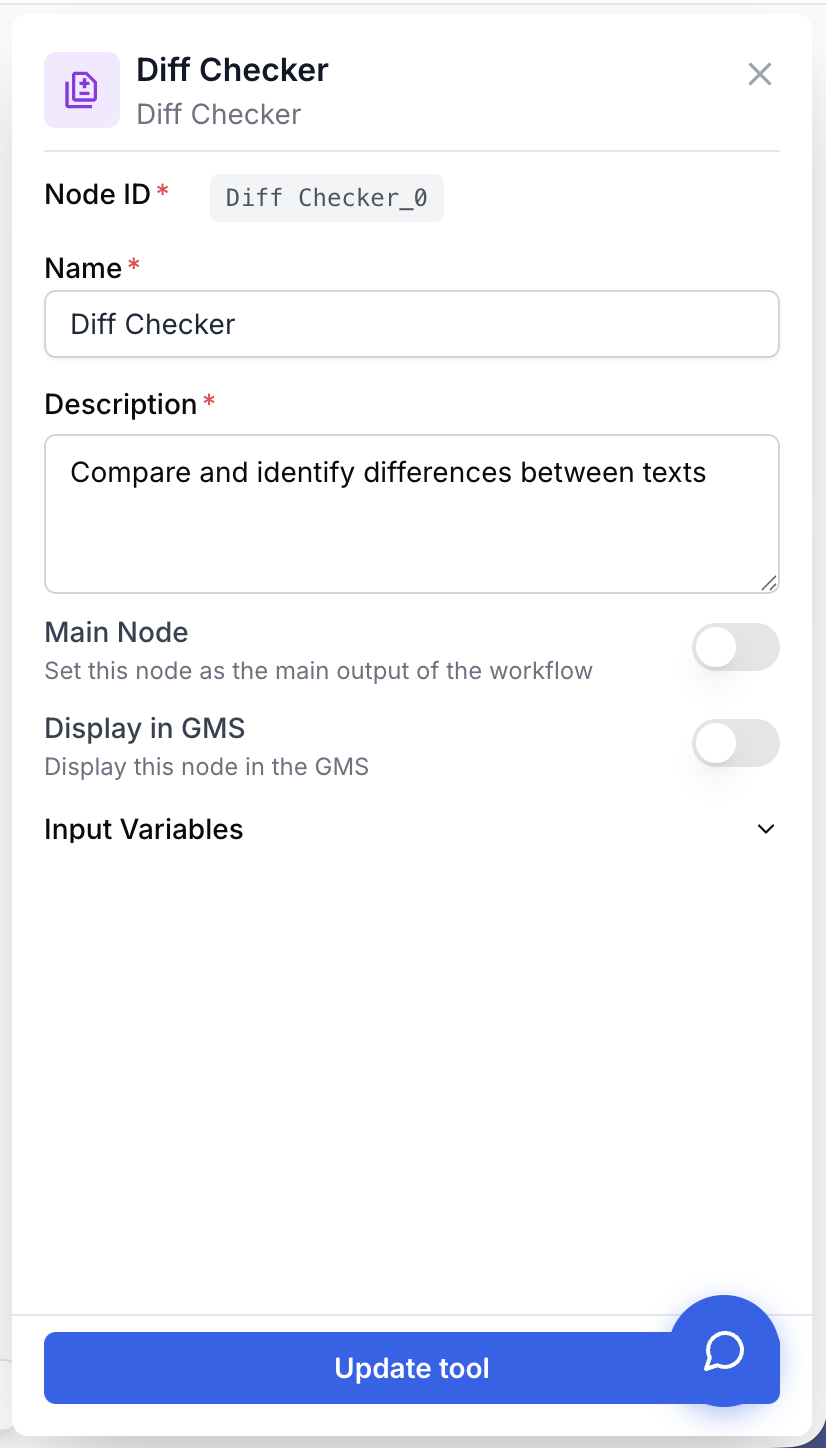
The Diff Checker node has no custom parameters. It only requires its two text inputs to be connected; the comparison is performed automatically when the workflow runs.
Required fields
Name string required default: Diff Checker Node name — Useful to identify this comparison step quickly when running and debugging the workflow (e.g. “Compare LLM rewrite vs original”).
Description string required default: Display a diff checker between two inputs during the run Node description — A short phrase describing what is being compared at this step.
text_1 string required First text — The original or reference text. This input must be connected to the output of an upstream node that produces a string.
text_2 string required Second text — The modified or target text to compare against text_1. This input must also be connected to a node producing a string.
Optional fields
The Diff Checker node does not expose optional fields beyond the standard Name and Description. The comparison logic is fixed and runs as soon as both inputs are provided.
Both inputs are case-sensitive and whitespace-sensitive. If you only want to compare meaningful content, normalize both inputs upstream with a Find and Replace or HTML Cleaner node first.
What does the node output?
The node renders a diff visualization during the workflow run, highlighting added, removed, and unchanged segments between text_1 and text_2. Diff Checker is primarily a visual inspection node — it does not expose downstream output anchors to chain into other nodes.
Diff result visual An in-run diff view showing additions, deletions, and unchanged portions between text_1 and text_2. Use it as a control step rather than a data source for downstream nodes.
Usage examples
Example 1: Compare an article before and after LLM editing
You have an original article and want an LLM to improve it. Place the Diff Checker after the LLM node to see exactly what was changed.
- text_1: The original article from a Text Input or Paragraph node.
- text_2: The rewritten article from the LLM node.
- Result: A diff view showing every sentence that was added, removed, or rephrased by the LLM during the run.
Example 2: Verify data consistency between two API calls
You fetch data from an API at two different points in your workflow and want to confirm nothing changed unexpectedly between calls.
- text_1: The response body from the first API Connector call.
- text_2: The response body from the second API Connector call.
- Result: A diff confirming the data is identical, or highlighting any discrepancies introduced between the two requests.
Common issues
One or both inputs are not connected
Cause: The node requires both text_1 and text_2 to be connected. If either input is missing, the node has nothing to compare and the run fails or produces an empty diff.
Solution: Make sure both input ports are connected to nodes that produce text output. Verify the connections in your workflow canvas before running.
The diff shows everything as changed even though the texts look identical
Cause: The two inputs differ in invisible ways — extra whitespace, line breaks, encoding, or trailing characters — even though the visible content looks similar.
Solution: Add a Find and Replace or HTML Cleaner node before each input of the Diff Checker to normalize whitespace and remove invisible characters before comparing.
I need to use the diff result in a downstream node
Cause: Diff Checker is a visual inspection node and does not expose its diff as a chainable output anchor.
Solution: Use it as a quality gate during development. To act on differences programmatically, send both texts to an LLM node with a prompt that compares them and returns a structured response.
Best practices
Use the Diff Checker as a quality control step after any node that transforms text (LLM rewrite, Find and Replace, HTML Cleaner). It makes hidden modifications obvious and helps you fine-tune prompts during workflow development.
Diff Checker is meant for inspection during runs, not for downstream branching. Do not rely on it to feed other nodes — keep it as a side-channel control between data-transforming steps.
Related nodes
Normalize or clean text upstream of the Diff Checker so only meaningful differences are highlighted.
Generate or rewrite text, then drop a Diff Checker after it to review the changes during the run.
Strip HTML tags and invisible characters before comparing two scraped or generated documents.
Compare responses from two API calls to detect drift or confirm idempotency between requests.