Introduction to Nodes
Learn the four main node groups in Draft & Goal — Inputs, AI, Integrations, and Tools — and how to choose the right node for your workflow
What is a node?
A node is one step in a workflow: it takes data in, does one job, and passes results to the next step. You build Apps by connecting nodes on the canvas.
For ports, variables, and configuration basics, see Nodes (fundamentals). This page focuses on how the library is organized and how to pick the right node.
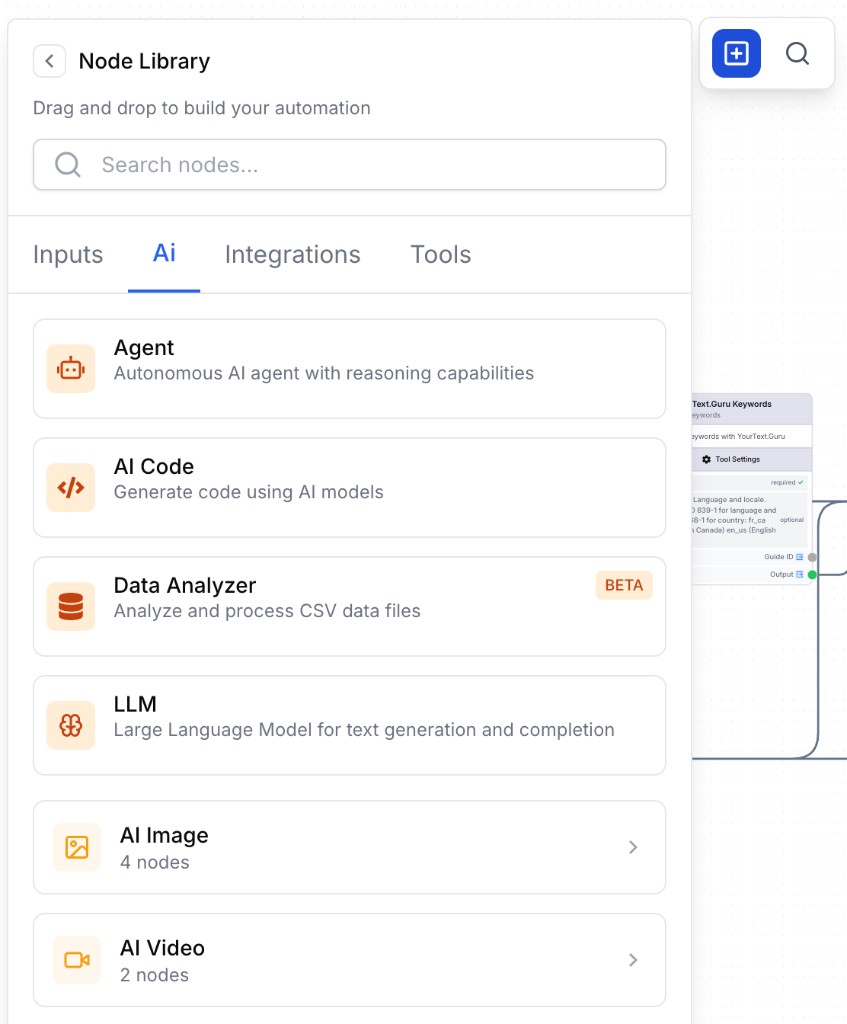
The four main groups
The Node Library mirrors four families. Start here before searching by name.
| Group | Role in the workflow | Typical question it answers |
|---|---|---|
| Inputs | Collect data when the App runs (or embed fixed values) | “What must the user provide?” |
| AI | Generate, transform, or analyze content with models | “Do I need a language or generative model?” |
| Integrations | Read from or write to an external product | “Is the data already in Sheets, Search Console, HubSpot…?” |
| Tools | Transform data, control flow, or run custom logic | “Do I need to filter a list, loop, branch, or clean HTML?” |
A solid workflow almost always combines several groups: Input → Integration or AI → Tools → Integration (write) — with Tools in the middle whenever you reshape data or control the path.
Inputs
Inputs define the App form (and fixed values) before a run starts.
| Subgroup | When to use | Examples |
|---|---|---|
| Basic Inputs | Free-form fields filled by the runner | Short Text, Paragraph, URL, Date, File, Select, Brand Kit Variables |
| Integration Inputs | Let the runner choose a resource from a connected account | Google Drive, Analytics Property, Search Property, Ads Campaigns |
| Static Inputs | Values that never change between runs (no form field) | Static Text, Static File, Static Image, Static Video, Static Constants |
Input vs Static: use an Input when the value changes per run. Use Static when the same prompt, file, or constant should always be baked into the workflow.
Do not confuse Inputs → Integration Inputs (pickers on the launch form) with Integrations nodes (fetch or push data during the run). Same products, different moment in the lifecycle.
AI
AI nodes call models: text, structured analysis, images, or video.
| Need | Prefer |
|---|---|
| Write or rewrite text from a prompt | LLM |
| Multi-step reasoning with tools | AI Agent |
| Ask questions about a CSV / spreadsheet | Data Analyzer |
| Create or transform images / video | Text to Image, Image to Image, Upscale Image, Image to Video, … |
Use AI when the step requires judgment, generation, or understanding — not when you only need a deterministic transform (prefer Tools) or a known API (prefer Integrations).
Integrations
Integrations talk to external systems during execution: scrape a page, read Sheets, pull Search Console, update HubSpot, publish to WordPress, call SEO APIs, and more.
Ask:
- Is the source or destination a named product? → look under that provider (Google, HubSpot, Semrush…).
- Do I only need the page HTML? → Web Scraper.
- Is there no dedicated node? → API Connector or Code Block under Tools.
Most integration nodes need an org or personal connection under Builder → Integrations before they run.
Tools
Tools stay inside Draft & Goal: they reshape data and control how the graph runs.
| Family | Use when you need to… | Examples |
|---|---|---|
| List operations | Split, filter, merge, count, or loop over items | Loop, Filter List, Merge Lists, Count List Items |
| Data / text transform | Extract JSON fields, clean HTML, merge templates | JSON Path Extractor, HTML Cleaner, Merge With Template, Find & Replace |
| Flow control | Branch, stop on error, wait for a human | Conditional, Stop Node, Human in the Loop |
| Advanced | Custom HTTP or Python | API Connector, Code Block |
| Media / output helpers | Crop images, send email, process video | Change Aspect Ratio, Email Sender, Video Merger |
How to find the right node
Use this sequence when you are stuck in the library.
1. Name the job in one sentence
Examples: “User pastes a URL”, “Pull GSC queries”, “Rewrite the title with AI”, “Keep only rows where volume > 100”, “Write the result to Sheets”.
2. Map the sentence to a group
flowchart TD
  start[What does this step do?]
  start --> q1{Needs a human value at launch?}
  q1 -->|Yes| inputs[Inputs]
  q1 -->|No| q2{Calls an external product or URL?}
  q2 -->|Yes product API| integ[Integrations]
  q2 -->|Yes generic page| scrape[Web Scraper]
  q2 -->|No| q3{Needs generative AI?}
  q3 -->|Yes| ai[AI]
  q3 -->|No| tools[Tools]
3. Search, then open the category
- Open the Node Library on the canvas.
- Use the search bar with a verb or product name (
sheet,loop,scrape,llm). - If nothing fits, open the group from the table above and scan the overview pages.
- Prefer a dedicated Integration over Code Block when one exists — less maintenance, clearer credentials.
4. Common confusions
| You might think… | Prefer instead… |
|---|---|
| “I need Google Sheets as an input field” | Inputs → Google Drive (or a text/URL field) to select; Sheets Reader / Writer under Integrations to read or write data |
| “AI can filter my list” | Filter List or JSON Path Extractor for deterministic filters; AI only if the rule is fuzzy |
| “Loop and LLM are the same” | Loop iterates items; LLM generates text — often Loop → LLM together |
| “Static Text vs Short Text” | Static = fixed in the workflow; Short Text = filled each run on the App form |
5. Check the category overview
Each group has an overview that lists every documented node with a one-line purpose. Start there when you explore a new area:
Runtime form fields and static values
Text, image, and video models
Connect to business and SEO tools
Transform data and control flow
Typical chain
Most production Apps follow a pattern like this:
flowchart LR
  A[Input URL] --> B[Web Scraper]
  B --> C[HTML to Markdown]
  C --> D[LLM]
  D --> E[Human in the Loop]
E --> F[Sheets Writer]- Input — what the runner provides
- Integration — fetch external data
- Tool — clean or structure
- AI — generate or analyze
- Tool — approval or branching
- Integration — write the result back