Data Analyzer
The Data Analyzer node analyzes CSV, XLSX, JSON, or XML files with an AI model using natural-language instructions.
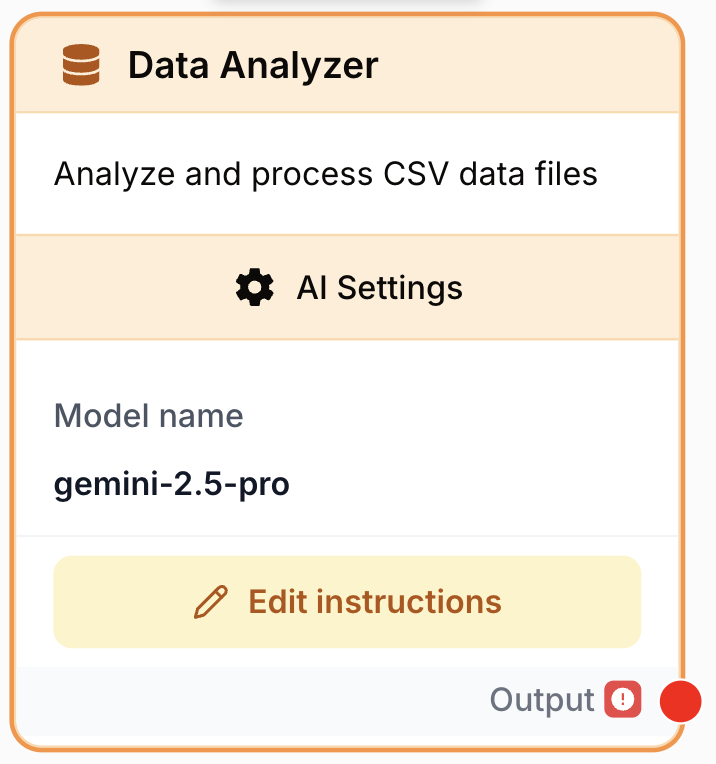
What does the Data Analyzer node do?
The Data Analyzer node lets you ask questions in plain language about a structured dataset (CSV, XLSX, JSON, or XML) and returns an AI-generated answer. It runs the file through the LLM provider of your choice, so you can summarize, filter, or extract insights from tabular data without writing SQL or code.
Common use cases:
- Summarizing large datasets exported from Google Sheets, BigQuery, or a Haloscan/Semrush report.
- Detecting patterns, anomalies, or outliers (sales spikes, missing values, duplicates).
- Answering targeted questions on a per-column basis (“total revenue by region”, “top 10 customers by order value”).
- Generating short narrative reports that downstream LLM or WordPress nodes can publish.
Quick setup
Add the node to the canvas
Open the Node Library, go to AI and drag the Data Analyzer node onto your workspace. The node ships with a BETA badge.
Choose a data source mode
In the settings panel, pick one of the three Data source modes:
- Static file — select a file already uploaded to your Datasources.
- Dynamic file input — accept a file from an upstream node via the
Structured Fileinput anchor. - Direct data input — accept raw data (string) from an upstream node via the
Input Datainput anchor.Pick a model
Select an LLM Provider then a Model name. Only models entitled to the Data Analyzer feature are listed.
Write the analysis prompt
Edit the prompt directly on the node canvas. Use {{variableName}} placeholders to inject upstream values; each variable creates a matching dynamic input anchor.
Connect the output
Wire the Output port to the next node and read the analysis result as a string.
Configuration parameters
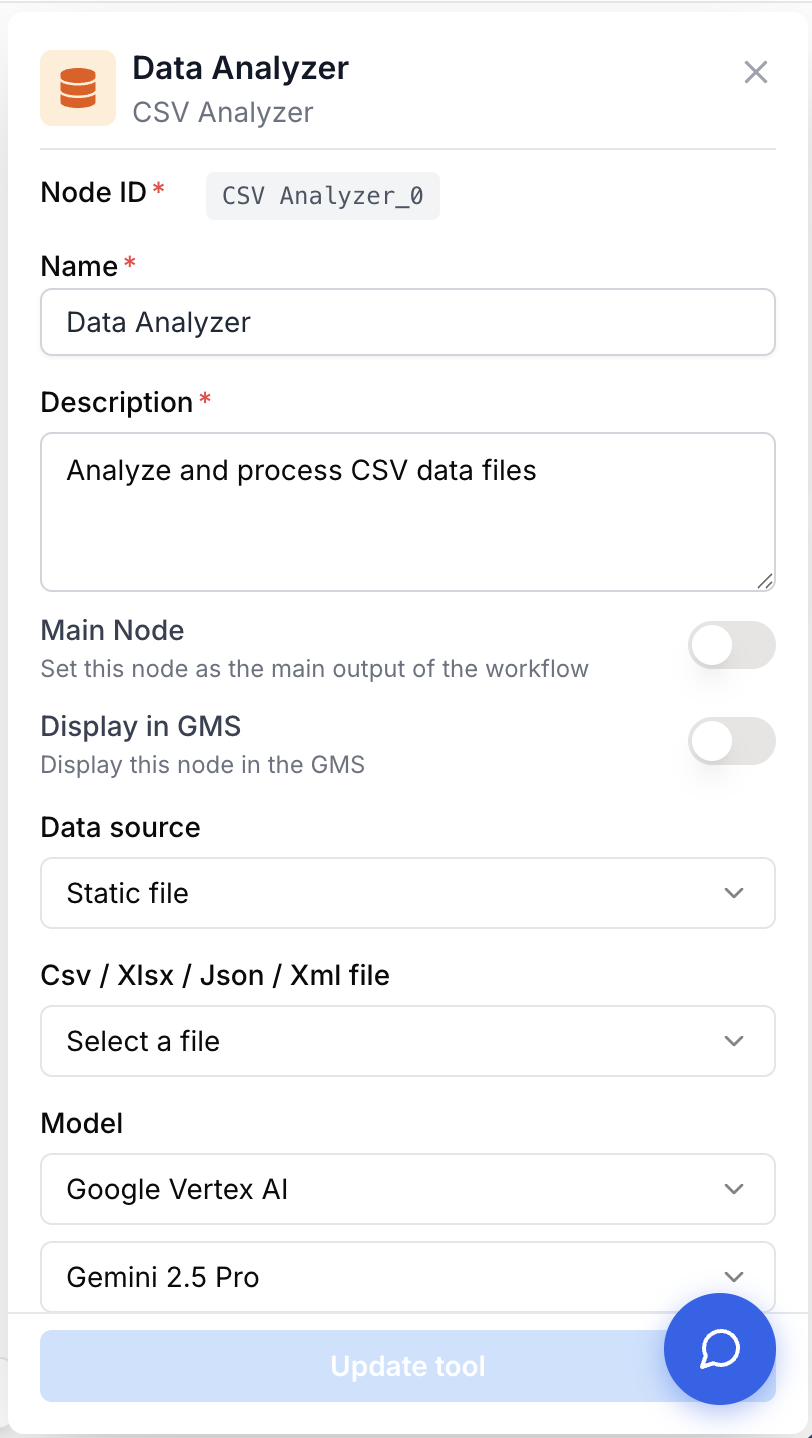
The node combines a base set of fields shared with other AI nodes (Name, Description, Model) with a data-source selector that changes which inputs appear on the canvas.
Required fields
Name string required default: Data Analyzer Node name — Used to identify the node when running and debugging the workflow (e.g. “Sales report analyzer”).
Description string required default: A tool for analyzing csv, xlsx or json file with AI. Node description — A short phrase describing what kind of analysis this node performs.
Data Source Mode string required default: static_file Where the file or data comes from. One of: static_file, dynamic_file, direct_data. The remaining fields/inputs depend on this choice.
Model name llm required LLM model used to run the analysis. Choose any model entitled to the Data Analyzer feature for your workspace.
prompt string required Analysis instructions — Natural-language prompt sent to the model along with the data. Supports dynamic variables {{myVariable}} (allowed characters: -, _, .). An error is raised if the prompt is empty.
Optional fields
File datasource Static file — Required when Data Source Mode = static_file. Pick a previously uploaded file (CSV, XLSX, JSON, or XML) from your Datasources. Only files with status DONE are selectable.
Structured File file Dynamic file input anchor — Available when Data Source Mode = dynamic_file. Connect any upstream node that outputs a single file (not a list). The node refuses array file inputs.
Input Data 1 string Direct data input anchor — Available when Data Source Mode = direct_data. Connect any upstream node whose string output should be analyzed directly (e.g. a Web Scraper or LLM block returning CSV-like text).
Edit the prompt directly on the canvas for fast iteration; you don’t need to reopen the settings panel. Variables typed as {{name}} create new input anchors automatically.
What does the node output?
The node returns the model’s textual answer as a single string on the Output port. The exact shape depends on what your prompt asks for: a paragraph, a Markdown table, a JSON blob, or a list.
output string Model-generated answer based on the file/data and prompt. Connect it to any node that consumes a string (LLM, Find and Replace, JSON Path Extractor, WordPress Post Create, etc.).
Usage examples
Example 1: Sales summary from a static CSV
Upload a sales_2024.csv file to Datasources, then configure the node:
- Data Source Mode:
Static file - File:
sales_2024.csv - Prompt:
Summarize total revenue per region for January 2024. Return a Markdown table
sorted by revenue descending, then a one-sentence highlight.
Expected output:
| Region | Revenue |
|--------|---------|
| North  | $125,000 |
| East   | $112,000 |
| South  | $98,000  |
| West   | $89,000  |

North led January with 28% of total revenue.
Example 2: Anomaly detection on a dynamic file
A Google Drive node fetches the latest export, then pipes it into Data Analyzer.
- Data Source Mode:
Dynamic file input - Connect Google Drive → Data Analyzer (
Structured Fileanchor). - Prompt:
Inspect the dataset for data-quality issues. List rows with missing values,
negative numbers, or duplicates. Format the answer as a bulleted list.
Example 3: Direct data analysis with a prompt variable
Run a Web Scraper, pass its raw output as direct data, and use a variable to scope the question.
- Data Source Mode:
Direct data input - Connect Web Scraper → Data Analyzer (
Input Data 1anchor). - Prompt:
From the data below, extract the top {{topN}} products by sold_units.
Return JSON: [{"product": "...", "sold_units": ...}].
Wiring a Text Input to the auto-generated topN anchor lets you change the cutoff without editing the prompt.
Common issues
The node refuses my file connection on the Structured File anchor
Cause: The upstream node outputs a list of files, or its output isn’t a file. Data Analyzer accepts a single file only.
Solution: Insert a Pick List Item node to extract one file from the list, or switch to Direct data input if the upstream output is a string.
Validation error: 'requires instructions to be configured'
Cause: The prompt field is empty or whitespace-only.
Solution: Open the node on the canvas and type your analysis instructions in the prompt area before running the workflow.
The 'Static file' selector is empty or shows a yellow banner
Cause: No file with status DONE is uploaded for your workspace, or your file is still being processed.
Solution: Click Upload a file in the banner to add a CSV/XLSX/JSON/XML file, then wait until it switches to DONE before selecting it.
My prompt variables don't appear as input anchors
Cause: Variables use disallowed characters or weren’t saved.
Solution: Use only letters, digits, -, _, and . inside {{...}}. Save the prompt; the matching input anchors are generated automatically.
Best practices
Be specific about column names and the desired output format. “Return revenue by region as a Markdown table sorted descending” beats “tell me about the data” by a wide margin and reduces token usage.
Large files (tens of thousands of rows) may exceed the model context window. Pre-aggregate with BigQuery Reader or filter with a Google Sheets query before sending the result to Data Analyzer.
How does it fit into a workflow?
Data Analyzer is most often used as a “read + reason” stage between a data-collection step and a publishing or branching step:
graph LR
    DS[Google Drive / BigQuery / Web Scraper] --> CSV[Data Analyzer]
    CSV --> CL[Find and Replace
<br/>cleans output]
    CL --> EX[JSON Path Extractor]
    EX --> WP[WordPress Post Create]
Related nodes
Run a free-form prompt without a file context, or post-process the Data Analyzer output.
Combine multiple tools (including Data Analyzer) inside an autonomous agent.
Extract structured fields from a JSON answer produced by Data Analyzer.
Strip Markdown fences or stray characters from the model output before downstream parsing.