Nodes
Understand nodes, the building blocks of Draft & Goal workflows: inputs and outputs, node types like LLM and Web Scraper, configuration, and variables.
What is a node?
A node is a single step in your workflow that performs a specific action. Think of nodes as individual LEGO pieces that you connect together to build something powerful.
Each node:
- Takes inputs (data to process)
- Performs an action (scrape, transform, analyze, etc.)
- Produces outputs (results to pass to the next node)
To choose which family of node to open in the library (Inputs, AI, Integrations, Tools), see Introduction to Nodes. This page covers ports, configuration, and variables.
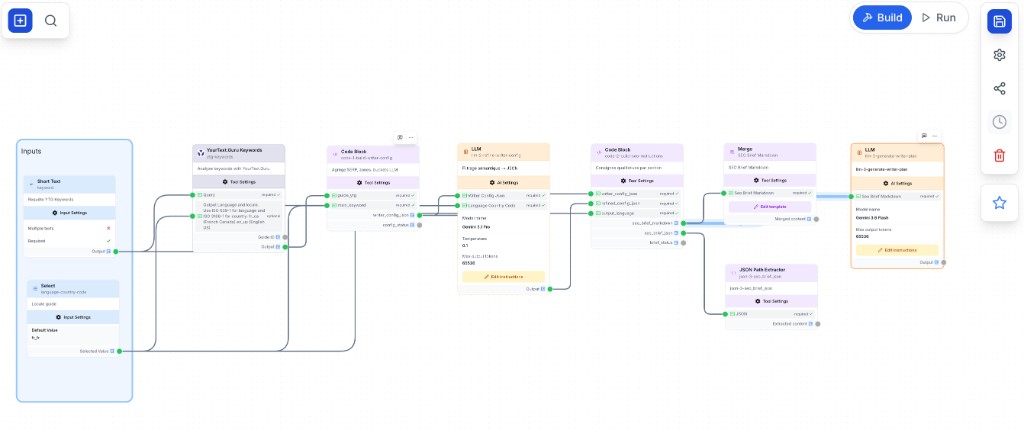
Anatomy of a node
Connection points
Every node has connection points:
- Input points (left side): Where data enters the node
- Output points (right side): Where results leave the node for the next step
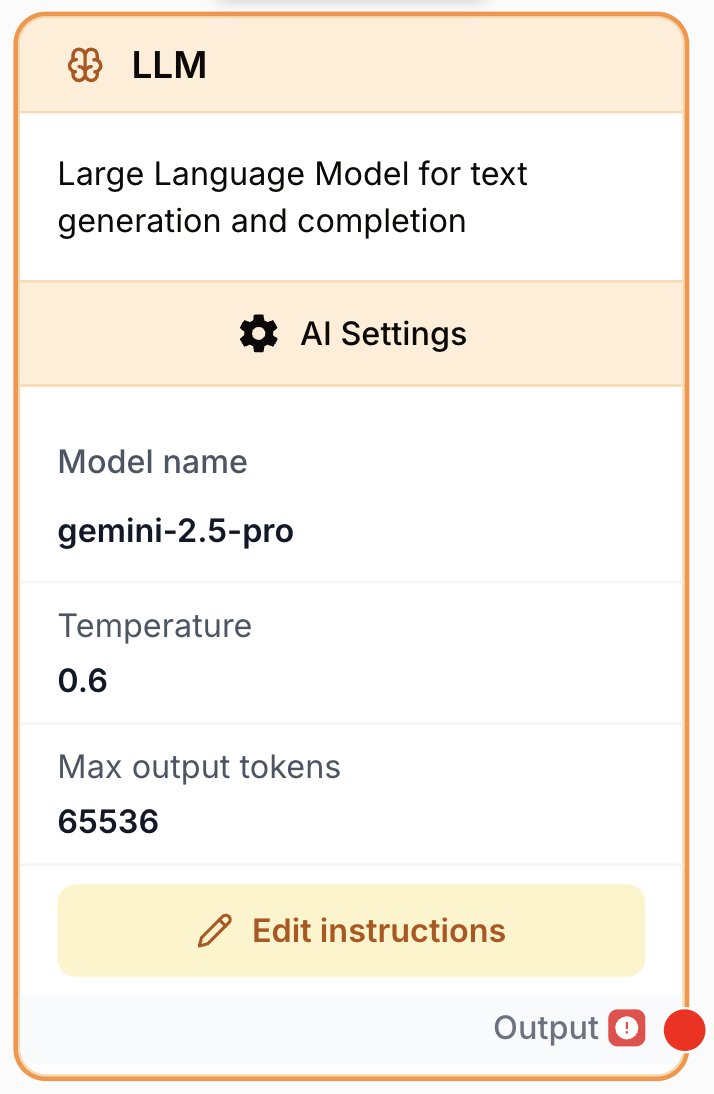
Node types by function
| Type | What it does | Examples |
|---|---|---|
| Input | Accepts user input | Short Text, Paragraph, URL |
| AI | Uses AI models | LLM, AI Agent |
| Integrations | Fetches data | Web Scraper, Google Sheets |
| Tools | Modifies data | Find & Replace, Merge With Template, Loop, Conditional |
Configuring nodes
Click on any node to open its configuration panel on the node.
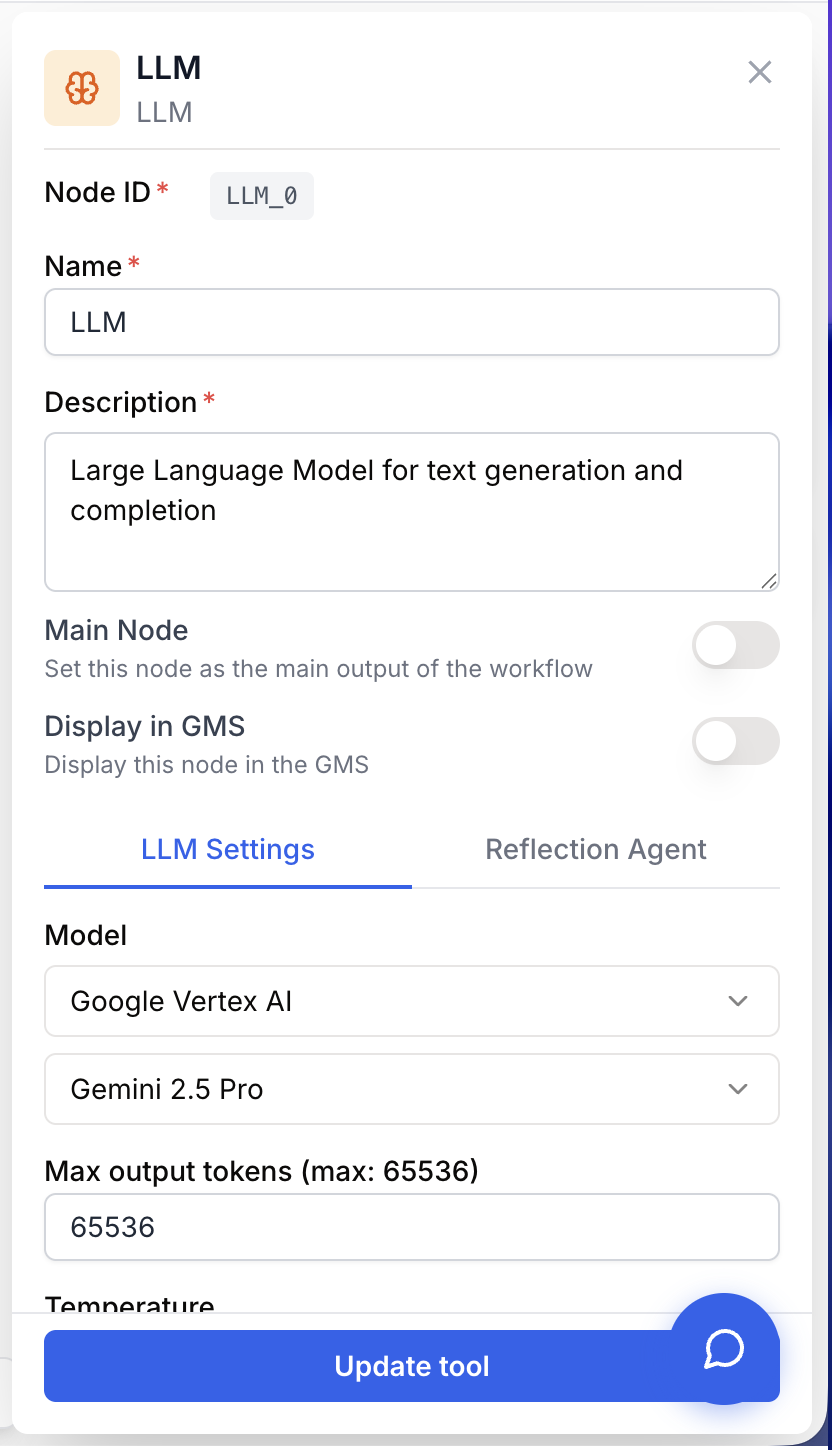
Required fields
Fields marked with a red asterisk (*) are required. The node won’t run without them. For example, the URL node requires a target address:
URL *: https://example.comUsing variables
Instead of hardcoding values, use variables to pass data from other nodes:
URL: {{url}}The {{text}} syntax means “use the output value from the node named text”.
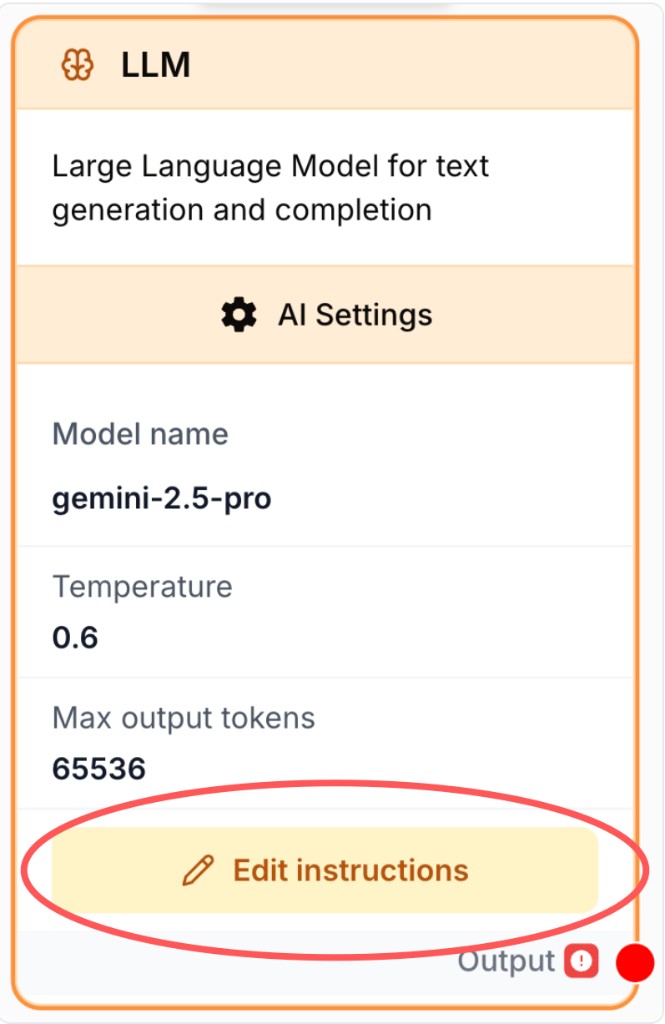
Learn more about variables in the Variables guide.
Working with inputs
Static values
Enter values directly in the configuration. On an LLM node, for example:
Temperature: 0.7
Max Tokens: 1000
Dynamic values from other nodes
Reference outputs from previous nodes:
Content: {{WebScraper}}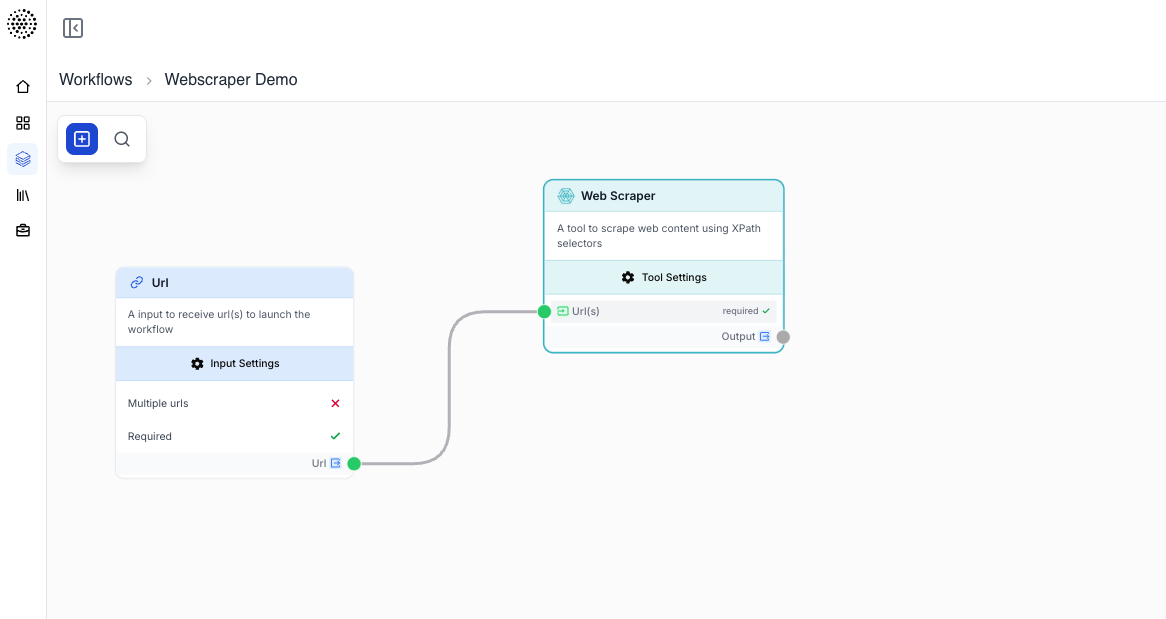
Combining static and dynamic
You can mix both in text fields — for example in an LLM prompt that reads a Short Text value:
Summarize this article about {{topic}}:
Understanding outputs
Every node produces an output that can be used by subsequent nodes. After a run, click a node to inspect its result in the output panel.
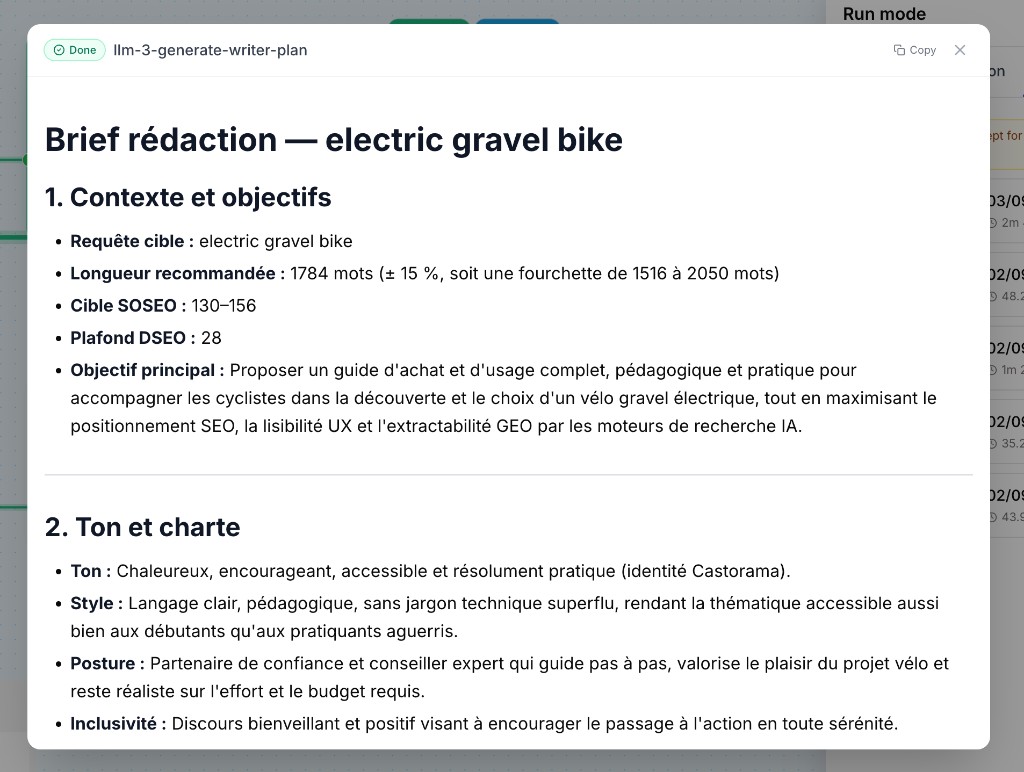
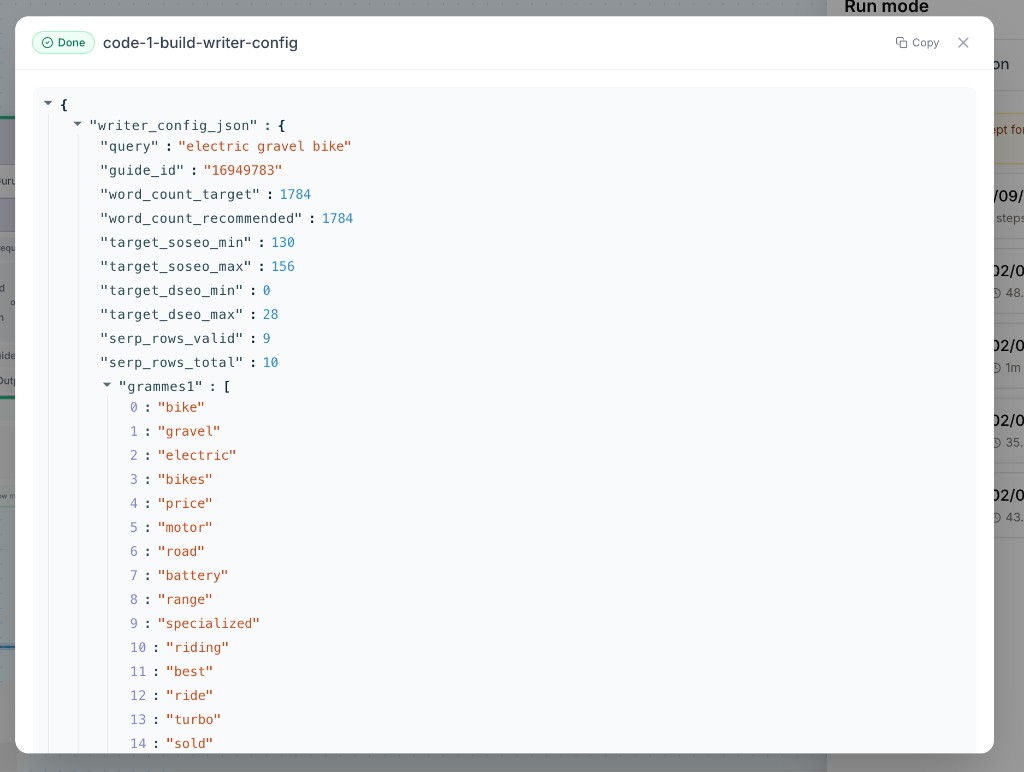
Output structure
Most nodes output a JSON object with specific fields. A Web Scraper response might look like this:
{
  "status": "success",
  "data": "The scraped content...",
  "metadata": {
    "url": "https://example.com",
    "timestamp": "2024-01-15T10:30:00Z"
  }
}
Node categories
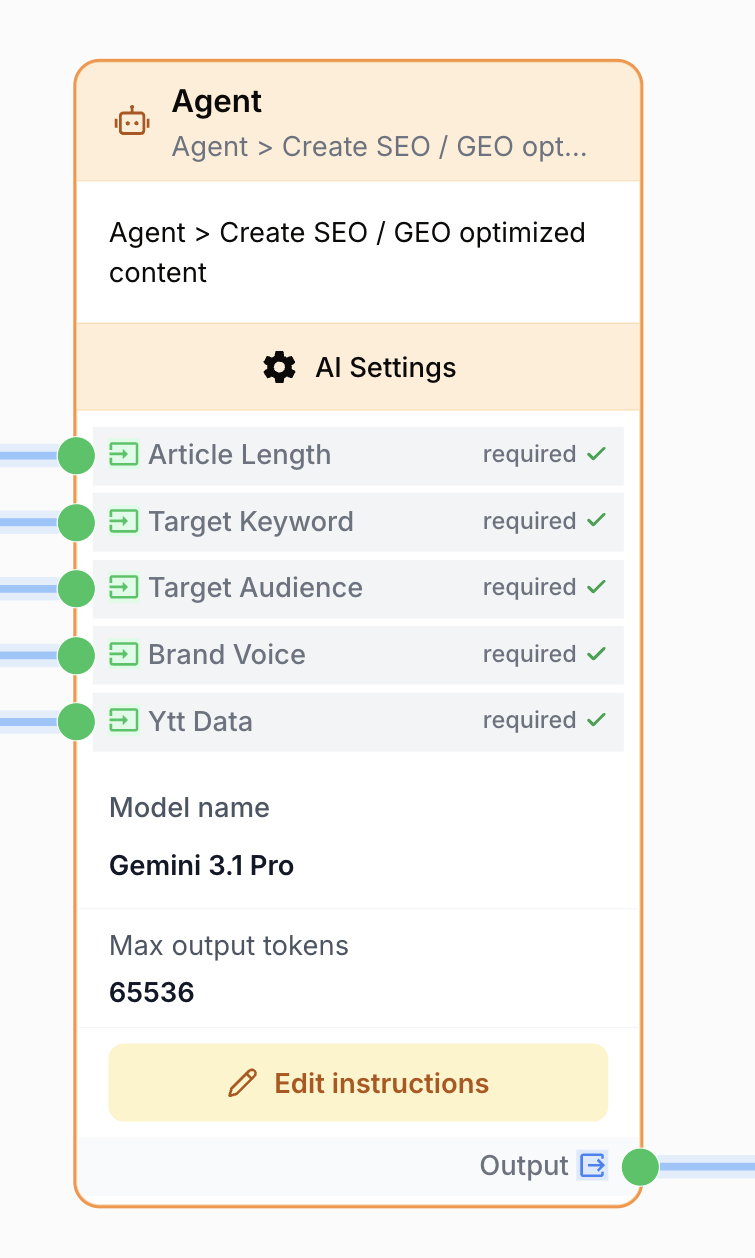
AI Nodes
Leverage powerful AI models for text generation, analysis, and more.
Data Source Nodes
Connect to external data sources.
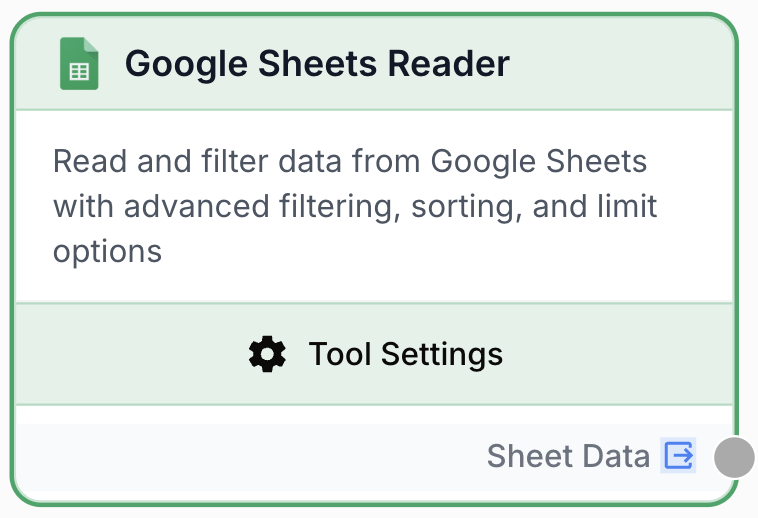
Tools Nodes
Transform and manipulate data.
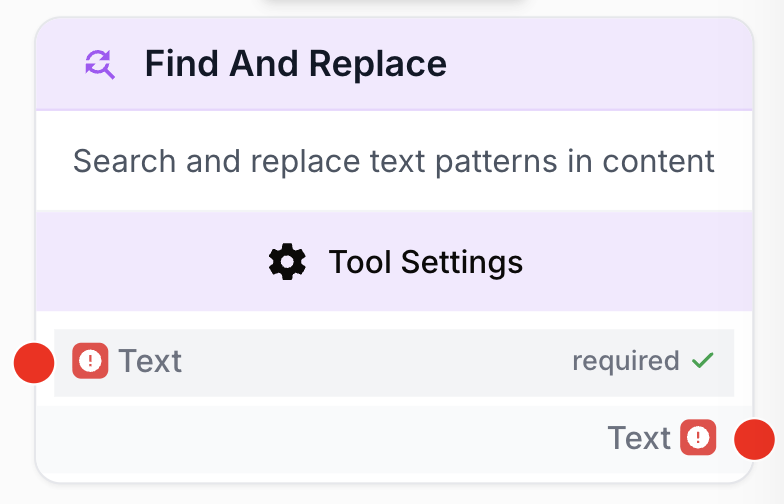
Control Flow Nodes
Control how your workflow executes.
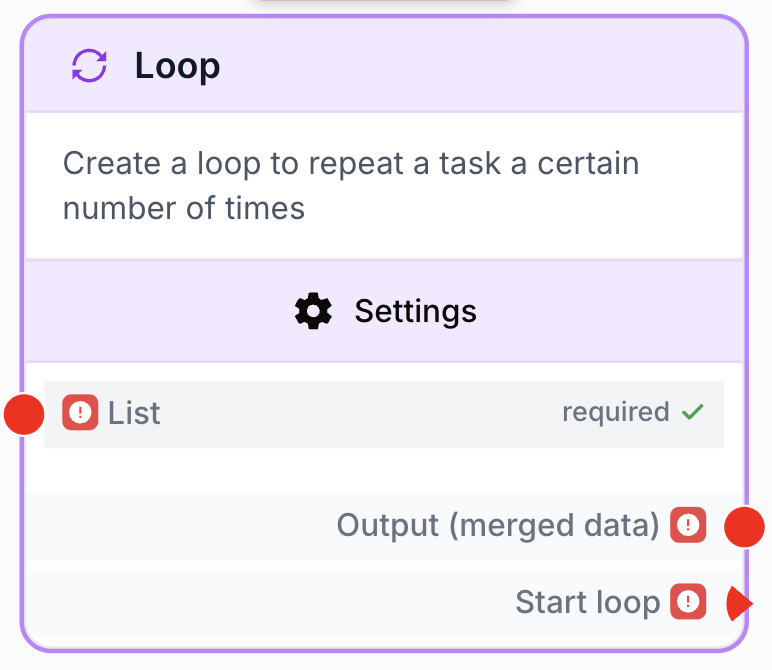
Best practices
Keep nodes focused
Each node should do one thing well. If a node is doing too much, split it into multiple nodes.
Web Scraper → Extract text → LLM → Summarize → Google Sheets → Save results
One mega-node that scrapes,
summarizes, AND saves
Name your nodes
Give nodes descriptive names by clicking on their title:
- ❌
LLM_0 - ✅
Summarize Article(on an LLM node)
Test incrementally
After adding each node, run your workflow to verify it works before adding more.
Troubleshooting
Node shows an error
- Check that all required fields are filled
- Verify variable references are correct
- Ensure previous nodes completed successfully
Output is unexpected
- Click on the node to see its output preview (see Build & Run mode for canvas testing)
- Check the logs for detailed execution info
- Verify your variable paths are correct — see the Variables guide and tools like JSON Path Extractor when you need a nested field