Stop Node
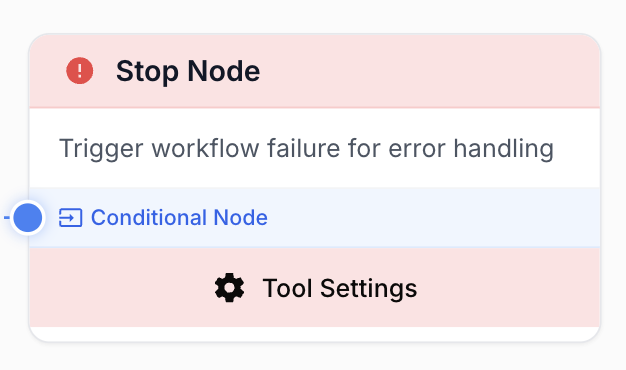
The Stop Node intentionally stops a workflow with a custom error message, useful for validation, business rule enforcement, and explicit error paths.
What does the Stop Node do?
The Stop Node stops workflow execution and reports a custom error message. Use it as an explicit termination point when an upstream condition is unmet, to validate inputs early, enforce business rules, or surface a clear, human-readable failure to whoever runs (or monitors) the workflow.
Common use cases:
- Halt a workflow when a required input (URL, API key, dataset) is missing or malformed.
- Enforce a business rule before continuing (e.g. content shorter than 500 words, score outside
[0, 100]). - Convert a soft API error (HTTP 4xx/5xx) into a hard, traceable workflow failure with full context.
- Stop early when a rate limit or quota threshold is reached.
Quick setup
Follow these steps to add and configure the Stop Node in your workflow:
Add the node to the canvas
Open the Node Library, go to Tools > Flow control, then drag and drop the Stop Node onto your workspace.
Place it on a conditional branch
Connect the Stop Node downstream of a Conditional node so it only triggers on the failure branch. Without a guard, the workflow will fail every run.
Write a clear error message
Open the node settings and fill the Error Message field. Reference upstream values with template variables like {{nodeName.field}} so the message includes the data that caused the failure.
(Optional) Externalize the message
Tick Use variable for error message to bind the message to the external {{errorMessage}} workflow variable. The Stop Node will then read its message from the workflow input at runtime.
Configuration parameters
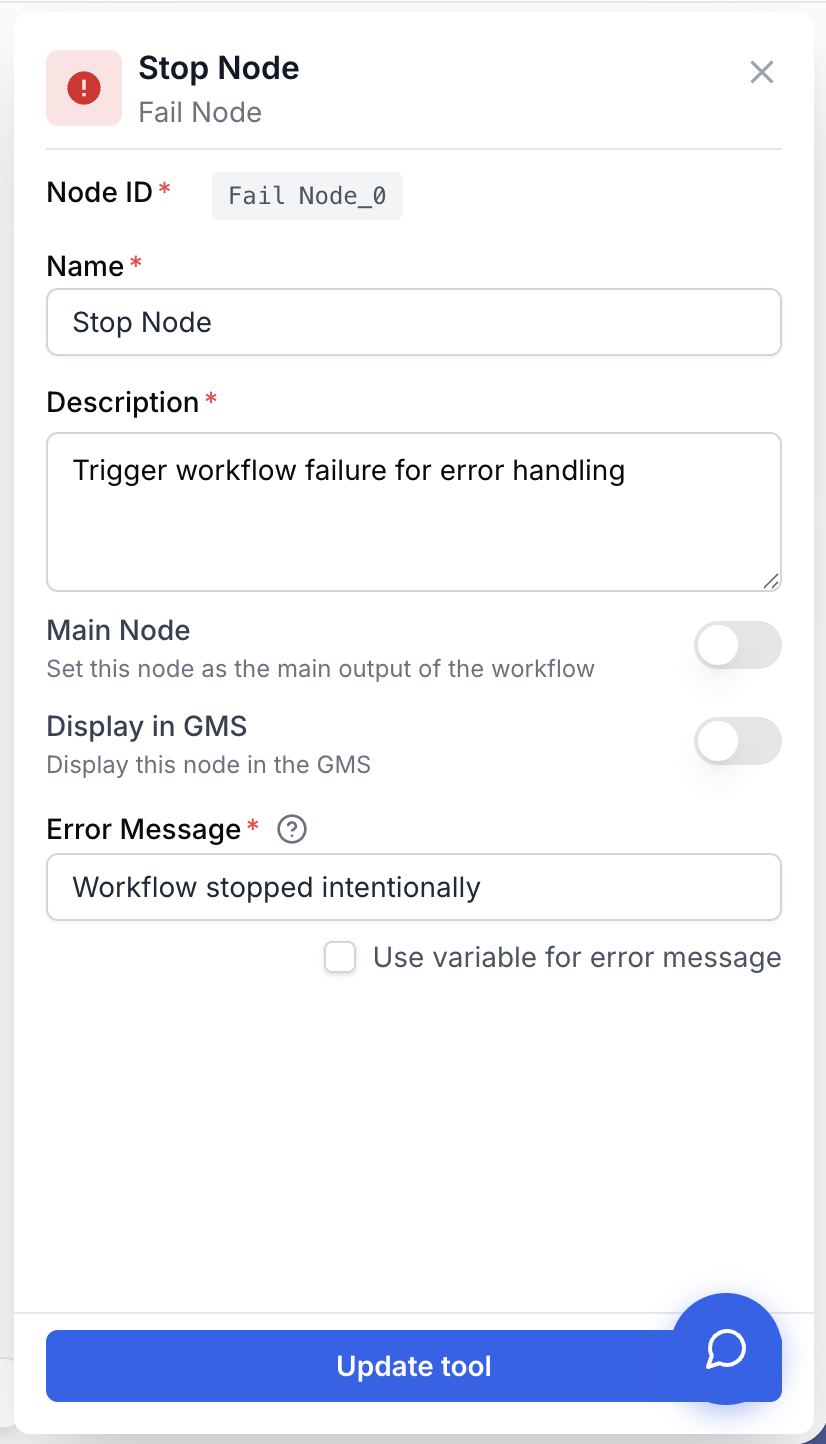
The Stop Node only takes a single text parameter, but writing a useful message is what makes the node valuable.
Required fields
Name string required default: Stop Node Node name — Identifier shown on the canvas and in execution logs. Rename it to describe what it guards (e.g. Stop if URL missing) for easier debugging.
Description string required Node description — Short sentence describing the failure condition handled by this node.
Error Message string required default: Workflow stopped intentionally Error message — Text displayed when the node fires. Supports template variables ({{variableName}}, {{nodeName.field}}) that are interpolated from upstream node outputs at runtime. Required: validation rejects an empty value unless the externalize option is on.
Optional fields
Use variable for error message boolean default: false Externalize error message — When enabled, the node reads its message from the external workflow variable {{errorMessage}} instead of the static field. Useful when the message itself is computed by an upstream node or passed in as a workflow input.
Template variables in the error message are resolved at execution time. If a referenced variable is missing, the placeholder appears literally in the output — useful for spotting wiring errors during development.
What does the node output?
The Stop Node has no output port: it terminates the workflow run instead of producing data. The execution engine raises a UserFailedException with your message attached, which is rendered in the run log and any subscribed monitoring channel.
How to use the output
Because the node ends the run, downstream nodes are never reached. To act on the failure, consume the workflow execution result from outside (API webhook, run history view, alerting). The error message you wrote in the node is exactly what the consumer receives.
error_message string The interpolated error message passed to UserFailedException. This is the human-readable text shown in the run log and returned by the workflow execution API.
status string Workflow run status set to failed. The run is marked as a user-intentional failure, distinct from system errors, so you can filter monitoring dashboards accordingly.
Usage examples
Example 1: Validate a required input early
Ensure a URL is supplied before running an expensive scraping pipeline.
Conditional check (upstream): {{Text_Input_0.text}} is empty.
Error Message configuration:
URL is required but was not provided.
Please supply a valid http(s) URL in the Text Input node.
What happens at runtime: when the Conditional routes to the Stop Node, the workflow stops immediately. The downstream Web Scraper / LLM nodes are never billed.
Example 2: Enforce a minimum content length with interpolation
Reject content shorter than 500 words before sending it to a CMS.
Conditional check (upstream): {{Count_List_Items_0.count}} < 500.
Error Message configuration:
Content too short ({{Count_List_Items_0.count}} words).
Minimum required: 500. Expand the article before publishing.
Generated message at runtime (example):
Content too short (312 words).
Minimum required: 500. Expand the article before publishing.
Example 3: Forward an external error message
When the message is built by an upstream LLM or API node, externalize it:
- In Stop Node settings, tick Use variable for error message.
- The field is replaced by
{{errorMessage}}. - Wire the upstream node’s output into the workflow’s
errorMessagevariable.
The node now relays whatever message the upstream node produced, with no string editing inside the Stop Node itself.
Common issues
The workflow always fails, even on the happy path
Cause: the Stop Node was placed inline (no Conditional in front of it), so every run reaches it.
Solution: insert a Conditional node upstream and connect the Stop Node only to the failure branch. The success branch should bypass it entirely.
The error message contains the literal `{{variableName}}` placeholder
Cause: the variable name does not match any upstream output, or the upstream node did not produce a value before the Stop Node fired.
Solution: copy the variable name from the source node’s output panel. Confirm the source node sits upstream of the Conditional that triggers the Stop Node, so its value is available at interpolation time.
`Use variable for error message` is on but the message is empty
Cause: the external {{errorMessage}} variable is not bound or the upstream value is empty.
Solution: the runner falls back to Workflow failed intentionally in this case. To get a meaningful message, ensure the upstream node writes a non-empty string to the errorMessage workflow variable.
`Error message is required` validation error in the settings panel
Cause: the field is empty and the externalize checkbox is off.
Solution: either type a message (the only accepted empty-looking value is the literal {{errorMessage}} reference) or tick Use variable for error message.
Best practices and pitfalls
Fail early, fail loud. Place validation Stop Nodes at the very start of the workflow, before any expensive node (LLM, scraper, BigQuery write). A clear failure on input validation costs nothing; the same failure after 30 seconds of LLM calls costs money and time.
Do not use Stop Node inside a Loop. A Stop Node terminates the entire workflow, not just the current iteration. If you want to skip a bad item and continue, use a Conditional that routes the bad item to a logging branch instead — the loop will keep iterating.
How does it fit into a workflow?
The Stop Node is a terminal node placed on the failure branch of a Conditional. The pattern is “validate, then fan out”: one or more Conditionals at the entry of the workflow, each guarding a Stop Node, then the productive nodes downstream.
graph LR
    Input[Text Input] --> Cond{URL valid?}
    Cond -->|No| Stop[Stop Node
<br/>URL missing]
    Cond -->|Yes| Scraper[Web Scraper]
    Scraper --> LLM[LLM]
    LLM --> Output[Output]
Related nodes
The natural upstream partner of Stop Node — routes execution to the failure branch only when a guard fails.
Iterate over a list. Avoid pairing with Stop Node inside the loop — use a Conditional skip pattern instead.
Pause the workflow for manual review instead of failing — useful when a human can fix the data on the spot.
Pair with Stop Node to convert non-2xx HTTP responses into explicit, well-described workflow failures.