Google Search Property
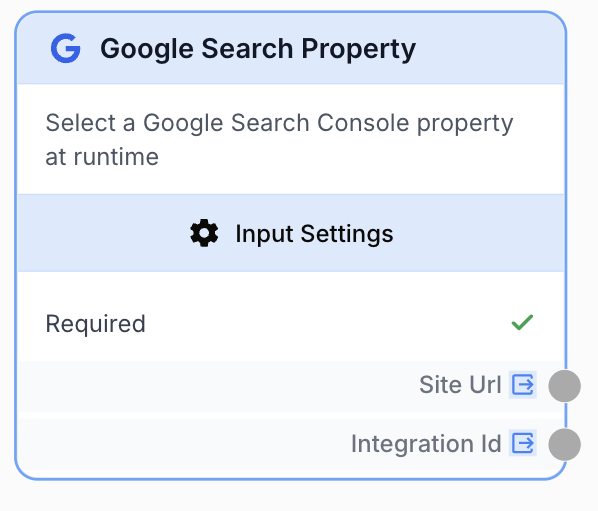
The Google Search Property input node lets the runner pick a Google Search Console property at workflow runtime.
What does the Google Search Property node do?
The Google Search Property input node exposes a runtime selector so the person running the workflow can choose a Google Search Console property to query. Instead of hardcoding a property URL inside a Google Search Console tool node, the property is bound at run time through this input — making the workflow reusable across users, sites, and batches.
Common use cases:
- Build a single GSC reporting workflow that any team member can run on their own property.
- Run batch analyses where each CSV row is a different property URL.
- Share a workflow across an agency where each runner targets a different client site.
- Process search performance data across multiple verified properties without duplicating workflows.
Quick setup
Follow these steps to add and configure the Google Search Property node in your workflow:
Add the node to the canvas
Open the Node Library, go to Input/Output > Integrations, then drag and drop the Google Search Property node onto your workspace.
Pick or lock the integration
Open the node settings. By default the runner picks a Google Search Console integration at runtime. Tick Fixed integration to lock a specific GSC connection at workflow level instead.
Connect to a Google Search Console node
Connect the node output to the site_url input handle of a Google Search Console tool node. Make sure the Use variable toggle is enabled on the Site URL field of the GSC node, otherwise the value is ignored.
Mark the input as required (optional)
Keep Required enabled if the workflow cannot run without a property. Disable it only if downstream nodes already handle the empty case.
Configuration parameters
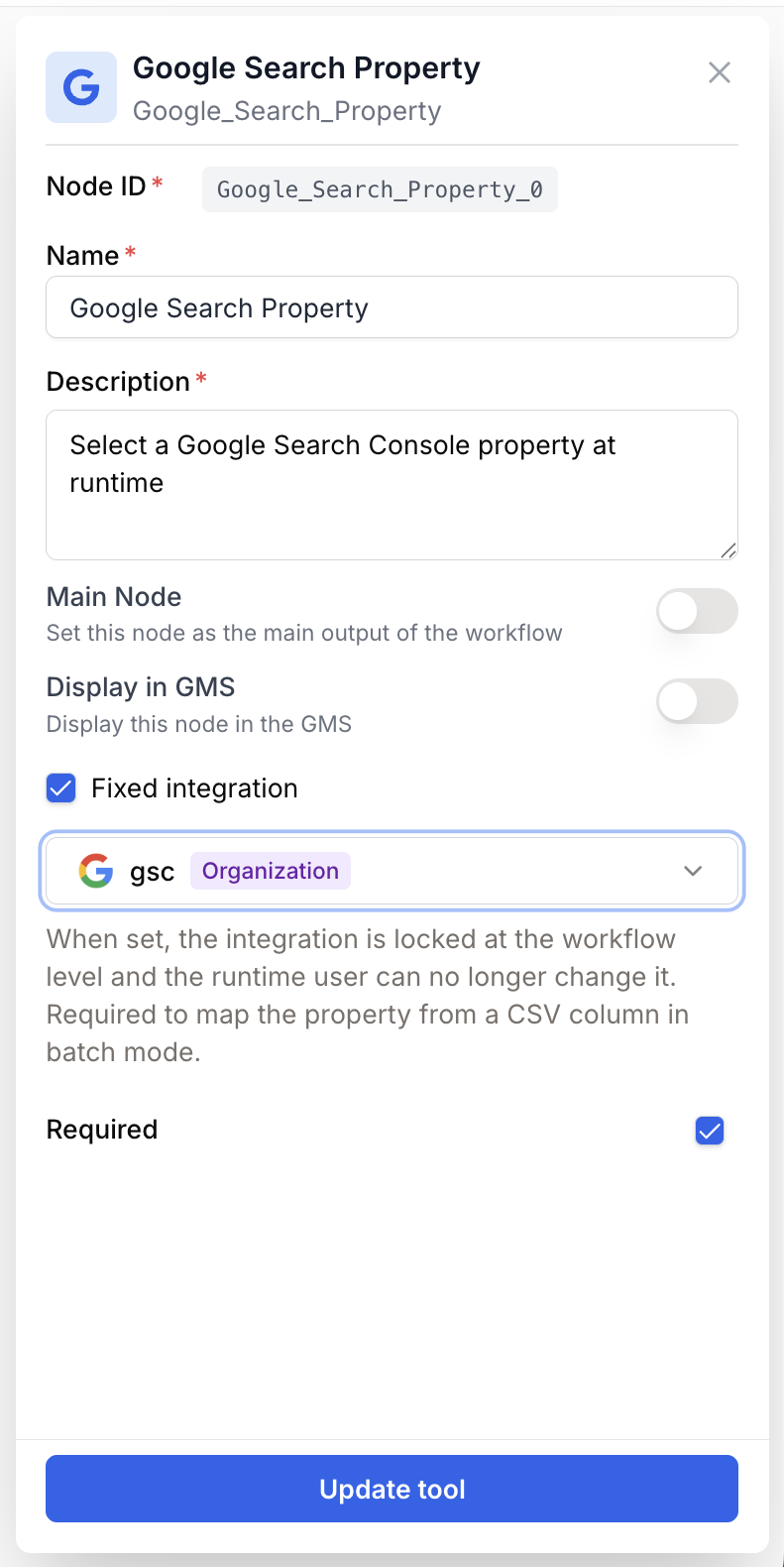
The node only needs a node name and a description. Property selection happens in the App tab at runtime; the only persisted parameters are the lock toggle and the required flag.
Required fields
Name string required default: Google Search Property Node name — Helps identify the node when several inputs feed the same workflow (for example “GSC property — client A”).
Description string required default: Select a Google Search Console property at runtime Node description — Short hint shown to the runner explaining what the input is for.
Optional fields
Fixed integration UI toggle Lock integration — A settings-panel toggle only; it is not itself a stored parameter. When ticked, an IntegrationFormField lets you pick a specific GSC integration that all runs will reuse (saved into integration_id). When unticked, integration_id is cleared and the runner picks an integration at runtime. On reopening the node, the toggle is shown as ticked whenever integration_id holds a value.
integration_id string Integration id — Persisted only when Fixed integration is on. Stores the locked GSC integration id; left empty otherwise so the runtime view shows the picker.
Required boolean default: true Required — Forces the runner to select a property before the workflow can start. Disable to let the workflow run with an empty site_url (downstream nodes must handle that case).
Single-run vs Batch mode: In single-run mode, the runner picks one property from a searchable dropdown. In batch mode, the property can be either fixed for all rows or mapped from a CSV column containing property URLs (for example https://example.com/ or sc-domain:example.com).
What does the node output?
The node exposes two output handles. Use Site Url to drive the GSC tool’s site_url input. Integration Id is useful when chained nodes also need the same integration.
Site Url string The selected GSC property URL, in the exact format the Google Search Console API expects:
- URL-prefix property:
https://example.com/(trailing slash required) - Domain property:
sc-domain:example.com
Integration Id string Identifier of the GSC integration the runner picked (or the locked one when Fixed integration is on). Wire this into other Google nodes that need to share the same connection.
Usage examples
Example 1: Per-runner GSC reporting
Build a single workflow that any team member can run on their own GSC property.
Workflow:
- Google Search Property (input) — Runner picks their property at runtime.
- Google Search Console (tool, with
site_urlset to variable) — Fetches search performance data. - LLM — Summarises trends and anomalies.
- Email Sender — Delivers the report.
Expected output:
https://example.com/Example 2: Batch analysis across multiple properties
Run the same GSC analysis on a list of properties from a CSV file.
Workflow:
- Google Search Property (input) — Configured in batch mode, mapped to a CSV column of property URLs.
- Google Search Console (tool, with
site_urlset to variable) — One query per CSV row. - JSON Path Extractor — Pulls clicks, impressions, CTR from each response.
- Merge Lists — Combines all rows into a single report.
CSV column sample:
https://shop.example.com/
sc-domain:blog.example.com
https://example.com/fr/
Common issues
The property dropdown is empty at runtime
Cause: The selected GSC integration has no verified properties, or the OAuth token has been revoked.
Solution: Open Settings > Integrations and confirm the Google Search Console connection is active. The connected Google account must own (or be granted access to) at least one verified property in Search Console.
The downstream GSC tool returns an empty result or 400 error
Cause: The property URL was forwarded in a format the GSC API rejects, or the integration on the tool node does not have access to the chosen property.
Solution: Make sure the GSC tool node uses the same integration (or one with equivalent permissions). URL-prefix properties must end with /, and domain properties must use the sc-domain: prefix.
The selected property is ignored by the GSC node
Cause: The Use variable toggle on the GSC tool node’s Site URL field is off, so the hardcoded value wins over the input.
Solution: Open the GSC tool node settings and enable Use variable on the Site URL field, then connect it to this input node’s Site Url output.
Best practices and pitfalls
Pair this node with a Fixed integration lock when the workflow is owned by a single team — it removes one decision from the runtime UI while still letting the user pick a property.
Do not mix property formats in the same CSV: stick to either URL-prefix (https://example.com/) or domain (sc-domain:example.com) entries per workflow. Mixing them with a non-resilient downstream node will surface as a 400 from the GSC API on some rows only.
How does it fit into a workflow?
graph LR
    Input[Google Search Property
<br/>runtime selector] --> GSC[Google Search Console
<br/>site_url = variable]
    GSC --> Extractor[JSON Path Extractor]
    Extractor --> LLM[LLM summary]
    LLM --> Email[Email Sender]
Related nodes
Query GSC for clicks, impressions, CTR, and positions on the selected property.
The same runtime-picker pattern, scoped to GA4 properties instead of GSC.
Let the runner pick a Google Drive file at runtime instead of a GSC property.
Free-form URL input when no integration constraint is needed.