Loop
The Loop node repeats a sequence of nodes for each item of an input list, enabling batch processing across arrays.
What does the Loop node do?
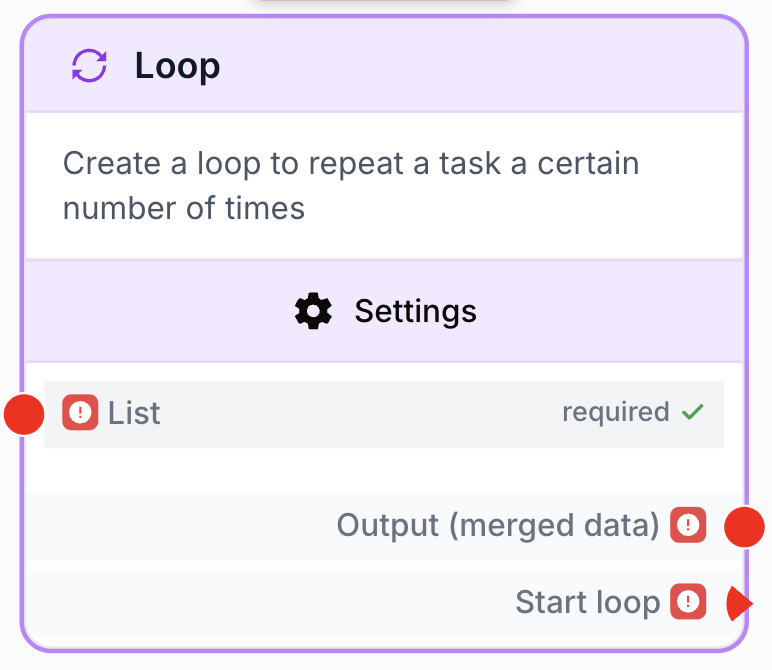
The Loop node (label: Loop Node) iterates over a list and runs a dedicated branch once per item. It is a flow-control node: connect a list to its List input, build the per-iteration branch from Start loop, close that branch on End Loop, and collect the aggregated results from Output (merged data) once every iteration is done.
Common use cases:
- Scrape a list of URLs coming from Google Sheets, an API or a manual list.
- Iterate through spreadsheet rows to enrich, transform or send each one.
- Apply an LLM prompt to every entry of an array (titles, descriptions, products).
- Fan out an integration call (HubSpot, BigQuery, WordPress) over a batch of records.
Quick setup
Follow these steps to add and configure the Loop node in your workflow:
Add the node to the canvas
Open the Node Library, go to Tools > Flow Control, then drag and drop the Loop Node onto your workspace.
Connect the input list
Connect the output of the upstream node (Google Sheets, API Connector, Create List, Split List, etc.) to the List input port. The value must be a JSON array.
Build the per-iteration branch
Connect the Start loop output to the first node that must run for each item (for example Web Scraper or LLM). When you draw the connection, name the variable that will hold the current item (for example item or row).
Close the branch on End Loop
Connect the last node of the inner branch to the End Loop handle (created automatically next to the Loop node). Without this connection, the loop cannot complete and the workflow will flag a validation error.
Configure limits and error handling
Open the node settings to set Max Iterations (1–100), Delay between iterations (≥ 100 ms) and Error Handling (Skip & Continue or None).
Use the merged output
Connect the Output (merged data) port to a node outside the loop (Filter List, JSON Path Extractor, Sheets Writer, etc.) to consume the array of results aggregated from every iteration.
Configuration parameters
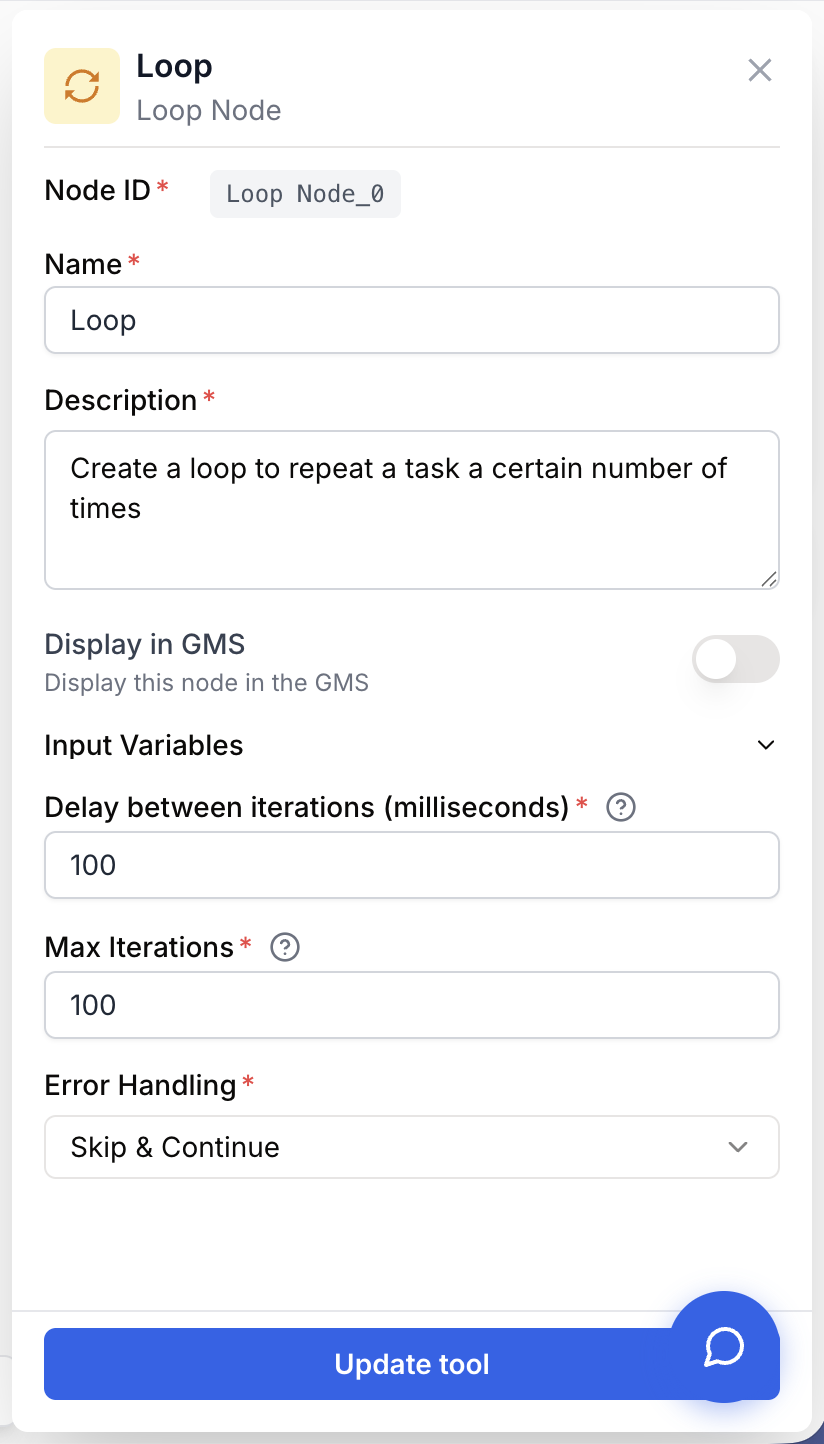
The Loop node has one input list, three configuration parameters and two outputs. Settings are validated by the form: invalid values are rejected before save.
Required fields
Name string required default: Loop Node name — Identifies the node on the canvas. Rename it (for example LoopOverUrls) before building the inner branch so your workflow stays readable.
Description string required default: Create a loop to repeat a task a certain number of times. Node description — Short text describing what the loop iterates over. Useful for documentation and debugging.
List json required Input list — JSON array of items to iterate over. Coming from an upstream node output ({{GoogleSheets_0.data}}, {{ApiConnector_0.body.results}}) or a static list (["a", "b", "c"]). The runner raises “Loop node does not have a valid input list” if the value cannot be parsed as JSON.
Optional fields
Delay between iterations (milliseconds) number default: 100 Inter-iteration delay — Pause inserted between two consecutive iterations, in milliseconds. Minimum: 100 ms. Increase it (1000–3000 ms) when the inner branch hits external APIs to avoid rate limits.
Max Iterations number default: 100 Maximum iterations — Hard cap on the number of iterations executed. Range: 1 to 100. If the input list is larger than this value, only the first N items are processed.
Error Handling string default: Skip Error handling strategy — How the loop reacts to a failure inside one iteration.
Skip— Skip & Continue: the failing iteration is dropped, the loop moves on to the next item. Default.None— The loop stops on the first error and the whole workflow run fails.
Keep Skip & Continue for batch jobs where partial success is acceptable (scraping, enrichment). Switch to None when every item is critical (financial writes, transactional emails) so a failure surfaces immediately.
What does the node output?
The Loop node exposes three connection points on the canvas. Each has a distinct role:
| Port | One-line role |
|---|---|
| Start loop | Starts the inner branch with the current list item |
| End Loop | Closes the inner branch and marks which node output is collected for that iteration |
| Output (merged data) | Returns the aggregated array after all iterations complete |
graph LR
    List[Upstream list] --> Loop[Loop Node]
    Loop -->|Start loop| Inner[Inner branch]
    Inner --> EndLoop[End Loop]
    Loop -->|Output merged data| After[Downstream nodes]
Start loop json Per-iteration trigger. Connect the first node of your inner branch here. At each iteration, Draft & Goal passes one element of the input list through this connection — the current row, URL, contact, etc. You choose the variable name when you draw the wire (for example item).
End Loop json Closing point of the inner branch (purple handle to the right of the Loop group, created automatically). Wire the last useful node of your chain — or each tip of a Conditional branch. This port does not expose usable data downstream: it tells the execution engine which node output to capture for Output (merged data) at the end of the iteration.
Output (merged data) json Aggregated JSON array, available after the loop finishes. Each entry is the output collected through End Loop for one successful iteration, in input list order. This is the only port for consuming batch results downstream of the loop.
End Loop port in detail
What is End Loop for?
End Loop is not a data output like Output (merged data). It is an end-of-branch marker:
- It closes the sub-workflow run on each iteration (required connection — without it, the workflow shows Missing End Loop connection).
- It designates the node whose output is stored for the current iteration.
- It does not forward data to nodes placed after the Loop — use Output (merged data) for that.
How many connections to End Loop?
- Simple chain (Start loop → A → B → C → End Loop): one incoming wire on End Loop — from the last node in the chain.
- Conditional branching: each branch can wire to End Loop (processed branch + default branch to skip the item). The canvas allows multiple incoming wires on End Loop when they come from conditional branches.
- Several parallel non-conditional chains all wired to End Loop: avoid this — the canvas may block those connections, and the engine does not auto-merge multiple outputs.
What data gets aggregated?
On each iteration, the execution engine:
- Runs the inner branch triggered by Start loop.
- Finds nodes wired to End Loop.
- Takes the
outputof the first valid terminal node (completed state, non-empty output). - Appends that value to the Output (merged data) array.
What is collected:
- Only the output of the node connected to End Loop for that iteration (text, JSON object, number, etc. — whatever that node produces).
What is not collected automatically:
- The iteration input item (
item,row, etc.) — unless you include it yourself in the last node’s output (for example via a Code Block). - Intermediate outputs from other nodes in the branch — only the End Loop terminal counts.
- All variables defined anywhere in the branch.
Format of each merged data entry
Output (merged data) is always a JSON array. Each position corresponds to an iteration whose branch finished with a valid output:
[
  "iteration 1 result",
  { "title": "Article A", "score": 85 },
  { "title": "Article B", "score": 72 }
]| Situation | Effect on the aggregated array |
|---|---|
| Successful iteration, terminal node with output | One entry added (text, object or value from that node) |
| Successful iteration but no valid terminal output | A null entry may be added |
Iteration error with Error Handling = Skip | No entry added — the array may be shorter than the input list |
Iteration error with Error Handling = None | The whole workflow run fails |
The original input item is not merged automatically into each array entry. To keep both input and result, group them in a Code Block or structure the last node’s output as a JSON object:
{ "input": { "email": "alice@example.com" }, "result": "…" }Loop boundaries — what you can and cannot wire
The inner branch (everything between Start loop and End Loop) is a closed zone on the canvas.
Allowed:
- Start loop → first node of the inner branch (one item per iteration).
- Nodes inside the branch connected to each other in sequence (for example Web Scraper → HTML Cleaner → LLM).
- The last inner node → End Loop (required).
- List input on the Loop node ← any upstream node that produces the full array (Google Sheets, Create List, API Connector, etc.).
- Input nodes (Text Input, Url, File, etc.) and Static_ nodes (Static Text, Static File, etc.) wired into the inner branch — these are the only node types allowed from outside the loop.
- Brand and system variables in prompts (
{{brand.name}},{{system.date}}, etc.) — available everywhere in the workflow.
Not allowed:
- Connecting a regular Tool or AI node outside the loop directly to a node inside the loop. The canvas blocks this connection and shows an error. If you need shared configuration for every iteration, use a Static Text node or pass the data through the List input before the loop starts.
Plan your data flow before building the inner branch: everything the loop needs per item should come from Start loop (the current element) or from an allowed Input / Static node. Everything you need once for the whole batch should feed the List port upstream.
How to use data inside the loop (Start loop)
Each iteration, Start loop sends one element of your list to the inner branch — not the whole array.
Step 1 — Draw the connection and name your variable
- Draw a wire from Start loop to the input port of the first inner node.
- When prompted, give this variable a short, clear name — for example
item,roworcontact. This name is what you will reference in prompts and fields inside the branch.
Step 2 — Reference the variable with {{…}}
In a prompt or field, variables are written between double curly braces. For example, {{item}} means “insert the value of the variable named item here.”
Step 3 — Pick the right shape for your list
Your list can contain simple values or objects with several fields.
Simple list — each element is a plain value (for example a URL string):
["https://example.com/page-1", "https://example.com/page-2"]Use the variable directly: {{item}} in the Web Scraper Url(s) field.
List of objects — each element has named fields (for example a contact row):
[
  { "name": "Alice", "email": "alice@example.com", "company": "Acme" },
  { "name": "Bob", "email": "bob@example.com", "company": "Beta" }
]
Use {{item.name}}, {{item.email}}, {{item.company}} to pick one field from the current row.
Reading a specific field — how the dot works
When your list items have several fields, you select one field by adding a dot and the field name after your variable name.
| You write | What it means (plain language) |
|---|---|
{{item}} | The whole current element |
{{item.email}} | The email field of the current element |
{{item.company}} | The company field of the current element |
Think of it like a contact card: item is the card for the current row, and .email means “take the email line on that card.” The dot does not mean anything special on its own — it simply separates the variable name from the field name.
One wire from Start loop is enough. If you named your variable item, you can use {{item.name}} in the LLM prompt and {{item.email}} in the Email Sender to field — both read from the same current row.
Common inner-branch patterns
Pattern 1 — One variable, several fields (most common)
Wire Start loop once as item, then reference different fields in each node:
- LLM prompt:
Hello {{item.name}}, … - Email Sender to:
{{item.email}} - API Connector body:
{"company": "{{item.company}}"}
Pattern 2 — Sequential chain
Only the first node needs the loop item. Later nodes use the output of the previous node:
Start loop → Web Scraper ({{item.url}}) → HTML Cleaner → LLM → End Loop
Pattern 3 — JSON Path Extractor
Useful when fields are nested or you want clearly named outputs before sending data to specialized nodes:
Start loop → JSON Path Extractor → downstream nodes → End Loop
Pattern 4 — Code Block
When you need custom logic or several fields grouped into one output for End Loop (email, score, summary in a single JSON object).
Conditional inside the loop
The Conditional node lets you process only some items or take different paths based on a rule.
Recommended layout:
graph LR
    Start[Start loop] --> Cond[Conditional]
    Cond -->|true branch| Work[LLM / Web Scraper]
    Work --> End[End Loop]
Cond -->|default branch| End- True branch: chain your processing nodes, then wire the last one to End Loop.
- False / default branch (skip the item): wire the branch straight to End Loop — do not use a Stop Node. A Stop Node inside the loop stops the entire run, even with
Skip & Continue. - Convergence: no dedicated Merge node is required — each branch ends on End Loop. Only the branch that actually ran produces the collected output for that iteration.
- Missing fields: if a branch did not run, its nodes produce no output. The iteration may yield an empty entry or
nullin merged data if no valid terminal has a result.
Multiple artifacts per iteration (text, score, metadata…)
The Loop does not automatically bundle every variable produced in the branch. When one iteration must deliver several pieces of information:
- Chain nodes to the last one and make that last node output one object holding all fields (JSON from an LLM, Code Block with multiple defined outputs, etc.).
- Use a Code Block as the terminal: input
itemplus upstream processing via the chain, named outputs grouped in one object sent to End Loop. - Do not rely on automatic aggregation — only the output of the node wired to End Loop enters Output (merged data).
Nodes most often placed right after Start loop
| Node | Typical use inside the loop |
|---|---|
| Web Scraper | Scrape one URL per iteration |
| LLM | Personalize, analyze or transform one row |
| API Connector | Call an external API once per record |
| Conditional | Skip or route items based on a field value |
| JSON Path Extractor | Pull specific fields from the current item |
| Code Block | Custom logic when built-in nodes are not enough |
| Image to Text / Image to Image | Process one file per iteration |
Downstream inside the branch (not necessarily wired to Start loop): HTML Cleaner, Email Sender, Find and Replace, and integration writers.
How to use the merged output
To consume results after all iterations complete:
- Draw a connection from the Output (merged data) port of the Loop node.
- Connect it to the input of the next node (Filter List, JSON Path Extractor, Sheets Writer, etc.).
- In that next node, create and name your own variable (for example,
loop_results). The merged array is injected into it automatically.
Usage examples
Example 1: Scrape a list of URLs from Google Sheets
You read a list of URL rows from a Google Sheet, scrape each page, then store the cleaned content back into a sheet.
graph LR
    A[Google Sheets reader] --> B[Loop Node]
    B -->|Start loop| C[Web Scraper]
    C --> D[HTML Cleaner]
    D --> E[End Loop]
    B -->|Output merged data| F[Sheets writer]
Configuration:
List={{GoogleSheets_0.data}}Max Iterations=100Delay between iterations=2000(2 seconds, polite scraping)Error Handling=Skip
Inside the loop branch:
- Wire Start loop to Web Scraper and name the variable
row. - Web Scraper Url(s) =
{{row.url}}(each sheet row is an object with aurlfield).
Example 2: Send a personalized email to every contact
You loop over a contact list, generate a personalized message with an LLM, then send it through the Email Sender. A single failing recipient must not block the rest.
graph LR
    A[Create List of contacts] --> B[Loop Node]
    B -->|Start loop| C[LLM personalize]
    C --> D[Email Sender]
    D --> E[End Loop]
    B -->|Output merged data| F[Log results]
Configuration:
List={{CreateList_0.list}}Max Iterations=100Delay between iterations=1000Error Handling=Skip
Inside the loop branch:
- Wire Start loop to the LLM and name the variable
contact. - LLM prompt:
Write a short greeting for {{contact.name}} at {{contact.company}}. - Email Sender to:
{{contact.email}}
Common issues
Workflow fails with: Loop node does not have a valid input list
Cause: The value connected to List is not parseable as a JSON array. The upstream node sent a string, an object, or an empty/null payload.
Solution: Confirm the upstream output is a JSON array. Wrap a manual value in ["..."]. For Google Sheets, point to the data array of rows. For API responses, target the field that actually holds the list (e.g. body.results).
Only the first 100 items are processed
Cause: Max Iterations is capped at 100 by the settings form. Any list longer than 100 items is truncated.
Solution: Pre-split the input with the Split List node into chunks of 100 or fewer, then chain several Loop runs. For very large datasets, batch upstream (Sheets pagination, API pagination) and run the workflow per batch.
My variable shows as empty or unchanged inside the loop
Cause: The field path does not match the shape of the current item. Common mistakes: using {{item.currentItem.email}} (there is no currentItem wrapper — the item is the current row) or referencing {{item.url}} when the list contains plain URL strings (use {{item}} instead).
Solution: Check a sample item in your List input. If it is a plain string, use {{yourVariableName}}. If it is an object, use {{yourVariableName.fieldName}} for each field you need. Confirm Start loop is wired to the node that uses the variable.
I cannot connect an outside node to a node inside the loop
Cause: The canvas blocks Tool and AI nodes outside the loop from wiring directly into the inner branch. This keeps each iteration self-contained.
Solution: Pass batch data through the Loop List input before the loop starts. Pass per-item data through Start loop. For fixed values reused every iteration (an API key label, a template snippet), use a Static Text or Static File node — these are allowed inside the loop.
Merged output contains nulls or fewer entries than expected
Cause: (1) A Conditional branch routed the item to End Loop without processing — empty output. (2) The terminal node produced no usable output. (3) Some iterations failed with Error Handling = Skip — they are not added to the array (it may be shorter than the input list).
Solution: Check run history to see which branch executed. If you need both input and result, group them in a terminal Code Block. Voluntarily skipping an item via Conditional may legitimately produce no rich result — filter Output (merged data) downstream if needed.
I have several end nodes but only one output in merged data
Cause: End Loop does not merge multiple outputs. The engine keeps one terminal node output per iteration (the first valid one among nodes wired to End Loop).
Solution: Chain your nodes and connect only the last one to End Loop. If you need several fields, group them in that last node’s output (JSON object via Code Block or LLM).
Validation error: Missing End Loop connection
Cause: The last node of the inner branch is not connected to the End Loop handle.
Solution: Draw a wire from the final inner node to End Loop. Every node between Start loop and End Loop runs once per list item.
The loop is too slow / takes minutes for a small list
Cause: Delay between iterations is set high, or the per-iteration branch contains slow nodes (LLM, scraping).
Solution: Lower the delay to its minimum (100 ms) when no external rate limit applies. Profile the inner branch and remove or cache slow steps when possible.
One iteration fails and stops the whole workflow
Cause: Error Handling is set to None. The first error aborts the loop and fails the run.
Solution: Switch Error Handling to Skip & Continue so the run survives individual failures. Add a Conditional node inside the branch to skip items on purpose — route the default branch to End Loop, not to a Stop Node.
Merged output is empty even though the loop ran
Cause: The inner branch did not produce any output, or every iteration was skipped due to errors.
Solution: Open the run history, inspect each iteration, confirm the inner nodes return data. Temporarily flip Error Handling to None to surface the underlying error.
Best practices and pitfalls
Name your Start loop variable something meaningful (contact, row, url) before filling prompts — {{contact.email}} is easier to read than a generic name when you revisit the workflow weeks later.
Set Error Handling to Skip & Continue when Web Scraper or API nodes sit inside the loop. One failing URL or record should not stop the entire batch.
Do not nest Loops blindly. Two nested Loop nodes multiply iterations: 50 categories × 50 products = 2 500 iterations, but each Loop is capped at 100. Plan the cap on each level and pre-aggregate when possible to stay within the 100-iteration ceiling.
How does it fit into a workflow?
The Loop node sits between a list-producing node and a per-item processing branch, then re-merges the results downstream. A typical pattern:
graph LR
    Source[Google Sheets / API / Create List] --> Loop[Loop Node]
    Loop -->|Start loop| Inner[Per-item branch
<br/>scrape / LLM / write]
    Inner --> EndLoop[End Loop]
    Loop -->|Output merged data| After[Aggregator
<br/>Filter / JSON Path / Sheets]
Related nodes
Branch logic inside the Loop to route items based on a condition before processing.
Split a large list into batches of ≤ 100 items so each batch fits the Loop iteration cap.
Build a static or dynamic array to feed directly into the Loop input.
Trim the merged output of the Loop to keep only the iterations that match a rule.
Count entries in the merged Loop output for reporting or branching.