Google Ads Campaigns
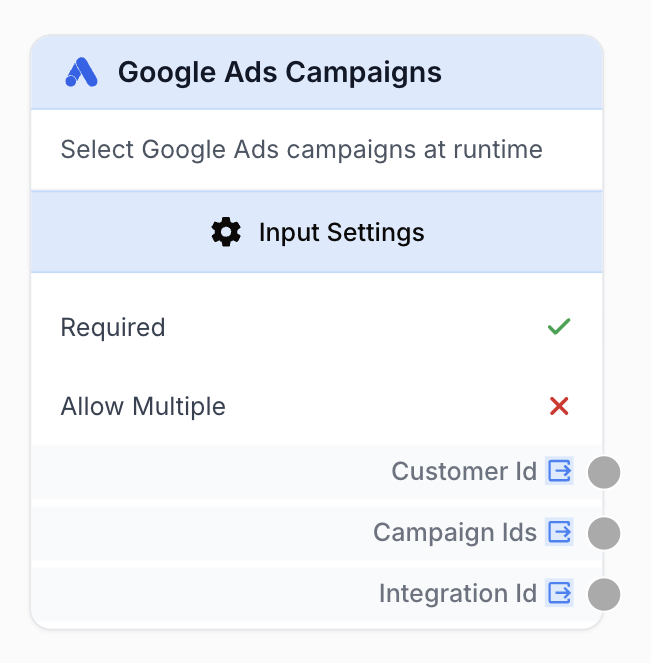
The Google Ads Campaigns input node lets the runner pick a Google Ads customer and one or several campaigns when launching the workflow.
What does the Google Ads Campaigns node do?
The Google Ads Campaigns input node lets the person running the workflow select a Google Ads customer and one or several campaigns at runtime. Instead of hardcoding a customer ID and campaign IDs in the Google Ads tool node settings, this node creates a runtime selector — the runner picks which account and campaigns to query each time the workflow is launched.
Common use cases:
- Build reusable Google Ads reporting workflows where each runner targets their own MCC sub-account.
- Run the same campaign analysis on multiple campaigns without duplicating workflows.
- Let team members report on their own accounts and campaigns through a single shared workflow.
- Map customer IDs and campaign IDs from CSV columns to run a batch of reports in one go.
Quick setup
Follow these steps to add and configure the Google Ads Campaigns input node in your workflow:
Add the node to the canvas
Open the Node Library, go to Input/Output > Integrations, then drag and drop the Google Ads Campaigns node onto your workspace.
Connect to the Google Ads tool node
Connect the three outputs (customer_id, campaign_ids, integration_id) to the matching input handles of a Google Ads Campaign Reports tool node. On that tool node, enable the Use variables for customer ID and campaign IDs toggle (and optionally Use a variable for integration) so the tool reads its values from the connected inputs.
Configure the node settings
Open the node settings. Toggle Allow Multiple if the runner should be able to pick more than one campaign. Optionally enable Fixed integration to lock the Google Ads integration at the workflow level.
Verify the runtime UI
Run the workflow. In the App tab, the runner sees a Google Ads integration selector, then a customer dropdown, then either a single-campaign picker or a multi-campaign picker depending on the Allow Multiple setting.
Configuration parameters
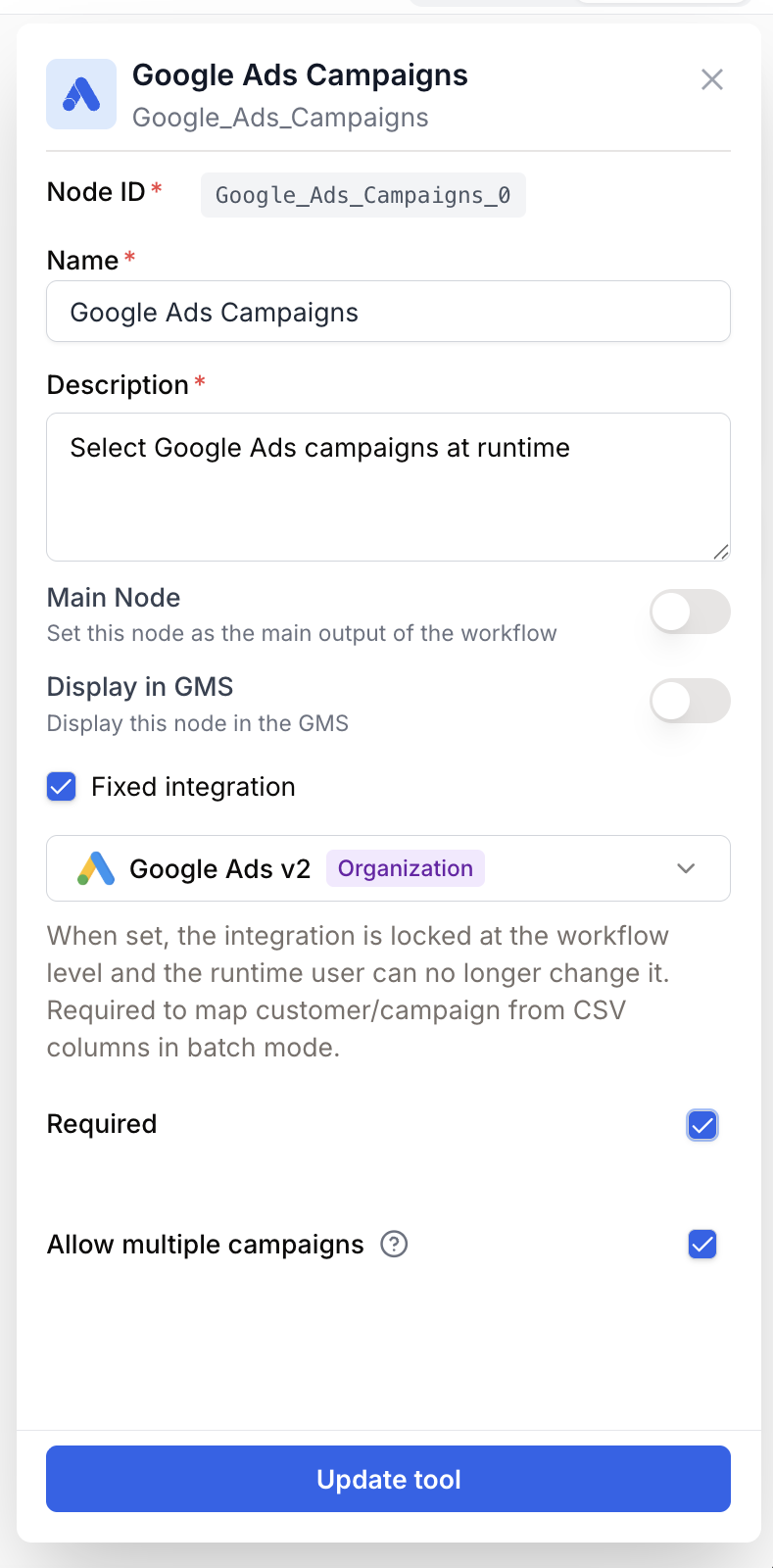
The node has no required text fields — the runtime selection (customer + campaign) is what fills its outputs. Settings only control the runtime UI behavior.
Required fields
Name string required default: Google Ads Campaigns Node name — Used to identify this input on the canvas and in the App tab. Rename it (e.g. “Source campaigns”) when you have several Google Ads inputs in the same workflow.
Description string required default: Select Google Ads campaigns at runtime Node description — A short phrase shown alongside the runtime selector explaining what the runner is picking.
Optional fields
required boolean default: true Required selection — When enabled, the runner must complete the selection (customer + at least one campaign) before the workflow can launch. When disabled, downstream nodes must handle the case where no value is provided.
allow_multiple boolean default: false Allow Multiple — When enabled, the runtime picker becomes a multi-select and the campaign_ids output is a comma-separated list of campaign IDs. When disabled, only one campaign can be selected per run.
Fixed integration — This is a checkbox toggle in the node settings panel, not a stored parameter. When enabled, an integration picker appears and locks the chosen Google Ads integration at the workflow level so the runtime user cannot change it (the selected integration is saved to integration_id). When disabled, the runner picks the integration at runtime and nothing is persisted. Enable it when mapping the customer/campaign from CSV columns in batch mode (the runner needs an explicit integration to authenticate the API call).
Single-run vs Batch mode: in single-run mode the runner picks one customer and one (or several) campaigns from cascading dropdowns. In batch mode customer and campaigns can either be fixed for all rows OR mapped from two CSV columns (one for the customer ID, one for the campaign ID(s)).
What does the node output?
The node exposes three string outputs that connect into the Google Ads Campaign Reports tool node.
How to use the output
In Draft & Goal you don’t need to look up a complex system-generated variable name. To use the result:
- Draw a connection from each Google Ads Campaigns output handle (
customer_id,campaign_ids,integration_id). - Connect each one to the matching input on the Google Ads Campaign Reports node.
- Toggle Use variables for customer ID and campaign IDs on the receiving node so it reads from the connected inputs instead of its own settings.
customer_id string The Google Ads customer ID (without dashes) selected by the runner, e.g. 1234567890.
campaign_ids string The selected campaign ID, or a comma-separated list of campaign IDs when Allow Multiple is enabled, e.g. 111222333 or 111222333,444555666.
integration_id string The ID of the Google Ads integration the runner picked, or the fixed integration set in the node settings.
Usage examples
Example 1: Single-campaign report at runtime
The runner picks an integration, a customer, and a single campaign. The Google Ads Campaign Reports tool produces a JSON report for that campaign.
Configuration:
Allow Multiple=falserequired=trueFixed integration= (empty — runner picks at runtime)
Workflow shape:
[Google Ads Campaigns input] → [Google Ads Campaign Reports] → [LLM Insights]Example 2: Multi-campaign report in batch mode
A CSV ships one row per (customer, campaign) pair. In step 3 (Mapping) you map the Customer ID column and the Campaign IDs column to the input node. Each row triggers a Google Ads Campaign Reports call against the corresponding customer + campaign(s).
Configuration:
Allow Multiple=trueFixed integration=<a specific Google Ads integration>(required in batch mode)
Mapping:
- CSV column
customer_id→ node outputcustomer_id - CSV column
campaign_ids→ node outputcampaign_ids(comma-separated when several IDs per row)
Common issues
The runner sees a 'Select a customer' dropdown but the list is empty
Cause: The Google Ads integration the runner picked has no accessible customer.
Solution: Verify the OAuth scopes and that the integration owner is granted access to at least one Google Ads MCC or sub-account.
Campaign list stays empty after picking a customer
Cause: The selected customer has no campaigns matching the API filter.
Solution: Pick another customer, or check directly in the Google Ads UI that the account has active campaigns.
Validation error 'Customer ID is required' when launching a run
Cause: The runner picked a customer but didn’t pick any campaign. Both are required — the form value is only complete once at least one campaign is selected.
Solution: Pick at least one campaign, or disable Required in the node settings if downstream nodes can handle a missing value.
Batch run fails to authenticate against Google Ads
Cause: No fixed integration set on the input node while running in CSV/batch mode. Without it, the runner cannot determine which Google Ads account owns the customer ID read from the column.
Solution: Open the node settings, enable Fixed integration, and select the Google Ads integration to use for the whole batch.
Best practices and pitfalls
When Allow Multiple is on, the receiving Google Ads Campaign Reports node treats the comma-separated list as multiple campaigns and produces a report per campaign in a single call — keep this node’s output mapping unchanged.
In CSV / batch mode you must set a fixed integration on the input node settings. Without it, the runner has no way to determine which Google Ads account owns the customer ID looked up from the column, and the run will fail to authenticate.
How does it fit into a workflow?
Google Ads Campaigns acts as the runtime entry point that feeds the Google Ads Campaign Reports tool — turning a hardcoded report into a parametrized one the runner controls.
graph LR
    Input[Google Ads Campaigns input] --> Reports[Google Ads Campaign Reports]
    Reports --> LLM[LLM Insights]
    LLM --> Output[Sheets / Slides / Email]
Related nodes
Fetch campaign performance metrics for the selected customer + campaigns.
Same runtime-selector pattern, for Google Search Console properties.
Same runtime-selector pattern, for GA4 properties.
Summarize or extract insights from the campaign report JSON downstream.