Google Docs Reader
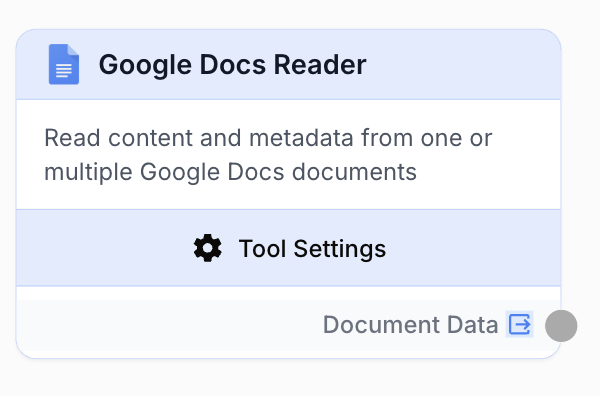
The Google Docs Reader node fetches content and metadata from one or more Google Docs, with per-document tab control and three output formats.
What does the Google Docs Reader node do?
The Google Docs Reader node connects to your Google account and reads content and metadata from one or multiple Google Docs documents. It supports multi-document selection through the Google Drive Picker, per-document tab selection, and three output formats (JSON, plain text, Markdown).
Common use cases:
- Pulling several marketing reports for AI-powered summarization
- Reading SEO briefs or articles to feed an LLM analysis pipeline
- Extracting technical documentation for automated translation workflows
- Retrieving content from selected tabs of large documents to limit token usage
Quick setup
Connect your Google integration
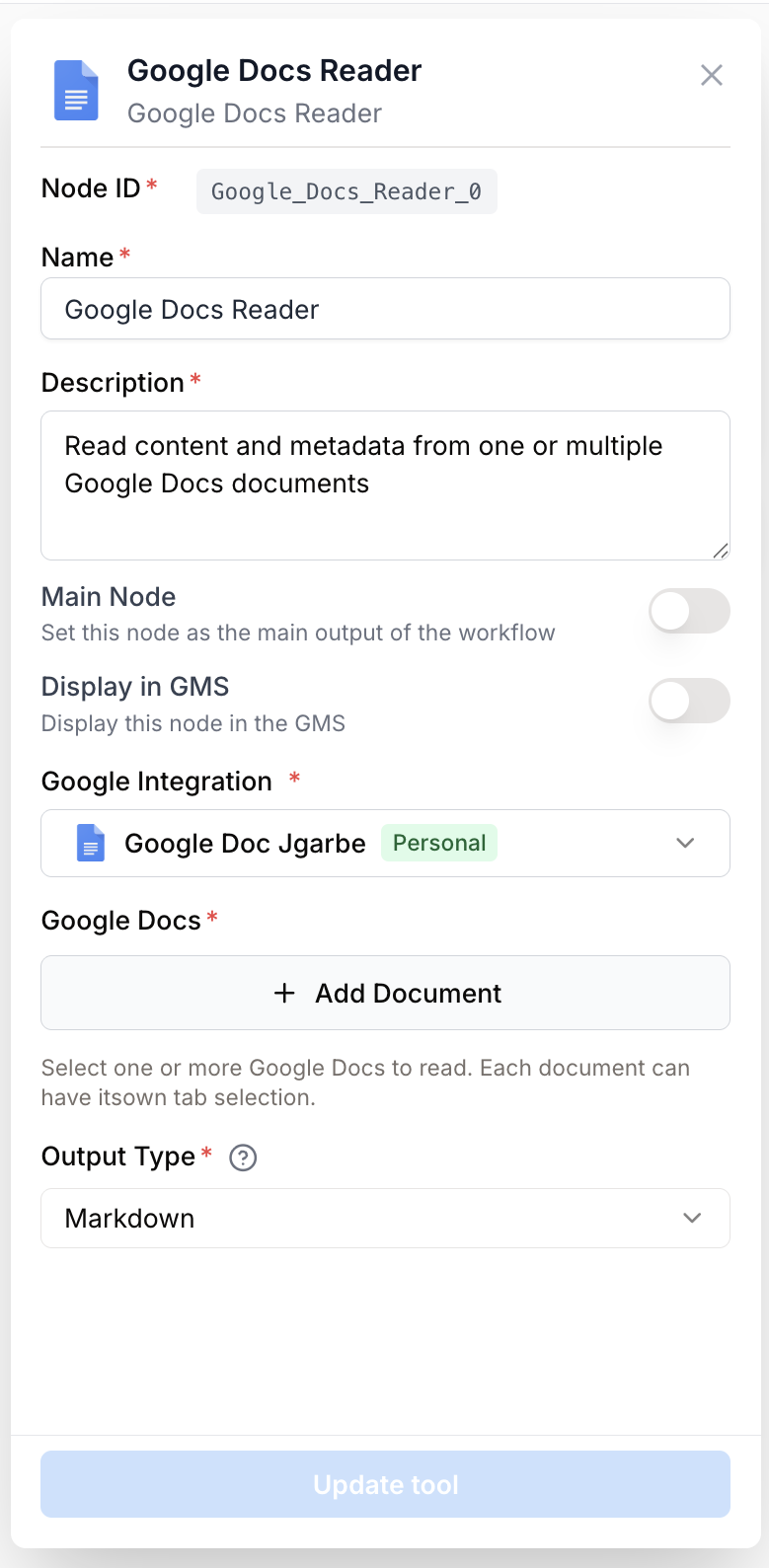
Open the node settings and select your Google Docs integration from the dropdown. If you have not connected Google yet, go to Settings > Integrations and authenticate with the google_docs scope.
Pick the documents
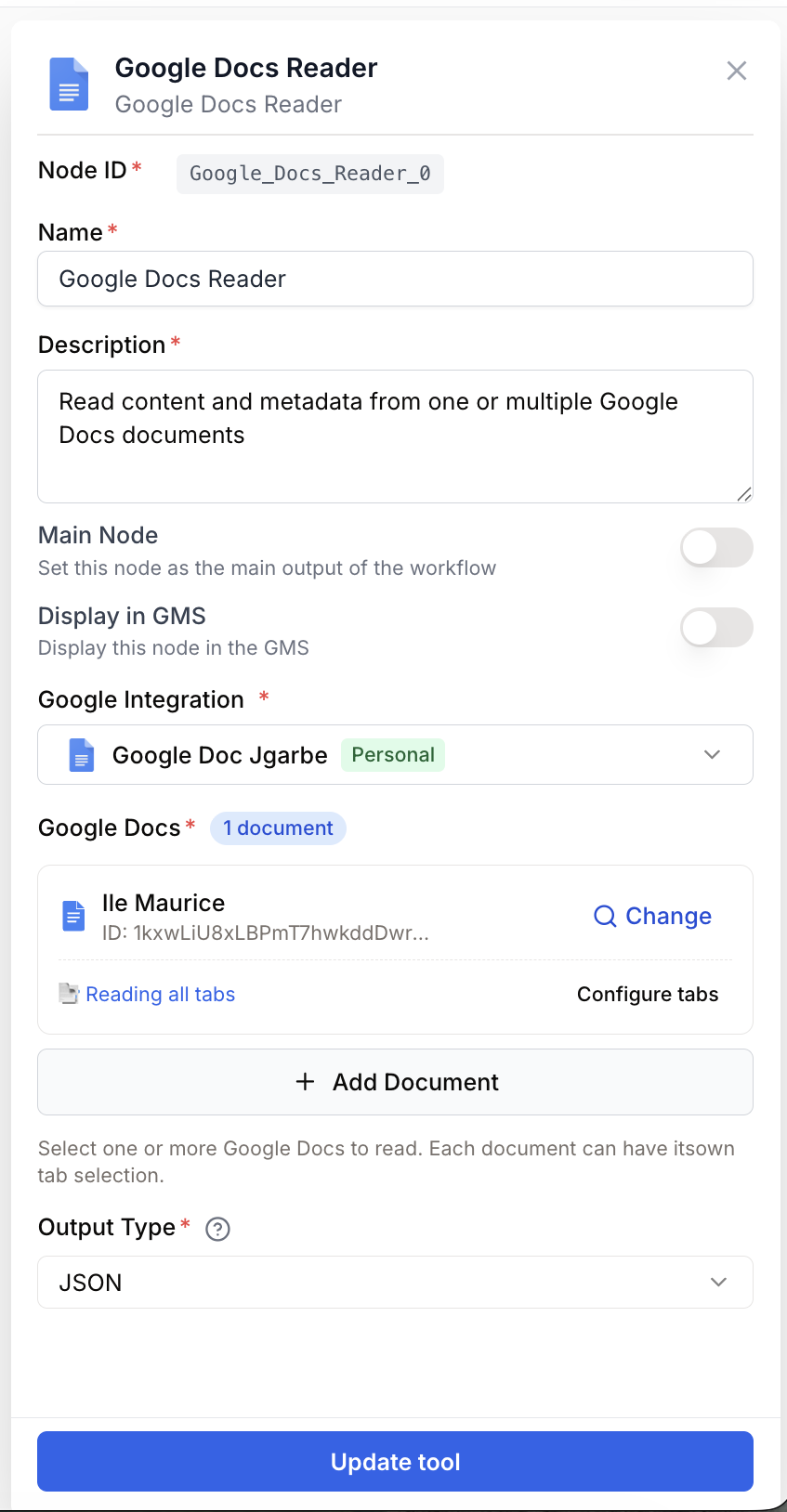
Click the Google Drive Picker to browse your Drive and select one or several documents. The Picker auto-fills document_ids and document_names for you.
Choose an output format
Set Output Type to markdown (recommended for LLMs), plain_text, or json depending on what the next node expects.
Configure tab selection (optional)
Leave Read All Tabs enabled to read every tab, or disable it and pick specific tabs per document via the tab selection modal. Useful for large documents.
Connect the output
Wire the document_data output to the next node — typically a Loop, an LLM, or a JSON Path Extractor.
Configuration parameters
Required fields
integration_id integration required Google Docs integration — Select the Google connection to use. The integration must be authenticated with the google_docs scope and have read access to the documents.
document_ids string[] required Document IDs — List of Google Docs document IDs to read. Use the built-in Google Drive Picker to select one or several documents. Accepts an array or a comma-separated string for backward compatibility.
Optional fields
document_names string[] Document names — Display names of the selected documents. Auto-filled by the Picker. Used in the output payload for readability.
output_type select default: markdown Output format — Format of the extracted content.
| Value | Description |
|---|---|
json | Structured JSON with full document metadata |
plain_text | Raw text without formatting |
markdown | Markdown-formatted content (recommended for LLM processing) |
read_all_tabs boolean default: true Read all tabs — When enabled, every tab of each document is read. Disable it to select specific tabs per document.
selected_tabs object default: {} Selected tabs — Per-document tab selection. When read_all_tabs is disabled, use the tab selection modal to choose which tabs to read for each document. Stored as a JSON map of document IDs to tab metadata.
Use Markdown output for LLM downstream nodes — it preserves headings, lists, and links while staying compact and easy for the model to parse.
What does the node output?
The node returns a single output containing the content and metadata of all selected documents.
document_data string JSON string containing an array of documents. Each entry includes document_id, title, url, and a tabs array with tab_id, tab_name, and content formatted according to output_type.
Example payload:
{
  "documents": [
    {
      "document_id": "1aBcDeFgHiJkLmNoPqRsTuVwXyZ",
      "title": "Q1 Marketing Report",
      "tabs": [
        {
          "tab_id": "t.0",
          "tab_name": "Overview",
          "content": "# Q1 Marketing Report\n\nThis quarter saw a 25% increase..."
        }
      ],
      "url": "https://docs.google.com/document/d/1aBcDeFgHiJkLmNoPqRsTuVwXyZ"
    }
  ]
}
Reference the output downstream as {{Google_Docs_Reader_0.document_data}}.
Usage examples
Example 1: Summarize multiple reports with an LLM
You have several quarterly marketing reports in Google Docs and want an executive summary delivered by email.
Configuration:
- Integration: Google Docs
- Document IDs: 3 to 5 reports selected via the Picker
- Output Type:
markdown - Read All Tabs: Enabled
Pipe document_data into an LLM with the prompt: Summarize each document in 3 bullet points. Send the result through an Email Sender node.
graph LR
    A[Google Docs Reader] --> B[LLM]
    B --> C[Email Sender]
Example 2: Translate selected tabs of a documentation set
You maintain a multi-tab documentation file and want to translate only the user-facing tabs.
Configuration:
- Document IDs: the documentation file
- Output Type:
markdown - Read All Tabs: Disabled
- Selected Tabs: only the public-facing tabs
Connect the output to an LLM translator and write the result back with a Google Docs Writer node.
Example 3: Programmatic extraction of metadata
Use Output Type json to access raw metadata fields. Feed the output into a JSON Path Extractor to pull title and url arrays for indexing.
Common issues
No content returned for a document
Cause: The Google integration lacks read access, or the google_docs scope is missing.
Solution: Go to Settings > Integrations, reconnect the Google integration with the google_docs scope, and confirm the authenticated account has access to the document.
Tab content is missing or incomplete
Cause: read_all_tabs is disabled and the relevant tabs are not selected, or some tabs require additional permissions.
Solution: Enable read_all_tabs to confirm content is reachable. If you need a subset, open the tab selection modal and verify the right tabs are checked for each document.
Error: Missing required parameter document_ids
Cause: No document was selected, or the upstream variable feeding document_ids is empty.
Solution: Re-open the Picker and select at least one document, or verify the upstream node produces a non-empty array or comma-separated string of IDs.
Error: Missing Google Docs Integration
Cause: The integration_id parameter is empty.
Solution: Select a Google Docs integration in the node settings. Create one in Settings > Integrations if needed.
Best practices
Use Markdown output for LLM nodes. It preserves document structure (headings, lists, links) while remaining compact and easy for the model to interpret.
Limit tab reads on large documents. Disable read_all_tabs and pick only the tabs you need — fewer tokens, faster runs, lower cost.
Share documents with the authenticated account. Documents that are not shared with the Google account behind the integration return empty content with no error in some cases.
Mind LLM context limits. Reading many documents at once can blow past your model’s context window. Use a Loop node to process documents one by one when needed.
Related nodes
Create or update Google Docs documents with the content produced downstream.
Summarize, translate, or analyze the content fetched from Google Docs.
Iterate over each document or tab to process them one by one.
Extract specific fields from the JSON payload (titles, URLs, tab content).