AI Agent
The AI Agent node runs an autonomous LLM that can plan, call tools, query knowledge bases, and use MCP servers to complete multi-step tasks.
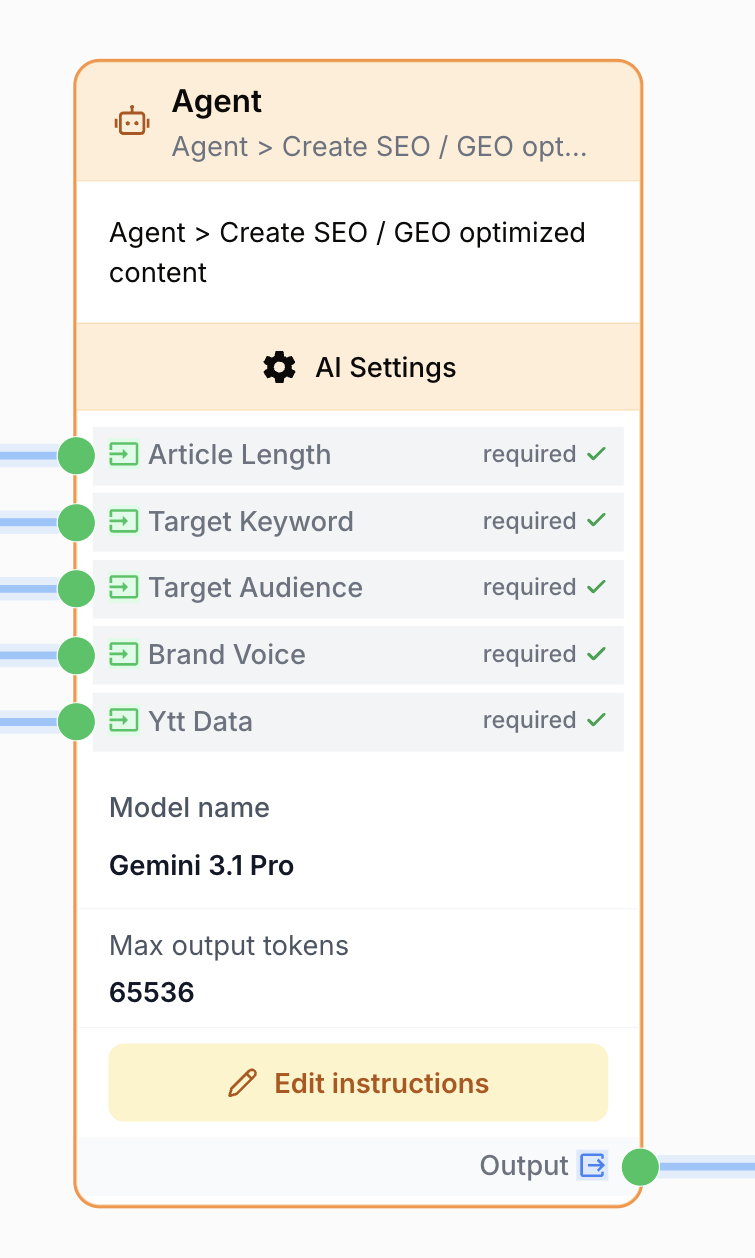
What does the AI Agent node do?
The AI Agent node turns an LLM into an autonomous executor. Unlike the LLM node — which produces a single response from a prompt — the Agent reasons over your instructions, decides which tools, datasources, or MCP servers to invoke, observes the results, and iterates until the goal is reached. It returns a single text answer once it considers the task complete.
Common use cases:
- Multi-step research that combines web search, scraping, and summarization in one node.
- Question-answering grounded in a private knowledge base via RAG (datasources).
- Driving external systems through MCP servers (e.g. internal APIs, databases) without writing dedicated nodes.
- Data enrichment workflows that mix document context, web tools, and structured reasoning.
Quick setup
Follow these steps to add and configure the AI Agent node in your workflow:
Add the node to the canvas
Open the Node Library, go to AI and drag the Agent node onto your workspace.
Pick a model
In the settings, choose an LLM in the Model name dropdown. Reasoning-capable models (GPT-4 class, Claude Sonnet/Opus class, Gemini Pro) are strongly recommended — weaker models loop or fail to use tools correctly.
Write the instructions
In the prompt field, describe the goal, expected steps, constraints, and output format. Use {{variable}} syntax to inject values from upstream nodes.
Attach capabilities
Add any combination of Tools (built-in agent tools), RAG datasources, and MCP Servers. The agent decides at runtime when to use each one.
Connect the output
Connect the output port to the next node and define the receiving variable name there to consume the agent’s final answer.
Save and update the prompt
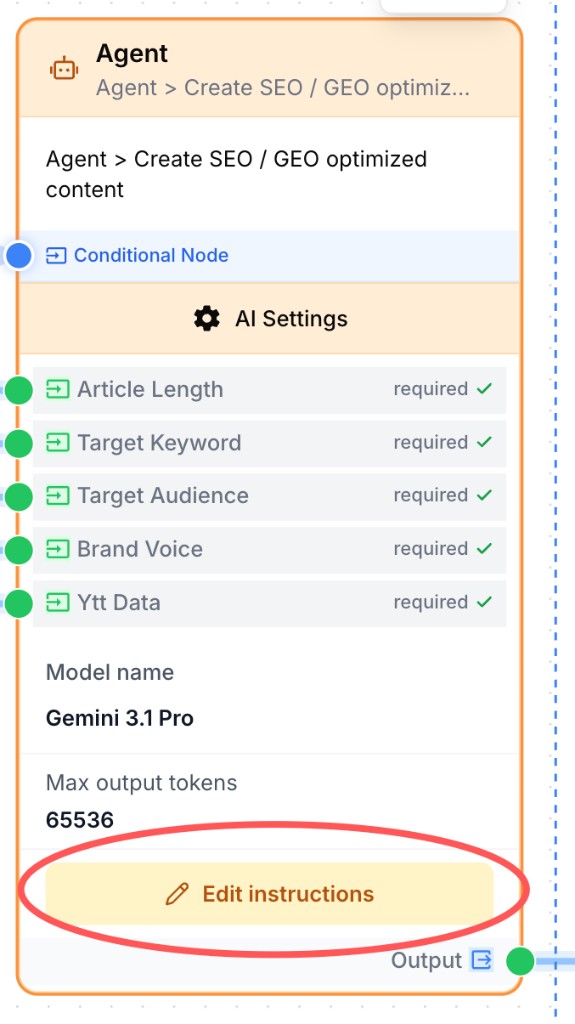
From the canvas, open the Agent node and click Edit instructions at the bottom of the panel to write the prompt that defines the agent’s task and behavior on each run.
Edit Instructions
prompt string required Instructions — The task and goal the agent must accomplish. Supports dynamic variables {{myVariable}} (allowed characters: -, _, .). The node fails configuration validation if this field is empty.
Open Edit instructions from the canvas to write or refine the prompt. The banner at the top of the editor shows how many variables are detected in the text.
Enhance Instructions
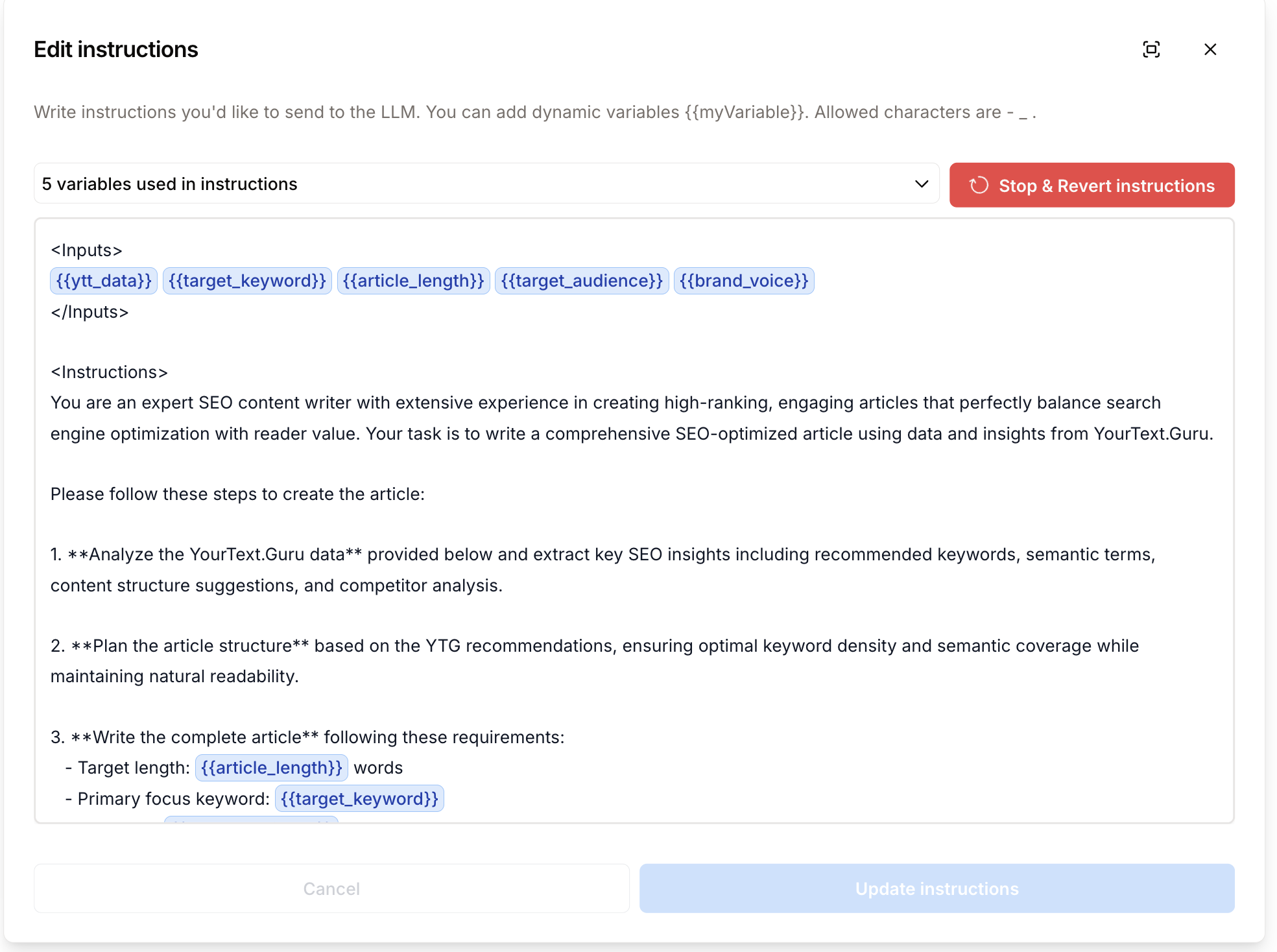
The Enhance Instructions feature (BETA badge) turns a minimal prompt into structured, detailed instructions tailored to the task and the variables already present in the node. For example, start with something as simple as generate an SEO-optimized article with YourText.Guru — the assistant produces a full prompt (persona, steps, format constraints) while preserving connected variables ({{ytt_data}}, {{target_keyword}}, etc.).
While generation is running, Stop & Revert instructions cancels the process and restores the previous prompt:
Once generation completes, the enriched prompt appears in the editor and remains fully editable. You can tweak it manually, click Rollback previous instructions to revert, or run Enhance Instructions again for a new proposal:
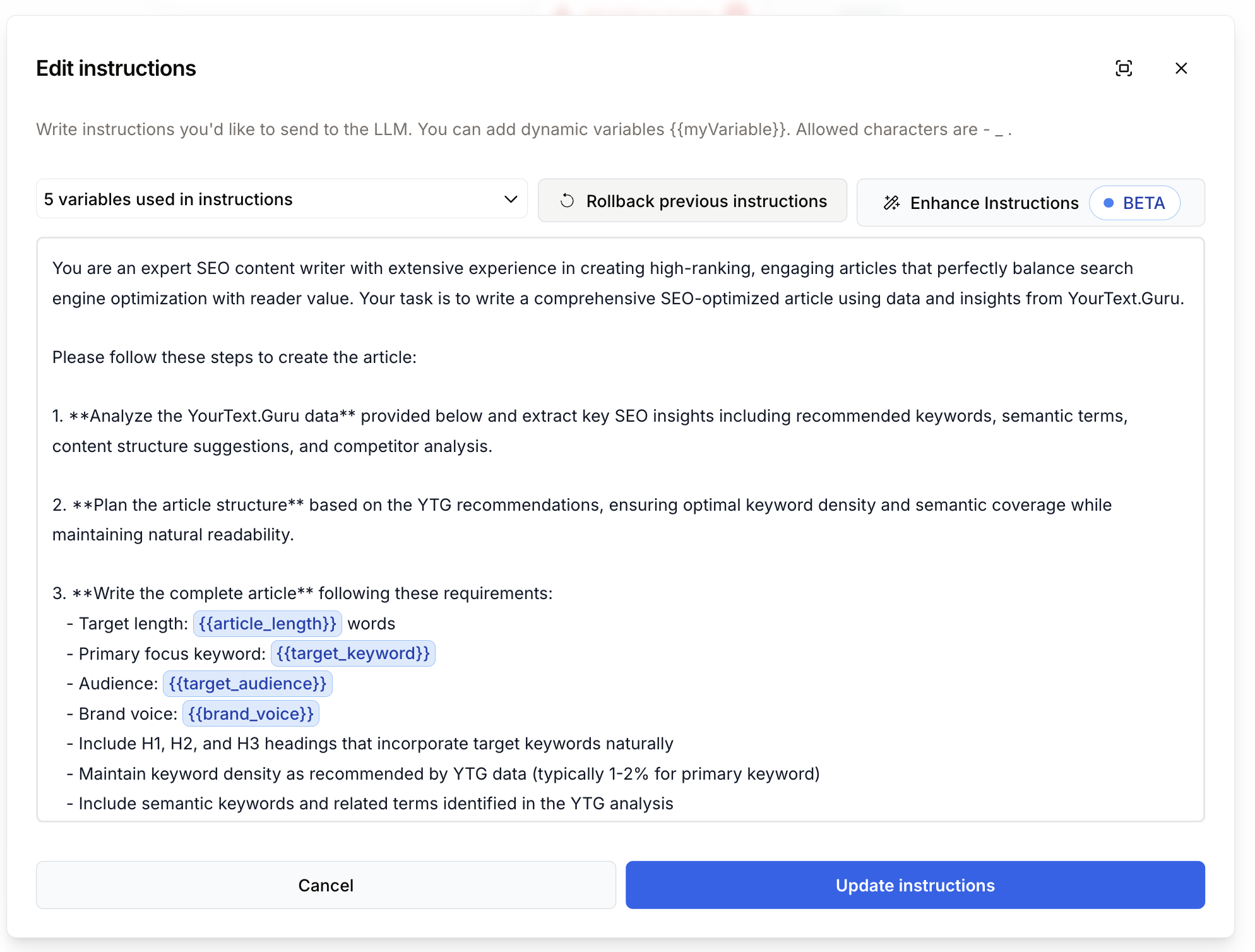
Use Enhance Instructions to speed up complex agent prompt writing, then refine the result manually before clicking Update instructions. Keep upstream {{...}} variables connected — the assistant weaves them into the generated prompt.
Guide the agent: Tools, RAG, and MCP
Attaching capabilities in Agent Settings is not enough — the agent needs to know when, how, and how far to use them. Without explicit framing in the prompt, it may ignore a tool, loop on the same call, or exceed a reasonable budget.
Principles to include in your instructions:
- Name each attached capability and its role in the task (“use RAG to…”, “call the CRM MCP server to…”).
- Set a priority order: for example RAG first, then Web Search only if the answer is missing from sources.
- Set limits: maximum tool calls, RAG queries, or MCP function invocations per run.
- Specify failure behavior: continue with partial data, report missing information, or stop.
- State the expected output format once capabilities have been used (text, JSON, list of cited sources).
Instruction examples — RAG only
Attached capabilities: “Product docs” datasource (PDF, MARKDOWN).
- Query the knowledge base before drafting your answer.
- Answer only from attached RAG documents; if information is missing, state “Not documented in available sources”.
- Cite the source document title for each key claim.
- Limit yourself to 3 RAG queries maximum, then synthesize.
Instruction examples — Tools (Web Search + Web Scraper)
Attached capabilities: Web Search, Web Scraper.
- Use Web Search to identify the official website from the
{{lead_email}}domain. - Scrape only the homepage and the “About” page — no other URLs without justification.
- Perform at most 5 tool calls in total; if a page is unreachable, move to the next step.
- Return JSON with keys
company_name,website,summary.
Instruction examples — MCP (Fathom server)
Attached capabilities: Fathom MCP server (list_meetings, get_meeting_transcript).
- Call
list_meetingsto retrieve meetings from the last 7 days related to{{contact_email}}. - Invoke
get_meeting_transcriptonly when a meeting explicitly matches the user request. - Do not exceed 3 MCP calls; summarize action items at the end of the response.
- If no meeting is found, respond without inventing content.
Instruction examples — Tools + RAG + MCP combined
Attached capabilities: RAG “Product docs”, Haloscan tool, CRM MCP server, Web Search.
- Step 1 — RAG: consult “Product docs” for product positioning and sales arguments.
- Step 2 — Haloscan: one SEO analysis per target keyword (
{{target_keyword}}); do not rerun the tool on close variants. - Step 3 — CRM MCP: check whether account
{{company_domain}}already exists; perform only one read call. - Step 4 — Web Search: only for recent market data absent from RAG.
- Global budget: 10 tool/MCP calls maximum, then produce the final synthesis and stop.
Put stable rules (persona, privacy policy, tone) in Agent system message, and the operational sequence (with {{variables}} and call budgets) in Edit instructions. The agent applies both at every iteration of the loop.
Configuration parameters
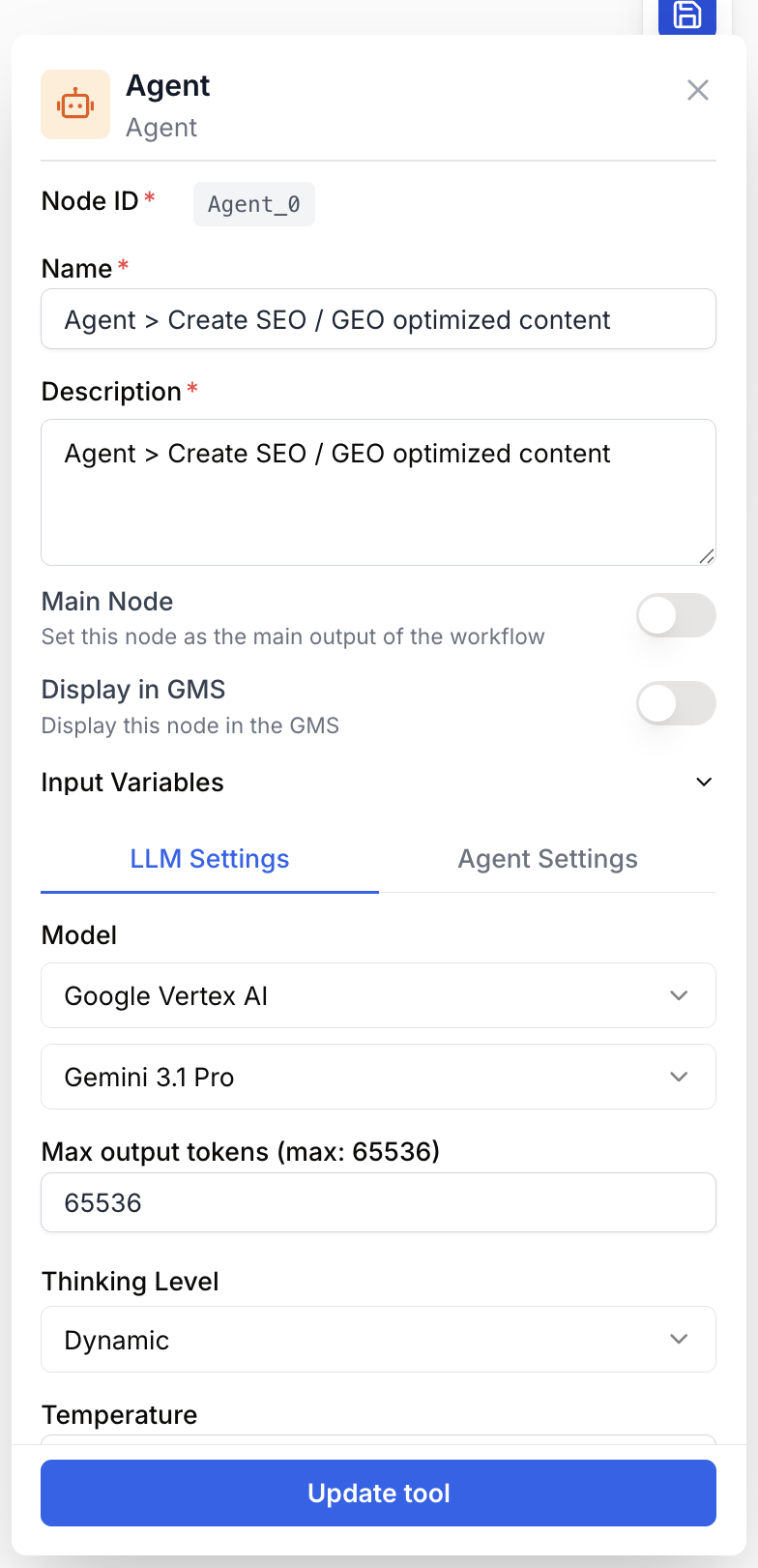
Configuring the node means picking a model, writing clear instructions, and exposing the right capabilities — nothing else is mandatory.
Name string required default: Agent Node name — Used to identify the node when running and debugging the workflow (e.g. “Lead enrichment agent”).
Description string required default: A tool for interacting with a Large Language Model in Agent mode. Node description — Short phrase describing what this agent is responsible for in your workflow.
LLM Settings
LLM Provider string required LLM provider — Select the provider first in LLM Settings to determine which Model name options are available. Identifies the provider routing (Google Vertex, OpenAI, Anthropic, Gemini, etc.).
Model name llm required LLM to drive the agent — Model available based on the selected LLM Provider. The agent inherits the provider’s Max output tokens ceiling. Reasoning-capable models perform far better in agent mode.
The sampling parameters below adapt to the selected Model name. Which fields appear and what values they accept depend on the LLM Provider and model — only settings supported by the chosen LLM are shown in LLM Settings.
Temperature number default: 1 Sampling temperature. Lower values (0.2–0.5) make tool selection and reasoning more deterministic; higher values increase variability. Available when the selected model exposes this parameter.
Max output tokens number default: 4000 Upper bound on tokens for the final answer. The effective minimum and ceiling depend on the selected model. Increase if the agent’s answers are getting cut off.
Top K number default: 40 Restricts sampling to the K most likely tokens at each step. Shown only when the model supports it.
Top P number default: 1.0 Nucleus sampling: keep the smallest set of tokens whose cumulative probability is ≥ P. Range 0–1. Shown only when the model supports it.
Thinking Level string Effort level for reasoning models that expose a thinking control (e.g. low, medium, high). Visible only for models that offer this setting.
Thinking Budget number Maximum tokens the model may spend in its thinking phase. Visible only for models that expose a thinking budget.
Agent Settings
Open the node settings and switch to the Agent Settings tab to attach tools, RAG sources, MCP servers, and the agent system message.
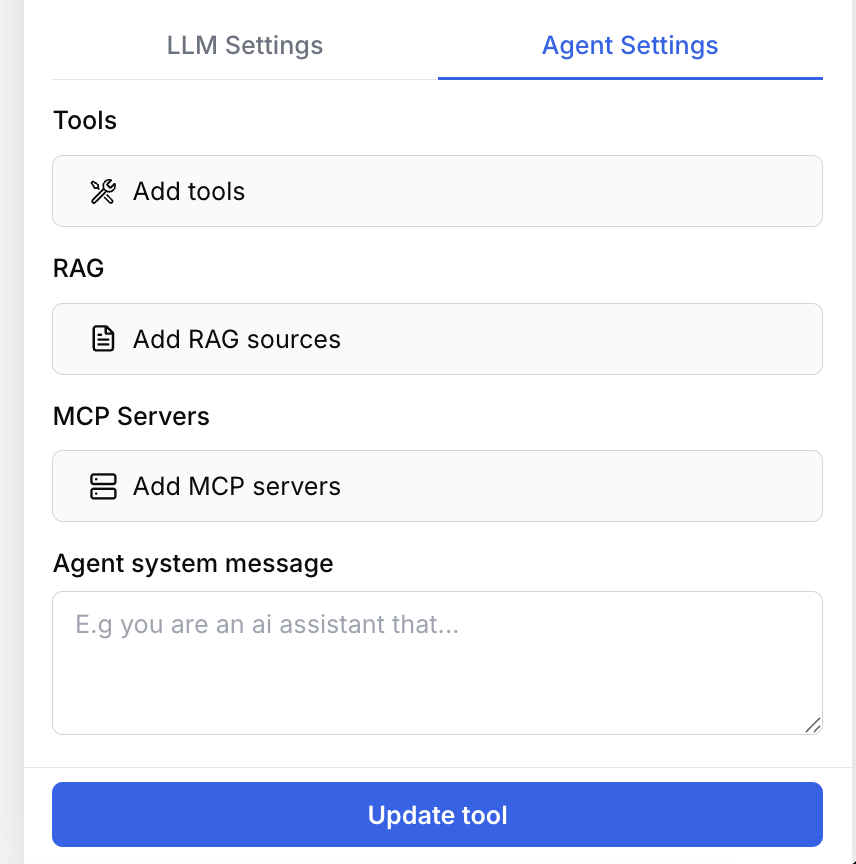
The Agent Settings tab groups all agent-specific capabilities: Tools, RAG, MCP Servers, and Agent system message. Use Add tools, Add RAG sources, and Add MCP servers to open the corresponding selection modals. Click Update tool to save your changes.
System Message string agentSystemMessage — System-level instructions that define the agent’s persona, role, and global rules. Applied before the user prompt at every step of the agent loop.
Tools array default: [] agentTools — Built-in tools the agent can call (e.g. web search, scraping, internal helpers). The agent decides when and how often to invoke each one.
Open Selection and configuration of tools from Agent Settings to browse available tools, add them to the selected list, and configure any required integration (e.g. Haloscan organization) before clicking Apply.
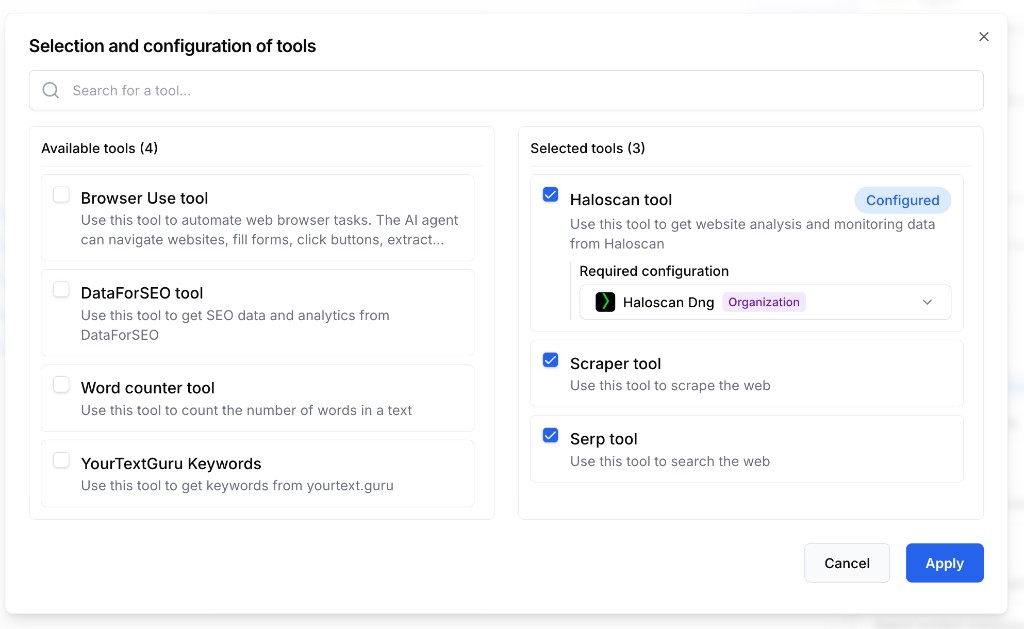
The modal is split into two columns: Available tools on the left (search and checkboxes to add tools) and Selected tools on the right. Tools that depend on an integration expose a Required configuration block — for example, Haloscan tool shows a Configured badge once you pick the Organization in the dropdown. Click Apply to save both the tool selection and its configuration.
RAG array default: [] agentDatasources — Knowledge bases or document collections the agent can query for grounded answers. Useful for question-answering against your own content.
Click Add RAG sources in Agent Settings to open Selection of RAG Sources.
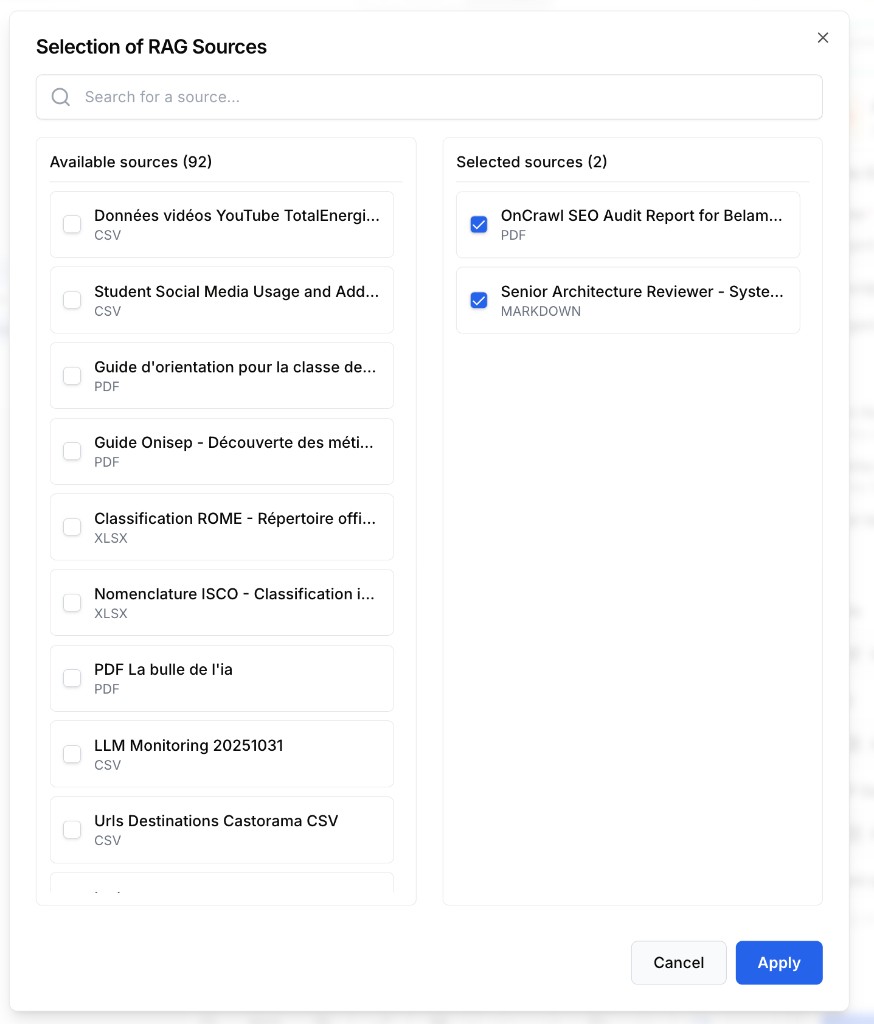
The Selection of RAG Sources modal splits into two columns: Available sources on the left (searchable list with format badges — PDF, CSV, XLSX, MARKDOWN, etc.) and Selected sources on the right (checked items active for the agent). Check the documents to include, then click Apply to attach them to the node.
MCP Servers array default: [] agentMcpServers — MCP servers the agent can talk to. Each server exposes its own toolset, letting you plug in custom integrations without building dedicated nodes.
Click Add MCP servers in Agent Settings to open Selection of MCP Servers and Tools.
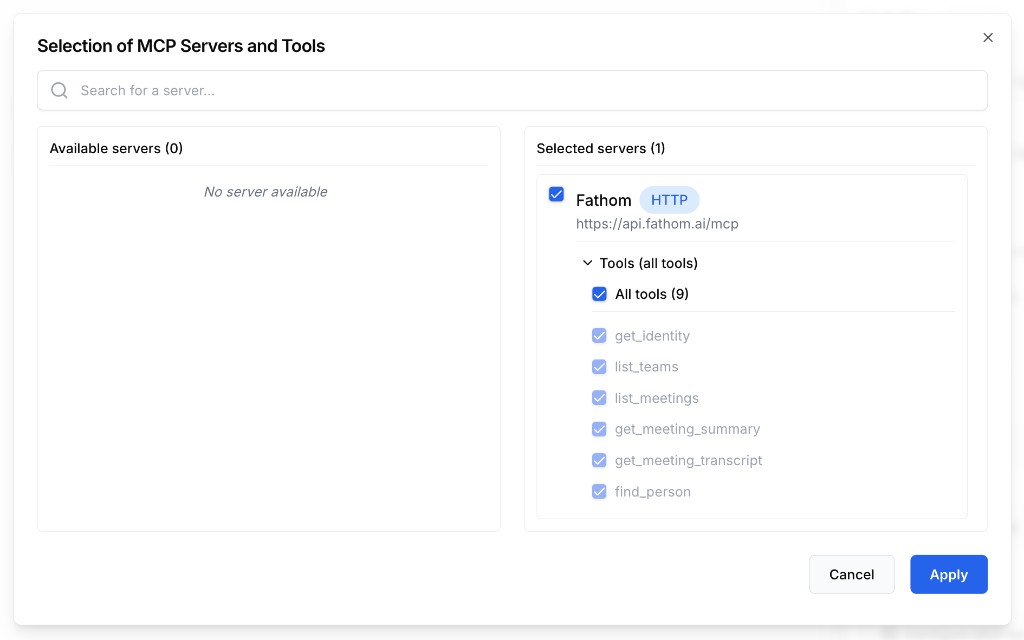
The Selection of MCP Servers and Tools modal lists available servers on the left (Available servers) and active servers on the right (Selected servers). Each server shows its URL, a transport badge (e.g. HTTP), and an expandable Tools section. Check All tools to enable everything, or pick individual functions (get_meeting_transcript, list_meetings, etc.). Click Apply to save.
Combine Agent system message and Edit instructions: put stable role/policy in the system message and put the per-run task (with {{variables}}) in the prompt. This gives consistent behaviour across runs without rewriting the whole instruction block.
What does the node output?
The node outputs the agent’s final text answer as a string — once it decides the task is complete. Tool calls, intermediate reasoning, and observations are not part of the output: only the answer.
How to use the output
In Draft & Goal you don’t need to look up a system-generated variable name. To use the result:
- Draw a connection from the AI Agent node’s output.
- Connect it to the next node’s input.
- In that next node, create and name your own variable (e.g.
agent_answer). The agent’s final response is injected into it automatically.
output string The agent’s final response after the reasoning loop terminates. If you need structured data, instruct the agent in the prompt to format the answer as JSON and parse it downstream with a JSON Path Extractor.
Usage examples
Example 1: Grounded Q&A over a private knowledge base
You want the agent to answer support questions strictly from your documentation.
Configuration:
- Model name: a reasoning-capable LLM (e.g. GPT-4 class).
- System Message:
You are a support assistant. Only answer using information from the
attached knowledge base. If the answer is not in the sources, say
"I don't know based on the available documentation."- prompt:
Question from the customer: {{customer_question}}

Search the knowledge base, then provide:
- A concise answer (max 4 sentences)
- The 1-3 most relevant source titles you used- RAG: select your “Product docs” datasource.
- Tools / MCP Servers: none — the agent must rely on RAG only.
Example 2: Multi-step research with tools and MCP
You want the agent to enrich a lead by combining web tools and an internal CRM exposed via MCP.
Configuration:
- prompt:
Enrich the lead {{lead_email}}:
1. Use the web search tool to find the company website from the email domain.
2. Scrape the homepage and "About" page to extract industry, size, and value proposition.
3. Call the CRM MCP server to check whether this account already exists.
4. Return a JSON object with keys: company_name, website, industry, size_estimate, exists_in_crm, summary.

Use at most 8 tool calls. If a step fails, continue with whatever information you have.- Tools: Web Search, Web Scraper.
- MCP Servers: your internal CRM server.
- Temperature:
0.3for reproducible tool selection.
Common issues
The node fails validation with 'Agent requires instructions to be configured'
Cause: The prompt field is empty or whitespace-only.
Solution: Open the node settings and fill in the prompt field with the task to perform. The validator strips whitespace, so a single space is not enough.
The agent loops, retries the same tool, or never terminates
Cause: The instructions don’t define a clear stopping condition, or the model is too weak to plan reliably.
Solution: Add an explicit budget in the prompt (“Use at most N tool calls”, “If you cannot find X, say so and stop”). Switch to a stronger reasoning model. Lower Temperature to 0.2–0.4.
The final answer is truncated
Cause: Max output tokens is too low for the requested format, or the agent spent its budget on intermediate reasoning.
Solution: Increase Max output tokens. Ask the agent in the prompt to produce a shorter, more structured answer. For reasoning models, also raise Thinking Budget if the truncation happens during thinking.
Connecting a File input fails with a file-type error
Cause: The Agent node only accepts Structured Documents (csv, xlsx, json, xml) and Unstructured Documents (pdf, txt, md, docx, pptx) coming from a File input node. Other file types are rejected at connection time.
Solution: Change the File node’s type to a supported document type, or pre-process the file with a converter node before feeding it into the agent.
The agent ignores my datasources or MCP servers
Cause: The instructions don’t mention them, so the agent doesn’t realize they’re available — or it judged them irrelevant for the current task.
Solution: Reference the capability explicitly in the prompt (“Use the knowledge base to answer”, “Call the CRM MCP server to verify the account”). Provide the datasource name in the system message.
Best practices and pitfalls
Treat the prompt as a contract: state the goal, the allowed tools, the iteration budget, and the exact output format. Concrete contracts produce concrete answers; vague prompts produce drifting agents.
Don’t enable every capability “just in case”. Each extra tool, datasource, and MCP server widens the action space the agent must reason over — slower runs, more loops, higher token cost. Attach only what the task strictly needs.
How does it fit into a workflow?
The AI Agent typically replaces a chain of LLM + tool nodes when reasoning between steps is required. Here’s a typical integration pattern for a research-then-act workflow:
graph LR
    Input[Text Input
<br/>topic or lead] --> Agent[AI Agent
<br/>plans + uses tools/RAG/MCP]
    Agent --> FR[Find and Replace
<br/>strip Markdown fences]
    FR --> Extractor[JSON Path Extractor]
    Extractor --> Writer[Google Docs Writer]
Related nodes
Use a plain LLM call when the task is single-shot text generation with no tools.
Direct alternative when you need scraped content without agent reasoning, or to feed the agent’s tool set.
Place after the Agent when you instruct it to return JSON, to extract structured fields downstream.
Clean up Markdown fences or stray characters in the agent’s final answer before parsing.