Workflows
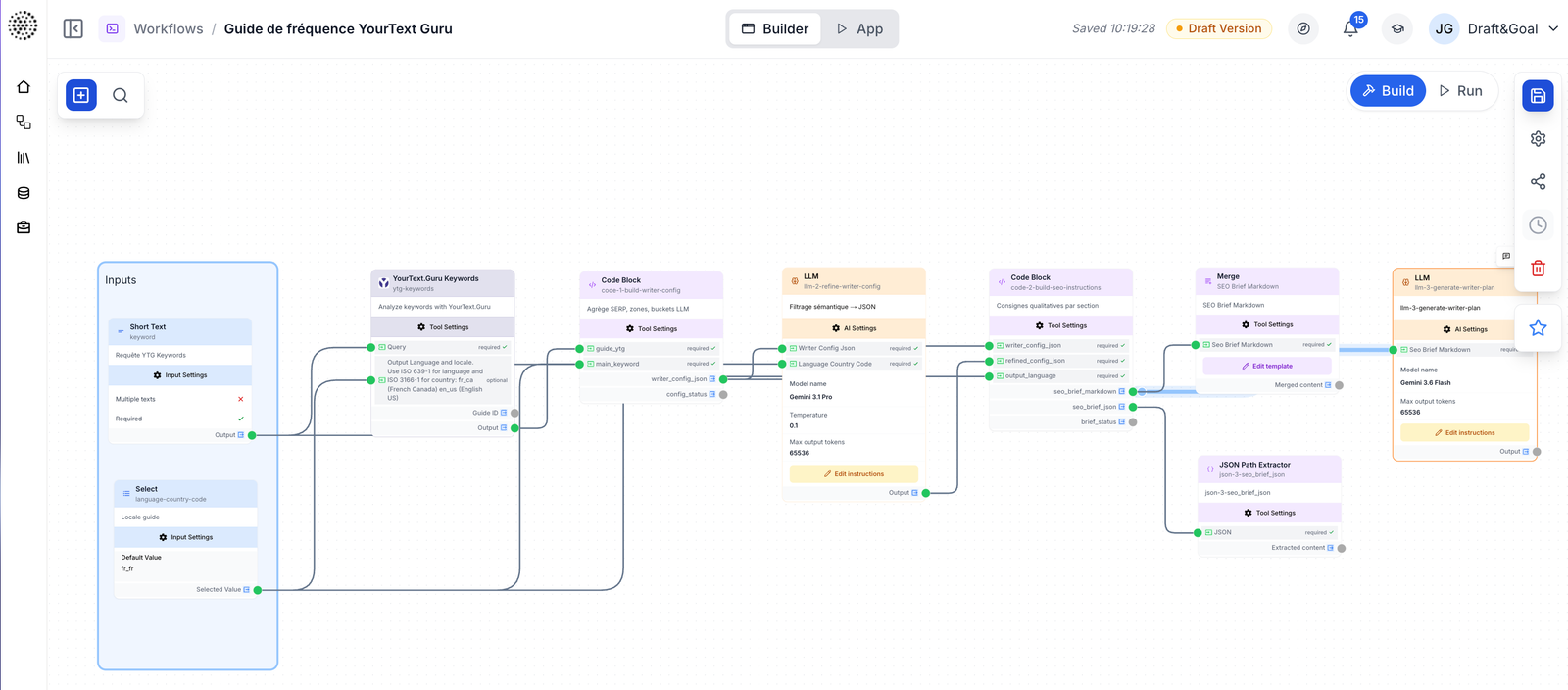
Learn to build workflows in Draft & Goal: create a workflow, add and connect nodes on the canvas, and use patterns like linear flows, branches, and loops.
What is a workflow?
A workflow is a series of connected nodes that work together to accomplish a task. When you run a workflow:
- Data enters through input nodes
- Each node processes the data and passes it to the next
- Final results are output or saved
Think of it as a production line where each station (node) adds value to the product (data).
Creating a workflow
You can also describe the workflow in natural language with the Workflow Generator — useful for a first draft before you refine nodes by hand.
Start a new workflow
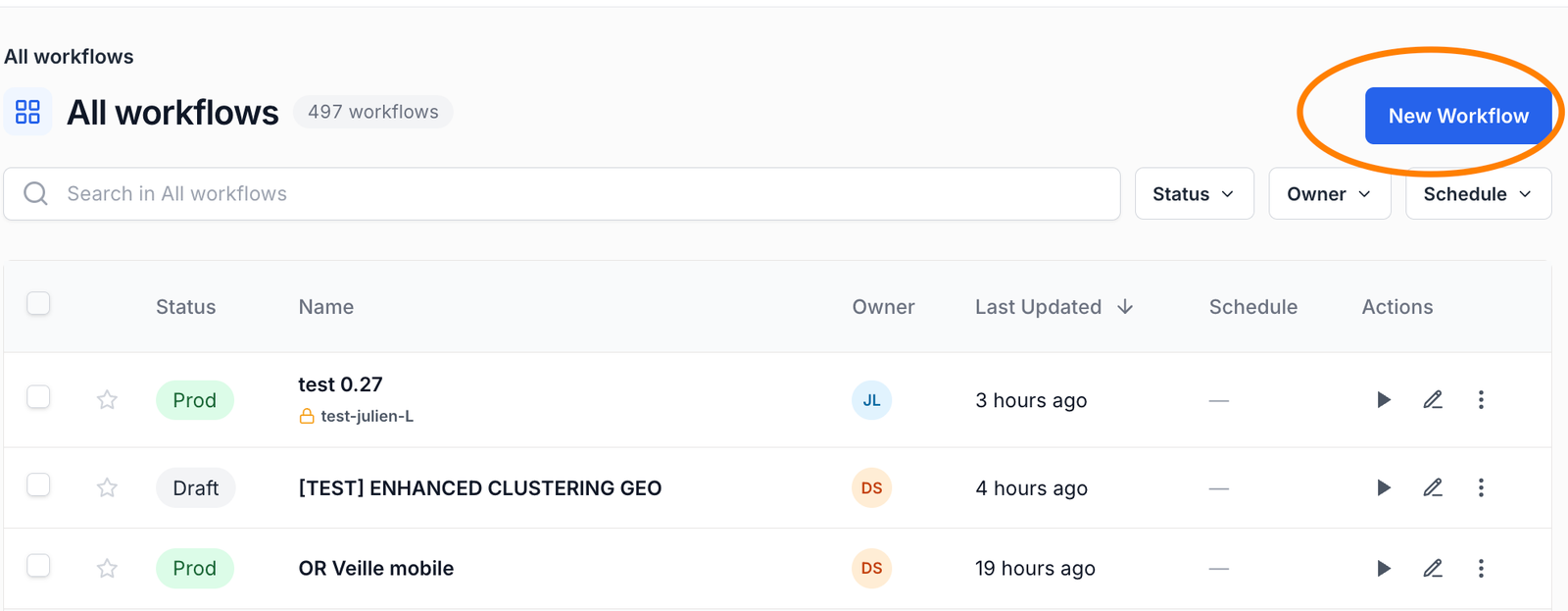
- Click New Workflow in the Studio
- Give it a descriptive name (e.g., “SEO Content Audit”)
- You’ll see an empty canvas ready for nodes
Add your first node
Every workflow needs at least one node:
- Click Add Node in the left sidebar
- Choose a node from the library
- Click to add it to the canvas
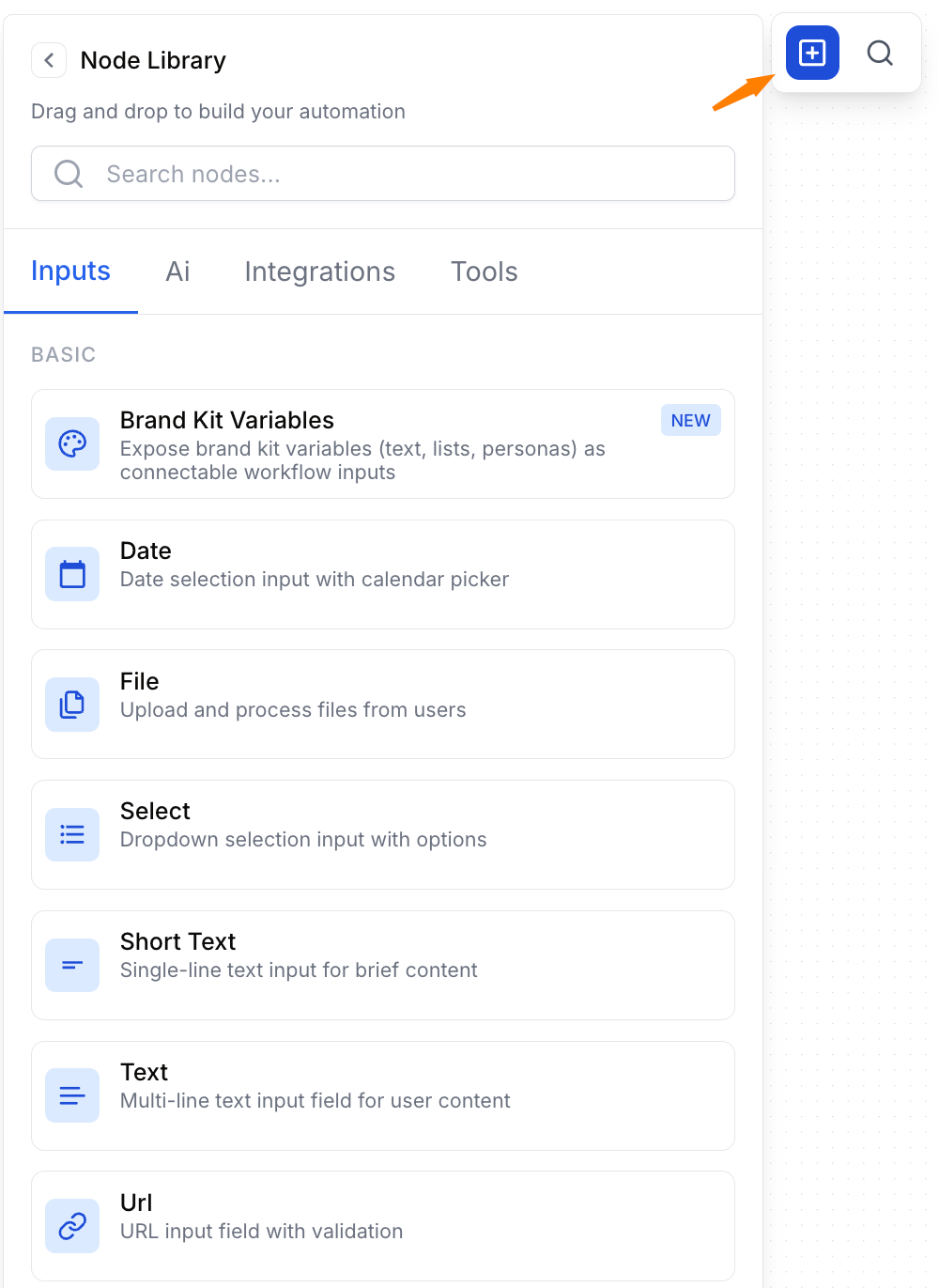
Most workflows start with an input node (like Text Input) or a data source node (like Google Sheets Reader).
Connect nodes together
To pass data between nodes:
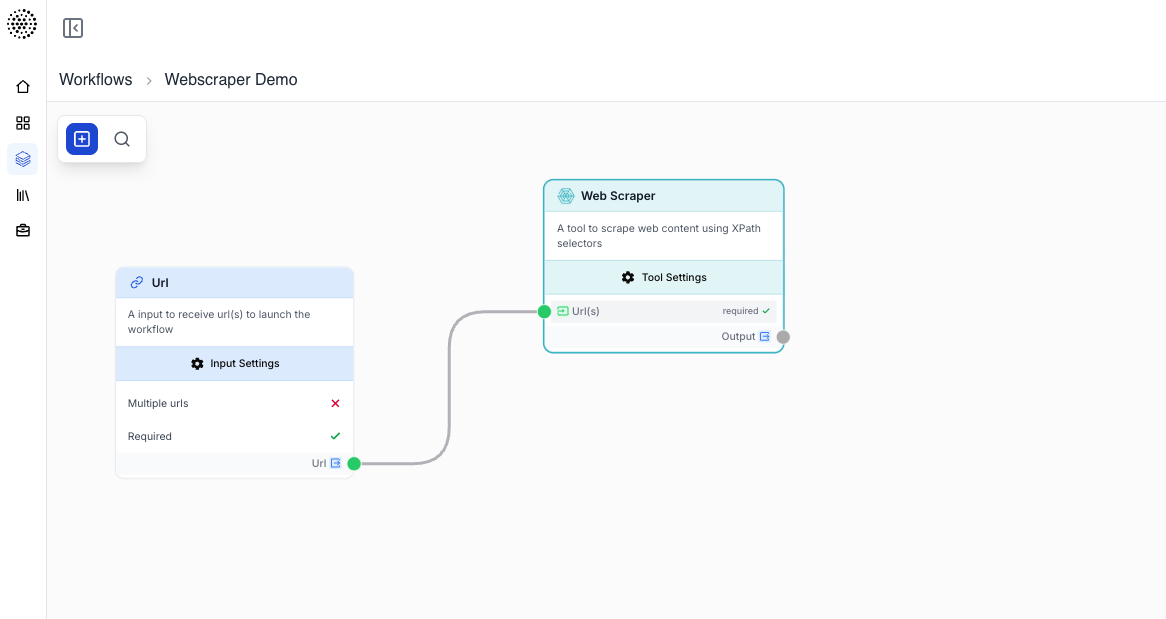
- Hover over the output point (right side) of a node
- Click and drag to create a connection line
- Drop on the input point (left side) of another node
Connections show the data flow direction with arrows.
Workflow patterns
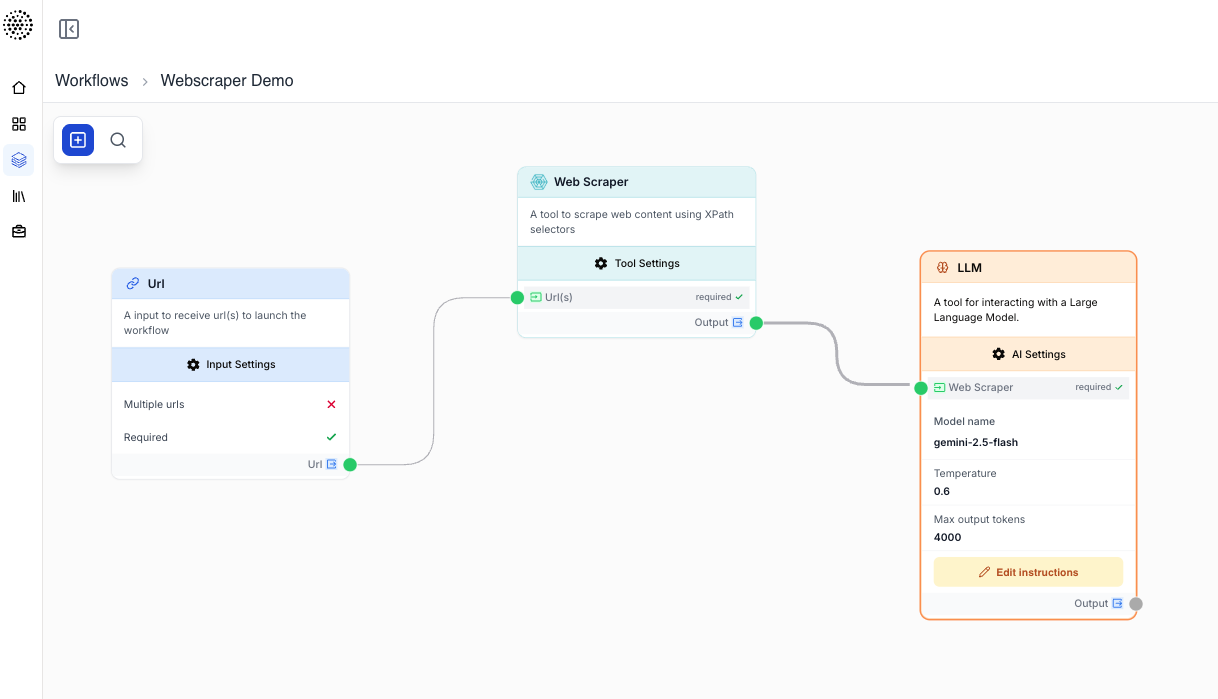
Linear workflow
The simplest pattern — data flows in a straight line:
Input → Process → Transform → OutputExample: Scrape a URL → Summarize with AI → Save to Google Sheets
Parallel workflow
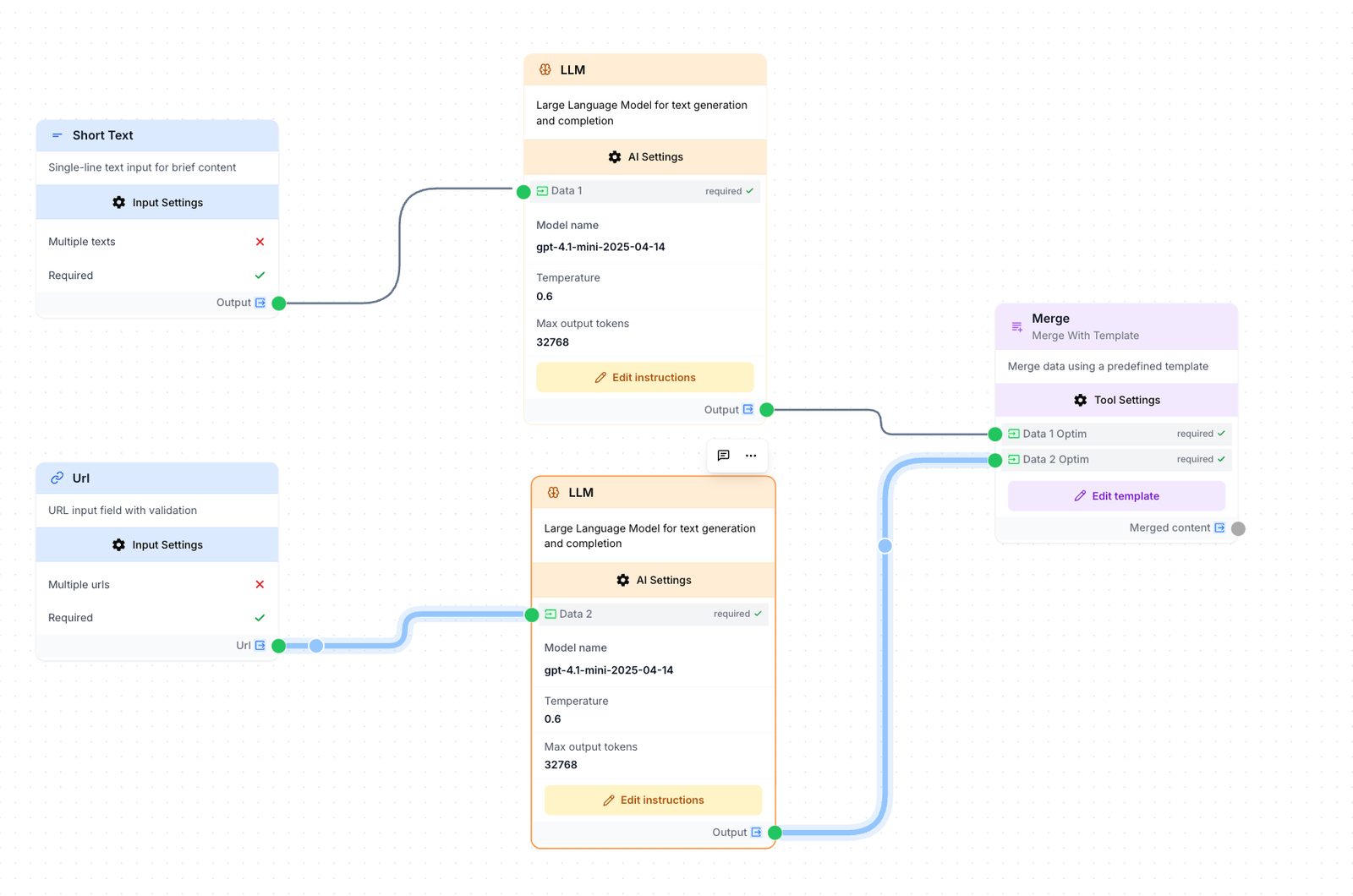
Multiple branches process data simultaneously:
        ┌→ Branch A →┐
Input →│              │→ Merge → Output
└→ Branch B →┘Example: Fetch a URL → Extract both text AND images → Combine results
Conditional workflow
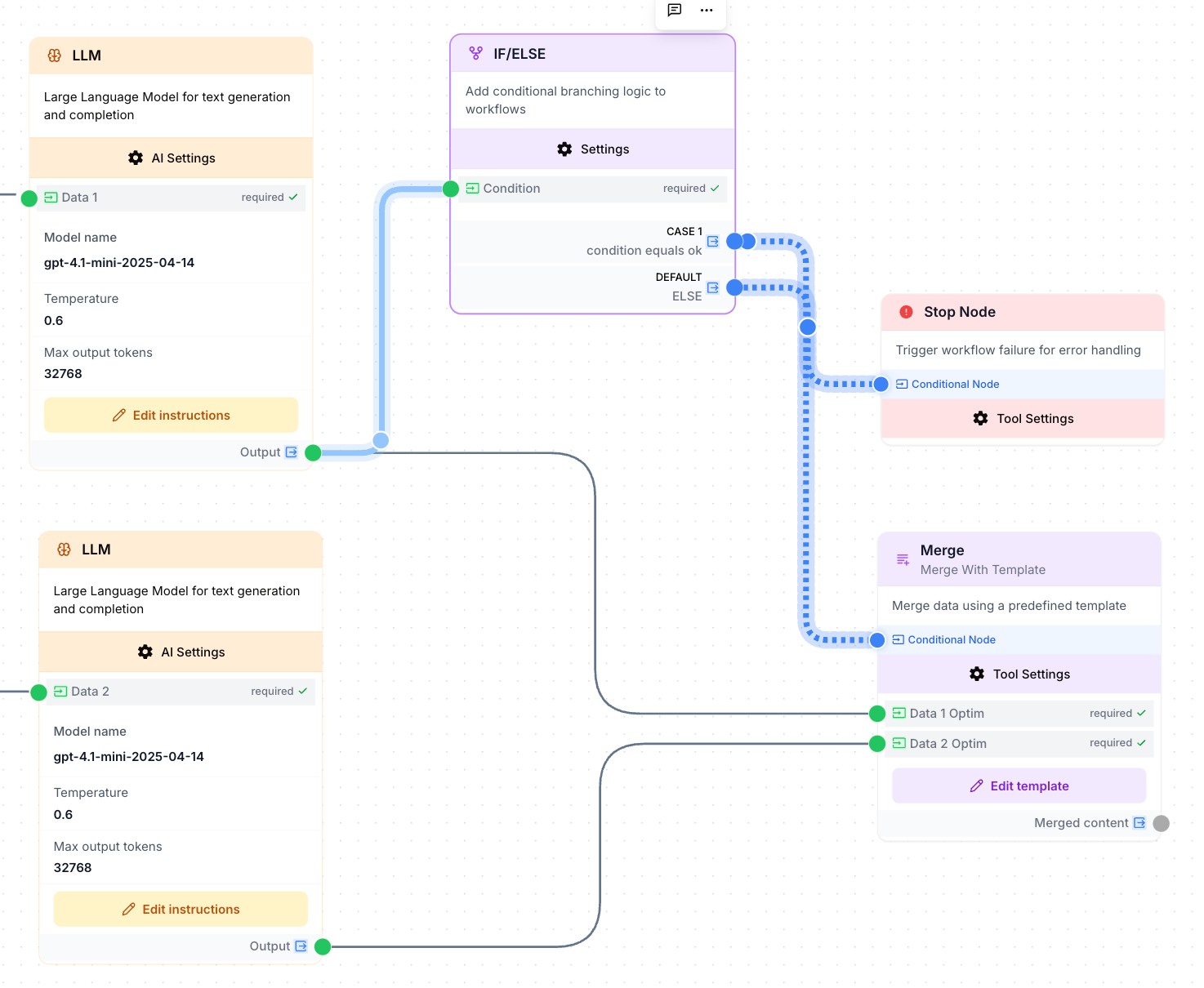
Different paths based on conditions:
        ┌→ Path A (if true) →┐
Input →│                      │→ Output
└→ Path B (if false)→┘Example: Check word count → If < 500, flag for review → Else, publish
Loop workflow
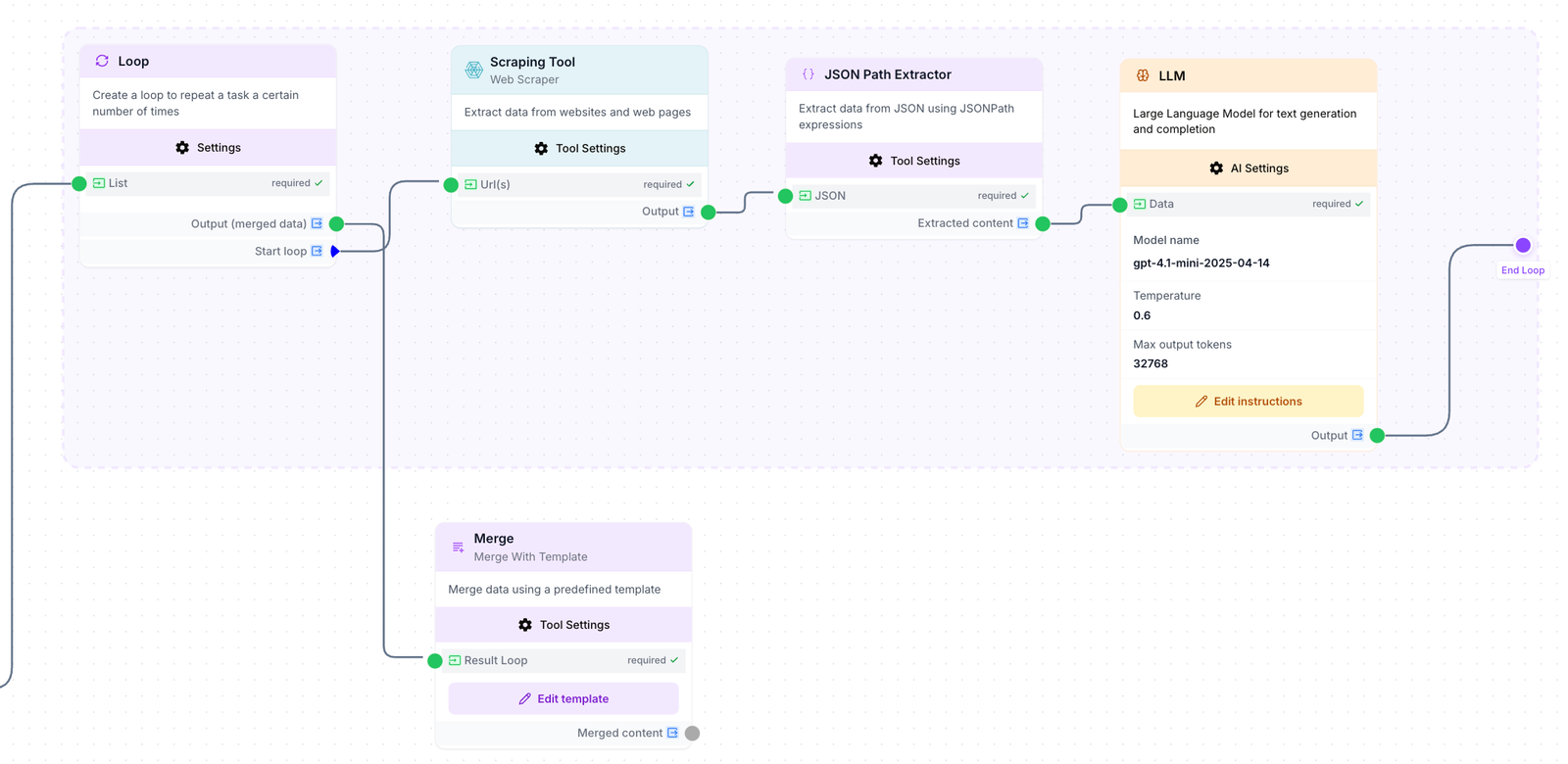
Repeat actions for multiple items:
Input (list) → Loop [Process each item] → Collect resultsExample: List of URLs → Loop through each → Scrape all pages
Workflow organization
Folders and smart views
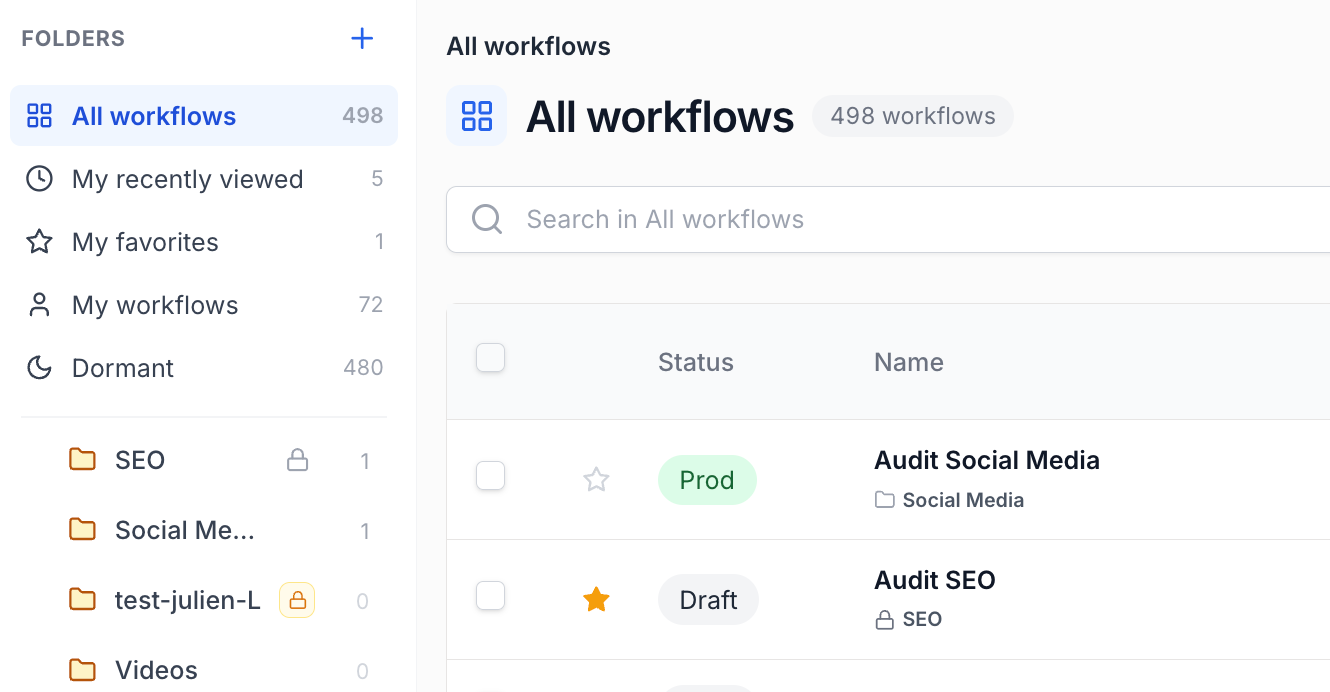
On Builder → Workflows, use the workflow explorer on the left to file and filter workflows — similar to a file explorer tree on the left and the contents on the right.
Smart views (All workflows, Recently viewed, Favorites, My workflows, Dormant) are saved filters across your workspace. Folders let you group related workflows in a tree, with optional subfolders.
| Action | How |
|---|---|
| Create a folder | New folder at the top of the explorer, or New subfolder from a folder menu |
| File a workflow | Row menu Move to folder, or select multiple rows and use the action bar |
| Remove from a folder | Move to Uncategorized — the workflow is not deleted |
| Set folder visibility | Folder menu → Visibility & members — Private, Group, or Organization |
Folder visibility ≠ workflow access. Sharing a folder only controls who sees the folder structure and who can file workflows there. Each workflow still has its own share settings. A group folder can list four members while a workflow inside it remains private to its owner until shared separately.
See Teams & Collaboration for folder visibility levels and member management.
Naming conventions
Use clear, descriptive names:
| Type | Example |
|---|---|
| Workflow | “Weekly SEO Report Generator” |
| Nodes | “Fetch Keywords”, “Calculate Scores” |
Visual organization
Keep your canvas clean:
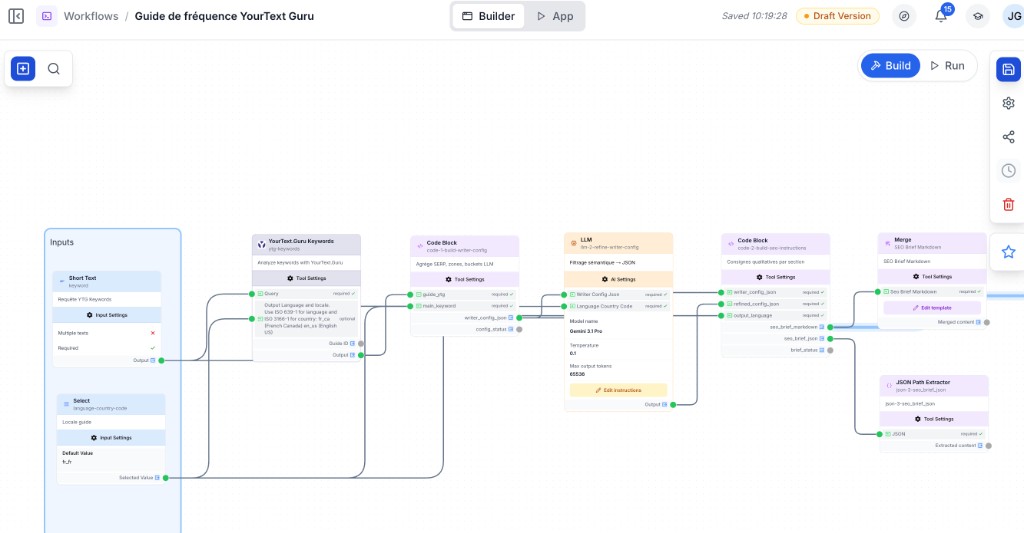
- Left to right: Start inputs on the left, outputs on the right
- Group related nodes: Keep similar functions together
- Use spacing: Don’t crowd nodes together
- Align nodes: Use the grid to keep things tidy
Adding descriptions
Document your workflow for future reference:
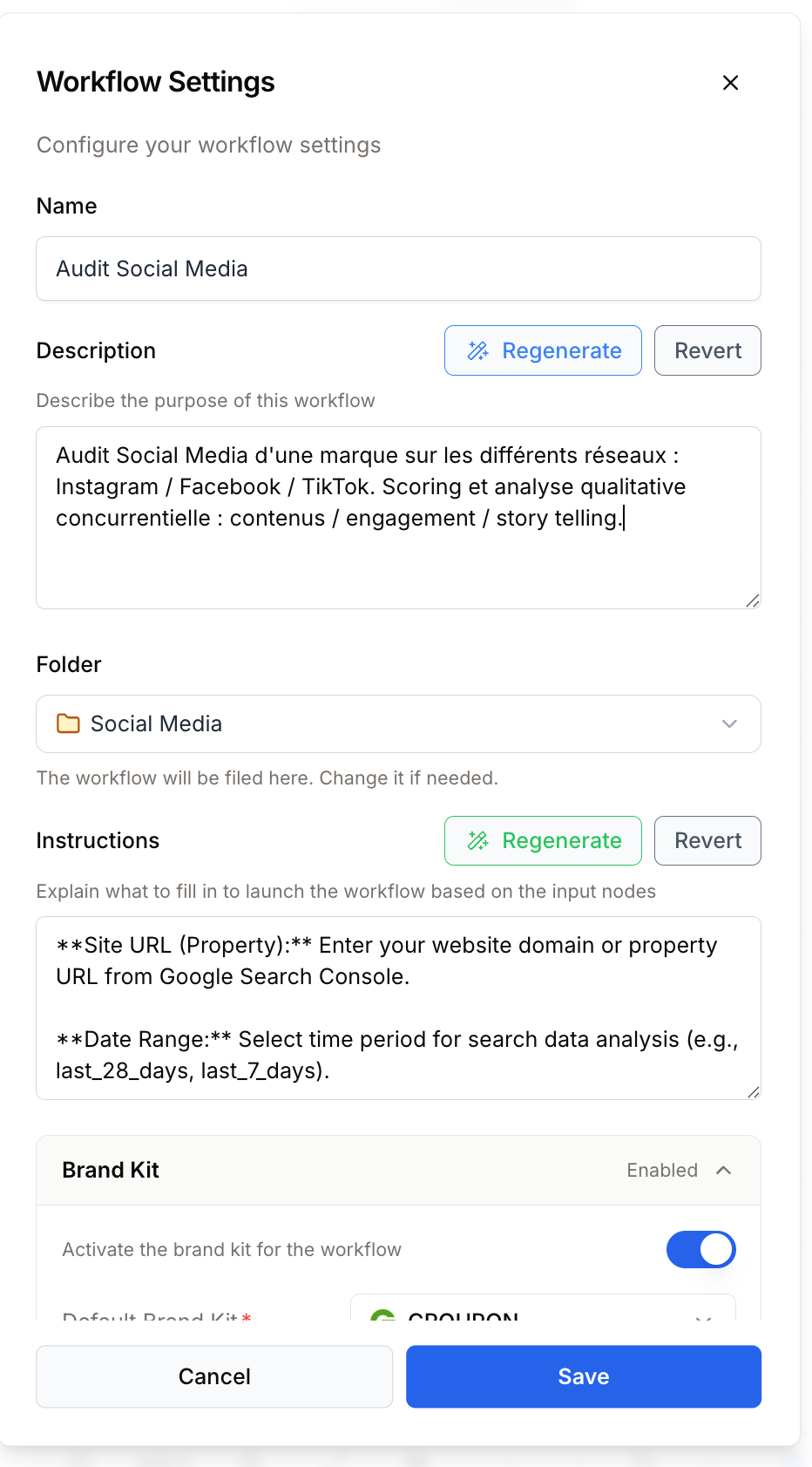
- Click Settings in the top bar
- Add a Description explaining what the workflow does
- Add Tags to organize your workflows
Workflow settings
Timeout settings
Set maximum execution time to prevent runaway workflows:
| Setting | Description | Default |
|---|---|---|
| Workflow timeout | Max total time | 30 minutes |
| Node timeout | Max per node | 5 minutes |
Error handling
Choose what happens when a node fails:
- Stop workflow: Halt execution immediately
- Continue: Skip the failed node and continue
- Retry: Attempt the node again (1-3 times)
Input configuration
Define what inputs your workflow accepts:
inputs:
  - name: url
    type: text
    required: true
    description: "URL to analyze"
  - name: depth
    type: number
    required: false
    default: 1
Running workflows
Manual execution
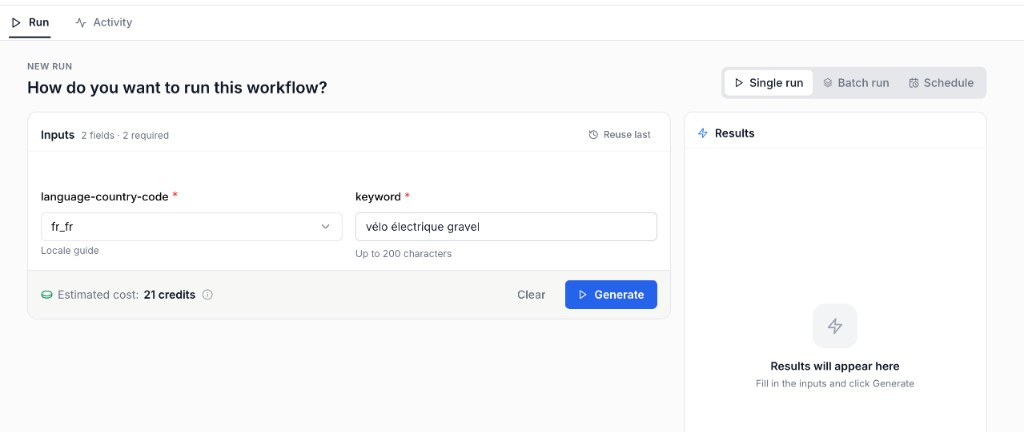
- Click the App button in the top bar
- Fill in any required inputs
- Click Generate
- Watch the real-time progress
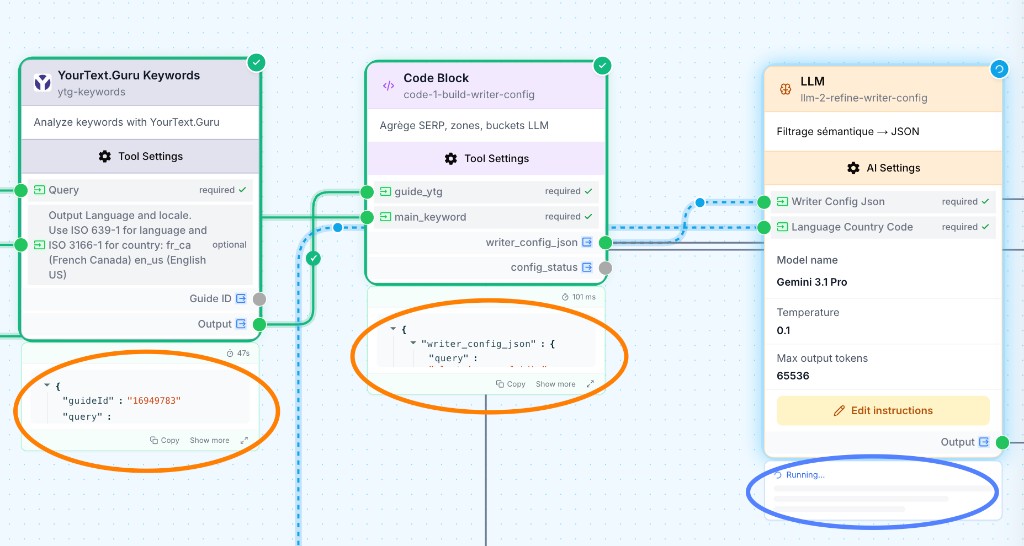
Viewing results
After execution:
- Green nodes: Completed successfully
- Red nodes: Failed (click to see error)
- Grey nodes: Not executed
Click any node to see its output in the right panel.
Execution logs
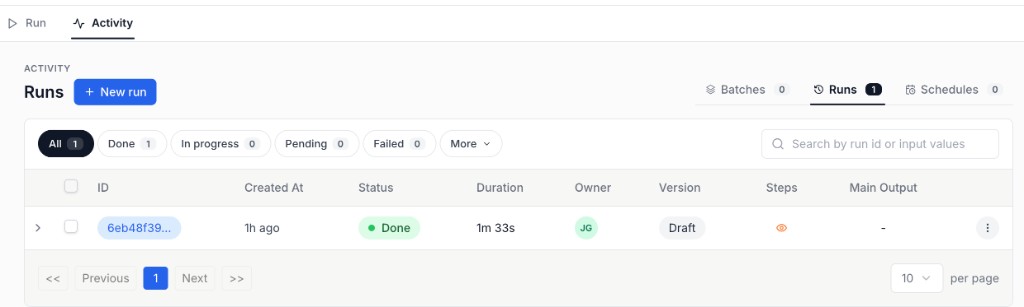
Access detailed logs:
- Click Run History in the execution panel
- See timestamp, duration, and data for each node
- Debug issues with full request/response data
Workflow templates
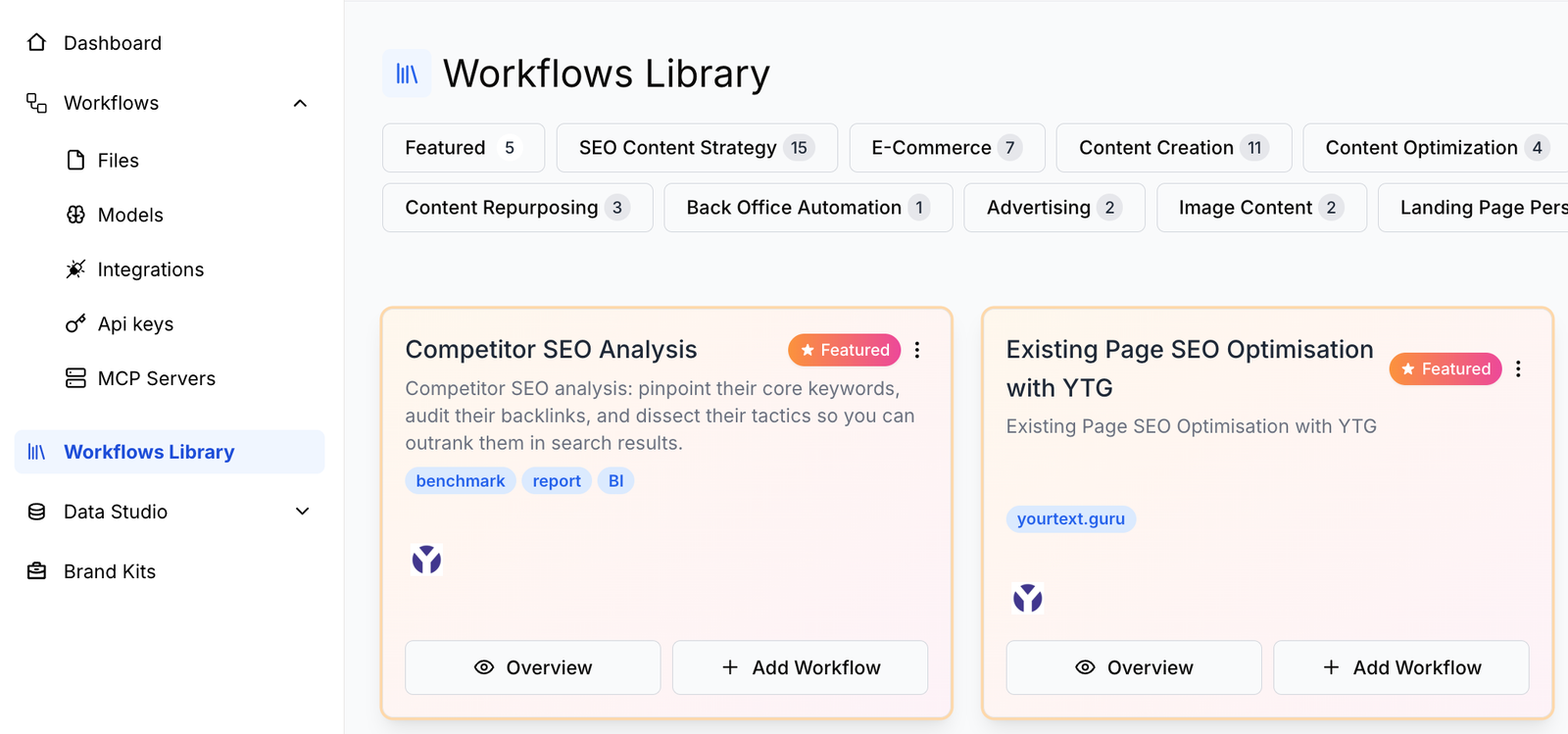
Don’t start from scratch — use templates:
- Go to Workflows Library in the Studio
- Browse by category (SEO, Marketing, etc.)
- Click Use Template to create a copy
- Customize for your needs
Explore 50+ ready-made workflows
Version history
Track how a workflow changed over time:
- From the workflow list, open row actions → History, or use History from the workflow menu on the canvas
- Review changes with timestamps and who made them
- Restore a previous version when you need to roll back
Version history is an editing aid — it does not replace folder visibility or Share permissions. See Workflow access & sharing.
Organize your workflow library
Keep the workspace easy to navigate for the whole team:
- Use folders: Group related workflows under root folders with clear visibility (Organization / Group / Private)
- Naming conventions: e.g.
[Team]-[Project]-[Description] - Add descriptions: Document purpose and who owns the App
- Archive instead of delete: Prefer archival patterns over hard deletes when you may need history later
- Document complex logic: Use node names and comments so reviewers and teammates understand the flow
For folder visibility and sharing, see Workflow access & sharing. For the explorer UI, see Studio Interface.
Best practices
Start simple
Begin with a basic workflow and add complexity gradually:
- ✅ Build the happy path first
- ✅ Test with real data
- ✅ Add error handling
- ✅ Optimize for performance
Test incrementally
After adding each node:
- Run the workflow
- Verify the output is correct
- Then add the next node
Handle errors gracefully
- Use Conditional nodes to check for empty data
- Add Stop Nodes for clear error messages
- Configure retry logic for flaky APIs
Optimize for performance
- Minimize API calls: Cache when possible
- Use parallel branches: Run independent tasks simultaneously
- Limit loop iterations: Add safeguards for large datasets