

What does this node do?
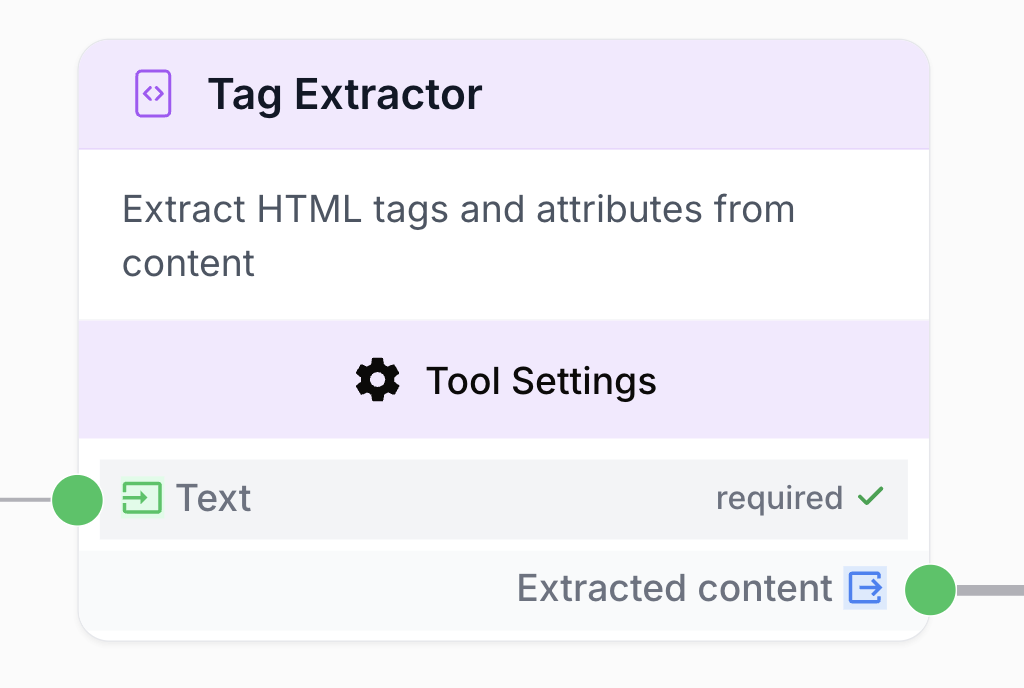
The Tag Extractor node analyzes an input text and extracts the content inside specific HTML or XML tags (wrapped in angle brackets< and >).
Common use cases:
- Pull out specific sections generated by an LLM (e.g.
<score_seo>85/100</score_seo>). - Extract standard elements from a previously scraped web page (e.g.
h1,h2,p). - Structure complex outputs by isolating precise variables to pass on to other tools in your workflow.
Quick setup
You’ll find the Tag Extractor node in the left panel under Utilities > Text Processing.Connect the input
Connect the output of an upstream node (e.g. an LLM, AI Agent, or Web Scraper) to the Tag Extractor input.
Set the target tag
In the Tag field, enter the exact tag name to extract without angle brackets (e.g. type
h2, not <h2>).Configuration
Configure the node by specifying the target tag and how extraction should behave.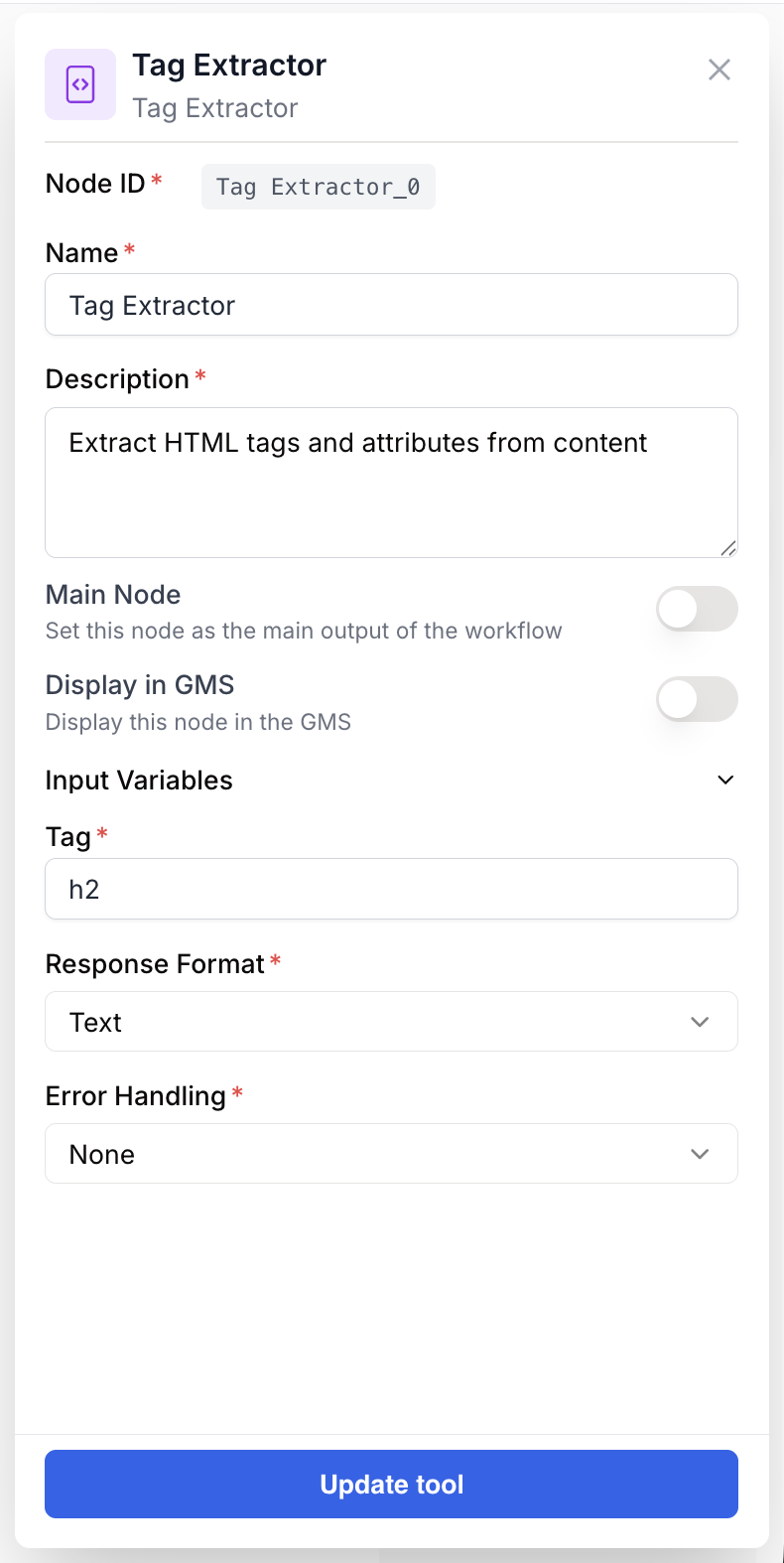
Required parameters
Tag — The exact HTML or XML tag name to target, without angle brackets. For example, to extract
<content_html>, enter content_html.Response Format — How the extracted data is returned:
- Text: Plain text. If multiple identical tags are found, their contents are separated by line breaks.
- Array: Returns a JSON list (0, 1, 2…). Use this when you need to iterate over results with a Loop node.
Error Handling —
What happens when the tag is not found:
- None: The workflow stops and throws an error (default).
- Skip and continue: The node ignores the error, returns an empty value, and the workflow continues.
What does the node output?
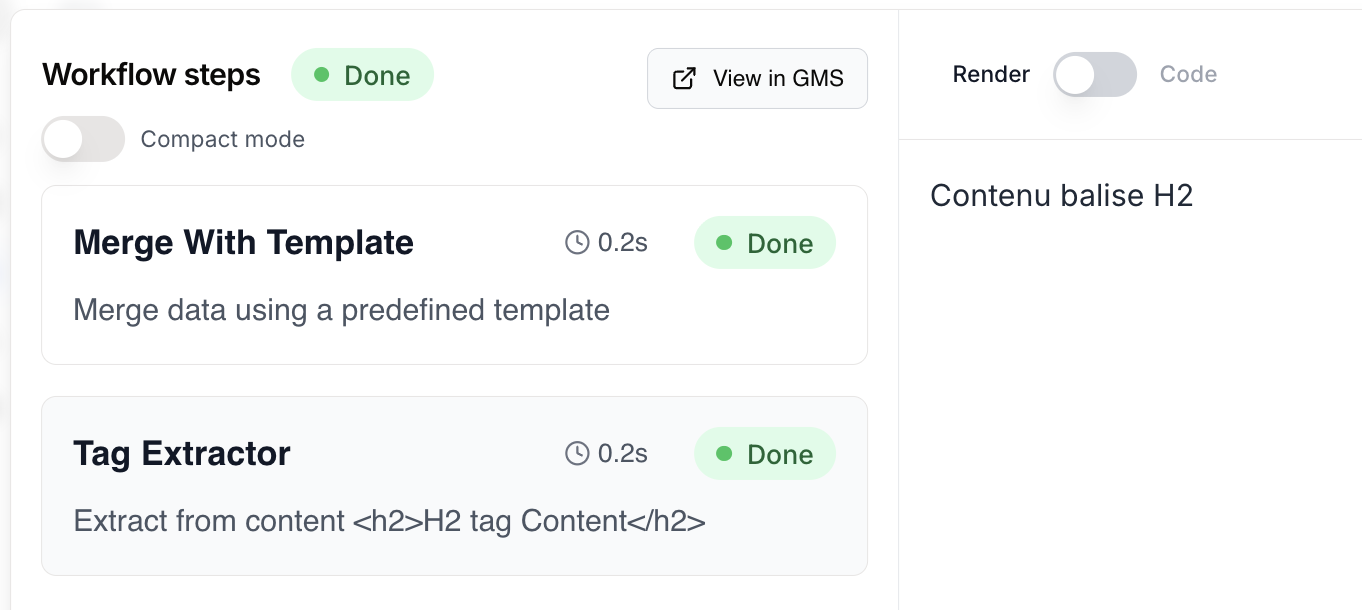
The Tag Extractor returns the content inside the specified tag. The exact format depends on theResponse Format setting.
Using the output in other nodes
To use this node’s result in another node (e.g. a merge or LLM), use the variable syntax with double curly braces, for example:{{tag_extractor_h2}}.
Example: automated SEO article writing
The Tag Extractor is especially useful when combined with an LLM to structure its output in a deterministic way.- The prompt (LLM node) — Ask the AI to write an article and wrap its response in exact XML tags.
Example prompt
- Extraction (Tag Extractor nodes) — Add 3 Tag Extractor nodes after the LLM:
- The 1st extracts the
keywordtag and sends it to SEMrush. - The 2nd extracts the
html-contenttag and sends it to the WordPress node. - The 3rd extracts the
score-copywritingtag to store in a Google Sheet.
- The 1st extracts the
How it fits into a workflow
Here are two common workflow patterns using the Tag Extractor.Pattern 1: AI output parsing (recommended)
Pattern 2: Web page extraction
Best practices and pitfalls
- Do
- Avoid
- Strict prompts: In your AI prompts, insist that the model use the exact tag name and never change it.
- Use Array for lists: When extracting repeated tags like
h2orli, prefer the Array format so you can process each item cleanly.
Common issues and fixes
The node finds no tag and the workflow stops
The node finds no tag and the workflow stops
Cause: The AI (LLM) didn’t output the tag exactly as requested, or added extra spaces or different casing.Fix: In your LLM node, tighten the instructions (e.g. “You must use the exact format
<score> with no extra characters or changes in capitalization.”).I can't extract an HTML tag from a scraped web page
I can't extract an HTML tag from a scraped web page
Cause: The page uses HTML tags with attributes (e.g.
<h1 id="main-title" class="header">). The Tag Extractor only reads simple tags.Fix: Use an HTML Cleaner or HTML to Markdown node first to strip attributes before sending the content to the Tag Extractor.All results appear on one line
All results appear on one line
Cause: There are multiple identical tags in the text and Response Format is set to
Text with no clear separator.Fix: Set Response Format to Array. You’ll get a clean list that’s easy to work with.